

Apple has introduced eSIM support on all smartphones, starting with the iPhone XS and newer models. Initially, the manufacturer offered users two options: eSIM and one physical SIM at the same time. However, now, iPhone14 models released for the United States do not have a physical card tray at all and rely entirely on eSIM technology.
What do you need to know about the iPhone 14 eSIM, what are the benefits of this technology, and how to activate eSIM on your smartphone? We’ve prepared an article on this topic, so let’s get to the bottom of it!
eSIM for iPhone – what are the benefits
Let’s start with the base. An eSIM is a digital SIM card already built into most iPhone 14 models (an exception is some regional and carrier-locked devices). It activates your carrier’s cellular plan without a physical SIM card. This technology has many advantages.
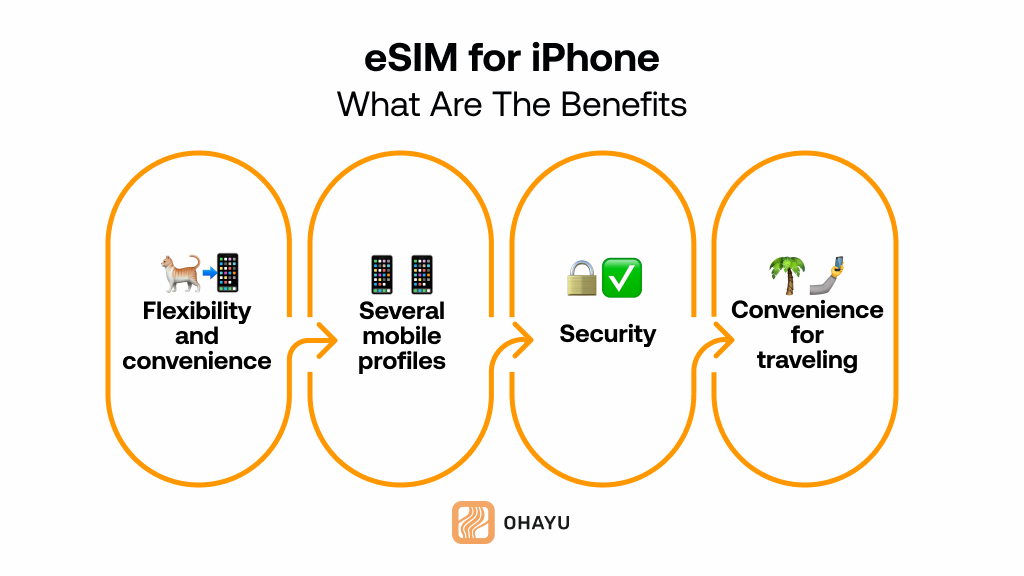
Let’s take a look at the key points:
- First, you get flexibility and convenience when you activate a new cellular plan or change your phone number. Activation takes place via a QR code or an app and takes a few minutes.
- Secondly, it allows you to store several mobile profiles with and without phone numbers (data-only) and switch between them without taking out the card. For instance, the iPhone 14 eSIM may store multiple profiles and have two active cards at the same time.
- Another point is the security of your smartphone. Since the eSIM cannot be physically removed from the device, even if the device is stolen, you may track your device and locate it.
- Last but not least, eSIM is an undeniable convenience for traveling. So, when you arrive abroad, you don’t need to look for stores to buy a physical card or use roaming from your home operator. Instead, you can connect to local operators by activating a pre-purchased package and enjoy mobile internet.
Does the iPhone 14 have eSIM?
The iPhone 14 line has become a revolution in Apple’s history, as it is the first time the company has significantly expanded eSIM support. Of course, eSIM technology is built into most devices in the line (iPhone 14, iPhone 14 Plus, iPhone 14 Pro, and iPhone 14 Pro Max) and has even gained an advantage over a physical card.
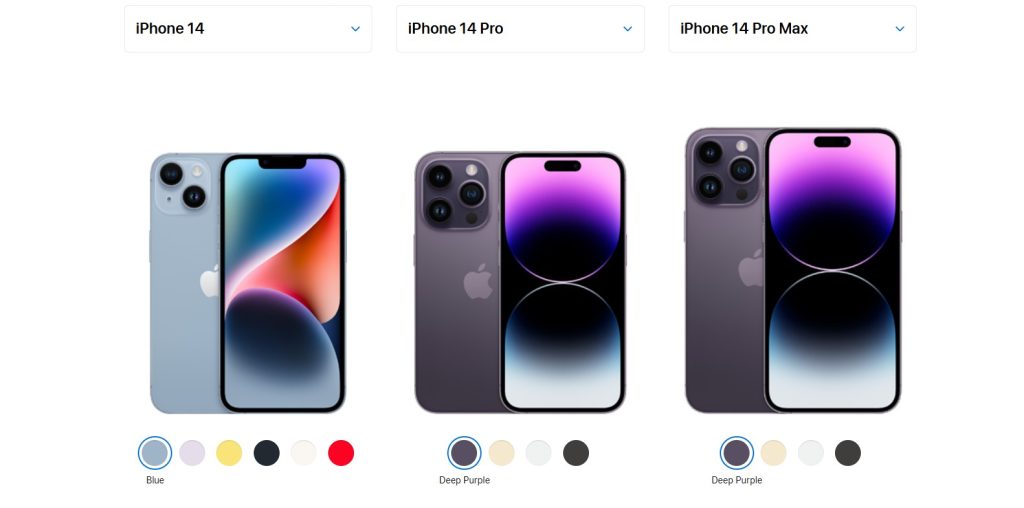
For example, smartphones produced for the US market do not have a physical subscriber identity module slot, which means that users have to abandon physical cards altogether. The devices support only eSIM and can store up to 8 profiles, with the possibility of simultaneous operation of two numbers (Dual eSIM).
As for smartphones in other countries, such as Europe and Asia, they still have hybrid support. These smartphones contain the usual one slot for a physical SIM card and support for eSIM with the ability to use two numbers simultaneously – one physical subscriber identity module + one or two eSIMs.
This approach allows users to gradually switch to the iPhone 14 eSIM or use both types of cards.
How to activate eSIM for iPhone 14?
Since Apple is focused on the implementation of eSIM in its gadgets, the company has made the activation process as simple and fast as possible. Setting up the iPhone 14 eSIM is the same for all models in the lineup, including the iPhone 14 Plus, iPhone 14 Pro, and iPhone 14 Pro Max. There are two ways to do this, and the first one is to transfer from the nearby iPhone. With the first option, you need to place another unlocked device (updated to iOS 16 or later) and turn on Bluetooth. Then, the phones will transfer data. This method is simple but not very common.
As for the second one, using QR Code, it’s more widespread and requires some stages to take. Let’s look at each method process step by step.
How to transfer an eSIM from another iPhone?
If you already have an active subscriber identity module on another smartphone, you can transfer it to the new iPhone 14 without a QR code or contacting your carrier. To do this, follow these steps:
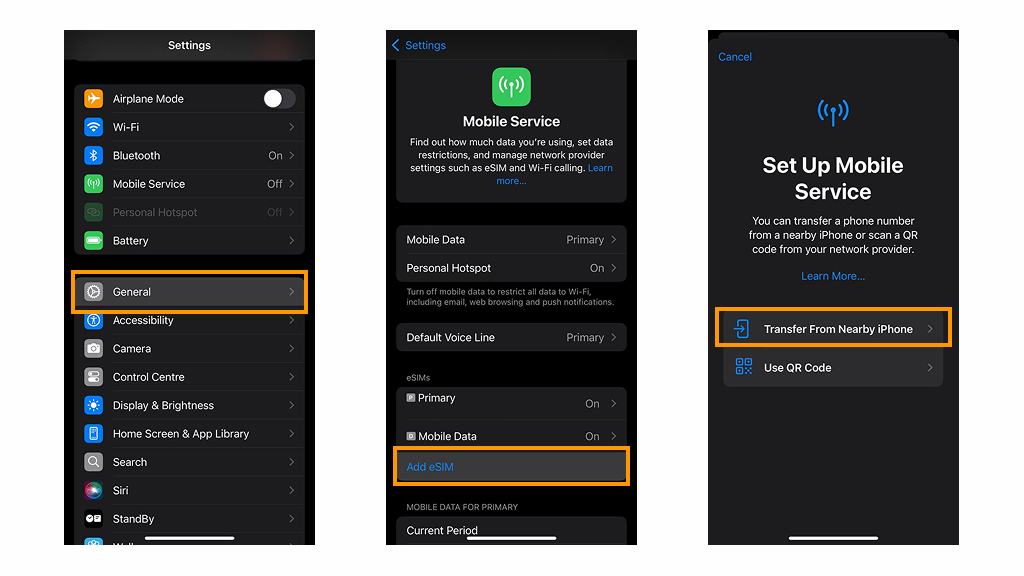
- Ensure both smartphones are near each other, unlocked, and connected to Wi-Fi.
- On your new iPhone 14, open Settings > Mobile Service > Add eSIM.
- Select “Transfer from nearby iPhone”.
- If your other iPhone is updated to at least iOS 16, it supports eSIM transfer. Then, you will see the message “Transfer tariff”.
- You will be asked to confirm the porting. Confirm by clicking “Transfer.”
- Wait for the process to complete. To check if the transfer was successful, go to Settings > Mobile Service and make sure the eSIM is active.
How to activate iPhone 14 eSIM using a QR code?
Learn how to activate an iPhone 14 eSIM with a QR code. When you connect to a new operator or activate a travel package, you need to use a QR code connection. Here’s how it works with an example of a package from Ohayu.
- Choose eSIM provider
First, choose your provider and purchase a plan. After that, you may access your eSIM in the app.
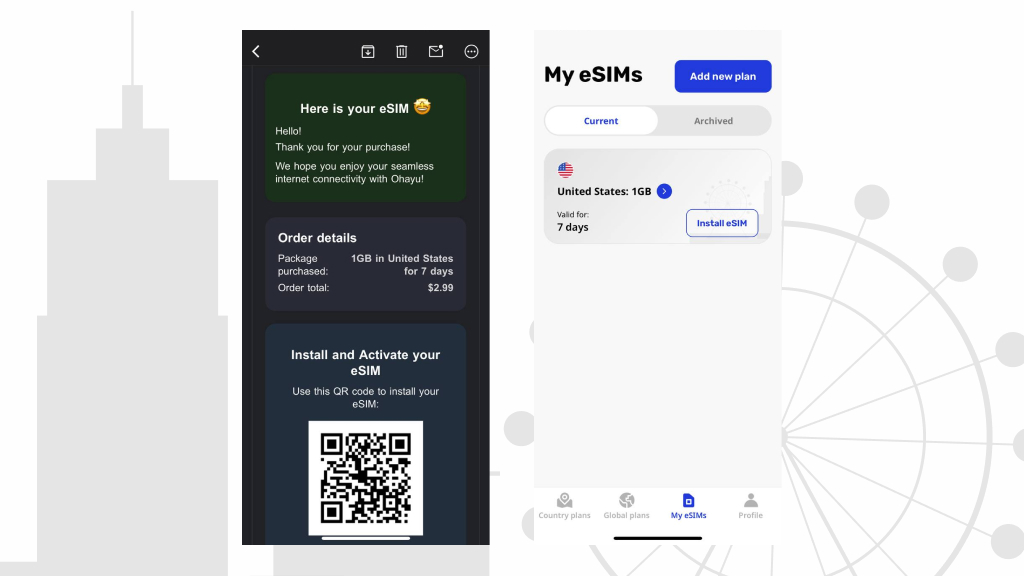
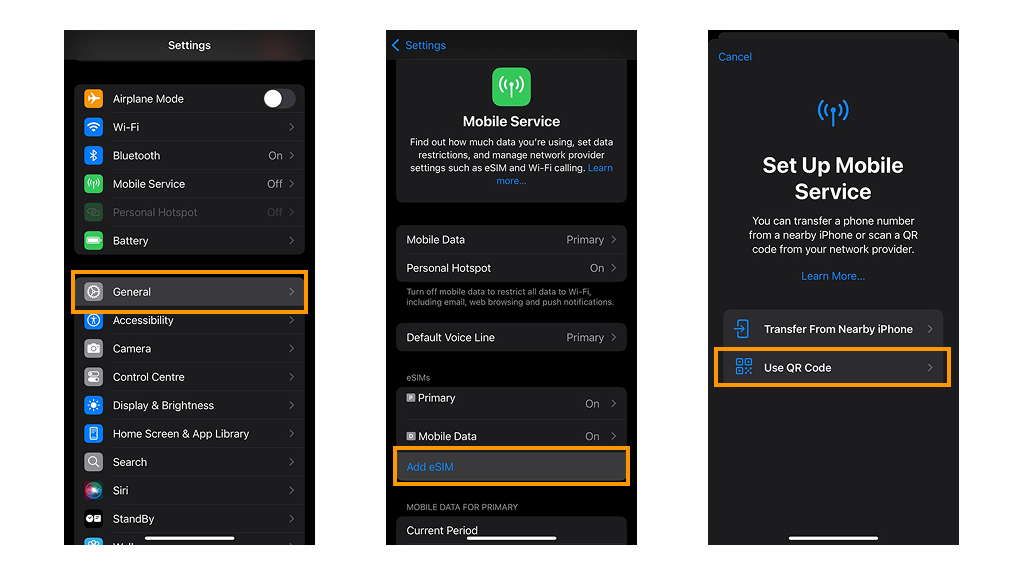
- Add eSIM
Go to Settings > Mobile Service > Add eSIM.
- Choose QR
Select the Use QR Code option.
- Scan QR code
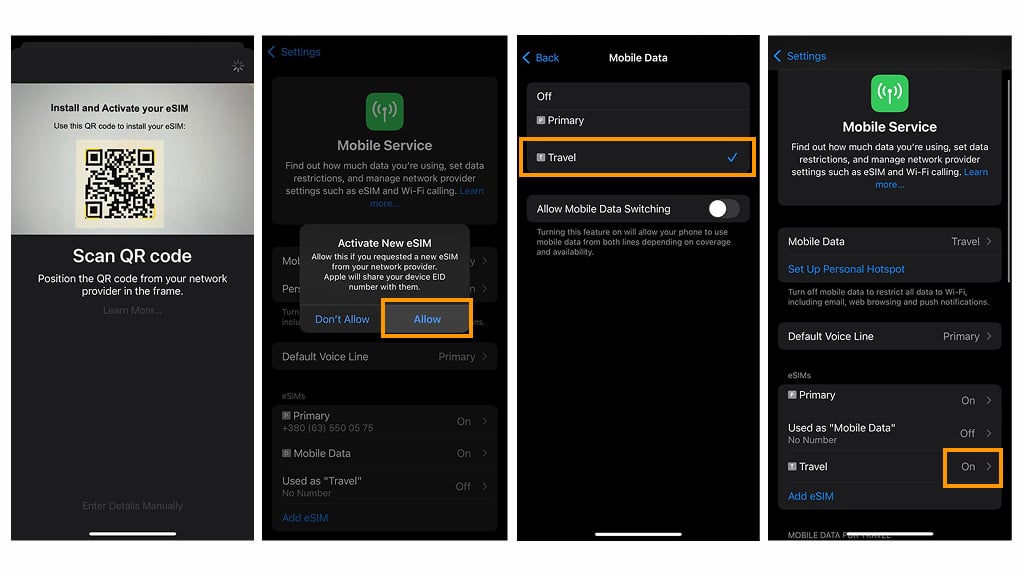
Make sure you are connected to the network and point the camera at the QR code. Wait until it is read and tap Continue.
- Connect to the network
Authorize your carrier to activate your new subscriber identity module. Your smartphone will connect to the carrier and download the eSIM.
- Set eSIM as a mobile data source
If you already have a physical SIM or another eSIM, the iPhone will ask you to choose a primary number for calls and SMS. If you’re traveling, choose your personal card as the Default Line for calls and texts, as well as for iMessage and FaceTime. The new eSIM must be a source of Mobile Data, i.e., the Internet.
- Check eSIM status
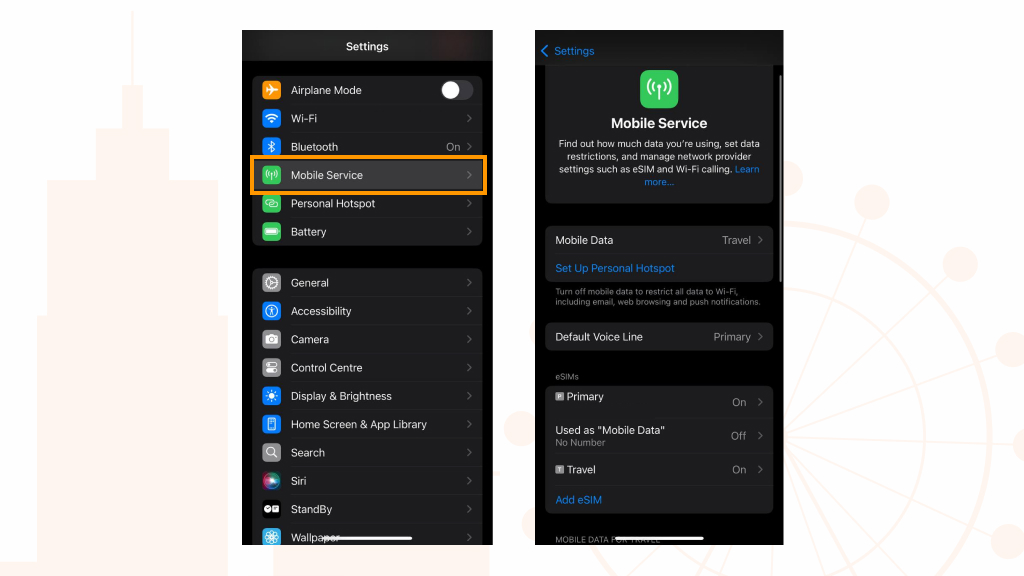
If the new eSIM is set up successfully, it will be displayed in the list of your cards with the “On” mark.
How to remove the iPhone 14 eSIM?
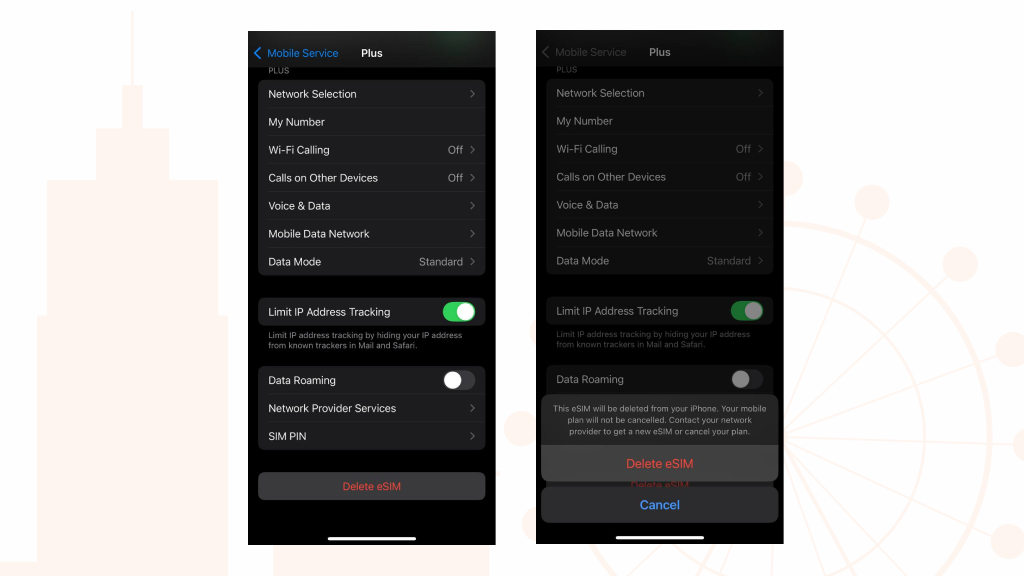
If you’re switching carriers or have already used your travel eSIM, you’ll need to remove your old card to add a new one. Follow these steps:
- Go to Settings > Mobile Service.
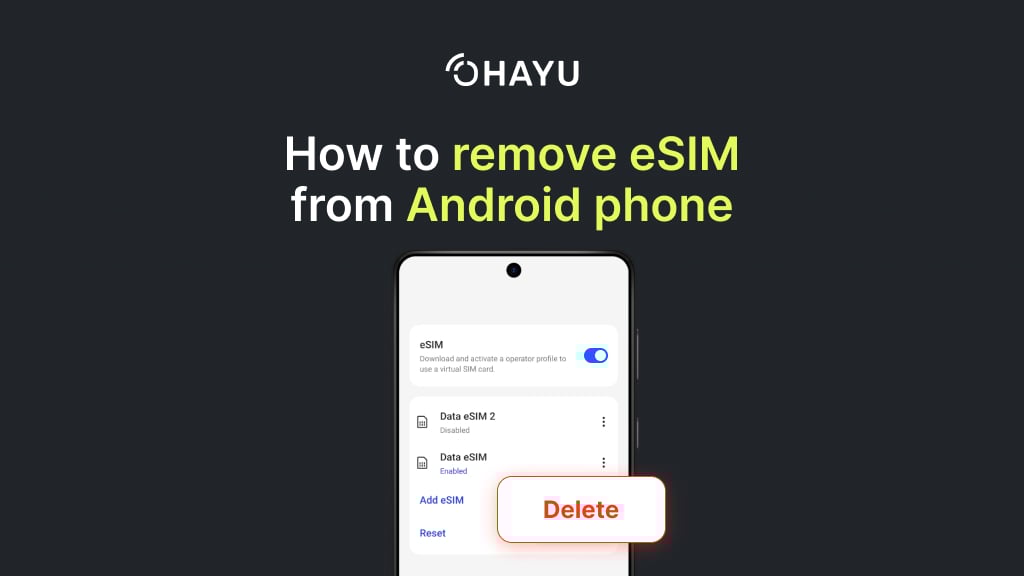
- Select the eSIM you want to remove. Click Delete eSIM and confirm.
- If you need to connect a new card, repeat the activation process.
Possible issues with iPhone 14 eSIM
Case 1: iPhone does not scan the eSIM QR code
If your iPhone doesn’t recognize the QR code or displays an error such as “This QR code is invalid” or “Cannot activate eSIM,” the problem may be with the quality of the code image or the camera.
- Make sure that the QR code is displayed clearly and not blurred. Try opening it with another device or printing it out.
- If the problem persists, try entering the EPC manually.
- Enter the SM-DP+ address and activation code provided by your operator.
- Ensure your iPhone is connected to Wi-Fi or mobile data and activate the plan.
- If the problem persists, contact your operator to get new access.
Case 2: no network after activating the eSIM
If you have completed all the activation steps and still receive the message “No Service,” you can try the following steps.
- Choose Settings > Mobile Service and check that your card is marked “On,” i.e., active and enabled.
- If so, restart your iPhone. It may help your smartphone find a new signal.
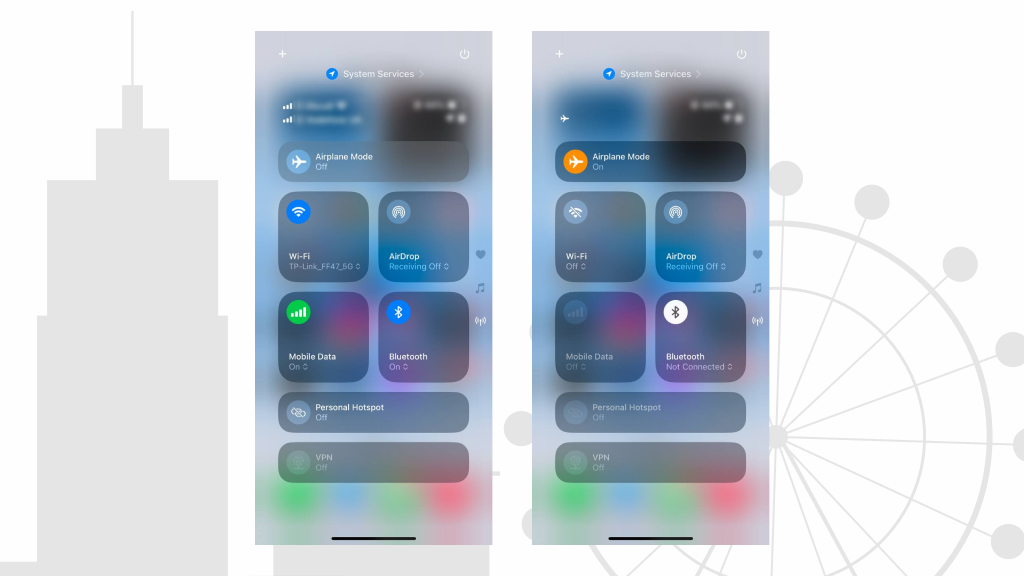
- Turn Airplane Mode on and off. Swipe down from the top right corner → press the airplane icon for 10 seconds → turn it off.
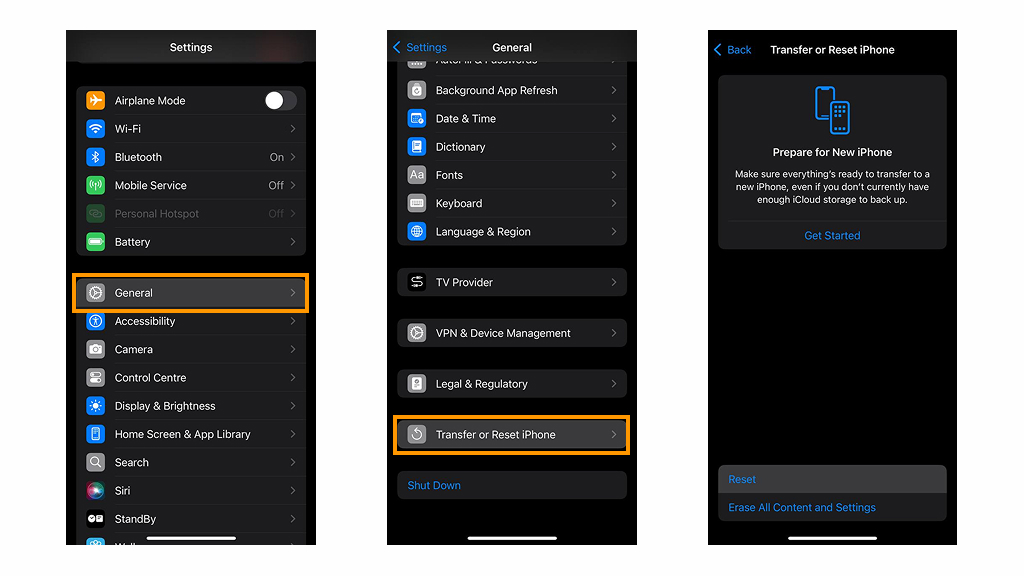
- Reset the network settings. Select Settings > General > Transfer or Reset iPhone > Reset > Reset Network Settings. This way, you delete any saved Wi-Fi networks and passwords, so you’ll need to reconnect to Wi-Fi.
- If all of the above steps don’t work for you, your eSIM may not be activated yet or your carrier may have technical issues. In this case, contact your provider for further instructions.
Case 3: mobile internet does not work on eSIM
If the mobile Internet does not work after activation, you should make sure that all settings are correct: Here are some ways:
- Make sure mobile data is turned on. Go to Settings > Mobile Service > Turn on Mobile Data. Also, it is important to check if the number for the Internet connection is correct.
- Turn Airplane Mode off and on again or restart your phone.
- If nothing helps, contact your operator (the eSIM may not be active for mobile data).
How to use iPhone 14 eSIM for travelling?
eSIM is a great solution for your travels.
- First of all, you don’t need to look for local operators’ stores to buy a physical SIM card.
- Secondly, you can choose more flexible packages that can cost you less than using home operator roaming.
- Last but not least, it’s full accessibility and flexibility. Thus, you can connect to the Internet as soon as you get off the plane and activate your eSIM using airport Wi-Fi.
How to use the Ohayu eSIM when you have already arrived at your destination? Here are a few steps:
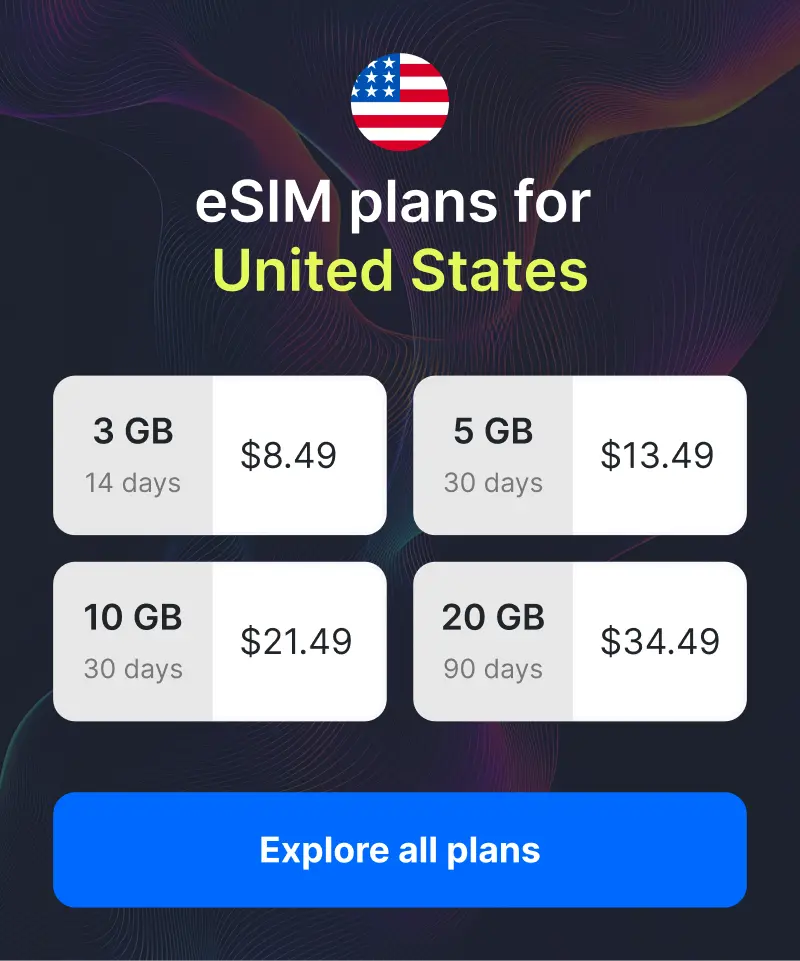
- Select the country you are going to travel to and the number of GB of Internet you need. Let’s say you are traveling to the United States.
- Activate eSIM by QR code or through the app.
We advise you to complete these two steps while planning your trip because you will need a stable Wi-Fi connection. Upon arrival at your location, follow these steps to access the Internet.
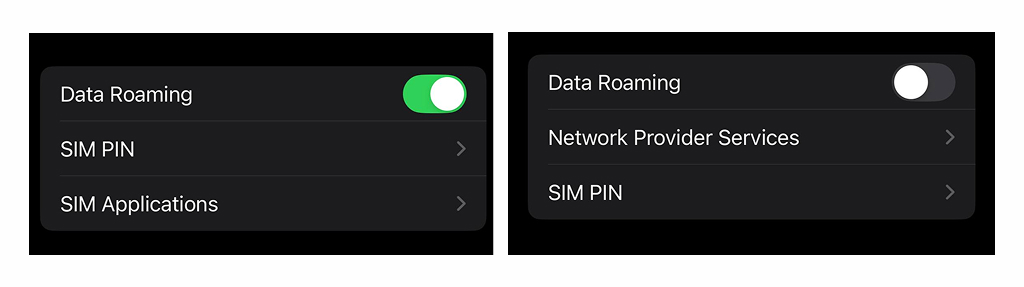
- Select Settings > Mobile Service and tap on your Ohayu eSIM. Scroll to the bottom and turn on Data Roaming.
- Return to Mobile Service and go to Mobile Data. Select your travel subscriber identity module as the Internet source.
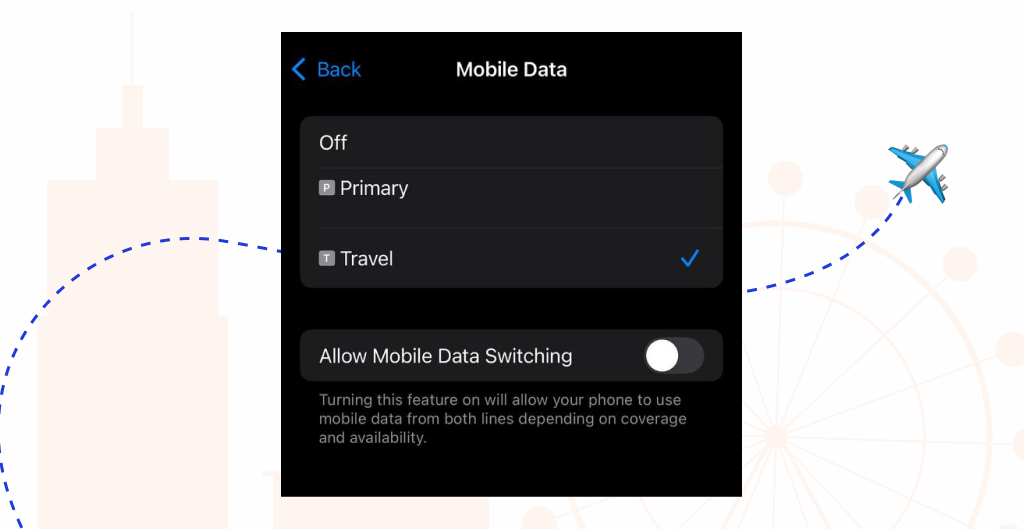
- Enjoy mobile internet on your trip.
Final thoughts
To sum up, the iPhone 14 eSIM is a successful technology from Apple that greatly simplifies the management of numbers and tariffs. It protects data from loss and allows you to travel without network restrictions. With a virtual SIM for work or travel, you significantly reduce costs and get a fast connection even abroad.
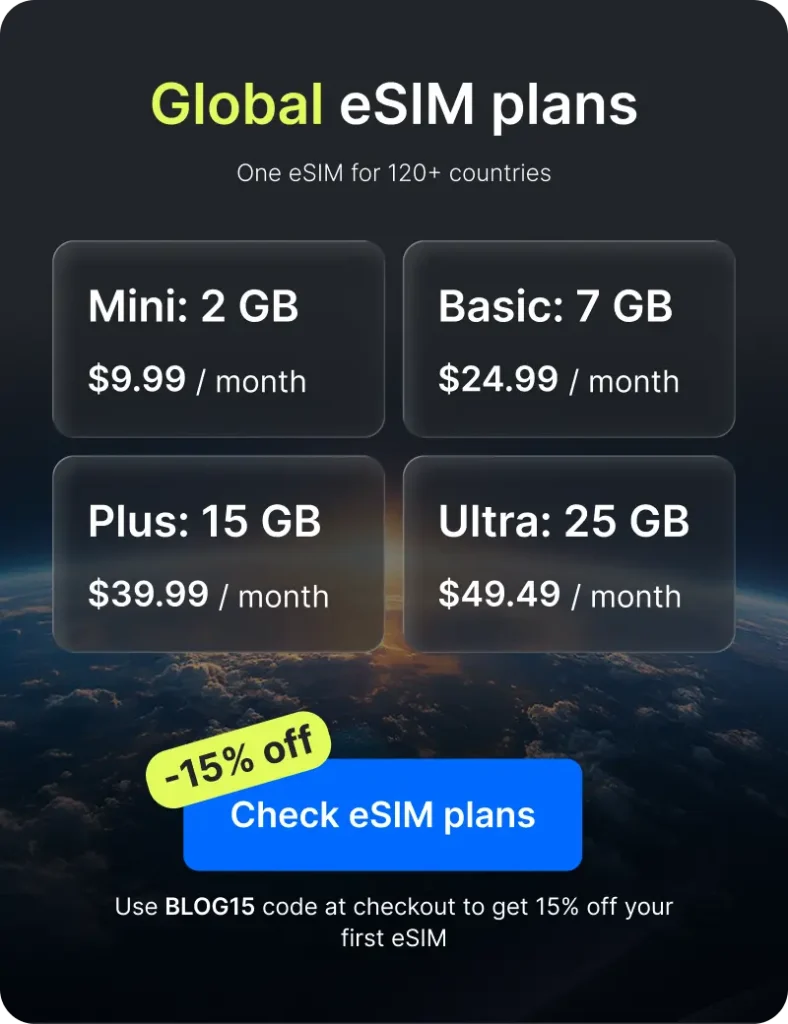
If you are choosing a provider to buy your travel eSIM, consider Ohayu. We offer favorable plans for 170+ countries and a Global eSIM for 120+ countries that is recommended for multi-country trips. You get a fast activation process, get connected to local networks in supported destinations, and, of course, a better travel experience.