

Data roaming is not just a convenience option. It is a loophole through which operators charge up to 10 times more for data than at home. And the most annoying thing: it is activated without warning as soon as you cross the country border. Even if you don’t call or text, background processes can eat up your money. But there’s good news: disabling roaming is easier than it seems. No calls to support or complicated settings. In 3 minutes, you’ll protect yourself from unexpected expenses – and save money for what really matters. To turn off roaming, go to your device settings > find Mobile Data / Networks / Connections > tap the switch Data roaming / Roaming.
Now let’s find out why you should control this feature, especially if you are a frequent traveler.
Hidden roaming costs and risks
It’s not just a feature that “occasionally comes on”. It’s a budget black hole masquerading as convenience. Even if you deliberately don’t use the internet abroad, your phone can still connect to someone else’s network. How? Automatically. For example, when searching for a signal in the subway, airport, or on a ferry, your operator leases capacity from local providers.
The main problem is background processes. Messengers synchronize chats, social networks upload stories, and mail pulls attachments. It seems to be a trifle, but in a day, such actions eat up a volume of data comparable to watching a movie in HD. Now imagine that for each frame of this movie you pay as for a movie ticket.
Another pitfall is calls and SMS. Even a short conversation with your family or confirmation of a hotel reservation via text can turn out to be an unpleasant surprise on your bill. Especially if you are in a country where your operator has no partnership agreements.
But that’s not all. Some applications are tricky: for example, maps continue to load routes even in the background, and cloud storage synchronizes gigabytes of photos. You may not open Google Photos for a week, but it’s still eating up traffic while you’re on vacation.
How does roaming work technically?
Your phone is always looking for networks with the best signal. If the “native” network is unavailable, it clings to any other network, even one that belongs to the local monopoly operator. And now you’re paying a tariff you didn’t choose. No notifications, only SMS after the fact: “Welcome to the … country, thank you for using our services”.
What to do with that
- Check your smartphone settings right now – often this option is enabled by default.
- Prevent apps from running in the background (yes, even messengers).
- Don’t rely on “I just won’t open anything”. The phone is not you: it “thinks” you need background processes.
How to turn off roaming on iOS?
Even though it’s 2025, one of the most popular and used models at the moment is the iPhone 12. We are going to consider how to disable roaming just in this case.
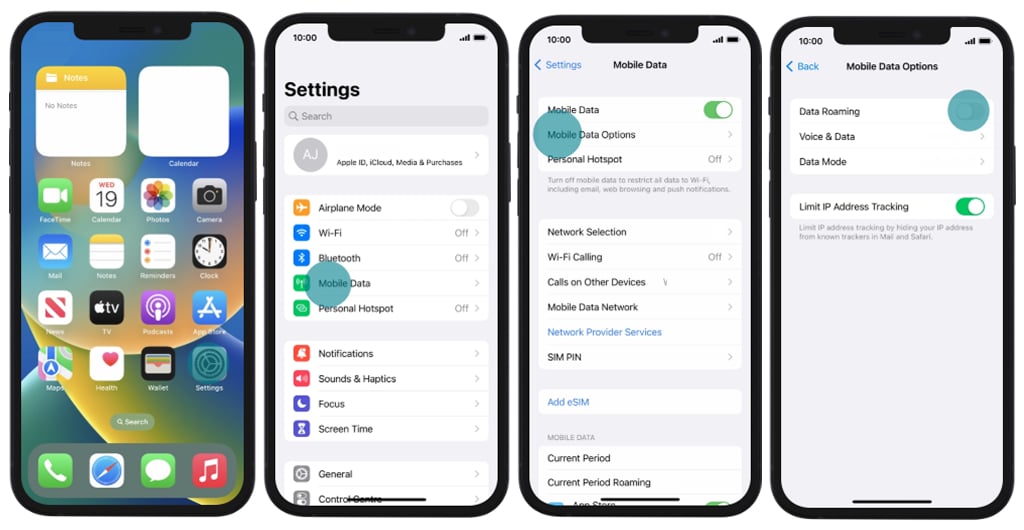
Also, we take the operating system iOS 16.0 as an example.
- First, go into the settings.
- Tap the “Mobile Data” section.
- Then you should click on the “Mobile Data Options” menu.
- Tap the bar next to “Data Roaming” to turn this feature on or off.
In general, in any other iPhone models, it will be the same. Whether it’s iOS 18 or iOS 10, practically nothing is different.
How to disable roaming on Android?
Let’s take a look at smartphones from a wide variety of manufacturers. Let’s see if their roaming disabling mechanism is much different or not.
Google Pixel
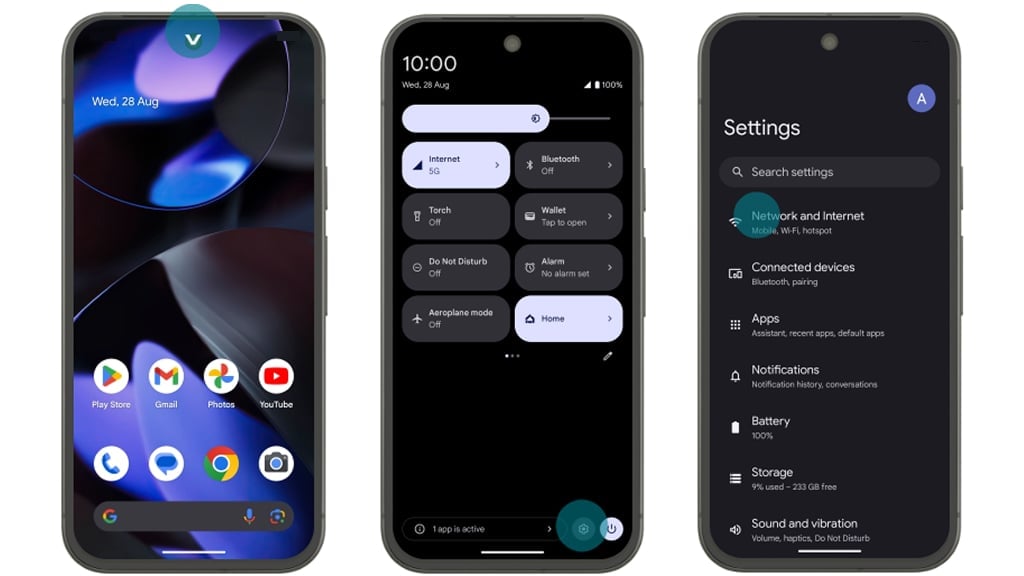
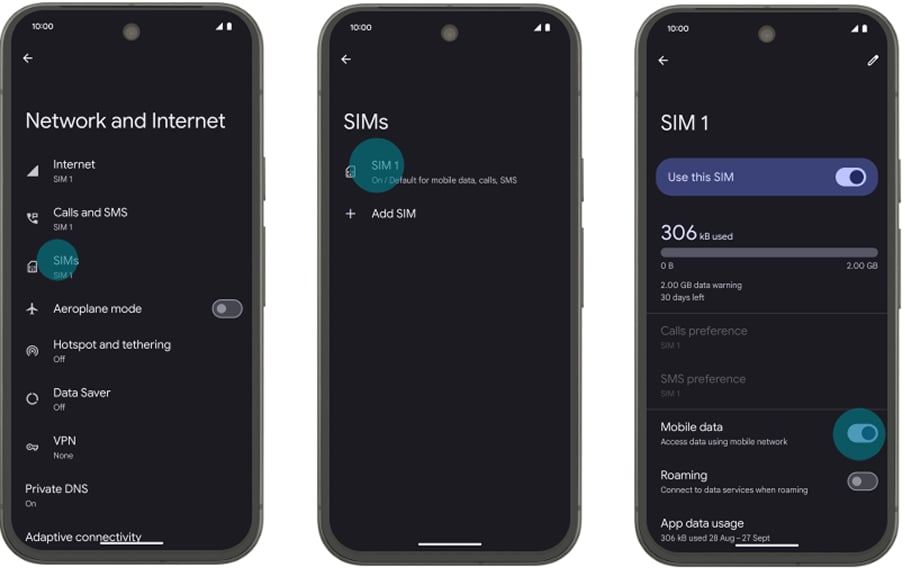
- Swipe down to open the menu at the top of the screen.
- Go to configuration.
- Enter the “Network and Internet” section.
- Now take a look at the SIM card preferences section.
- Select the necessary card if you have more than one.
- Touch the gauge next to “Roaming” to turn this feature on or off.
Samsung Galaxy
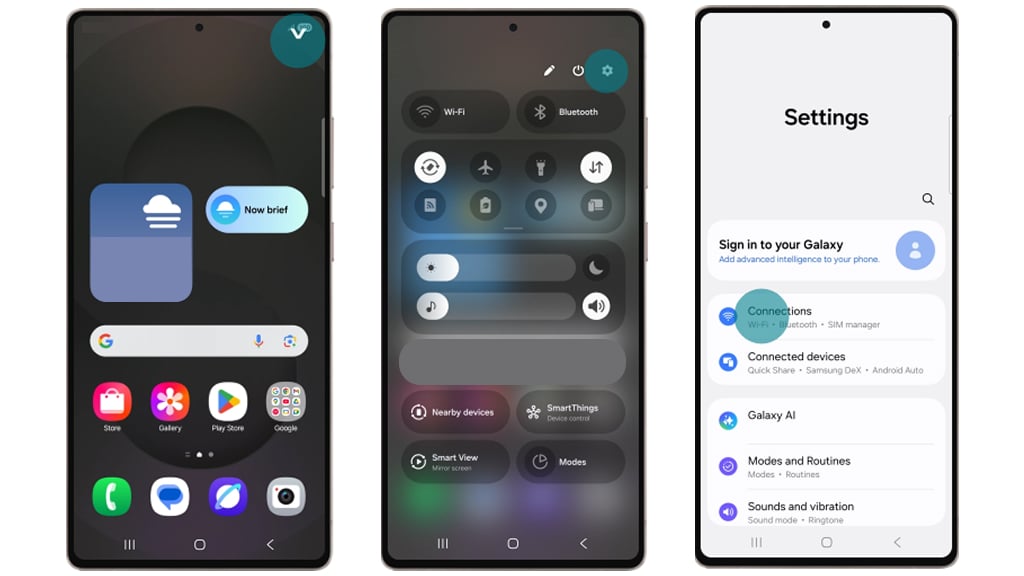
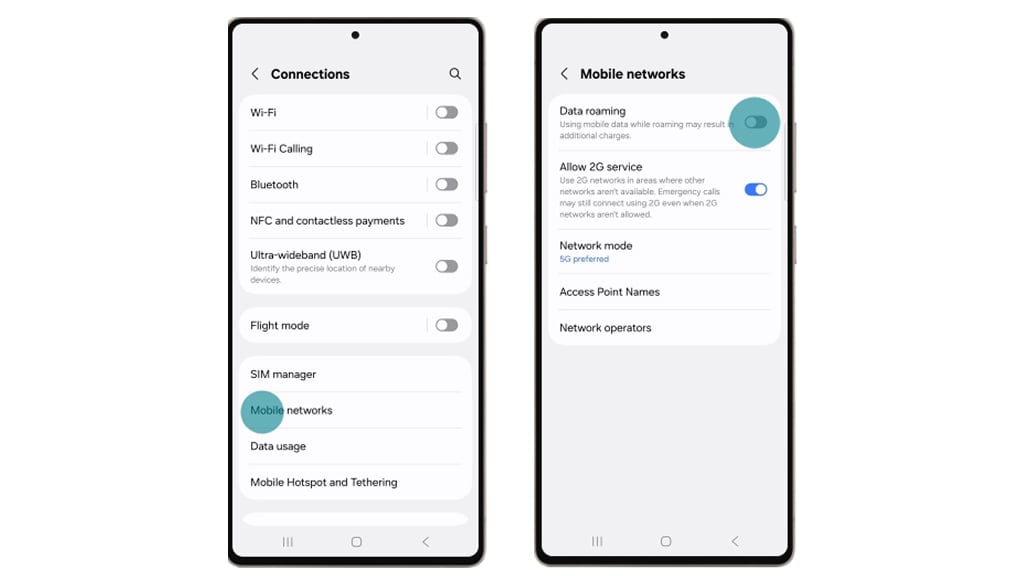
- Check out the settings via the top menu.
- Select “Connections” and move there.
- Go to the “Mobile Networks” area.
- Tap the switch to activate or deactivate “Data Roaming”.
Motorola
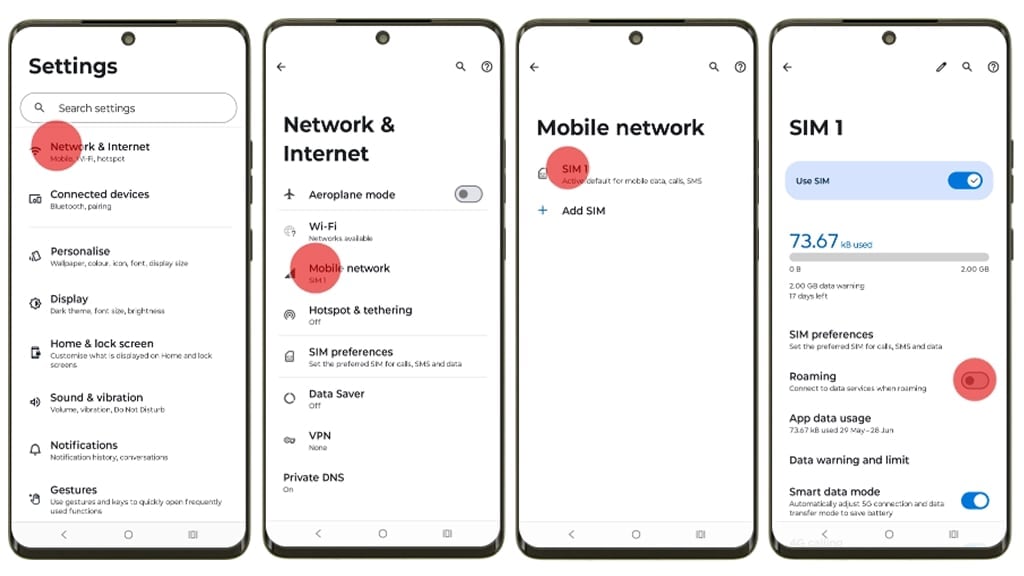
- To go into the options, swipe down to the bottom of the screen and tap on the gear icon.
- Find the “Mobile network” section and go there. It is located in the “Internet and Connection” sector.
- Select the SIM card where you want to change the required parameters.
- Now just click on the indicator slider and it’s done.
Xiaomi
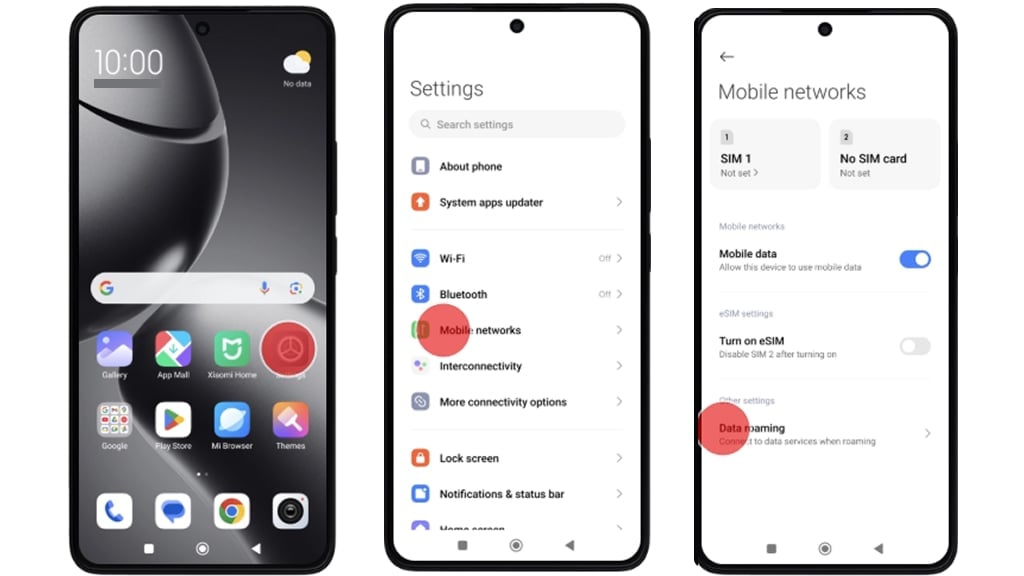
- On the start screen, you need to select the settings icon.
- As in most Android smartphones go into mobile networks.
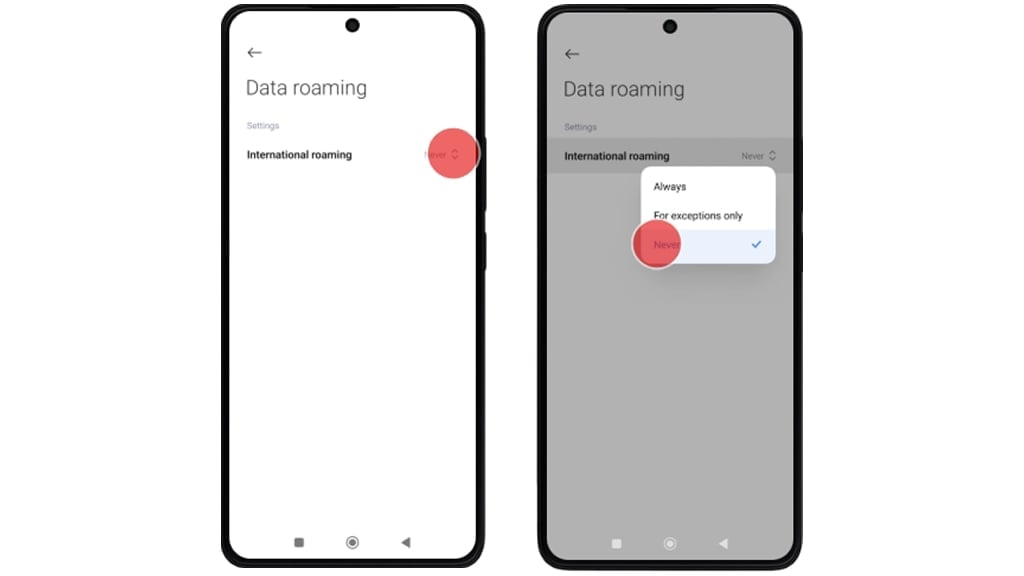
- Choose “Data” and then “International Roaming”.
- Here you have 3 options, we need to select “Never”.
OPPO Reno
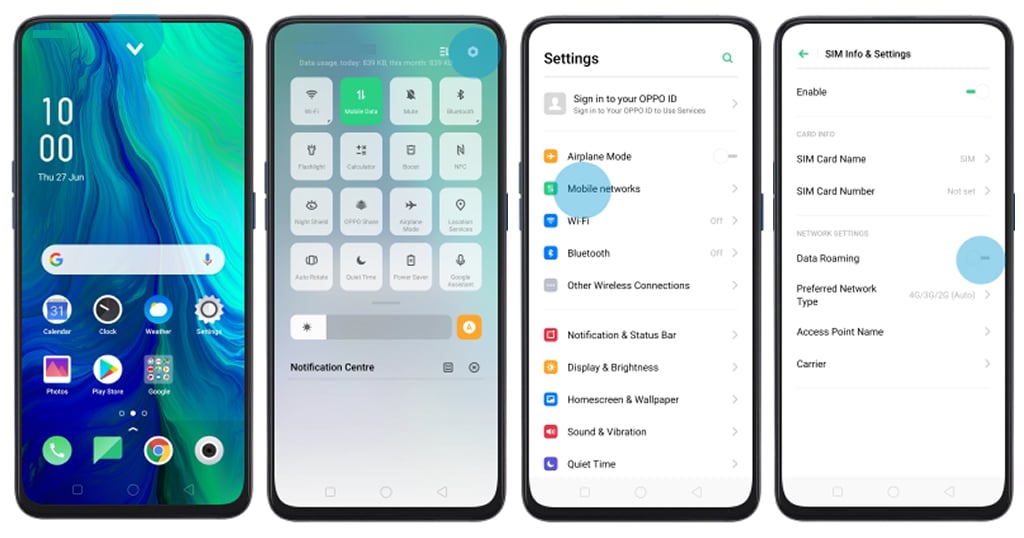
- To turn off this feature on an Oppo smartphone, you need to go to the settings via the top menu.
- Now we’re going into the “Mobile Networks” control area.
- In the SIM section, you’ll easily find a slider that allows you to disable the roaming feature.
Huawei Mate
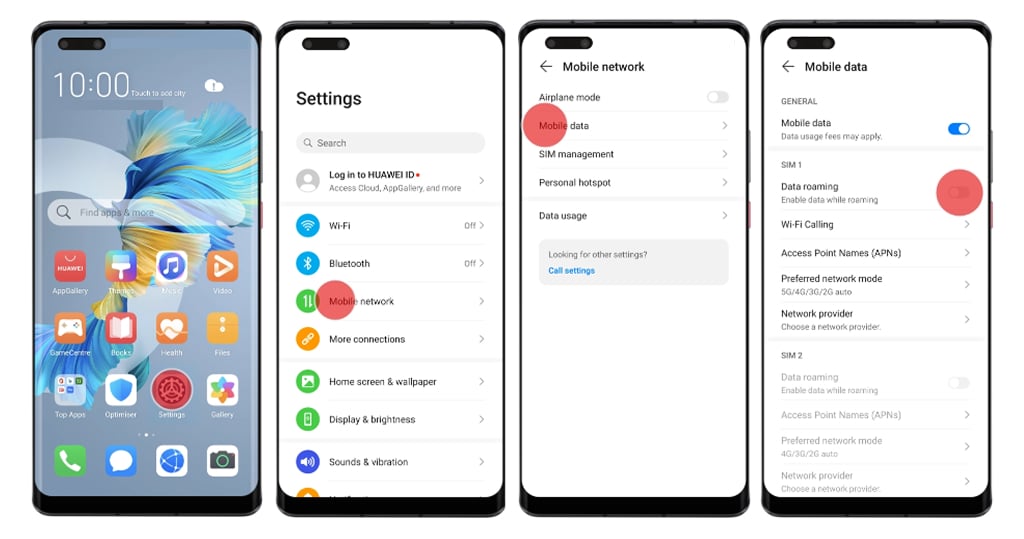
- Right on the home screen, click on the settings icon.
- Next, similar to the previous smartphones, select “Mobile Network and Data”.
- Here you will find the roaming function, which you can turn on or off with the slider.
As you can see, on any Android smartphone, the algorithm for disabling this function is very similar. Here, the names of the functions may change, but the basic idea remains the same.
Older phones
Some people prefer to be safe when traveling and take inexpensive or old items with them, phones are no exception. But here we have an exciting surprise. Even though it seems that without browsers and social networks, there will be no expenses, however, they can still connect to the internet. And in some cases, even incoming calls and SMS in international networks can cost you money in roaming.
How it happens
Even “ringer” phones have this feature – it’s usually hidden in the “Networks” menu or activated automatically. And these phones also like to cling to outdated networks like 2G, which are more expensive than 4G/5G.
What to do
- Dial the code *#06# to find out the IMEI. Check on the operator’s website – what if the phone is blocked for other SIMs?
- Manually select the network in the settings. Look for the name of your operator (for example, “Vodafone UK” instead of “Cellcom”).
- Buy a local SIM card. Yes, for a button phone! They cost pennies in Europe, and calls will be many times cheaper.
Forced shutdown
There are times when this function does not want to be disabled. This is often the case with older smartphone models. There are several ways to fix the situation in this way.
Flight mode + Wi-Fi
Turn on Airplane mode, then activate Wi-Fi separately. The phone won’t be able to connect to mobile networks, but the internet will be available via hotspots. Yes, it’s a crutch, but it works even on an ancient Android.
Use the reset codes
- Android: Dial *#*#4636#*#*#* → Phone Info → Turn off radio (this will disable all networks).
- iPhone: Settings → Basic → Reset → Reset network settings.
Contact the carrier
Call support and say: “Disable roaming at SIM level”. Sometimes the settings in the phone are blocked forcibly from their side.
To sum up
Roaming is a useful thing on one hand, but it can empty your wallet. But now you know how to outwit it: from a simple toggle switch in the settings to emergency measures like airplane mode.
SIM cards vs eSIM in 2025 are like button phones vs the iPhone 16. Why overpay network carriers when there are eSIMs where you pay exactly for the number of Gigabytes used?
For example, Ohayu offers travel eSIMs for 170+ countries and a Global plan that works in 120+ countries and automatically switches networks when you cross borders. Prices are often lower than your home provider’s roaming fee. Setup and activation take 2 minutes. You need to download the app, activate the package, and activate it when you arrive in your destination country.