

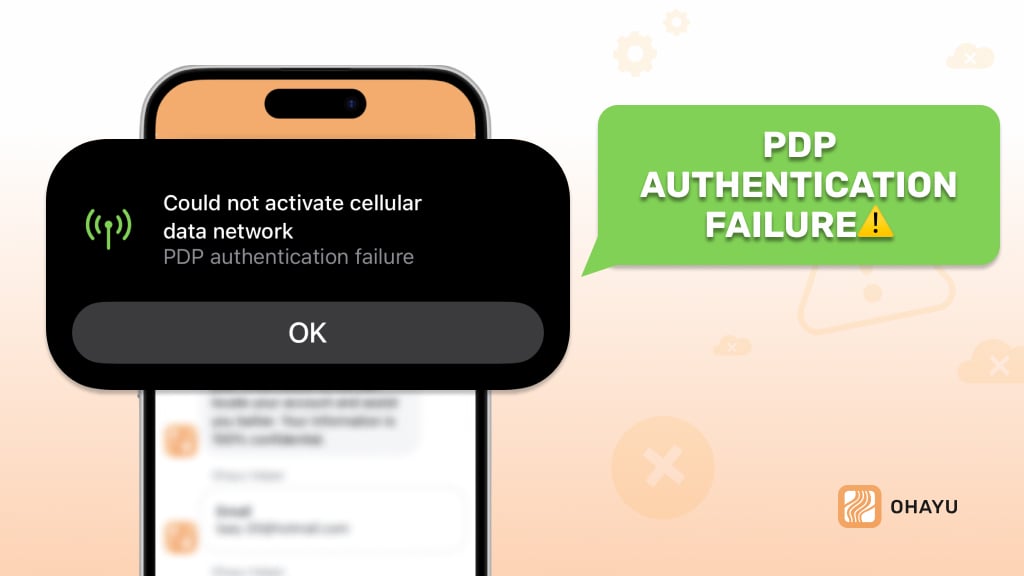
A PDP authentication failure is a situation where a mobile device using an eSIM fails to establish a Packet Data Protocol context with the mobile network. This context is a mandatory item for Internet connectivity. Without it, access to online services becomes impossible. This error is often encountered by users with an eSIM. It occurs due to incorrect operator settings, network or profile problems. Although this is a common occurrence, understanding this problem and the causes of the fix can help you quickly restore Internet connectivity.
Frequent causes of PDP authentication failure
Incorrect APN settings
One of the most frequent problems is incorrect APN (Access Point Name) configuration. These settings determine the way in which the device communicates with the network of the carrier to reach the Internet. In case these APN settings are wrongly configured or not updated, it will not be able to get online. These situations may happen with manual input of data, if automatic configuration fails, or if the settings by the operator are already outdated.
Temporary problems with the carrier’s network
Also very common is the failure of an operator’s local network: overload at the base stations, scheduled maintenance, or unexpected technical failures. In any of those cases, there may be interference with the continuity of the network connection, thereby preventing successful authentication.
Software glitches on the device
Faults in device software may lead to failure in the establishment of network connectivity. This is probably because of potential conflicts between the operating system and the eSIM profile on a device either after an update in software or by using a firmware version that becomes obsolete. Therefore, it cannot communicate effectively with the network.
Error activating or installing the eSIM
In some other cases, wrong eSIM profile installation or incomplete activation can cause failure of the PDP authentication. This could happen in case it has been uploaded in error, or has not been properly activated, and when data synchronization between the device and the operator’s network is broken. Most such problems deal with partial downloading of the eSIM or failure to activate the complete data.
Restrictions on the operator’s side
Some service providers may apply restrictions for certain types of devices. For example, restrictions may be related to the region in which the eSIM is used or the terms of the tariff plan. Such barriers result in the inability to establish a PDP context despite correct device settings.
Step-by-step troubleshooting instructions
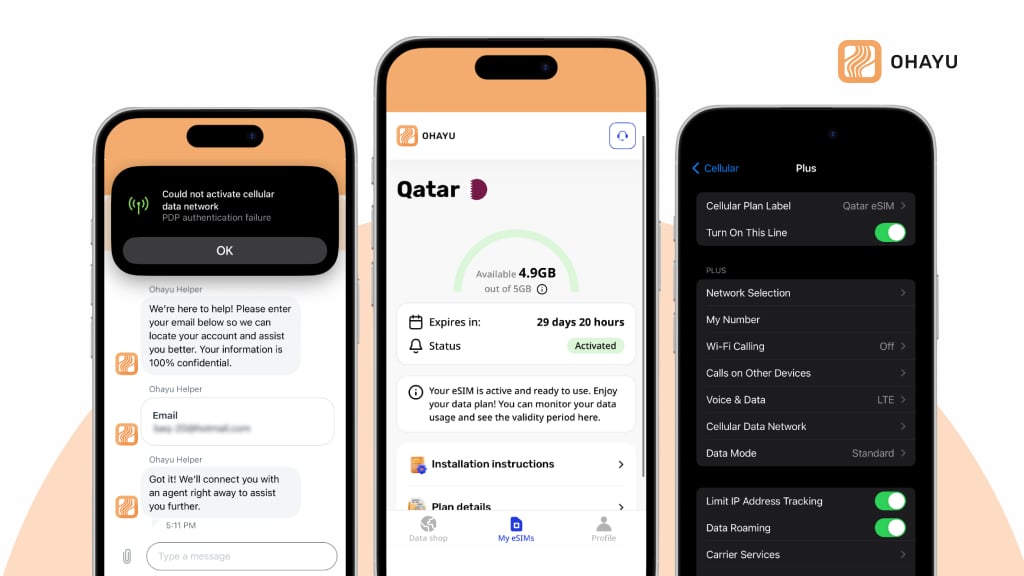
PDP issue normally manifests itself as a pop-up notification or in the network settings area. You may be greeted by the following warning message on the screen:
- PDP authentication failure
- Could not activate cellular data network
- Mobile data network authentication failed
The network indicator may appear as “No Network”, or “No Internet Access” or simply show an LTE/5G icon with no data transmission. However, in most cases, we can fix this problem by following simple steps. Let’s see how to do it.
Step 1: activate Airplane Mode and turn it off after a few seconds
Sometimes connection failure occurs due to momentary network problems. The fastest way to refresh your connection is to use airplane mode.
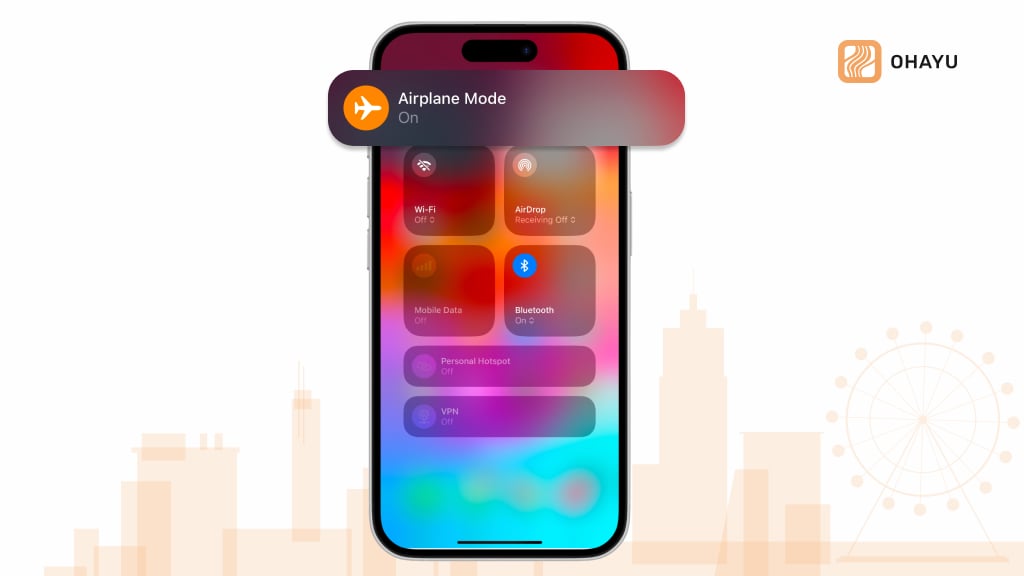
- Open Control Panel for iPhone, or Quick Settings for Android.
- Tap the Airplane Mode icon. Wait 10 to 15 seconds.
- Disable flight mode and try checking the connection.
Step 2: reboot your device
If turning on airplane mode doesn’t work, try restarting your device. It clears temporary system glitches and refreshes the connection.
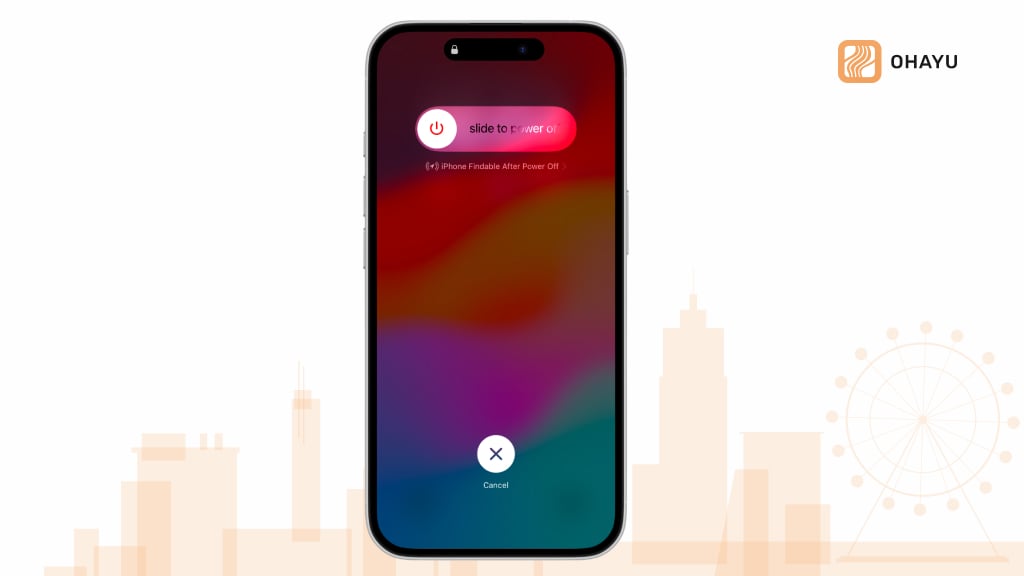
- Completely power off your phone
- Wait 30 seconds
- Turn on your device and try connecting to the internet
Step 3: reset network settings
Errors in network settings can prevent your device from establishing a connection. Resetting the network settings will help remove old configurations and update the connection settings.
- Open Settings.
- Go to Basic > Reset.
- Select Reset network settings and confirm the action.
The device will then automatically restart. Please note that Wi-Fi passwords will also be deleted and will need to be re-entered.

Step 4: check APN settings
An incorrect APN (Access Point Name) may be the cause of PDP Authentication Failure. These settings determine how your phone connects to the Internet.
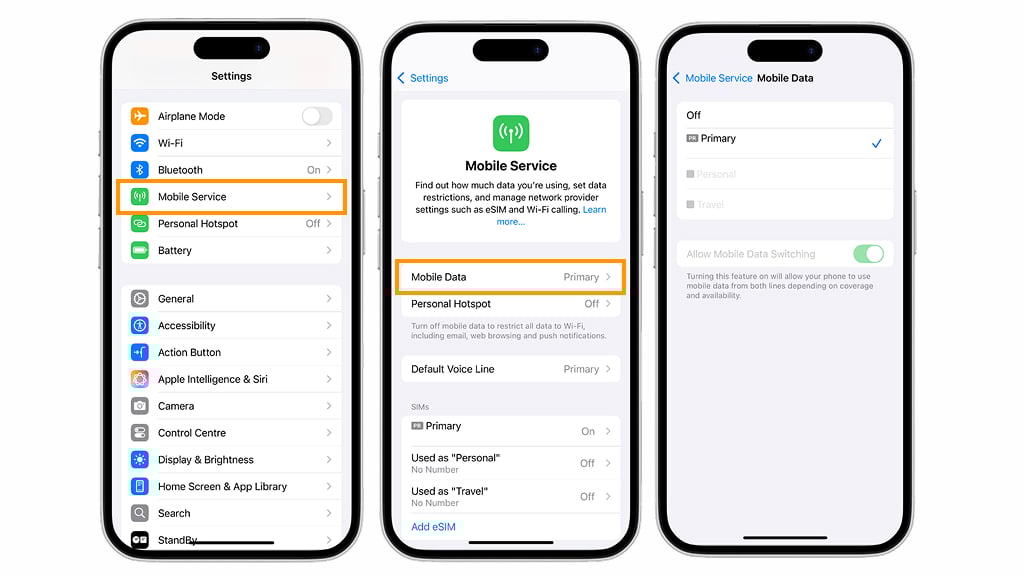
- Open Settings.
- Tap on Cellular > Cellular Data > Data Network (on iPhone) or Mobile Networks > Access Points (APN) (on Android).
Check that the APN settings are identical to what was provided by the eSIM carrier. The settings include:
- Access Point Name (APN)
- Username and password-should either of these be required
- Authentication type
- APN Protocol (IPv4/IPv6)
If the data is different from what your carrier recommends, then change it manually. Save changes and reboot the device.
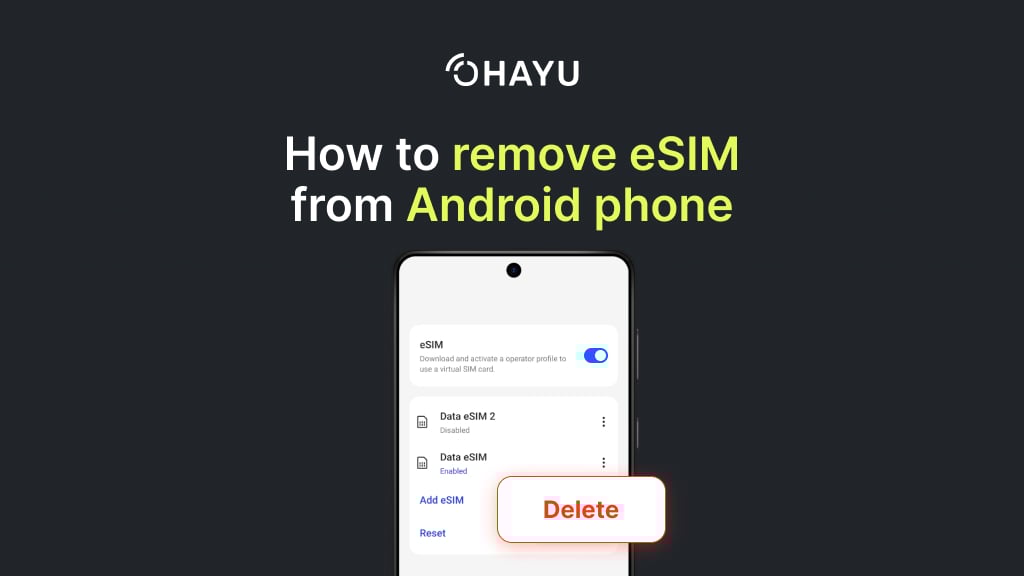
Step 5: reinstall the eSIM
If the problem still does not go away, then the eSIM profile was set wrong. You will have to uninstall the eSIM and reinstall it.
- Launch Settings > Cellular.
- Select the eSIM profile and tap Remove eSIM.
- Restart your phone.
Try to reinstall the eSIM using a QR code or an activation code from your operator. If you don’t know how to do this, then check out these Ohayu detailed instructions. Here you will learn how to install an eSIM for iOS and Android devices in depth.
Step 6: check for operator restrictions
Sometimes, PDP Authentication Failure happens not due to settings in the device itself but to restrictions from the service provider’s side.
- Regional restrictions
Some eSIM profiles may only work within the precinct of a specific country or region. The network won’t work if tried outside of that particular area of coverage.
- Incompatible tariff plan
Not all tariffs support mobile data, especially when an eSIM is for calls and SMS only.
- Blocking for limit exceeding
If your tariff runs out of traffic, or if the account’s balance is not enough, the operator might disconnect your Internet.
How to check it:
- Open Settings > Cellular and make sure the eSIM is active.
- Try to connect to the Internet via Wi-Fi and log in to your operator’s personal account to check your balance and tariff terms and conditions.
- If the eSIM uses roaming, make sure that the “Data roaming” option is enabled in the mobile network settings.
When to contact Ohayu
If you have followed all the steps, but the PDP Authentication Failure error still prevents you from connecting to the mobile internet, the problem may not be related to your device, but to your carrier’s network. In such cases, it is important to contact Ohayu support to find out the possible causes of the failure and find a solution.
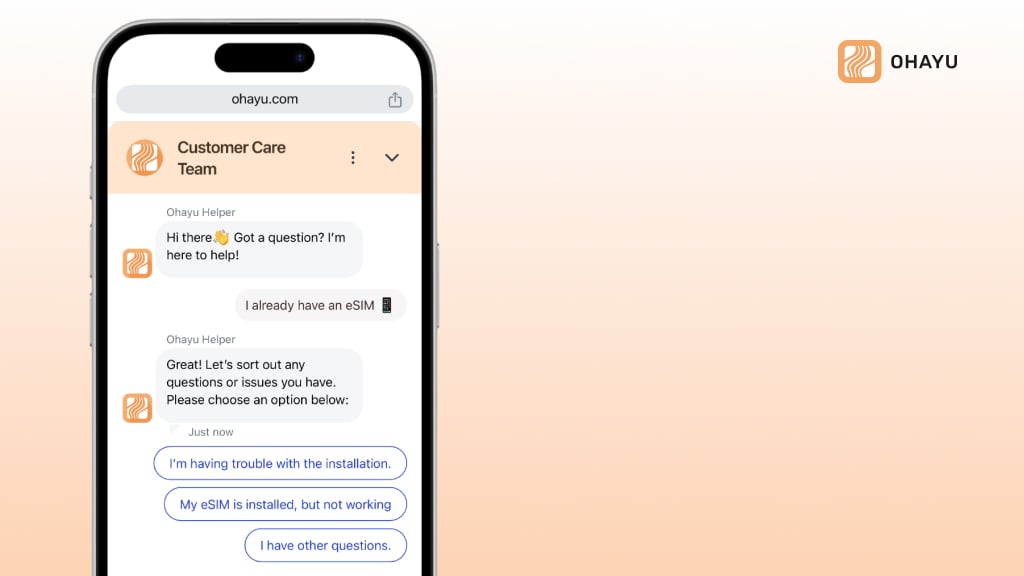
When should you contact us?
- All attempts to resolve the error have failed
If you’ve already enabled airplane mode, rebooted your device, checked APN settings, reset the network, and reinstalled the eSIM, but the problem persists, it’s probably not your phone but your network connection that’s the cause.
- Network problems in your area
Sometimes, local carriers encounter temporary glitches or technical work due to which the eSIM cannot connect to the internet. At Ohayu, we can check the network status and confirm if there are any known issues in your area.
- Problem with eSIM compatibility
While Ohayu’s eSIM supports multiple devices and regions, in rare cases, there may be limitations related to a specific carrier or phone model. By contacting support, you can clarify whether your device is fully compatible with the network.
- Questions about plans and connection
If you have any doubts about your plan, traffic limitations, or eSIM roaming rules, Ohayu’s experts can help you understand and offer you the right solutions.
Subtleties of PDP operation
If you get a PDP Authentication Failure, remember that such a message may look different or actually disappear in the future. That is because the Packet Data Protocol is not applicable in 5G SA anymore. In its place, the Protocol Data Unit works in today’s networks, and authentication errors may have some other name in the future.
More precisely, if you presently have a PDP Authentication Failure, for example, the error equivalent to it in 5G can be a PDU Session Establishment Failure. However, the reason remains the same – the device just can’t authenticate to the operator’s network because of incorrect settings or something is wrong with the eSIM, or a limitation from the provider side.
How does PDP work in 2G/3G/4G?
When a device attempts to connect to the Internet on older generations of networks, it initiates PDP Context Activation, a process in which several key network elements interact to establish a connection:
- PDP context activation request
The device sends an attached request to the network, specifying the APN, IP session type, and QoS (Quality of Service).
The SGSN (Serving GPRS Support Node) passes the request to the GGSN (Gateway GPRS Support Node), which checks the availability of the service.
- Authentication and authorization
The operator checks the device data against the subscriber profile in HLR (Home Location Register) or HSS (Home Subscriber Server).
If the data is incorrect (e.g., APN is incorrectly configured), the connection is not established, and a PDP Authentication Failure occurs.
- Allocate IP address and start data transfer
After successful verification, the GGSN allocates an IP address to the device, and the session is considered active.
The device accesses the Internet, and the data transfer takes place through the GTP (GPRS Tunneling Protocol) tunnel.
Why isn’t PDP being used in 5G?
With the transition to 5G, the architecture of mobile networks has changed significantly. PDP Contexts have been replaced by PDU Sessions, allowing for more flexible connection management.
- New routing scheme
Instead of the old SGSN/GGSN chain, 5G operates AMF (Access and Mobility Management Function) and UPF (User Plane Function), which directly manage data sessions.
- Support for different traffic types
PDU can handle not only IP but also Ethernet and Unstructured Data, which is important for IoT devices and enterprise networks.
- Network Slicing
5G allows operators to create virtual networks, each of which can be optimized for specific services (e.g. streaming, autonomous transport, industrial IoT).
PDP authentication failure – summing up
It may irritate you at times, but most PDP Authentication Failures can be sorted out if only one follows the sequence properly. From the simple ones like enabling Airplane Mode to a reboot and checking on APN, it further extends to reinstalling the eSIM. All this helps bring back network connectivity in no time.
If the problem isn’t resolved after all the recommendations, then the reason may be related to carrier or network compatibility. In this case, don’t hesitate to contact Ohayu support.