

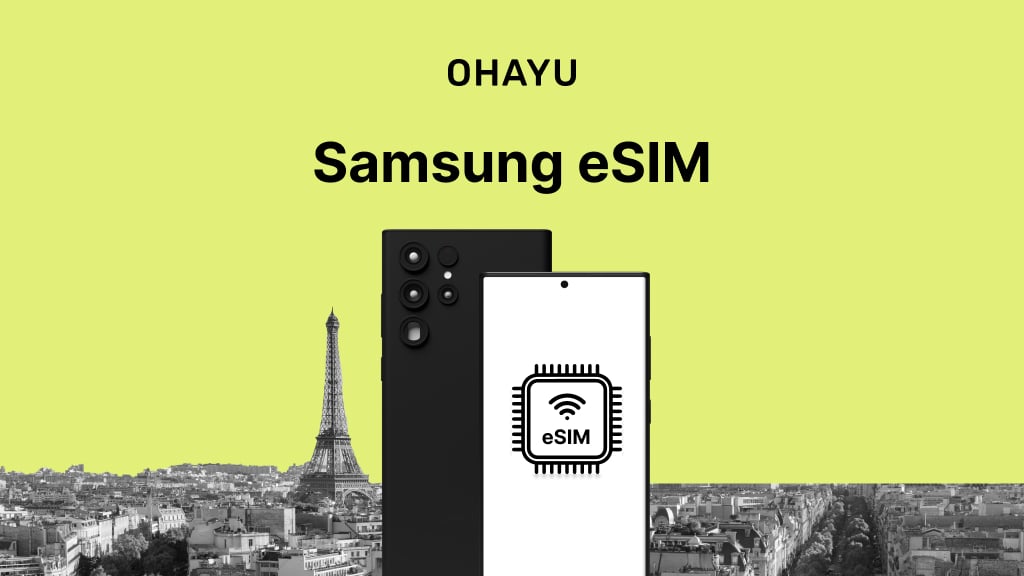
Samsung became a part of the eSIM revolution in 2015. The Galaxy Fold and S20 series were among the first phones to integrate this technology. This article will discuss Samsung eSIM devices and walk you through the setup and activation process. As a bonus, we’ll provide some troubleshooting tips.
Benefits of eSIM
So, let’s begin by mentioning the benefits of a digital subscriber identity module.
- Convenience of travel: No need to search for a traditional card – all are accessible via the smartphone settings, offering you an improved travel experience.
- Dual-SIM capability (simplified): Two phone numbers also become simpler to manage. One smartphone does two lines without requiring two physical slots.
- Flexibility in selecting carriers: Users are freer to choose a mobile carrier. Switching plans is as easy as a wink, giving you control over your network choice.
- Better security: Privacy is enhanced further. No physical card is involved, and theft and damage are minimized.
- Room for new device designs: Finally, the technology’s compactness provides room for innovation in design. The South Korean company could pack more hardware or a bigger battery (although it’s part of future developments).
| Benefit | Advantage for Samsung users |
| Travel made easy | Effortlessly switch to local carriers when overseas; no more physical SIM swapping. |
| Simplified dual numbers | Manage personal and work contacts on one phone without needing two physical SIM slots. |
| Carrier choice freedom | Easily compare different plans and change operators as desired. |
| Enhanced protection | Reduced chance of SIM card theft or damage for greater peace of mind. |
| Sleek device potential | The smaller size allows for more internal space, which may lead to better battery life or new features. |
Samsung eSIM phone list
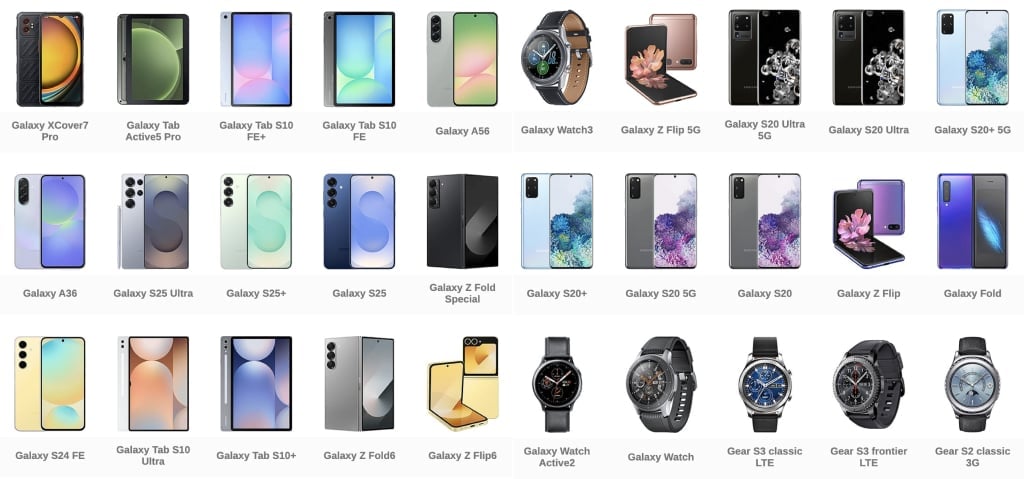
Let’s consider the company’s products with this convenient feature. Availability of the digital module may vary by region. Nevertheless, here is a general list:
Galaxy S
- S25, S25+, S25 Ultra, S25 Edge,
- S24, S24+, S24 Ultra,
- S23, S23+, S23 Ultra, S23 FE,
- S22, S22+, S22 Ultra,
- S21, S21+, S21 Ultra,
- S20, S20+, S20 Ultra.
Galaxy A
- A56, A55, A54,
- A36, A35.
Galaxy Foldable Series
- Z Flip 3, Z Flip 4, Z Flip 5, Z Flip 6, Z Flip 7, Z Flip 7 FE,
- Z Fold 2, Z Fold 3, Z Fold 4, Z Fold 5, Z Fold 6, Z Fold 7,
- Fold.
Galaxy Note
- Note20, Note20 Ultra,
- Note10+ 5G.
Galaxy XCover
- XCover7.
Galaxy Tab
- S10+, S10 Ultra, S10 FE, S10 FE+,
- S9, S9+, S9 Ultra, S9 FE, S9 FE,
- Active5,
- A9, A9+.
Galaxy Watch
- Watch7,
- Watch6 / 6 Classic,
- Watch5 / 5 Pro,
- Watch4 / 4 Classic,
- Watch3 (LTE models),
- WatchFE,
- Active2.
Gear Series (Smartwatches)
- S3 Classic LTE, S3 Frontier LTE,
- S2 Classic 3G, S2 3G.
Did you know? The first company’s eSIM-supporting product was not a smartphone but a smartwatch (Gear S2 3G). The company introduced it in 2015. In addition, the Gear S2 classic 3G version was the first device with a GSMA-compliant eSIM in 2016.
Samsung eSIM compatibility check
There are some easy methods to check if your Samsung phone is eSIM compatible:
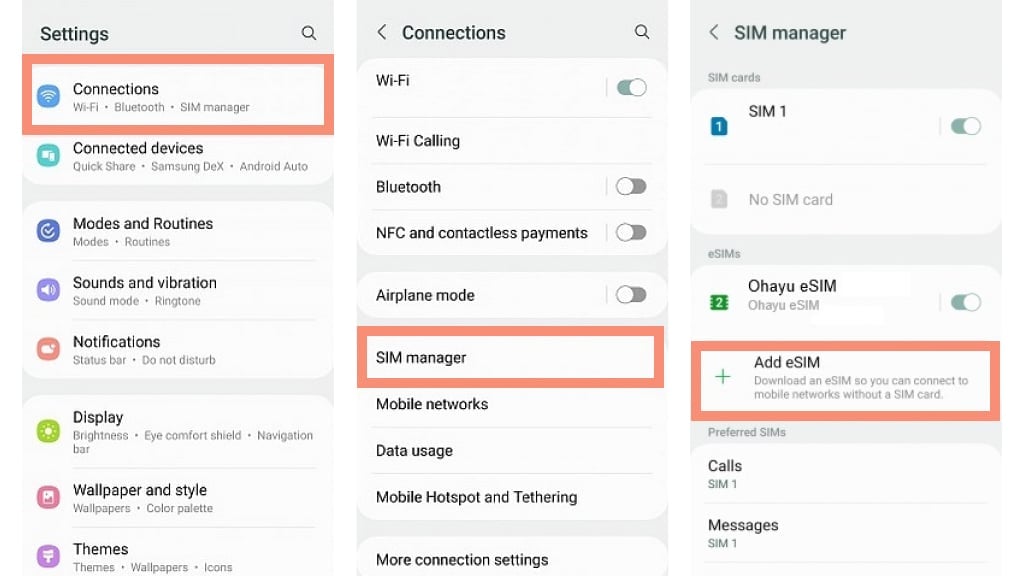
Check the settings
- Open the Settings app.
- Navigate to the Connections menu.
- Then, search for SIM manager.
- If there’s an option to add or manage eSIM, the device supports it.
Find the EID number
EID is an Embedded Identity Document. It is a unique number for the embedded SIM. This number indicates the presence of the technology.
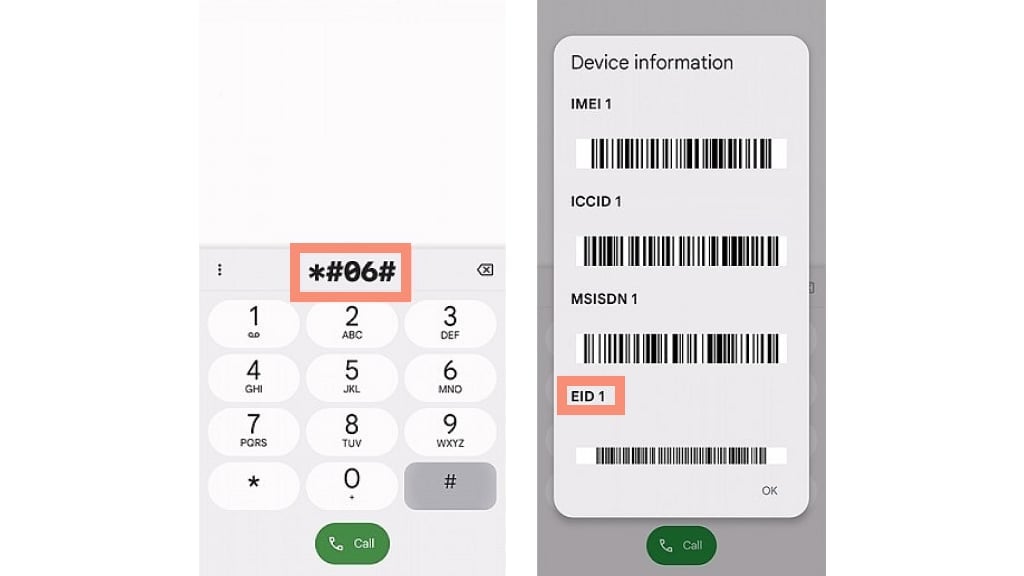
- To locate it, navigate to Settings and search for “EID.” It must be in the search results.
- Alternatively, open the dialer and enter *#06#. If the EID number is listed, eSIM functionality is present.
Also, here is a comprehensive video tutorial on how to determine if your smartphone is eSIM-capable:
Important Note: Feature availability may vary by region and local mobile network operator. So, check the Ohayu country list and see if cellular operators in your destination country support the technology. If a country is listed, there are eSIM-compatible carriers available.
How to add an eSIM to Samsung
The installation is simple. Below are two ways – via QR and manually:
How to activate eSIM on Samsung phone via a QR code
- First, ensure a connection to Wi-Fi.
- Open the Settings app.
- Go to Connections.
- Tap on SIM manager.
- Select Add eSIM.
- Choose Scan QR code.
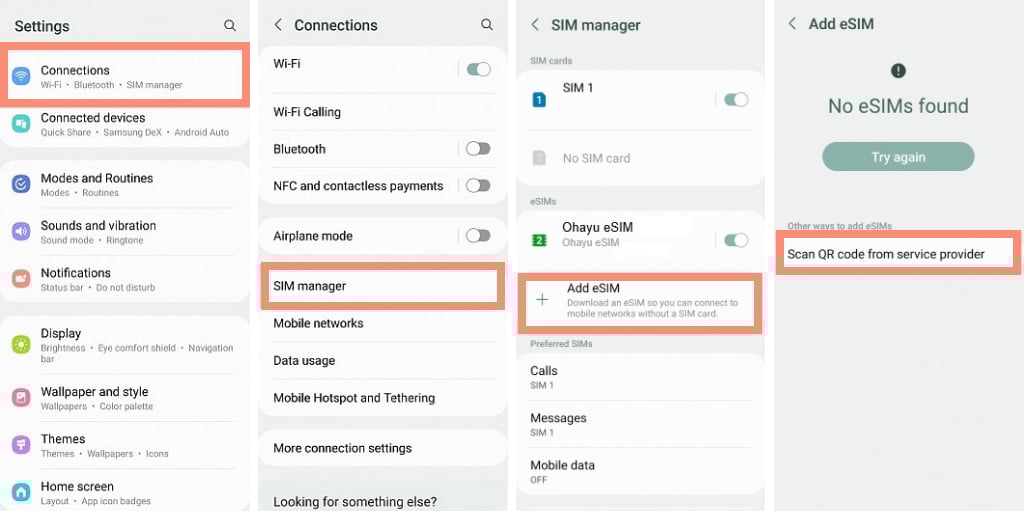
- Now, scan the code provided by the Ohayu service provider. If you don’t have a one-click install button in your app or can’t scan the QR code by tapping, you can use another device with the QR code on the screen to scan it with your smartphone’s camera.
- Next, proceed with the on-screen instructions to complete the setup.
How to install eSIM on Samsung using activation code (manual entry)
If there are difficulties with QR scanning, manual installation is also an option:
- Repeat the first six steps from the previous method.
- Look for Enter activation code. Tap on it.
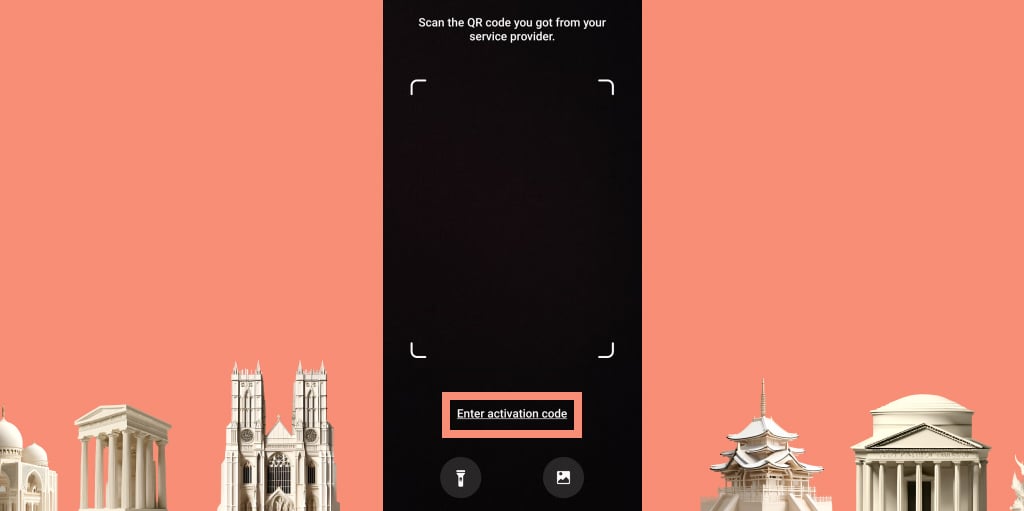
- Enter the code received from the Ohayu provider.
- Follow the instructions displayed on the screen to finalize the setup.
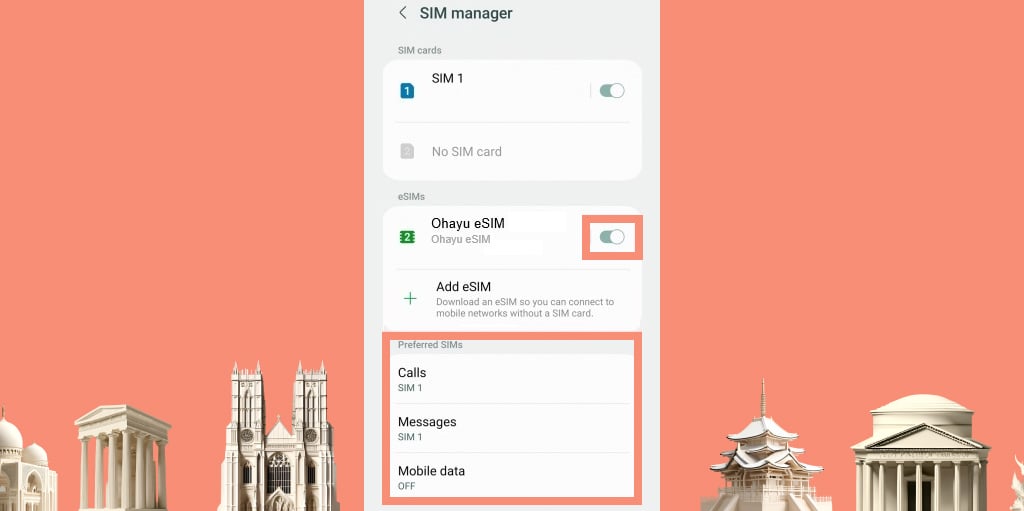
Important note: Turn on data roaming (Settings > Connections > Mobile networks) beforehand. Also, don’t forget to activate your new plan (it needs to be toggled on and set as the preferred SIM).
Troubleshooting common issues
Even though technology is so convenient, hiccups do occur. Let us examine some issues with Samsung eSIM and how to resolve them.
Scanning the QR code troubles
At times, a camera cannot scan the QR. First, ensure that the lens is clean. Attempt to bring the camera closer or further from the code. Also, make sure that the QR is well-lit and not blurry. Or get a new copy of the barcode from Ohayu.
Activation errors during manual entry
When there’s a failure to install, double-check whether you’ve entered the activation code correctly. Make sure you have stable Wi-Fi when doing so. Otherwise, reboot the system and retry.
Problems switching between operators
Should you encounter issues switching between stored plans, a reboot may help again. Next, ensure the desired network is configured as the preferred data source.
No network after activating the digital SIM
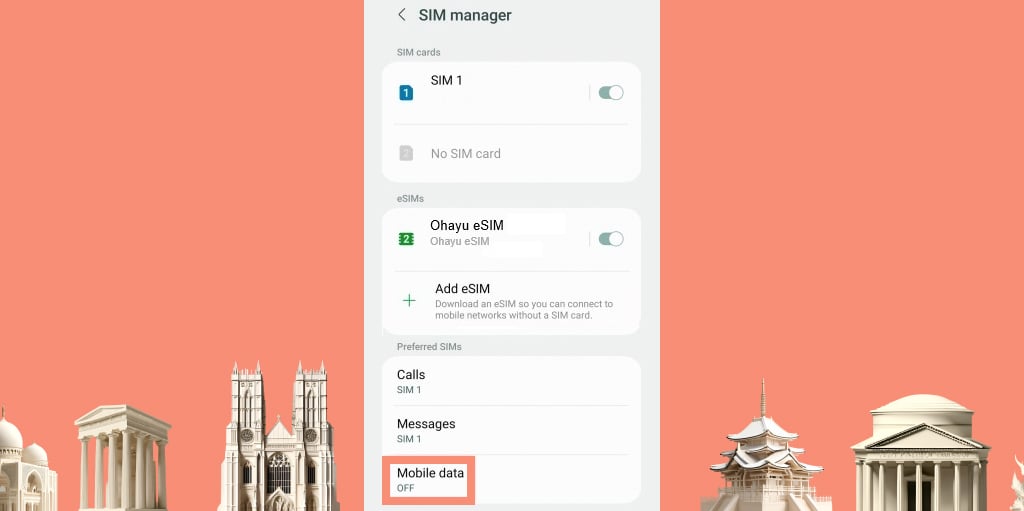
You’ve already activated the plan, but you have no network yet. Again, check that mobile data is activated. Also, ensure the appropriate profile is selected.
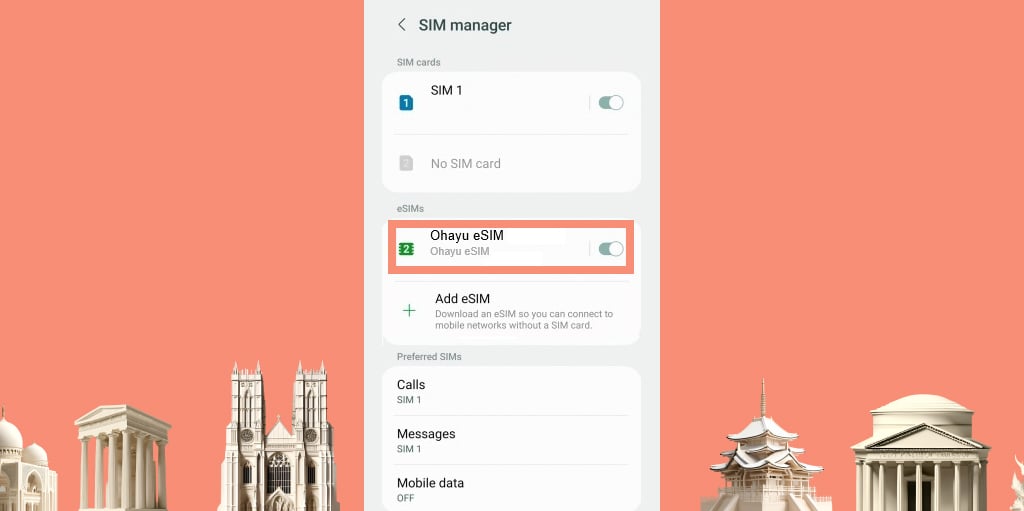
Even though the Samsung eSIM is installed with the correct parameters, the APN may need to be configured. This helpful article clarifies APN issues and guides in troubleshooting them.
When to seek help
Finally, ask for Ohayu support if the above does not succeed. The customer care team will help you confirm whether your plan has been activated. Samsung support can also provide product-specific assistance. You should not be afraid to reach out to them for further assistance.
| Issue | Troubleshooting steps |
| Trouble scanning QR | Clean the camera lens. Adjust the distance to the code Ensure good lighting and a clear code. Try a fresh copy of the QR |
| Activation errors | Double-check the activation code and details Ensure a stable Wi-Fi connection Restart the phone and try again |
| Problems switching between plans | Restart the device Select the preferred data plan |
| No network after setup | Check if mobile data is turned on Verify that the correct profile is selected Check and configure APN settings if needed |
| Still having problems? | Contact Ohayu to check your activation Reach out to Samsung support for device-specific assistance |
Future of Samsung tech
Increasing numbers of mobile carriers around the world will probably use this tech. How people handle embedded cards can bring exciting innovations:
- For instance, switching between mobile profiles could become even quicker and easier.
- The devices could have room for the storage of additional profiles.
- We might expect new kinds of advanced security features to protect personal information.
Besides smartwatches, tablets, and smartphones, Samsung may introduce this feature on laptops, not just the Galaxy Book 2. Apart from this, growing eSIM adoption in the broader IoT segment implies that the company will be in a prominent position when introducing technology into IoT’s various segments. The growing demand for cellular-enabled smart devices may force the Korean manufacturer to include integrated chips in future SmartThings hubs, sensors, or other IoT devices.
Key takeaways – power of Samsung eSIM
In conclusion, the company has adopted the convenience of embedded SIMs in numerous consumer products. This functionality provides a simple way of managing internet connectivity, from flagship phones to handy smartwatches and tablets. In the future, with the rise of technology, there is likely to be broader adoption of future products, giving people an overall connected experience.
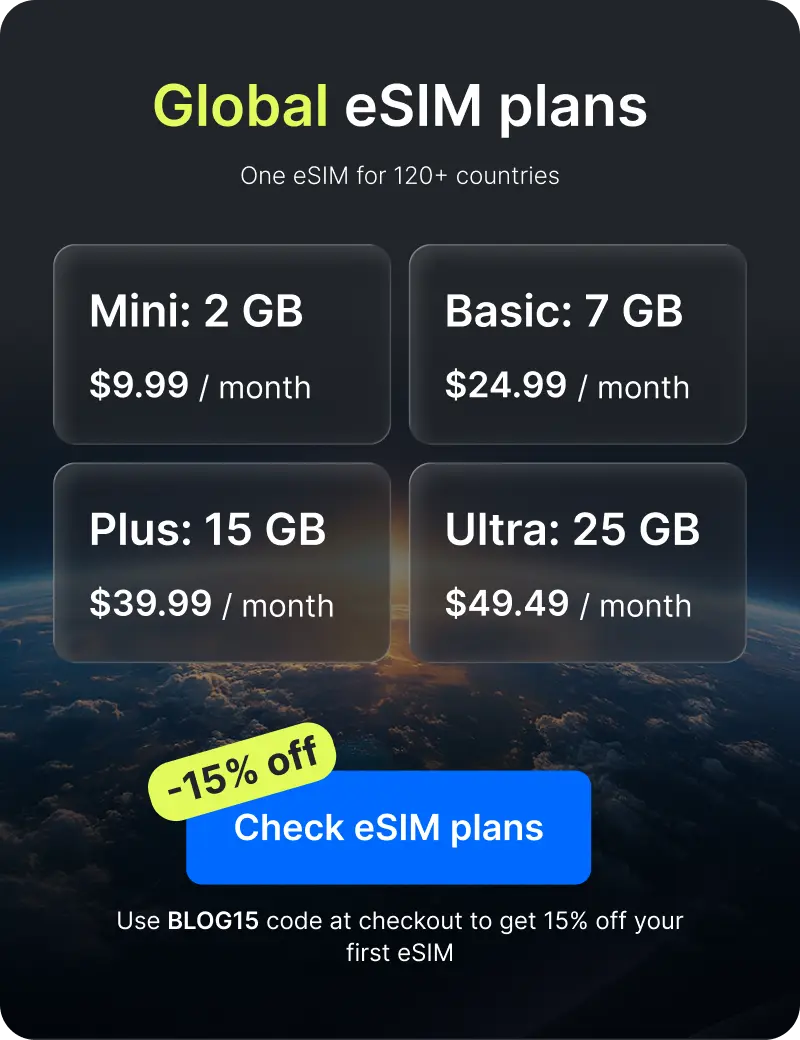
Now, those who want to experience the ultimate potential of integrated connectivity are welcome to Ohayu. We have Global eSIM plans to provide internet access in 120+ countries. They’re easy to set up and connect to the supported local networks as you cross borders, which makes them convenient for travelers and digital nomads.
Frequently Asked Questions
It is a digital version of a classic physical subscriber identity module. It’s kept inside the phone or smartwatch (e.g., S25 Ultra or Gear S3 frontier), permitting internet data.
Just like with any other brand. The e-SIM holds over one carrier profile in electronic form. Tourists can switch plans without physically switching cards.
Regional availability may vary, but the S21 model series typically supports this feature.
Yes, A55 is eSIM-compatible.