How can I install an eSIM on Android (Samsung, Google, Xiaomi, etc.) devices manually?
Installation
NOTE: You need to be connected to the internet to install the eSIM.
NOTE 2: Screenshots may differ slightly from what you see on your device due to variations between device models.
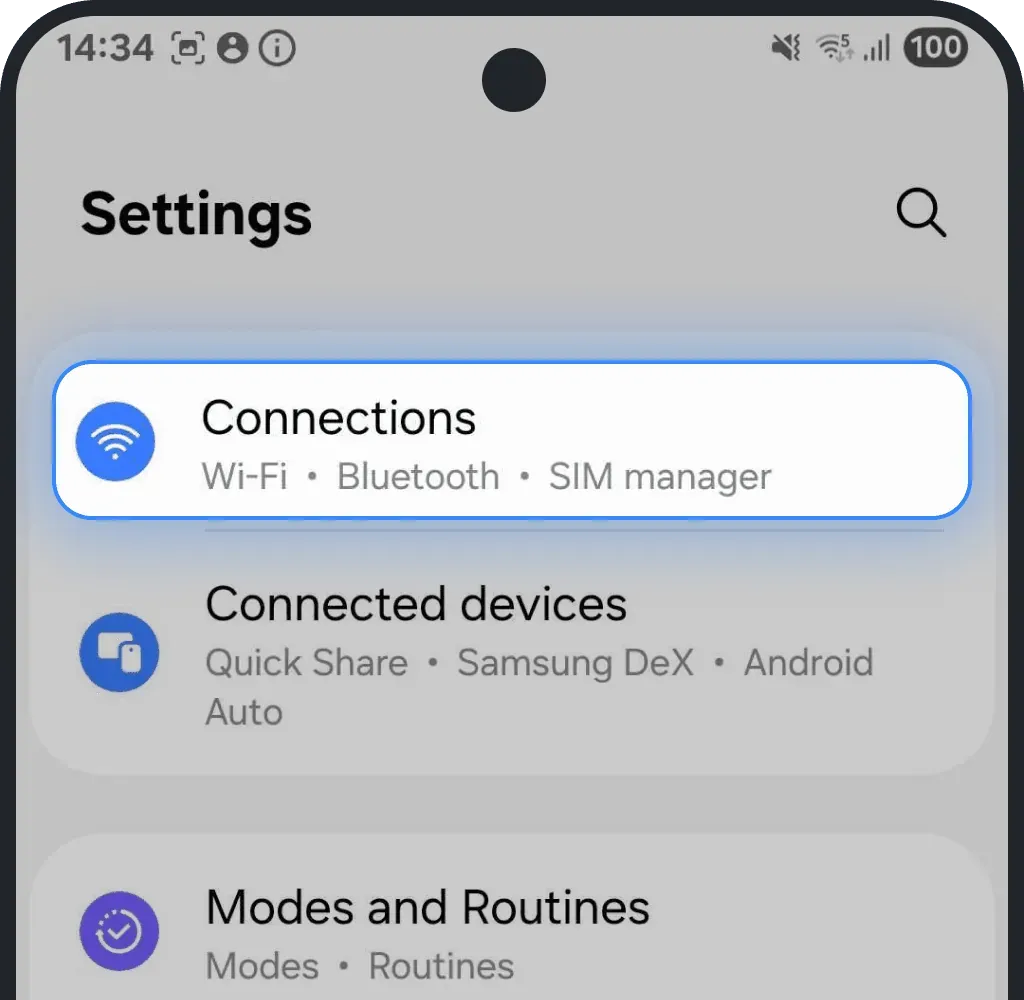
1. Navigate to Settings
Go to the section for mobile network or SIM settings (This might be called "Network & Internet," "Connections," or similar)
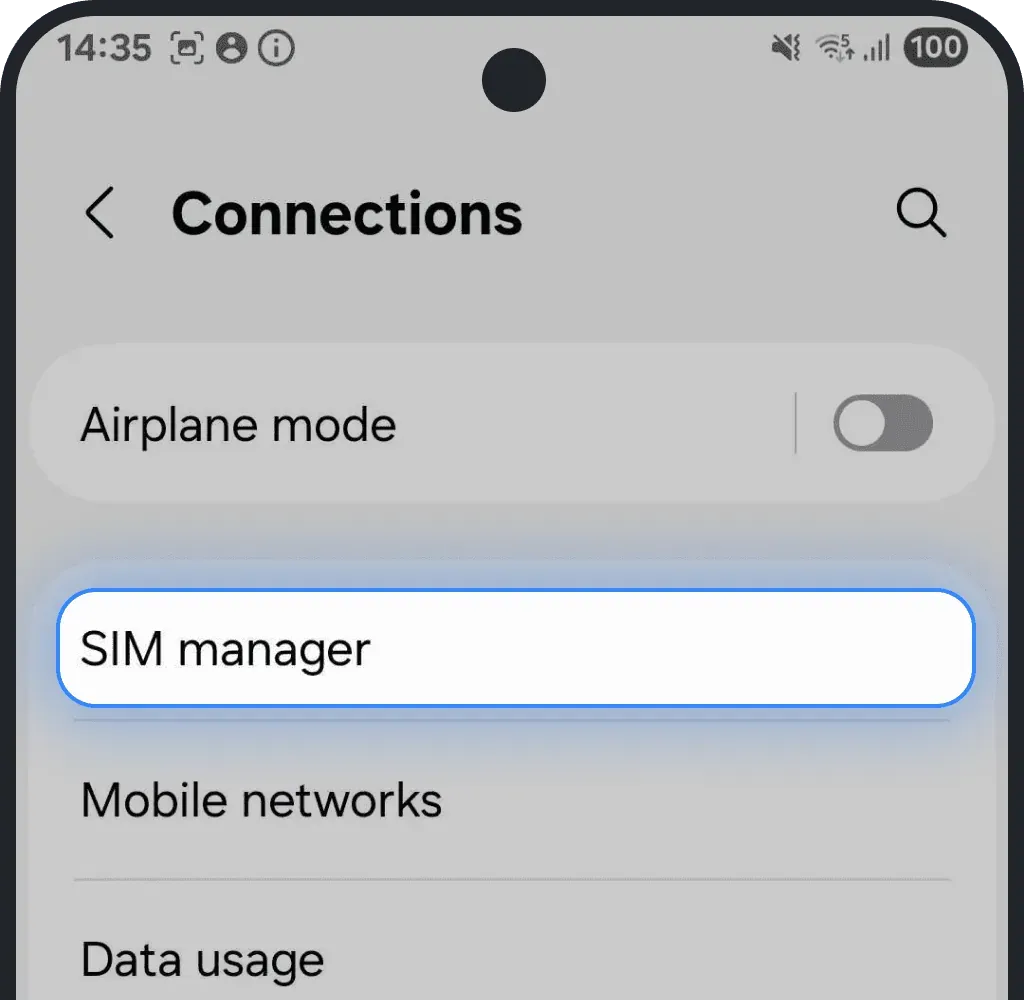
Tap SIM manager (or similar)
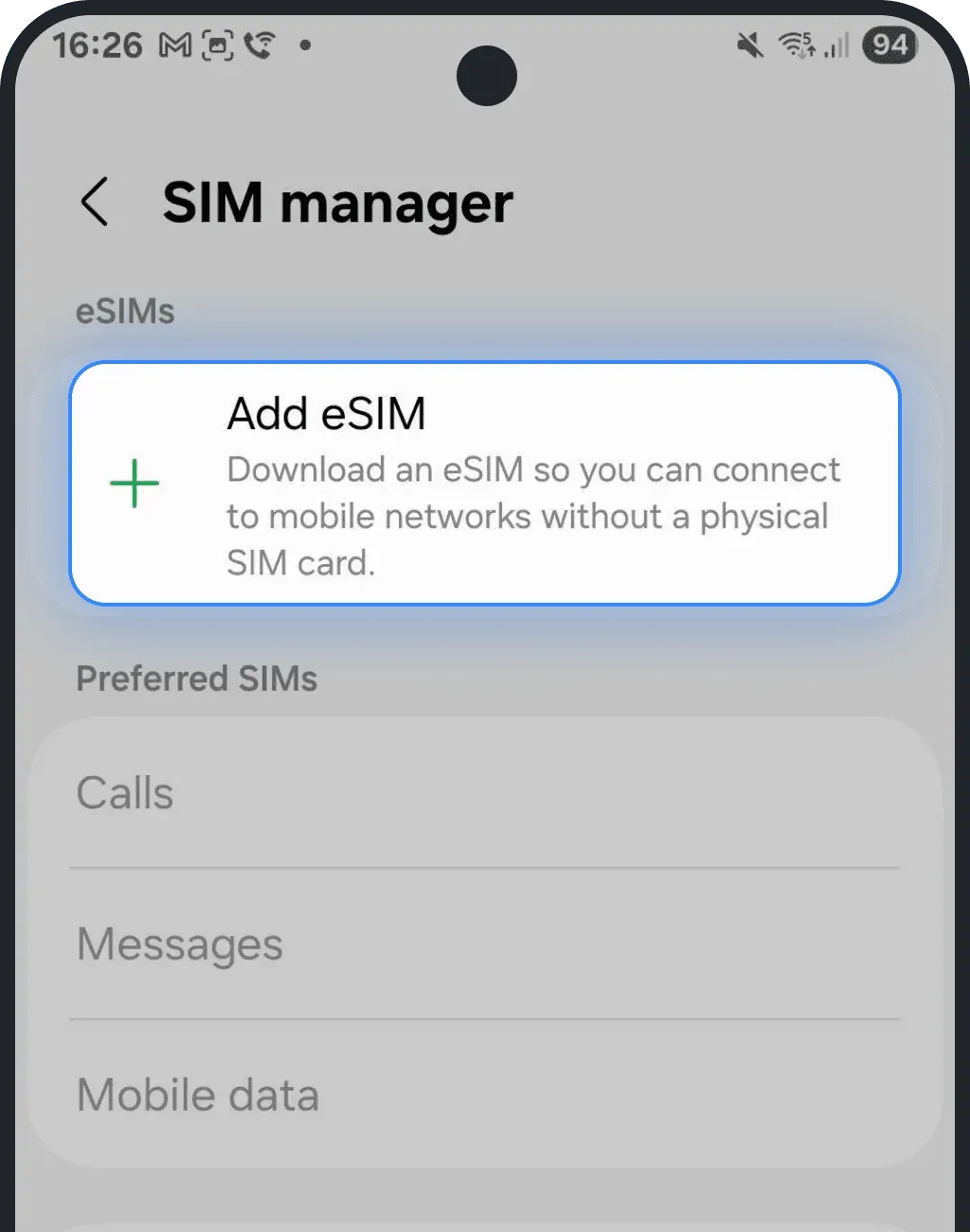
2. Add a Mobile Plan
Look for an option like "Add eSIM" or "Add Mobile Plan" (wording may vary by device)
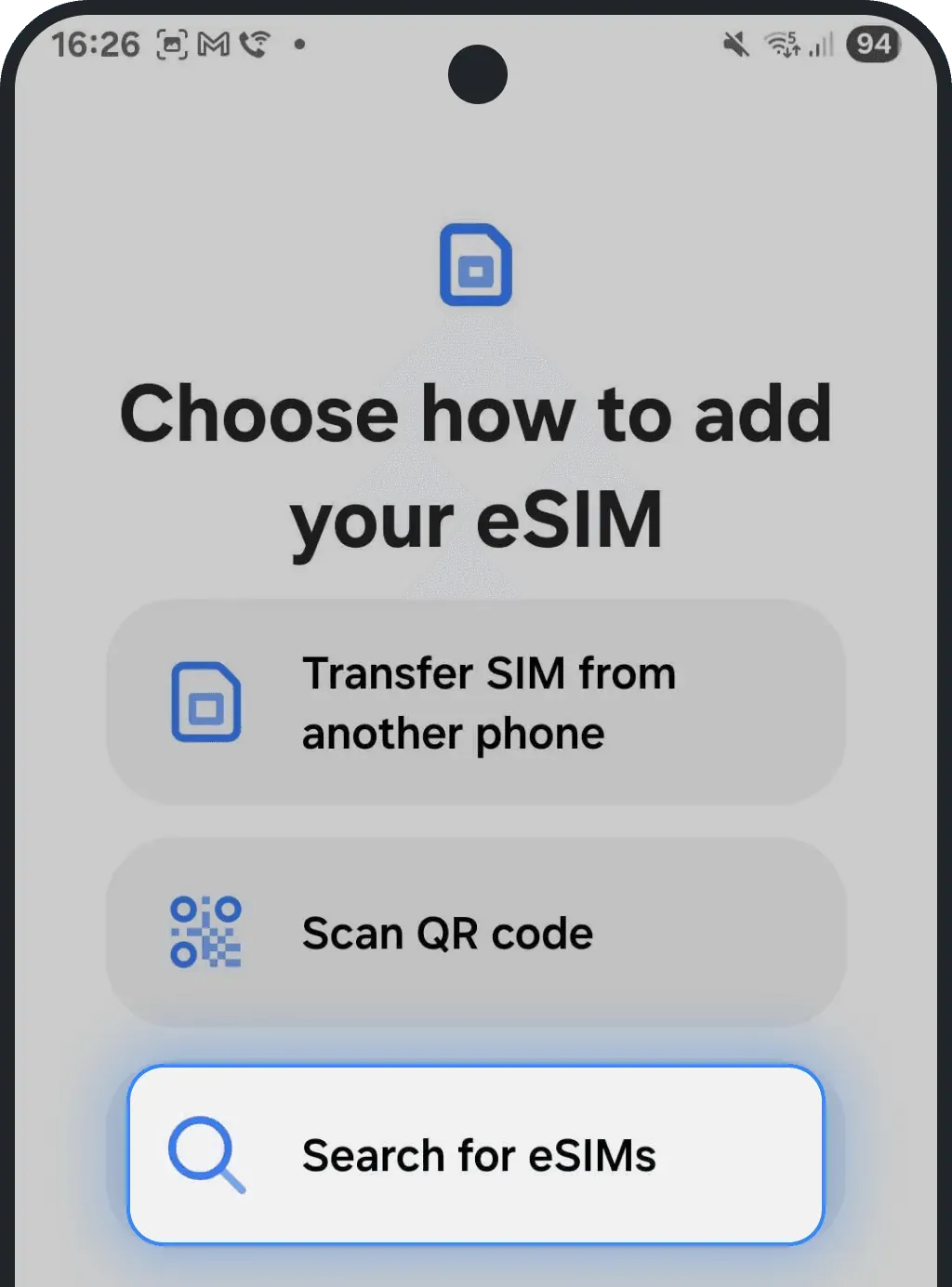
3. Choose manual setup
Select "Set up an eSIM" or "Scan QR code" that will lead you to manual set up option
Click on "Enter activation code" (wording may vary by device)
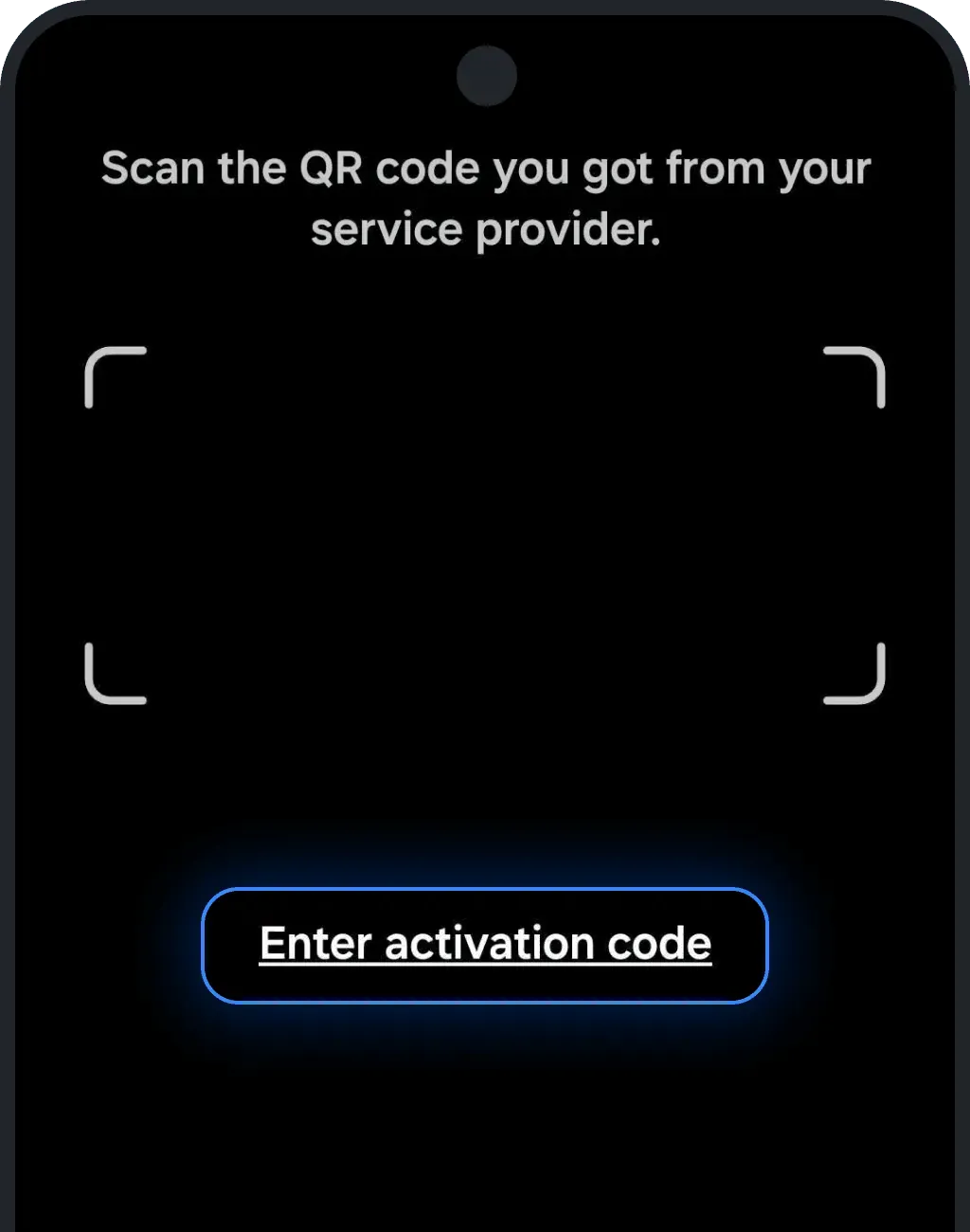
4. Enter activation code
Enter the code provided in Installation Guide and click Done
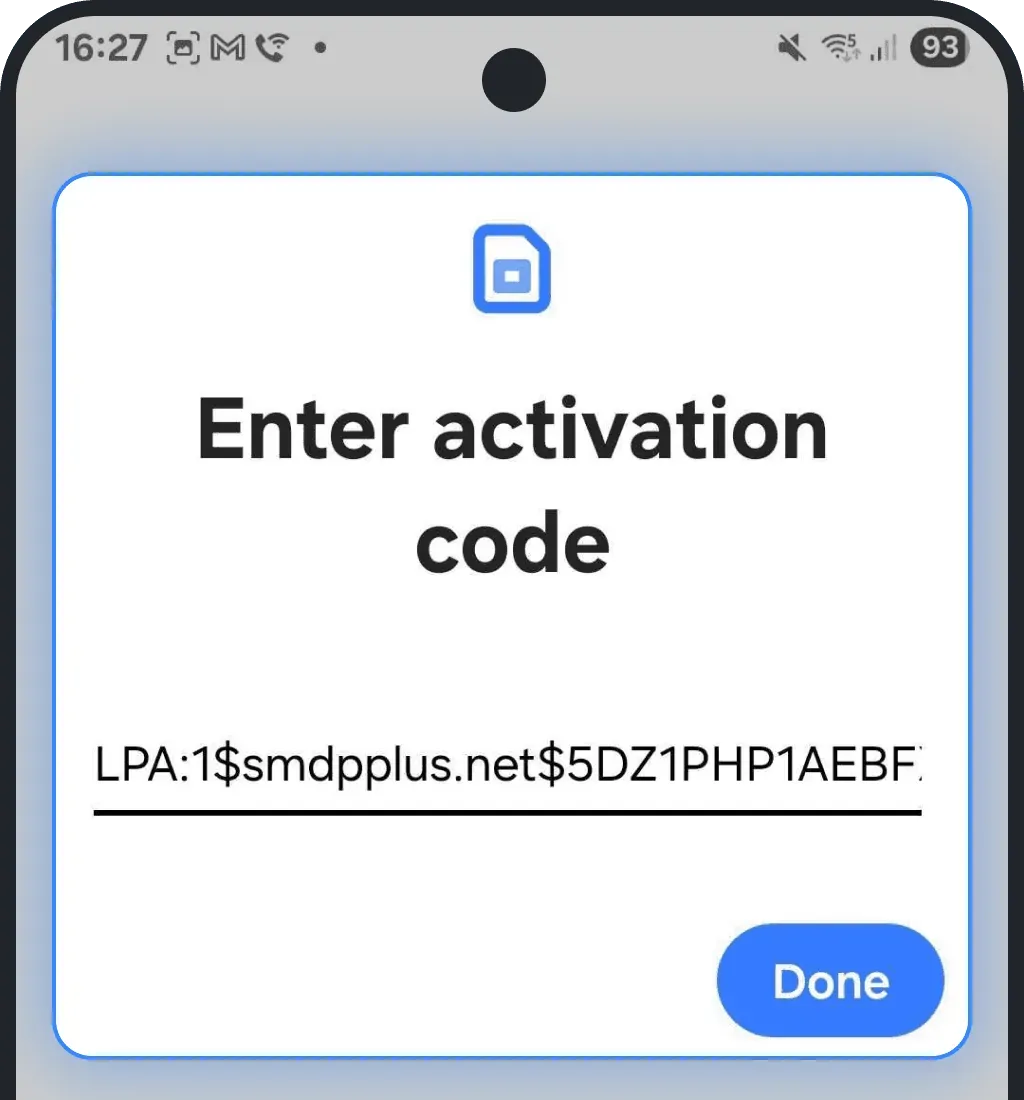
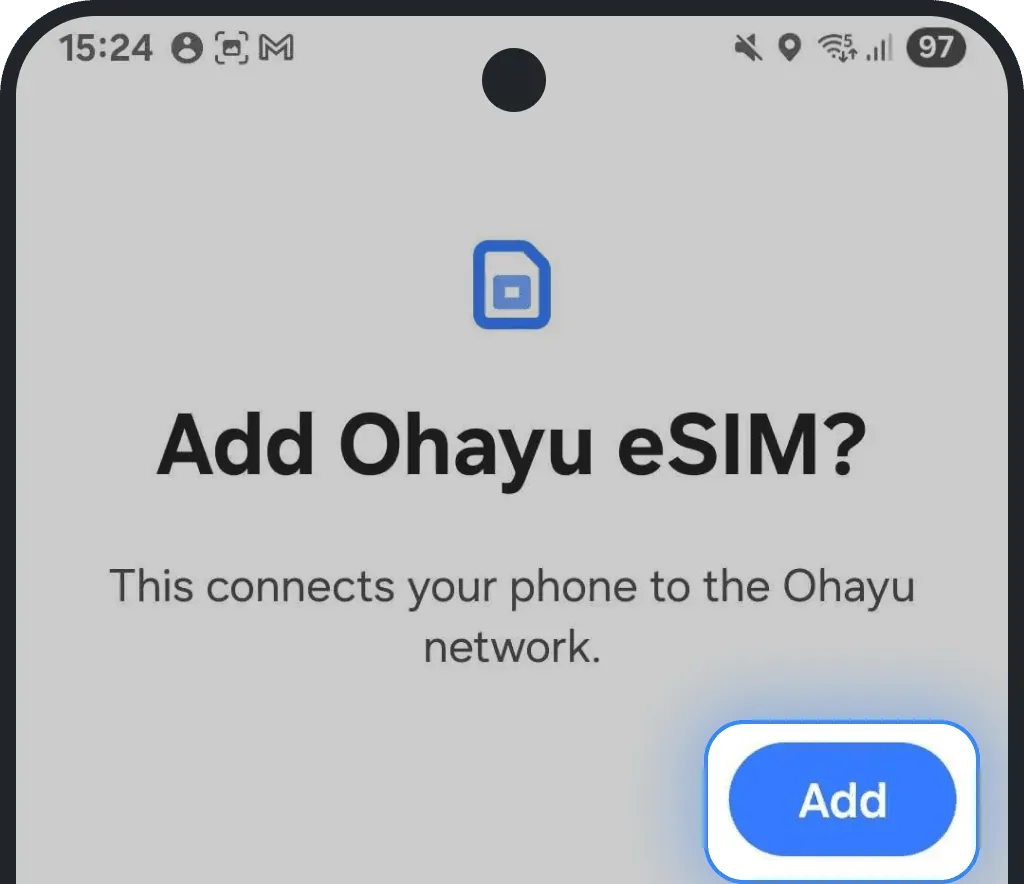
5. Install your eSIM
Press "Add"
Stay on the screen while your eSIM installs (usually takes less than 2 minutes)
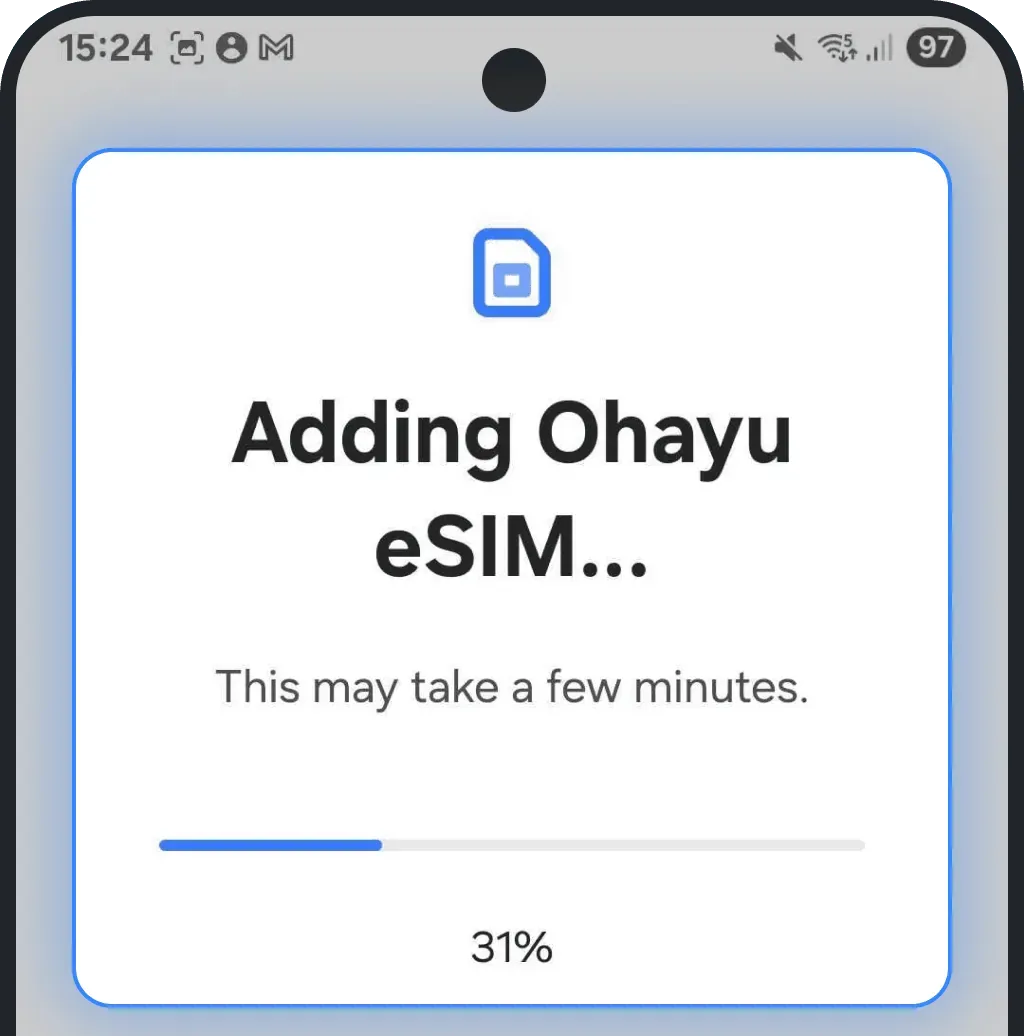
6. Confirm successful installation
Once installed, you will see your eSIM in your list of eSIMs in your Settings
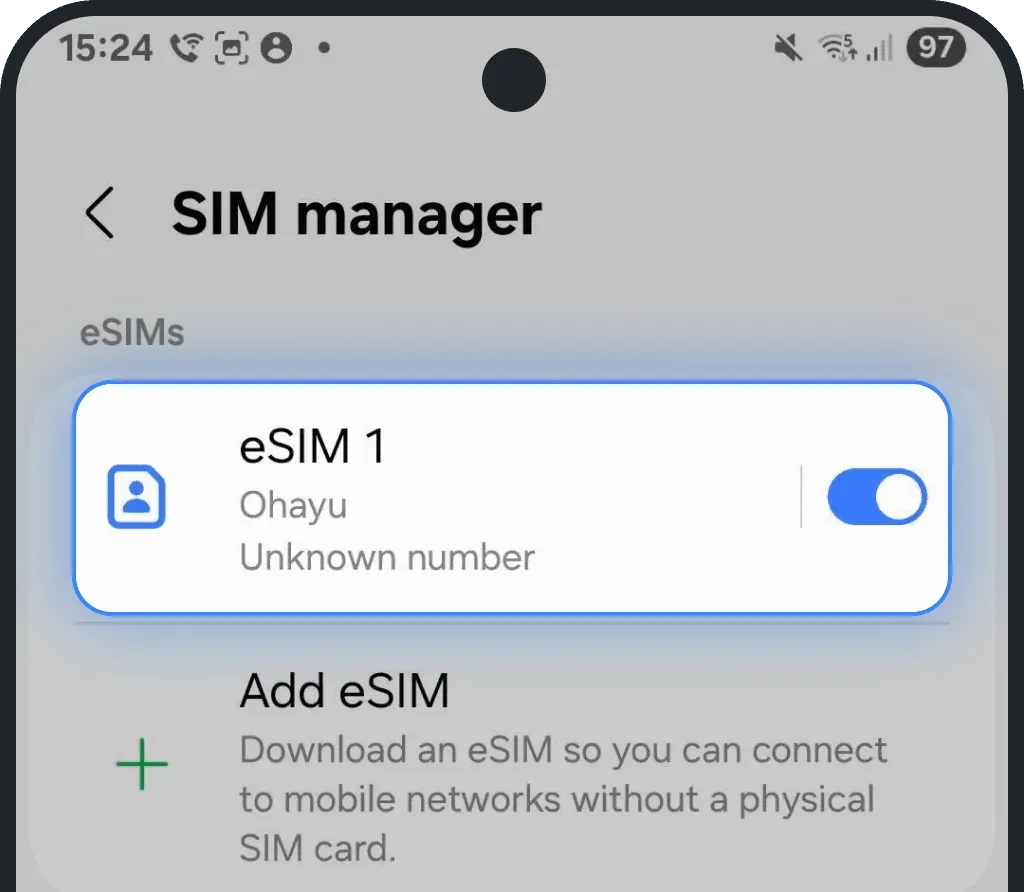
7. Choose a name for your new eSIM
Select the just-installed eSIM
Tap "Edit name and icon"
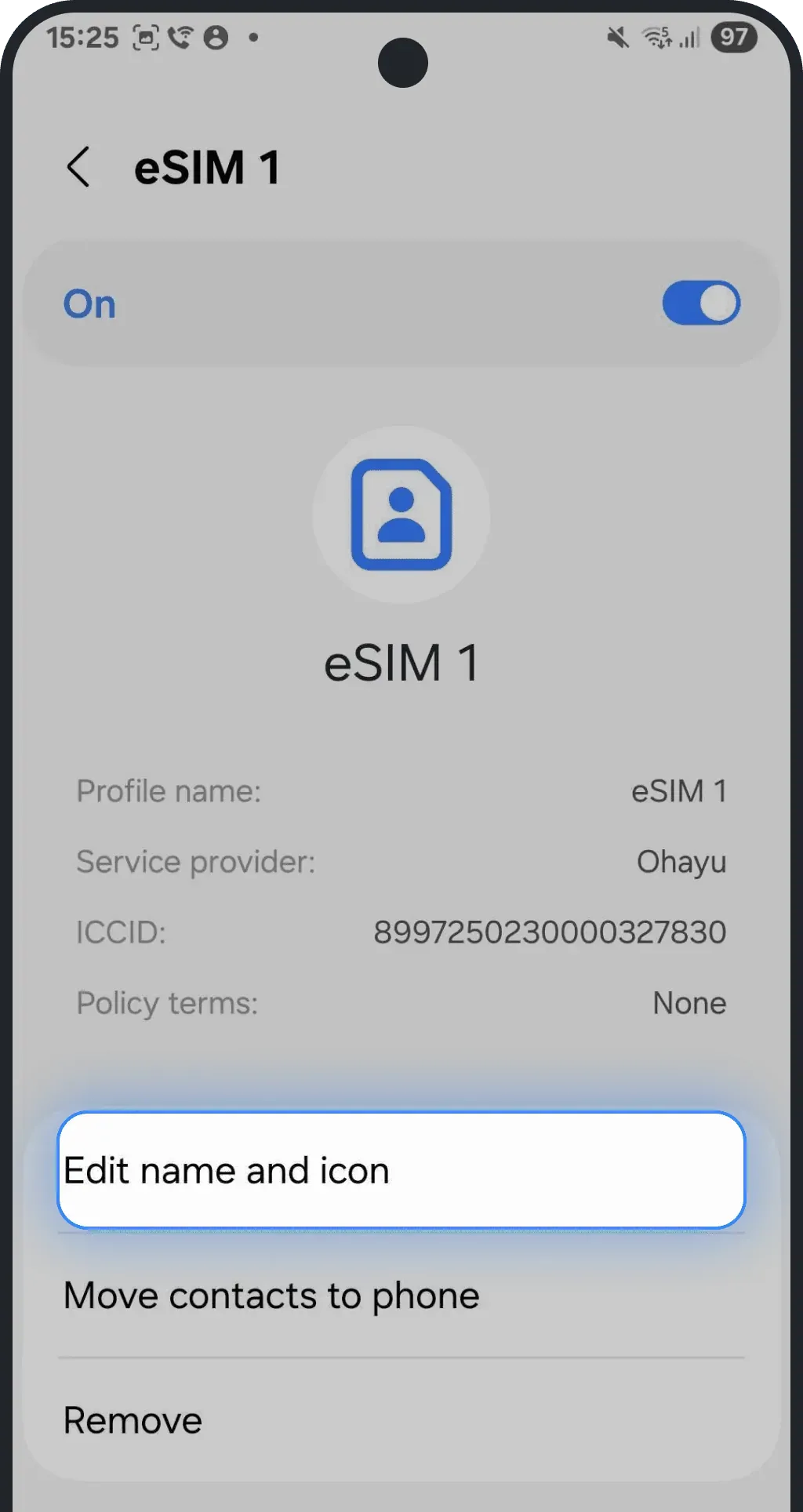
Rename it to a recognizable name (e.g. Ohayu eSIM)
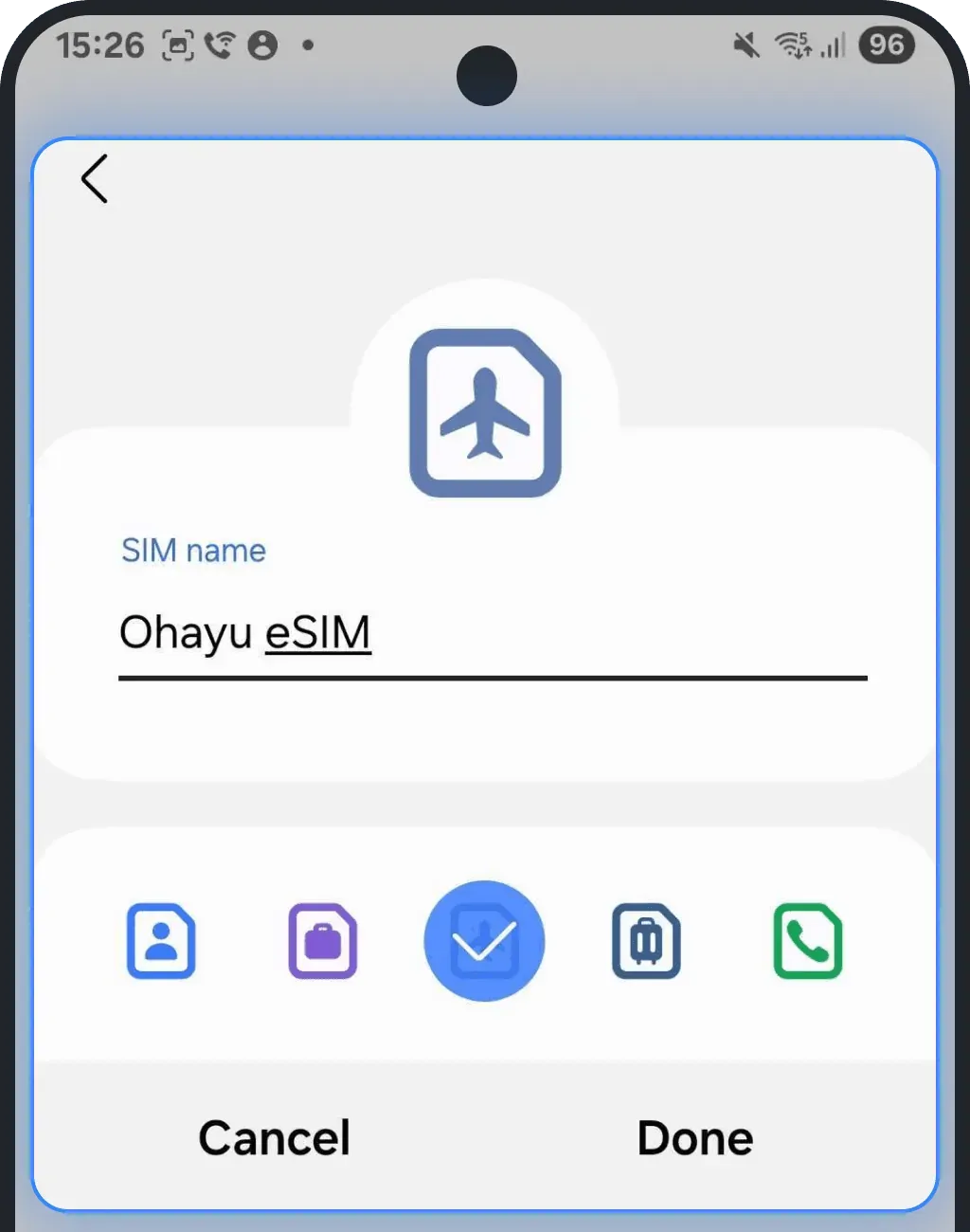
Activation
NOTE: These steps are recommended, but on some devices or networks, they may already be applied automatically.
1. Start activation
We recommend doing this once you're at your destination as activation switches your primary data operator. This could interrupt your current internet if done too early
2. Turn on your eSIM
Go to Settings and tap "Connections" (or "Network & Internet" - wording may vary by device)
Tap SIM manager
Find your installed eSIM in the list, tap it, and turn on the toggle to enable it
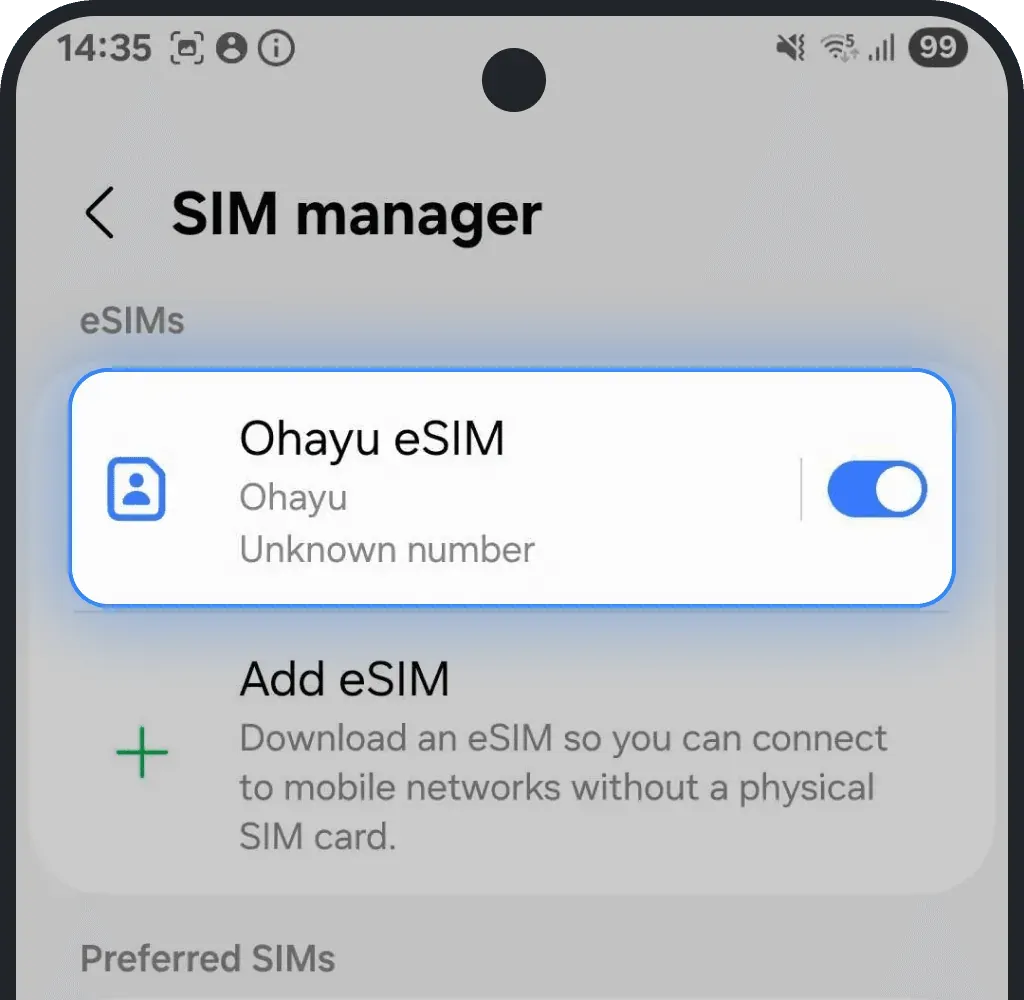
3. Set eSIM as your preferred data plan
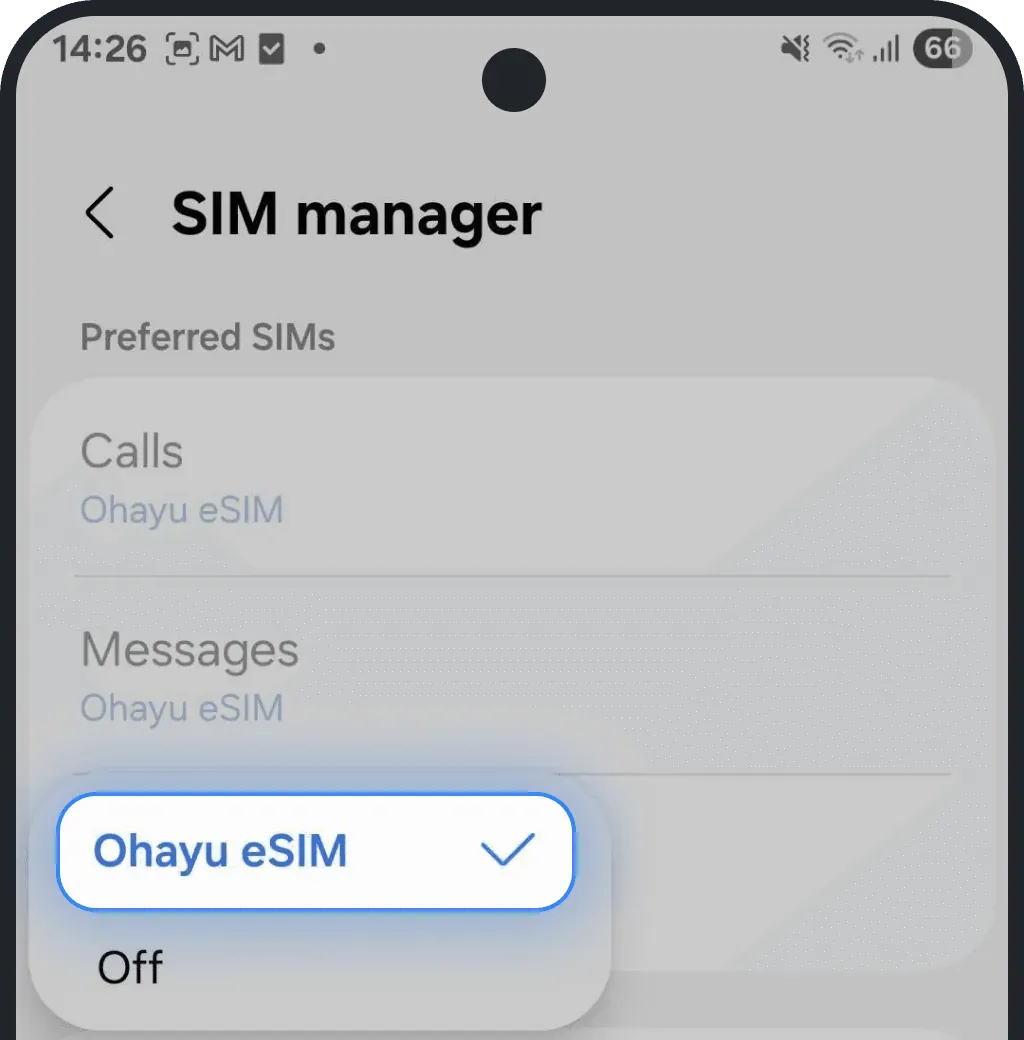
Inside the SIM manager tap on "Mobile data"
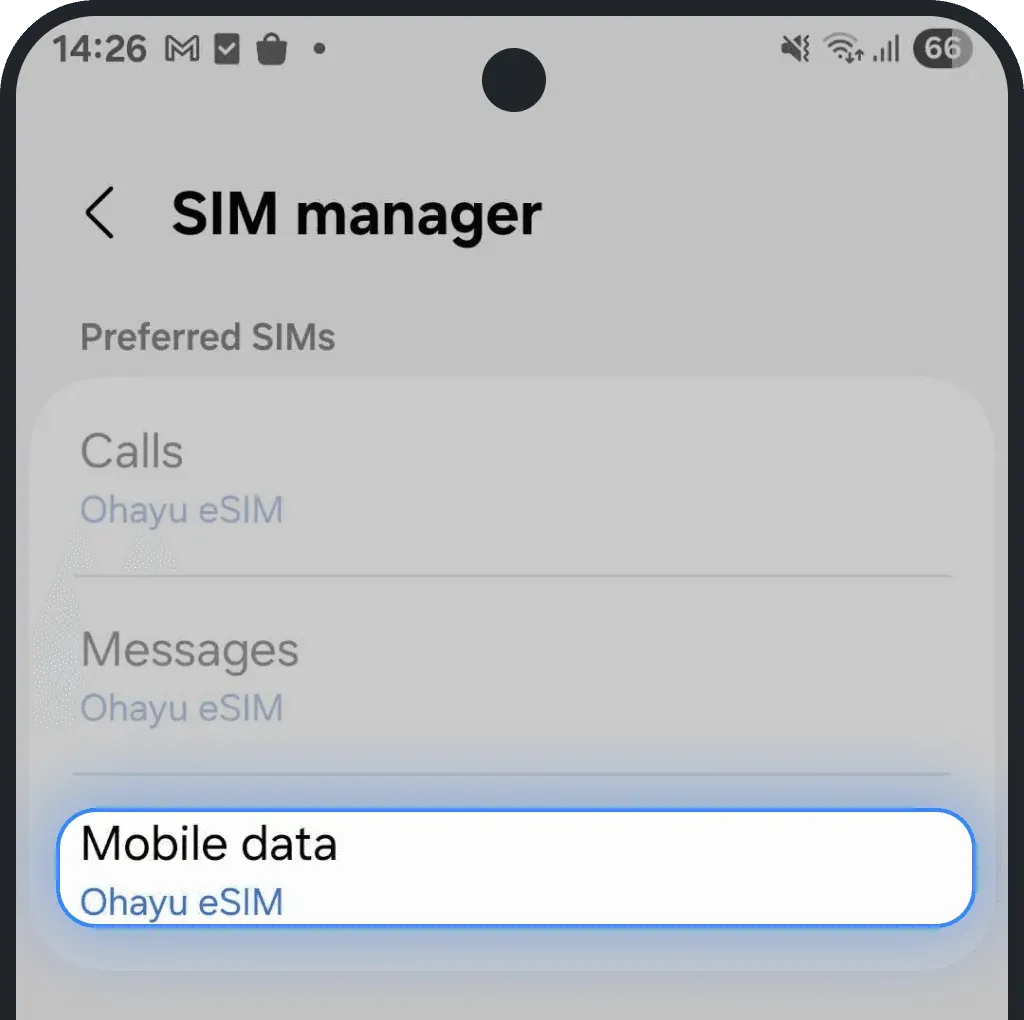
Select your installed eSIM
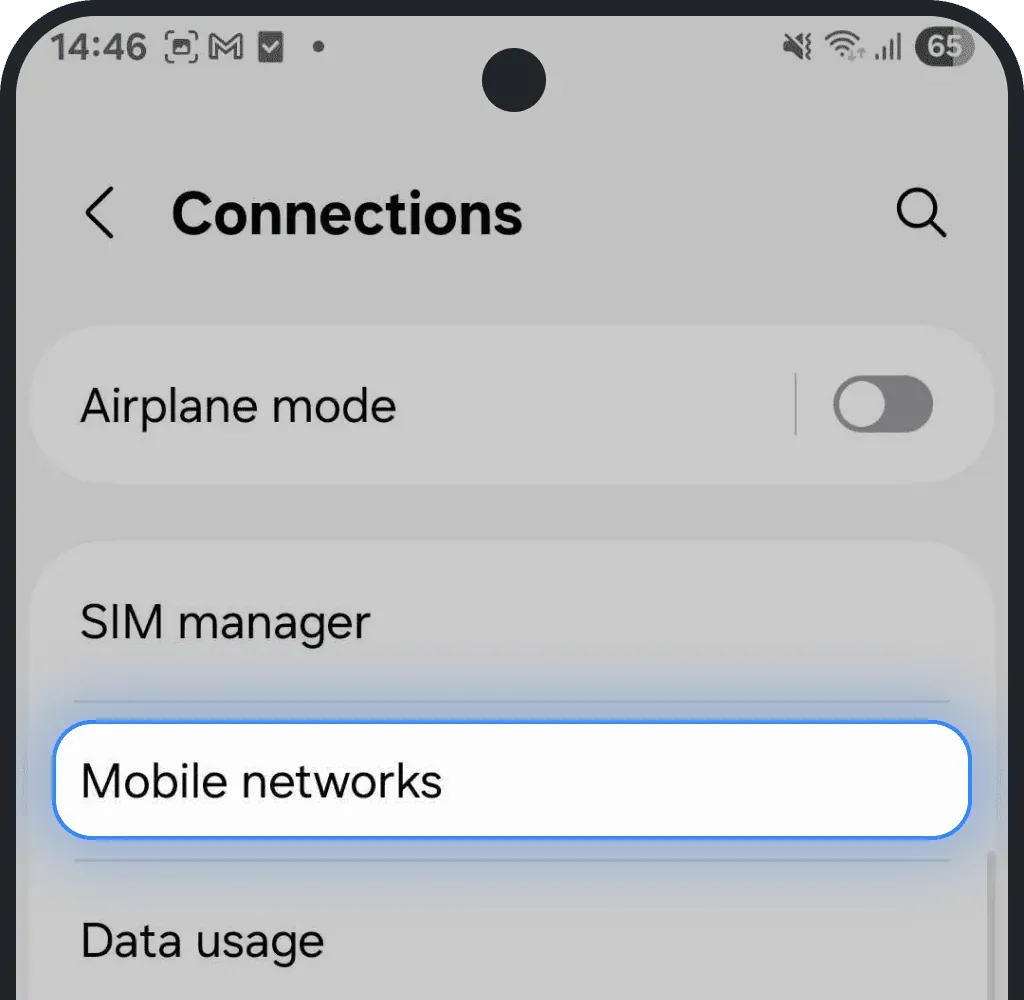
4. Enable data roaming
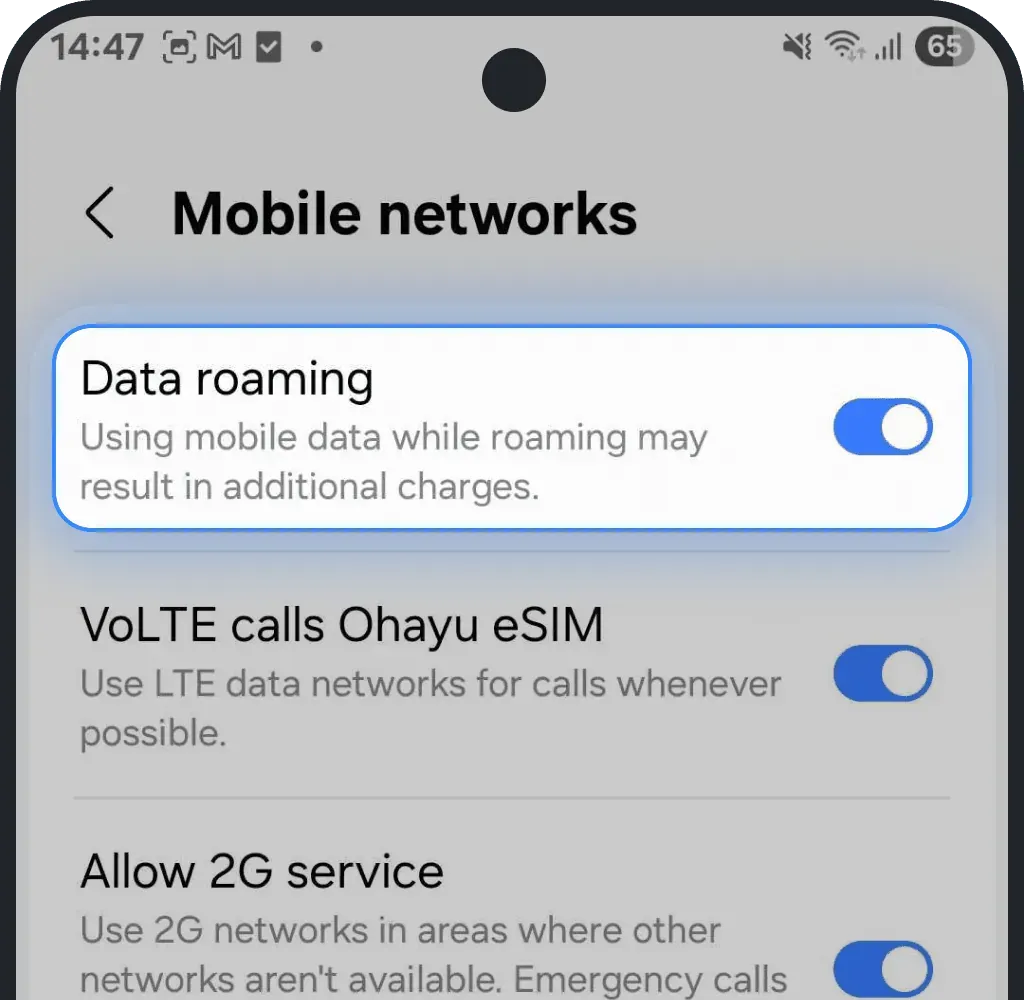
Go back to "Connections" and tap "Mobile networks"
Toggle on Data roaming
Was this article helpful?
Your feedback helps us improve our FAQ