
What is APN (Access Point Name)?
APN (Access Point Name) is a small but essential network setting that tells your phone how to connect to the internet through a mobile operator.
You can think of it as a “route” your device uses to reach the correct servers and access mobile data.
Do I need to configure APN manually?
In almost all cases - no. With Ohayu, APN settings are configured automatically during eSIM installation. For 99% of users, nothing else is needed.
If your eSIM is installed, shows signal, and mobile data works - the APN is correct.
How does an APN work?
Each time your phone tries to use mobile data, your operator checks your APN to determine:
- which network gateway to use,
- which IP address to assign to your device,
- which security rules and protocols to apply,
- how your traffic should be routed (e.g., internet, MMS, VoLTE).
Without the correct APN, your phone may show signal, but internet won’t work - the device simply doesn’t know where to send data.
Why do manual APN issues happen? (edge cases explained)
Automatic APN setup is very reliable, but there are rare situations where the device does not load APN correctly.
This usually happens due to one of the following:
- Very weak or unstable signal during installation
- Low bandwidth (e.g., crowded airport Wi-Fi)
- Temporary network conflict on the device
- Device-specific quirks on older or highly customized Android models
- Or simply: the phone did not fetch APN settings for no clear reason
When this happens, your eSIM may be installed but mobile data won’t activate until the APN is entered manually.
This is normal - and happens across all eSIM brands.
The good news: it takes less than a minute to fix.
How to update your APN settings
Step 1: Check your APN in the Ohayu app
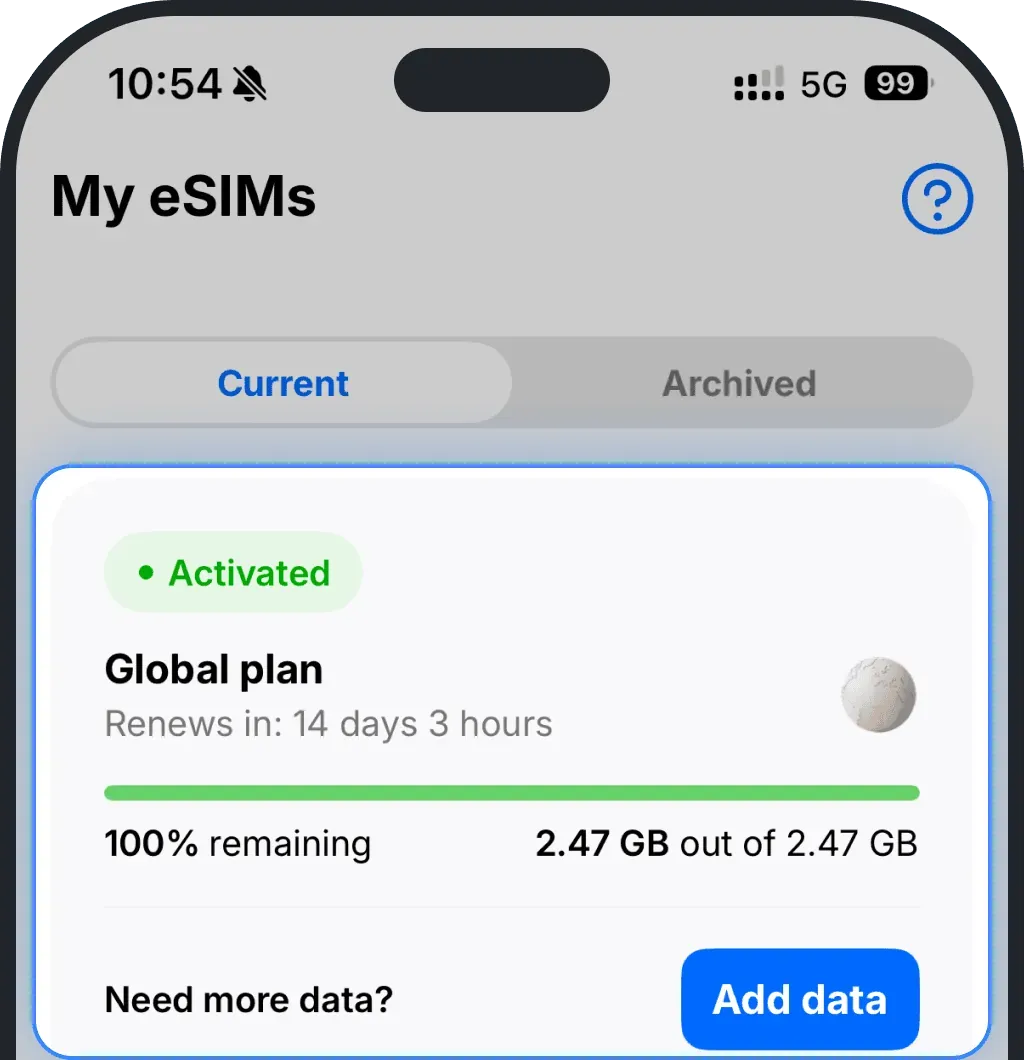
- Open the Ohayu app and go to the My eSIMs tab
Tap your eSIM to open its details
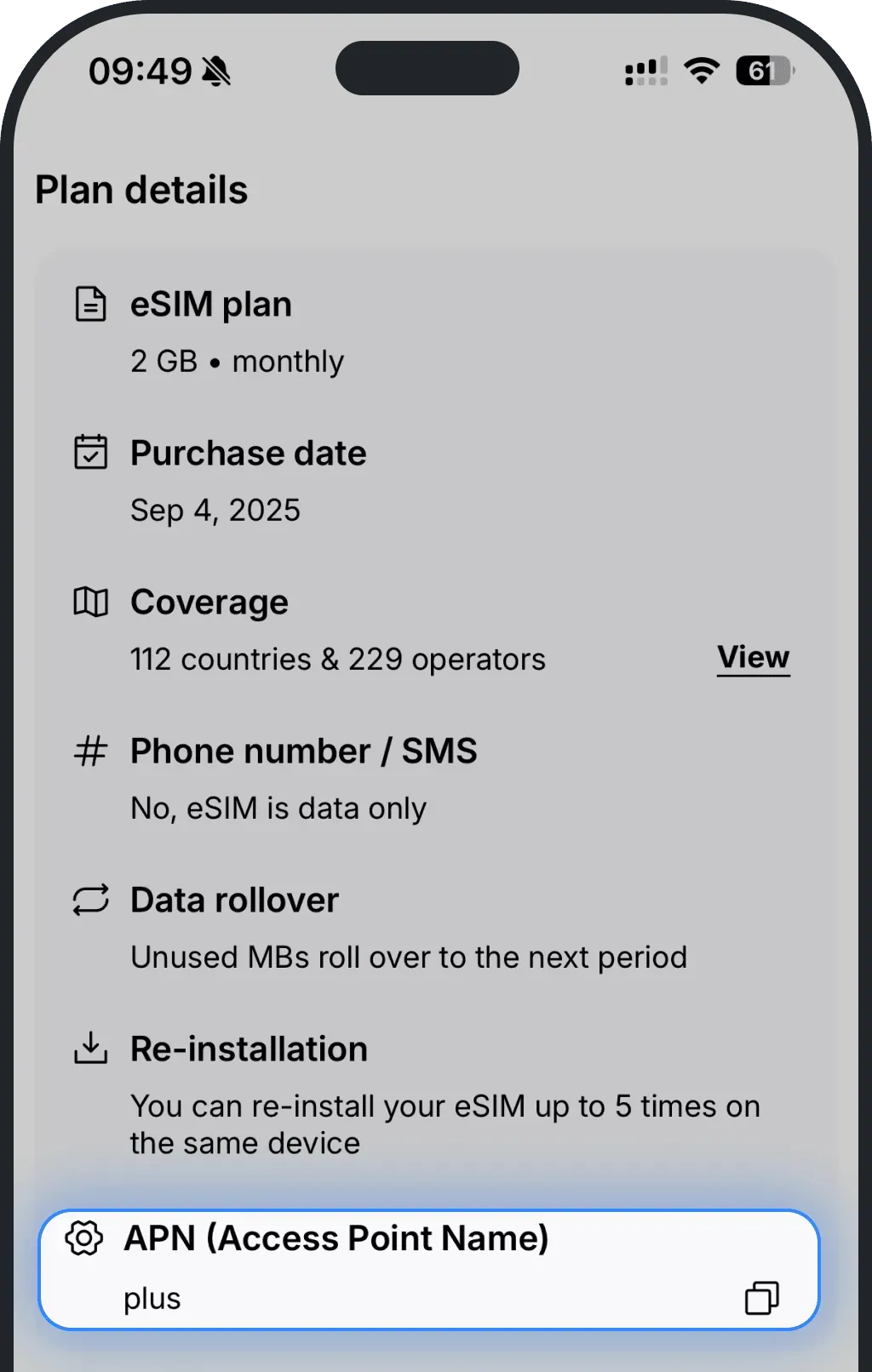
In the Plan details section, you’ll see your APN (Access Point Name) — copy it
Step 2: Add or edit the APN on your device
iPhone
Go to Settings
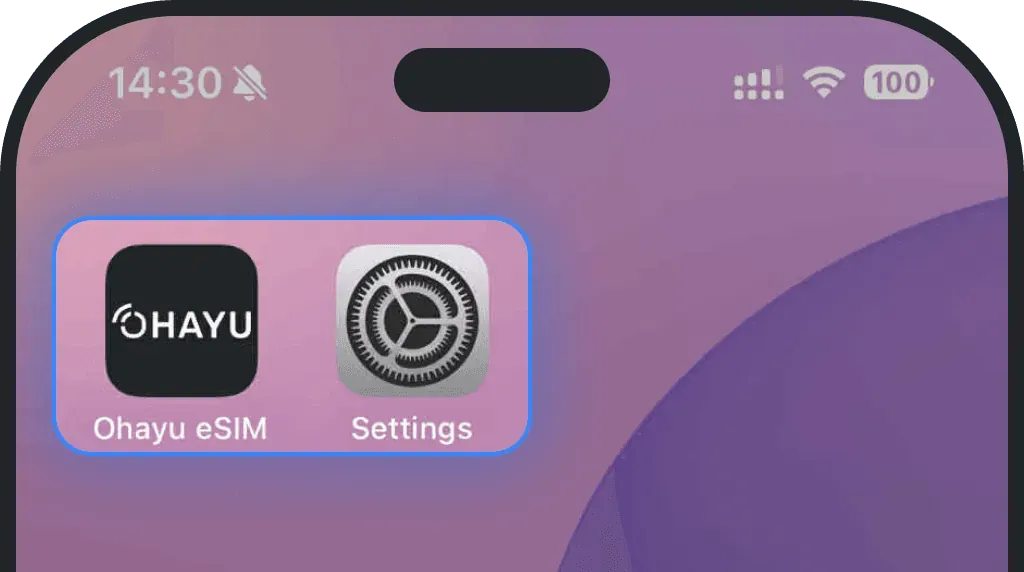
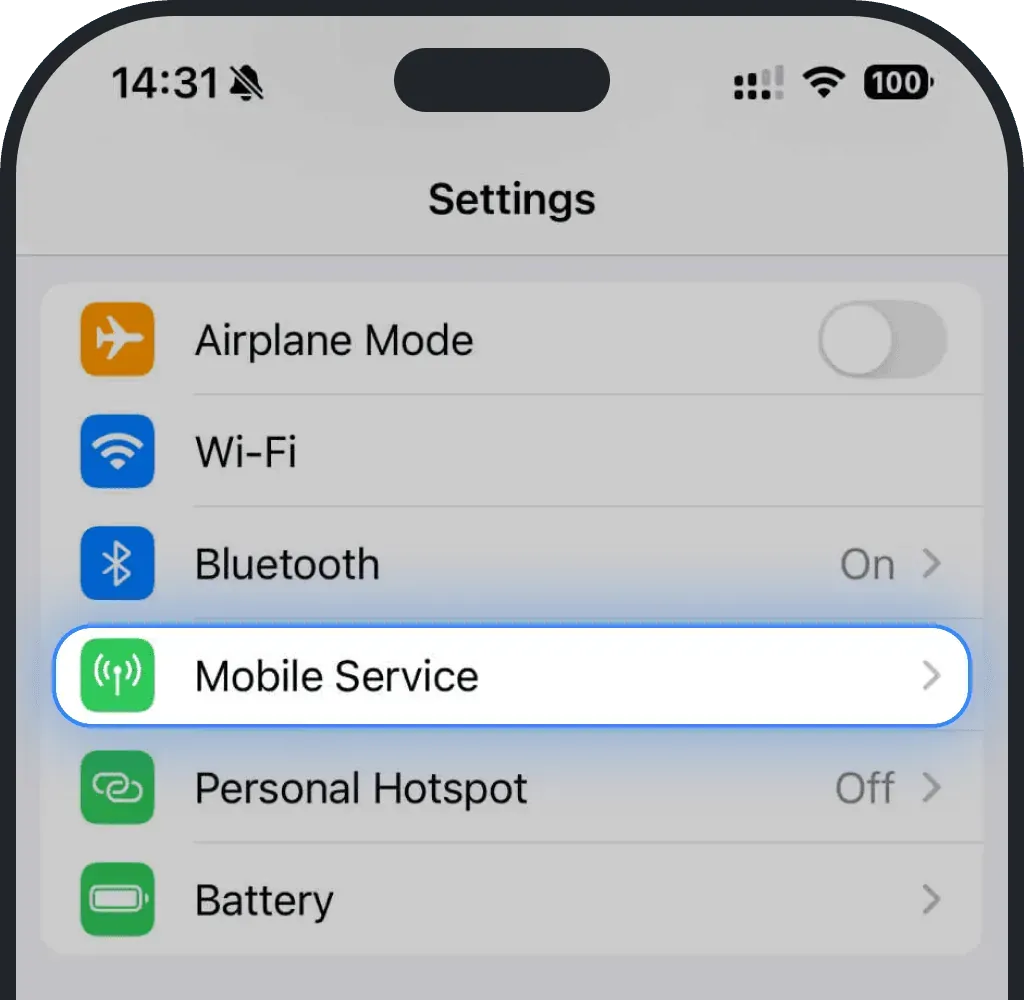
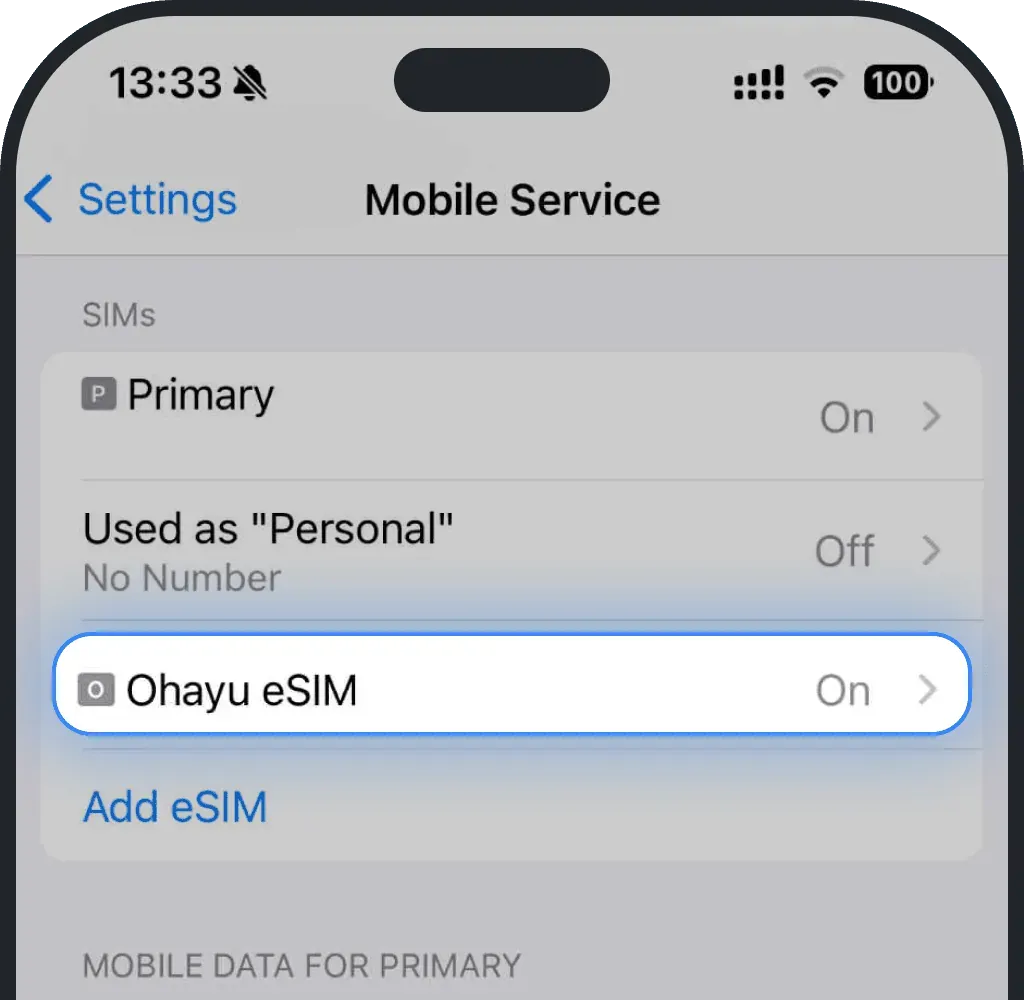
Tap Mobile Service (or Cellular)
Select your Ohayu eSIM (shown as Ohayu, Secondary, or other)
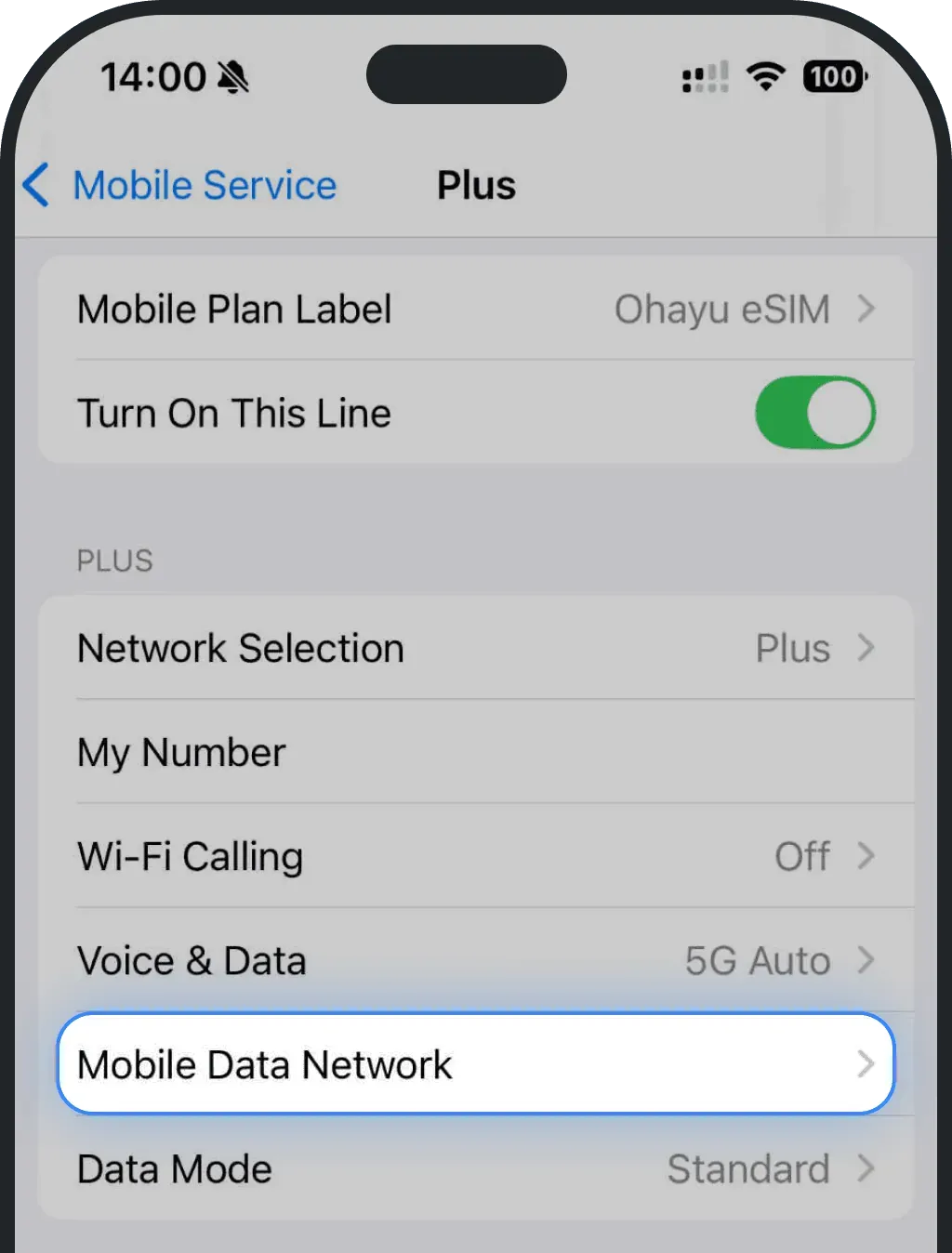
Tap Mobile Data Network
Paste the copied APN into all APN fields
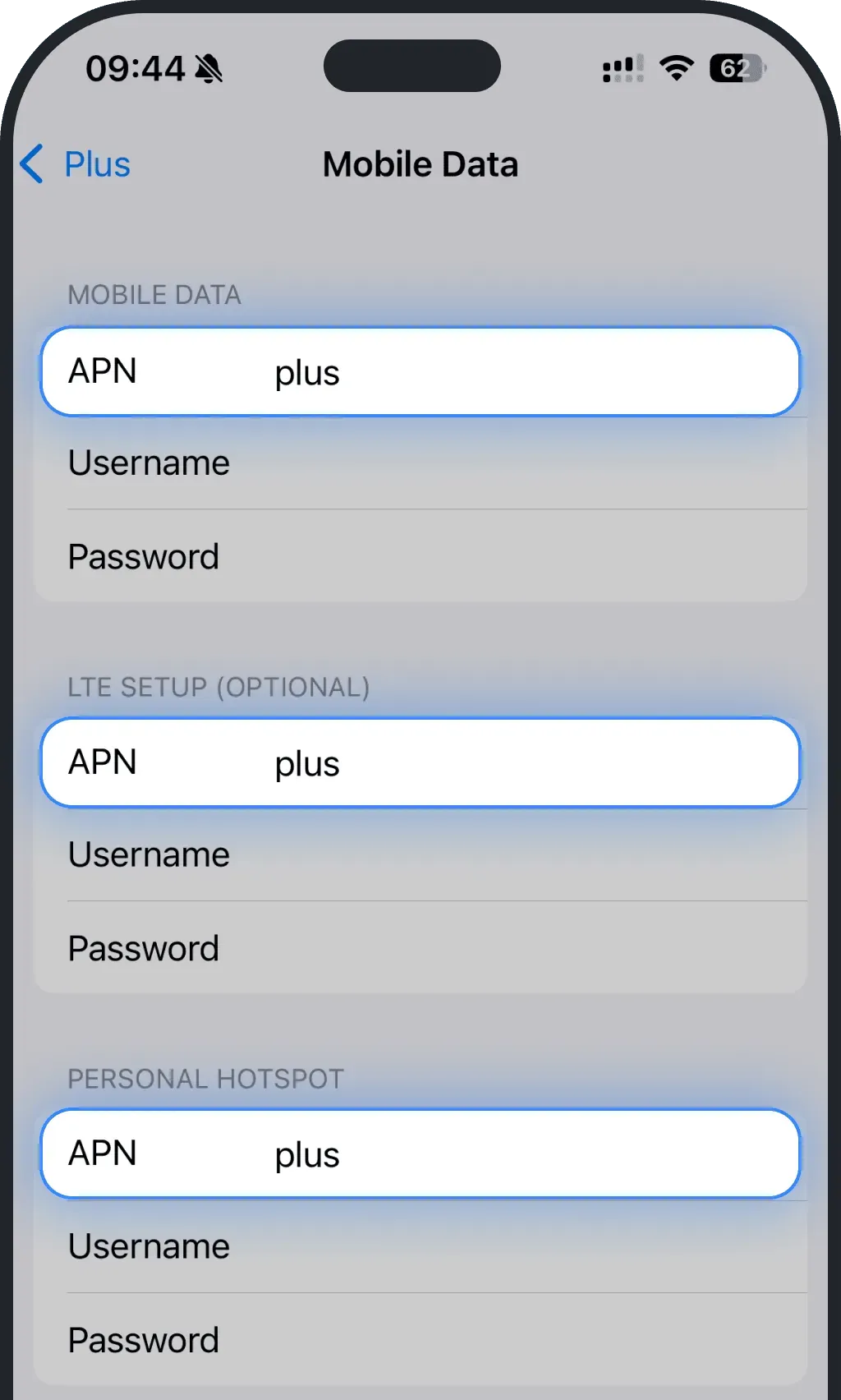
- Leave all other fields blank
Android
Go to Settings
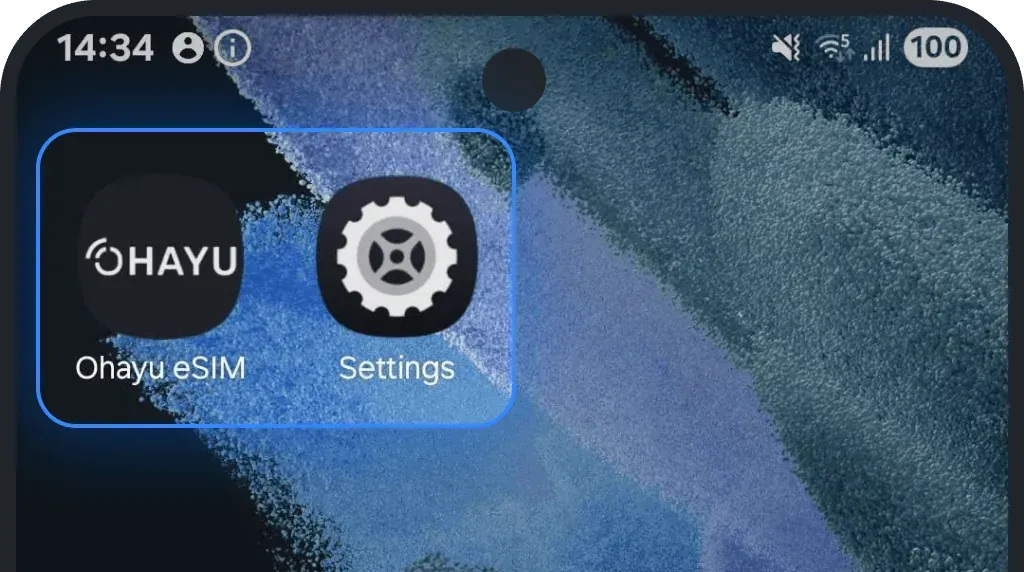
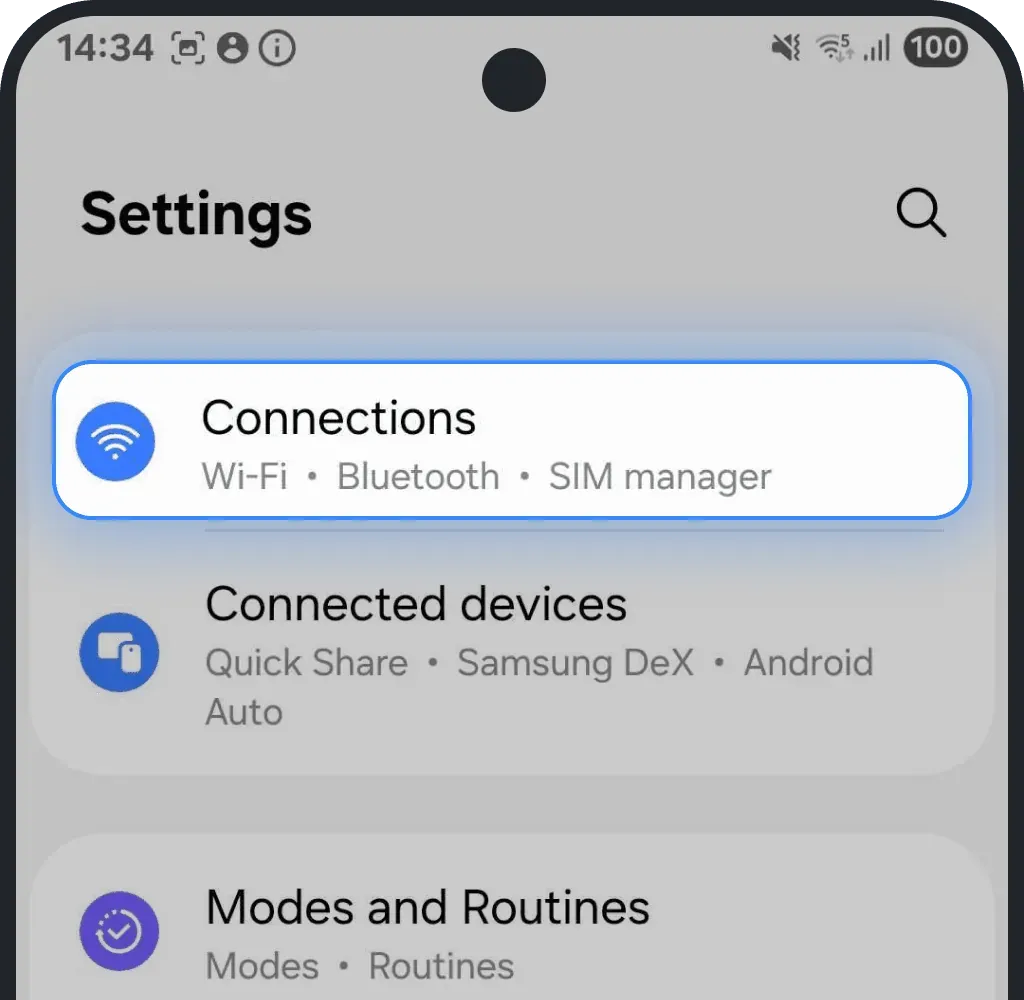
Tap Connections
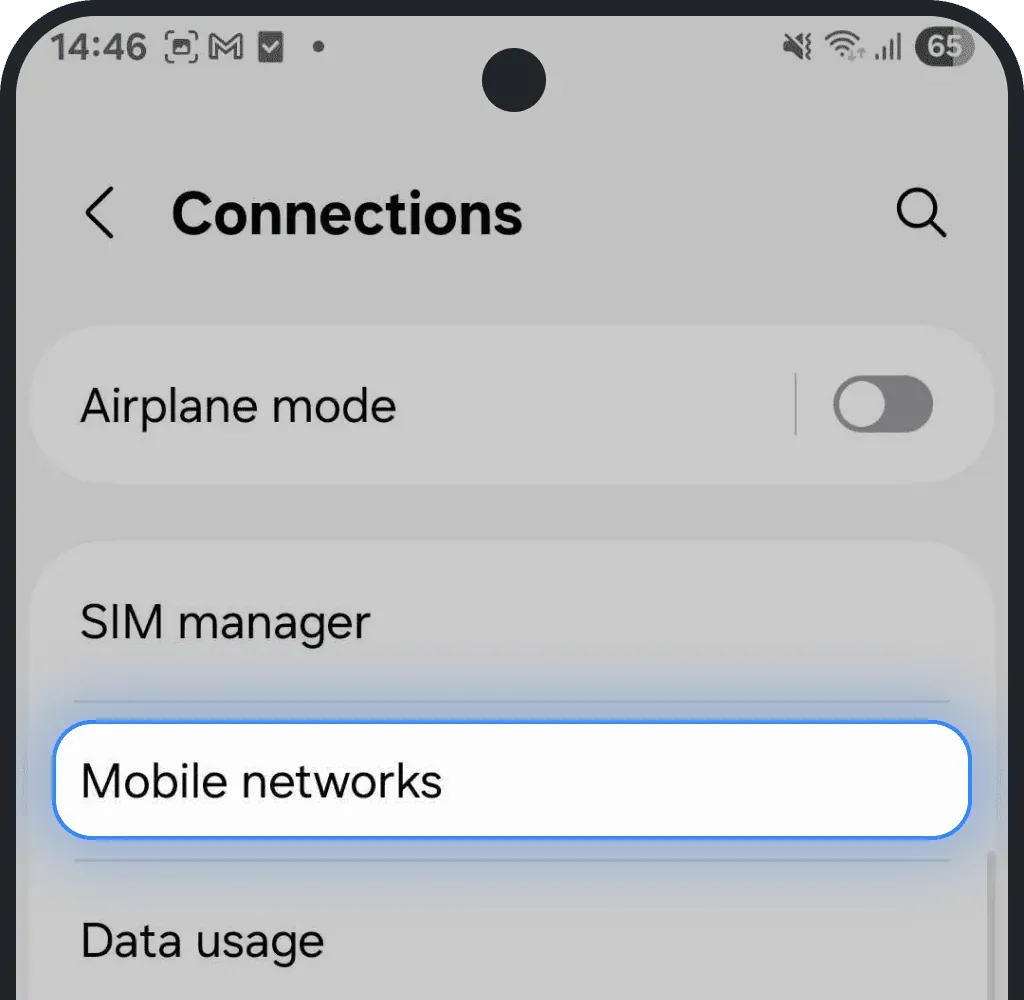
Choose Mobile networks
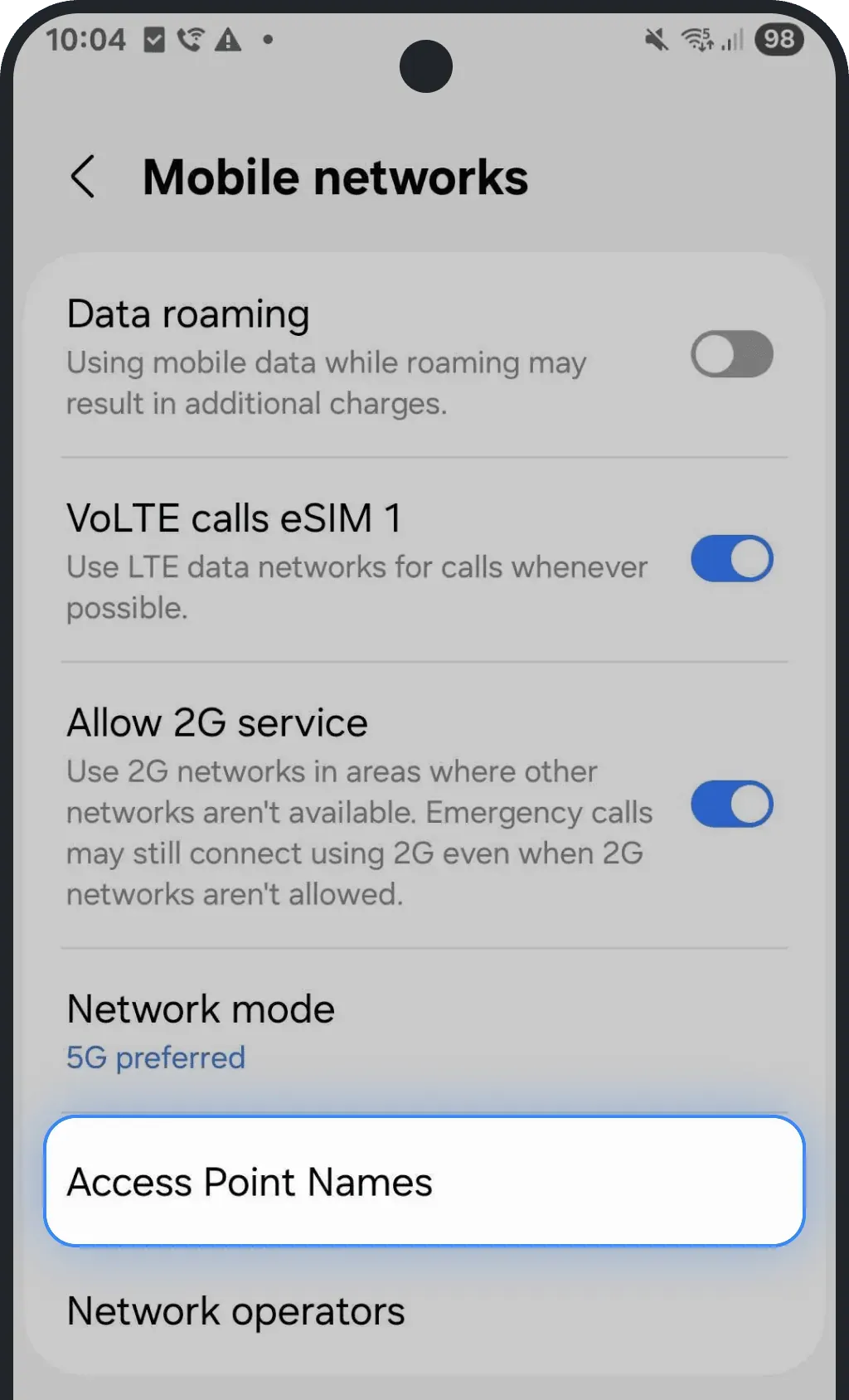
Tap Access Point Names
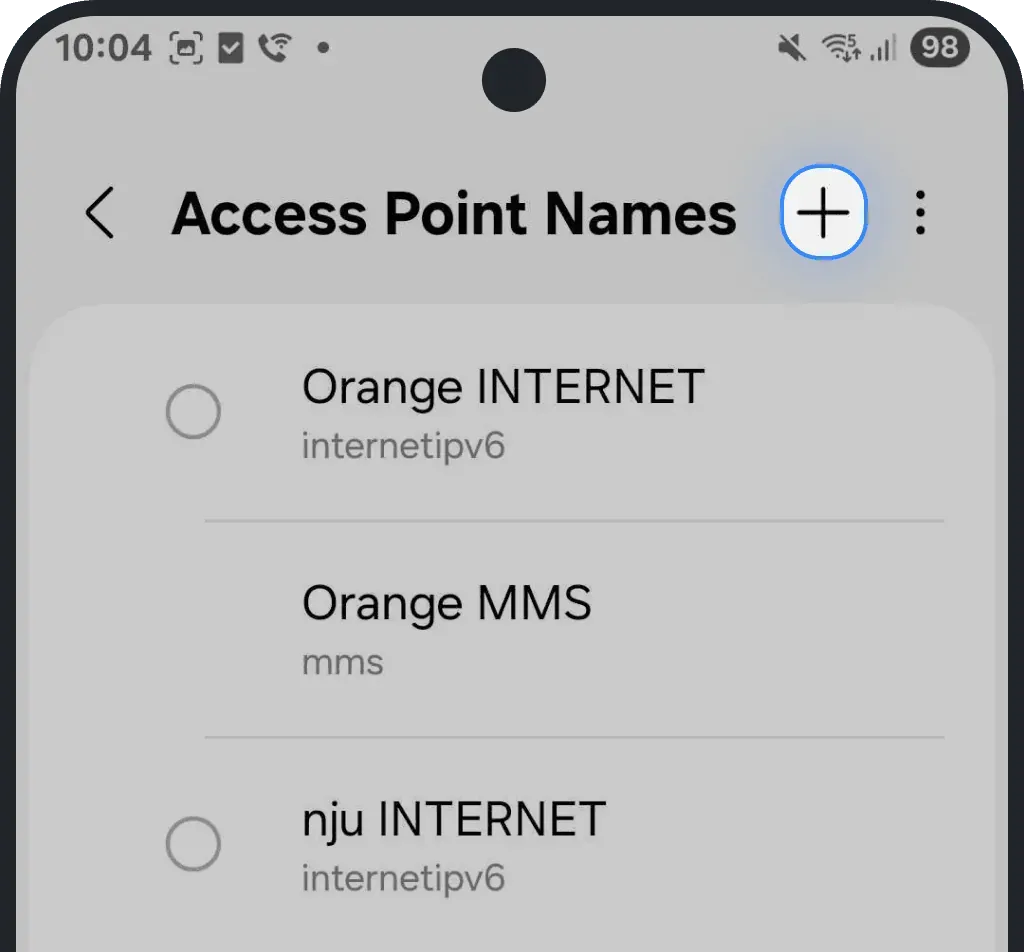
Tap Add (or the + icon)
Enter the copied APN in both the Name and APN fields
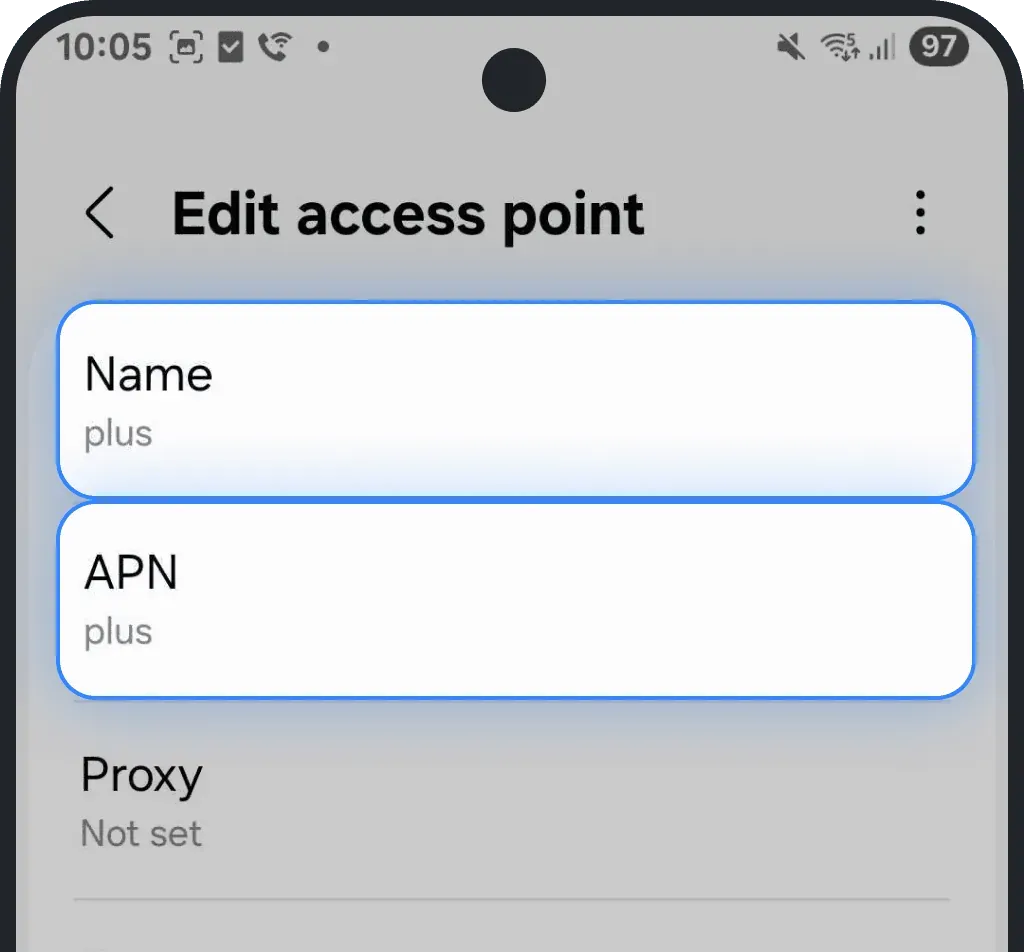
- Leave other fields blank
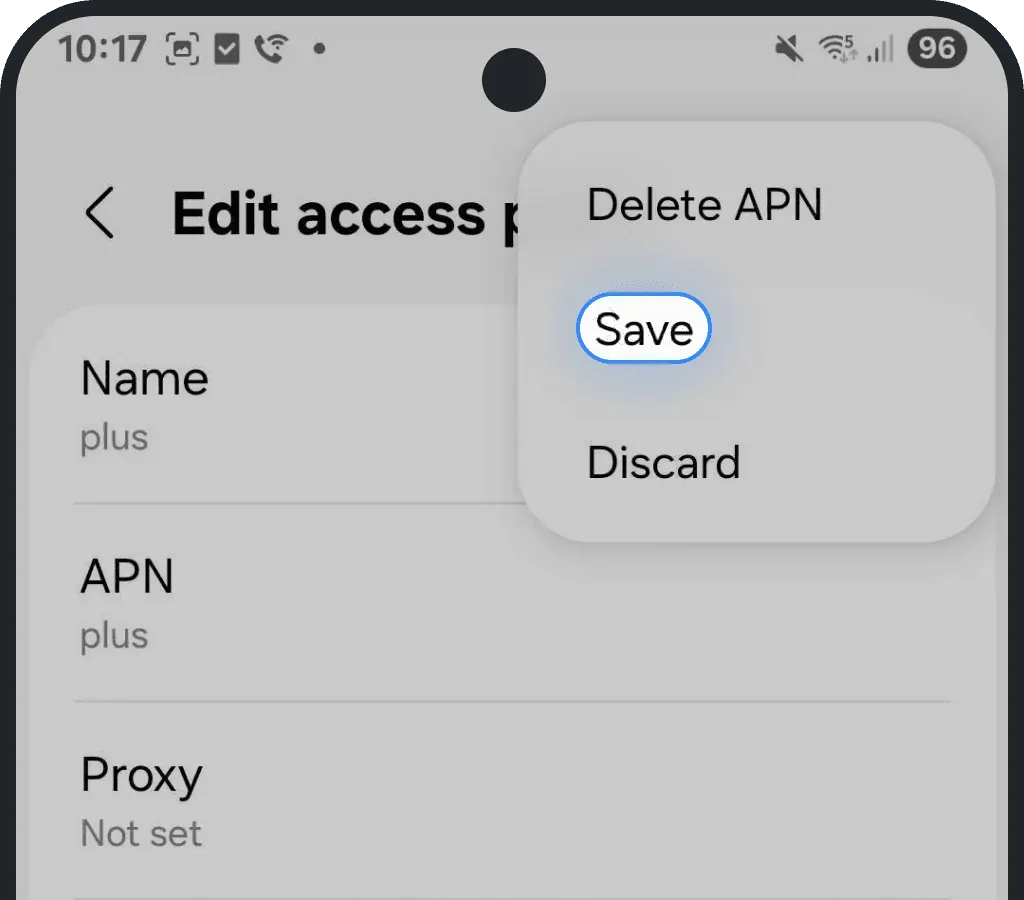
Tap the three dots in the top-right corner and press Save
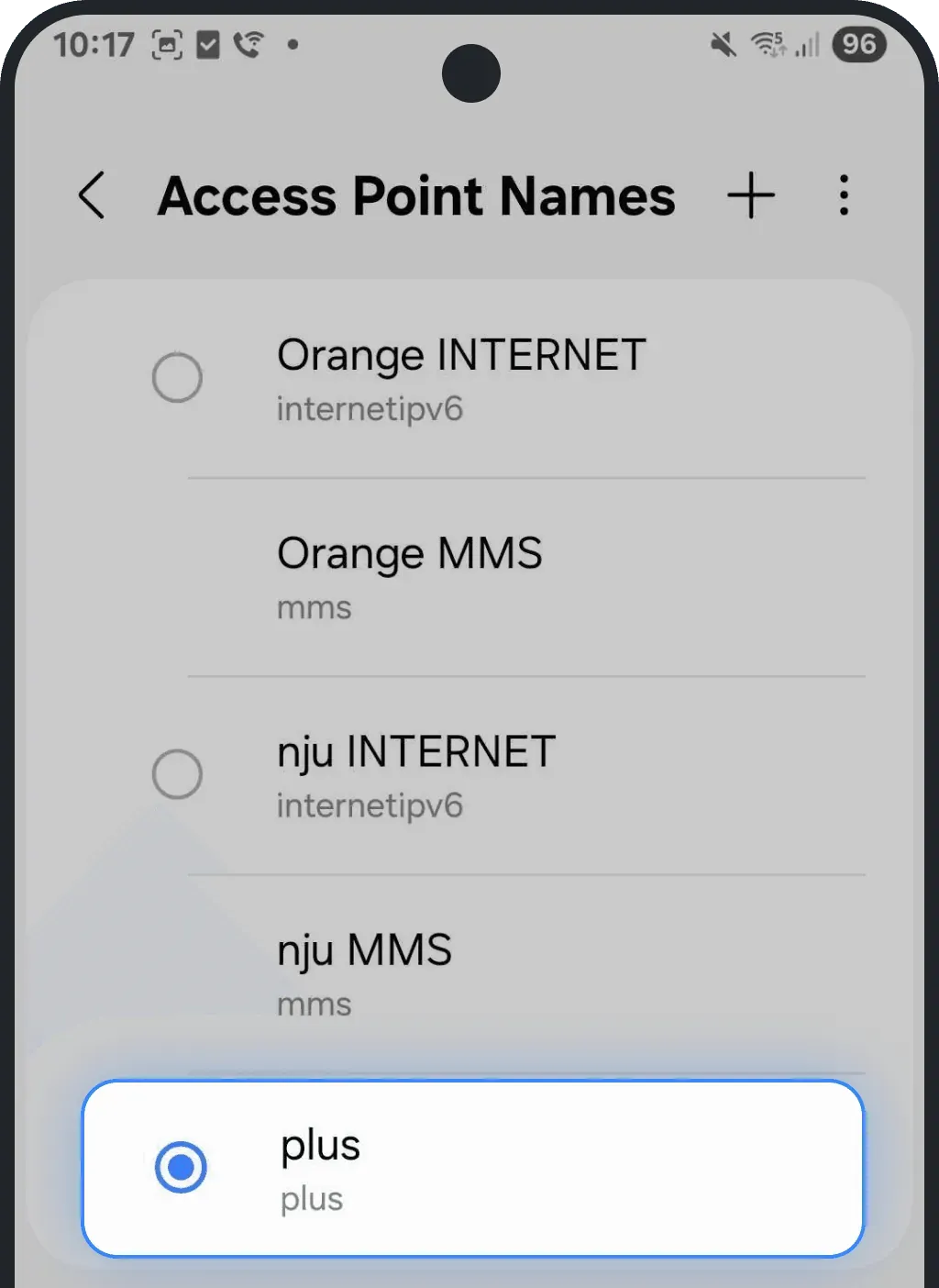
Select the new APN to enable it
Was this article helpful?
Your feedback helps us improve our FAQ
Related questions
- How can I install an eSIM on Apple devices manually?
- How can I install an eSIM on Android (Samsung, Google, Xiaomi, etc.) devices via QR code?
- How can I install an eSIM on Android (Samsung, Google, Xiaomi, etc.) devices manually?
- Are there any specific settings required to use an Ohayu eSIM?
- Where do I find my QR code for eSIM installation?
Related questions
- How can I install an eSIM on Apple devices manually?
- How can I install an eSIM on Android (Samsung, Google, Xiaomi, etc.) devices via QR code?
- How can I install an eSIM on Android (Samsung, Google, Xiaomi, etc.) devices manually?
- Are there any specific settings required to use an Ohayu eSIM?
- Where do I find my QR code for eSIM installation?