
Why isn’t my eSIM working as a hotspot?
If your Personal Hotspot isn’t working on your eSIM, don’t worry — this issue is usually caused by a small settings mismatch. The most common reasons include: incorrect APN (Access Point Name) configuration, outdated software, network settings conflicts or weak mobile signal.
Ohayu supports Personal Hotspot / Tethering on both country plans and global plans.
Below you’ll find simple steps to fix hotspot issues on both iPhone and Android.
1. Quick checks (try these first)
These simple steps solve most hotspot issues in under a minute:
iOS (iPhone)
Go to Settings.
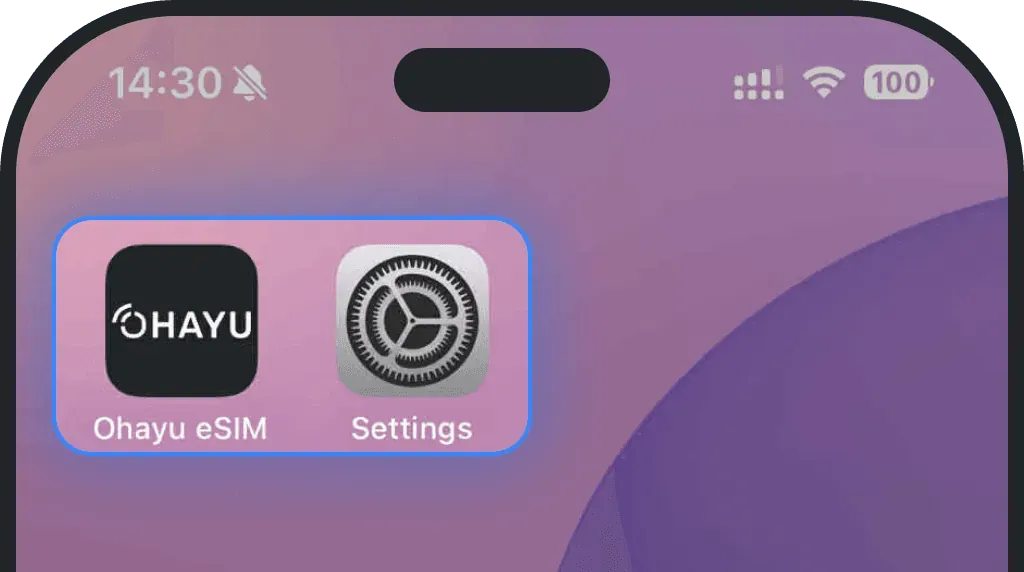
Tap Personal Hotspot
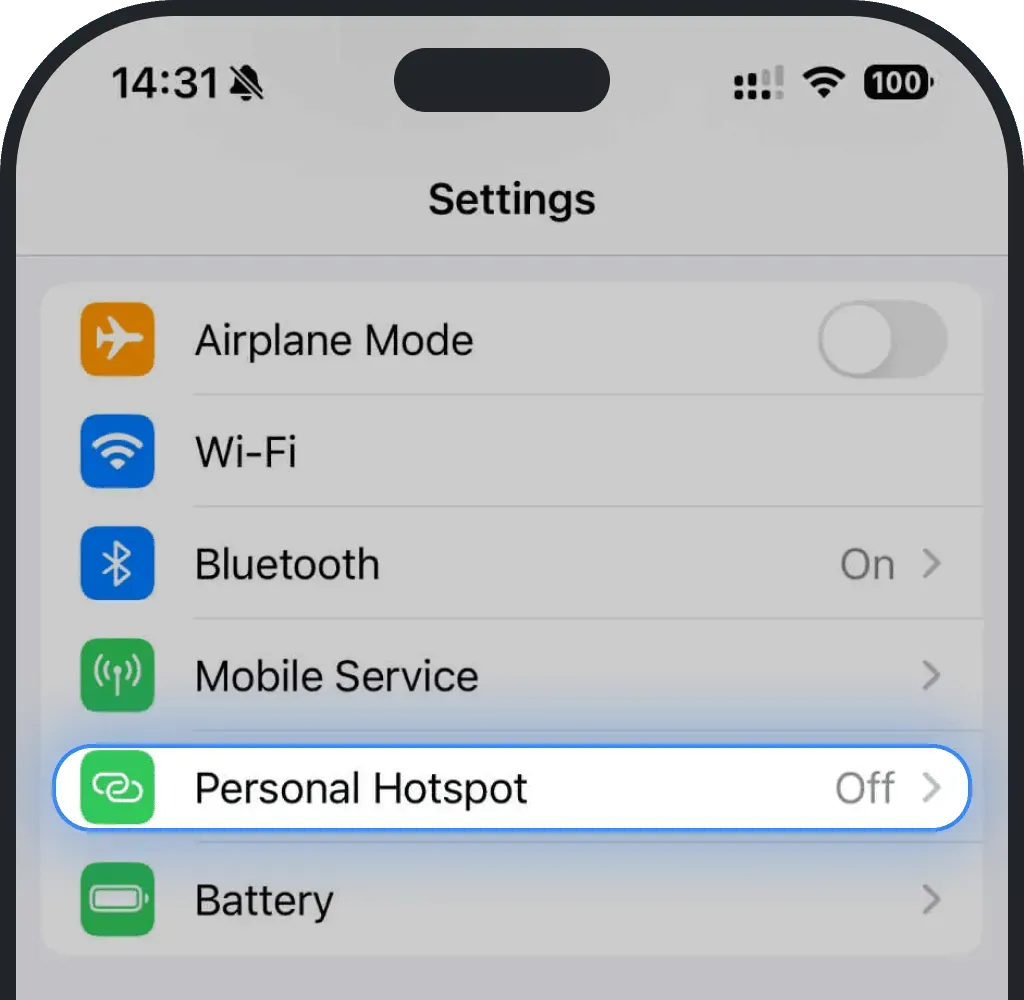
- Toggle Personal Hotspot off and on
Verify the hotspot password (typos are very common)
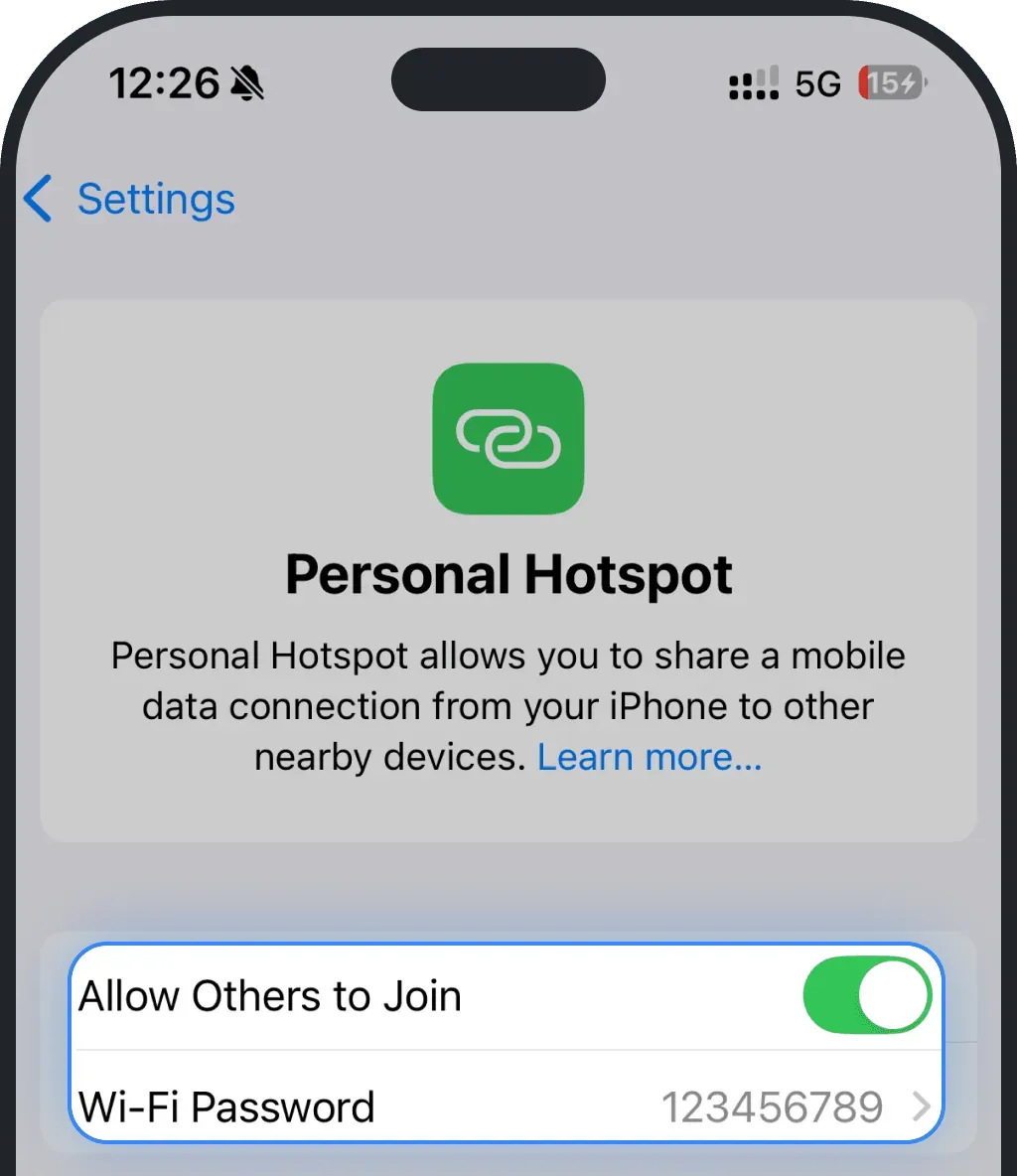
- Check the device limit — most phones allow 5–10 connections max
Android
Go to Settings
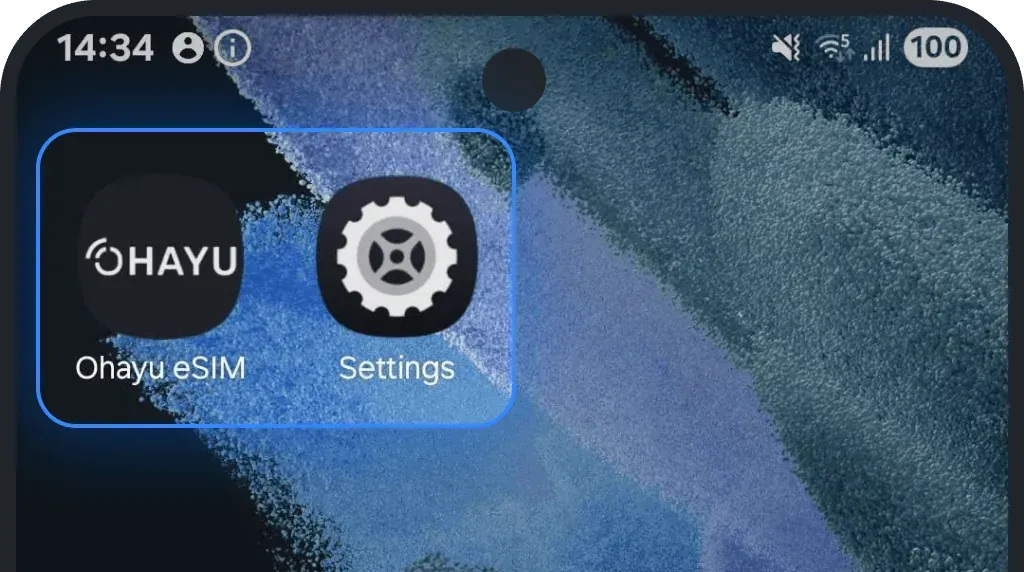
Tap Connections
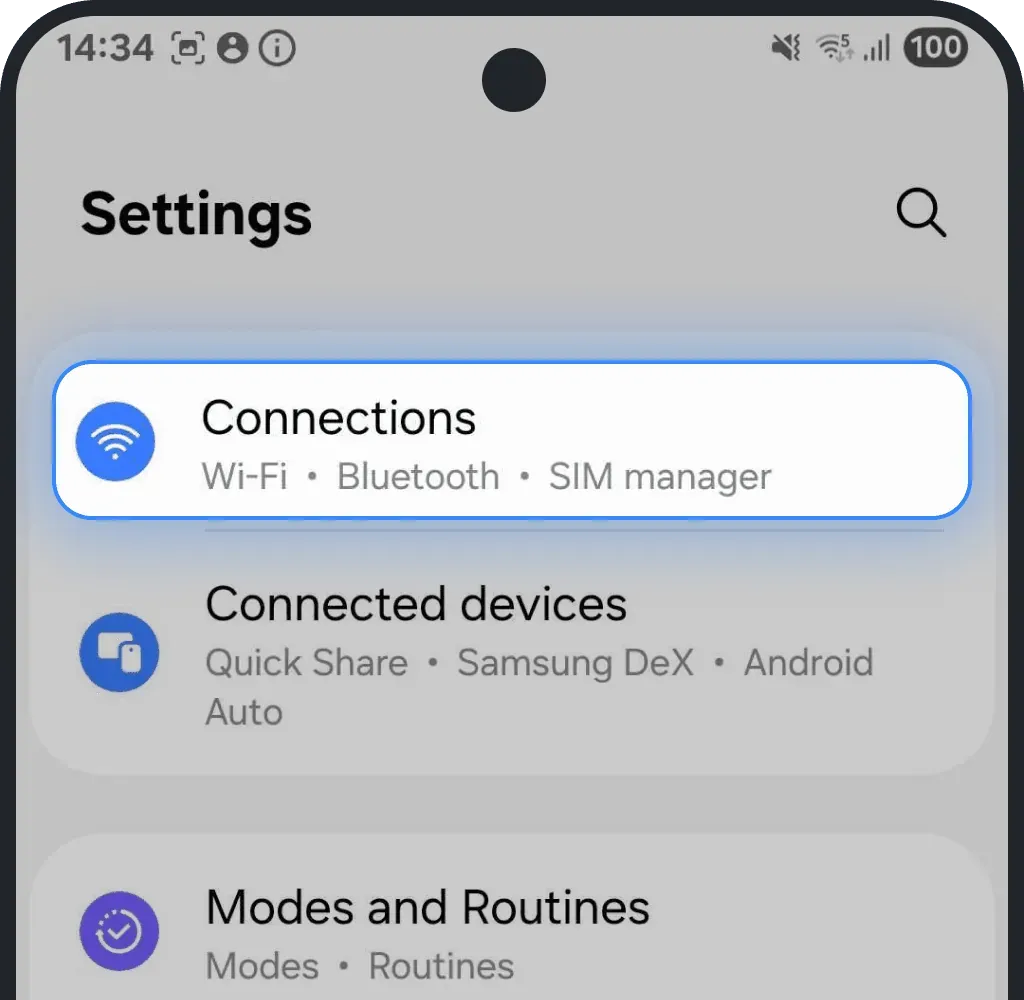
Tap Mobile Hotspot and Tethering
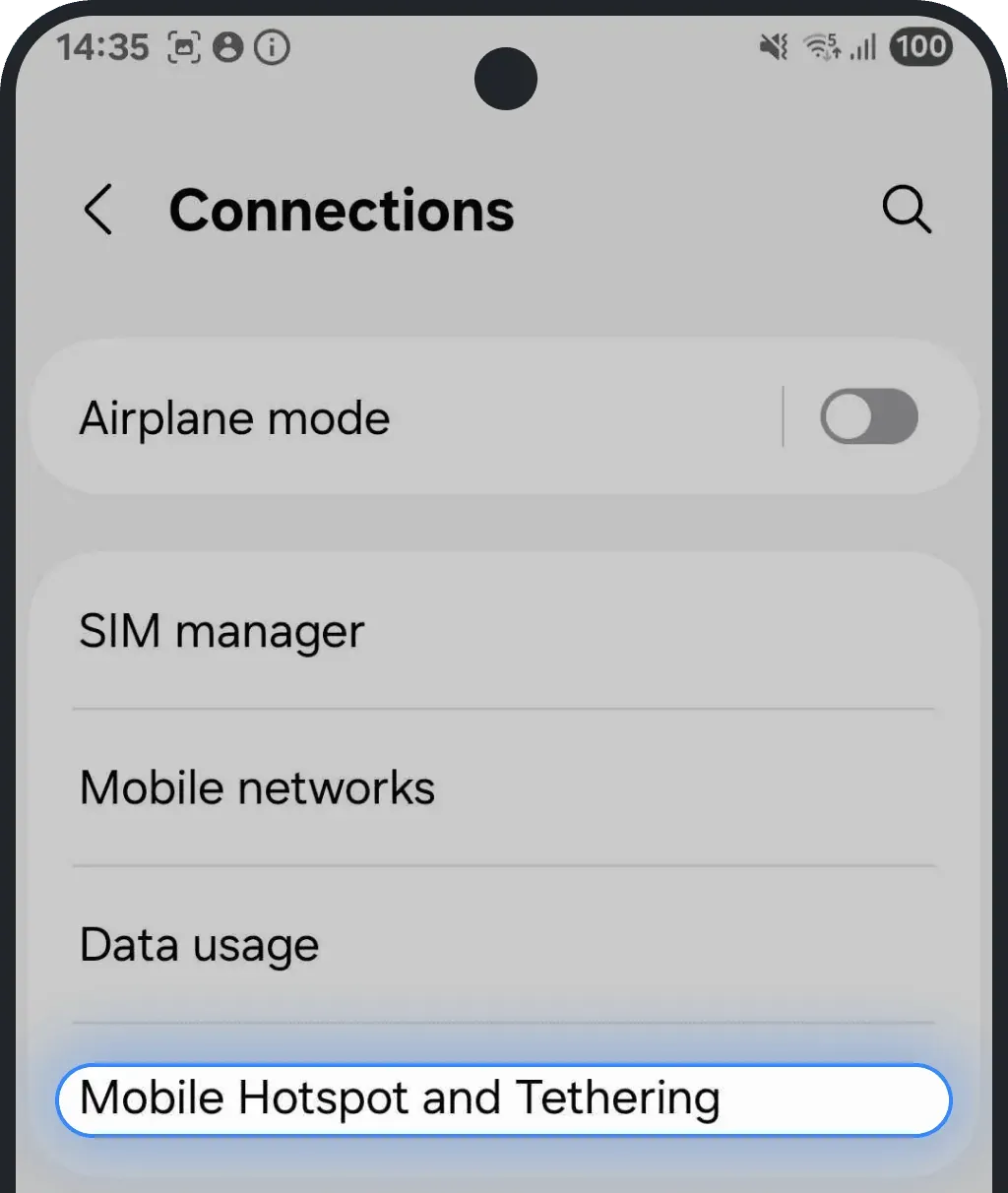
Toggle Mobile Hotspot off and on
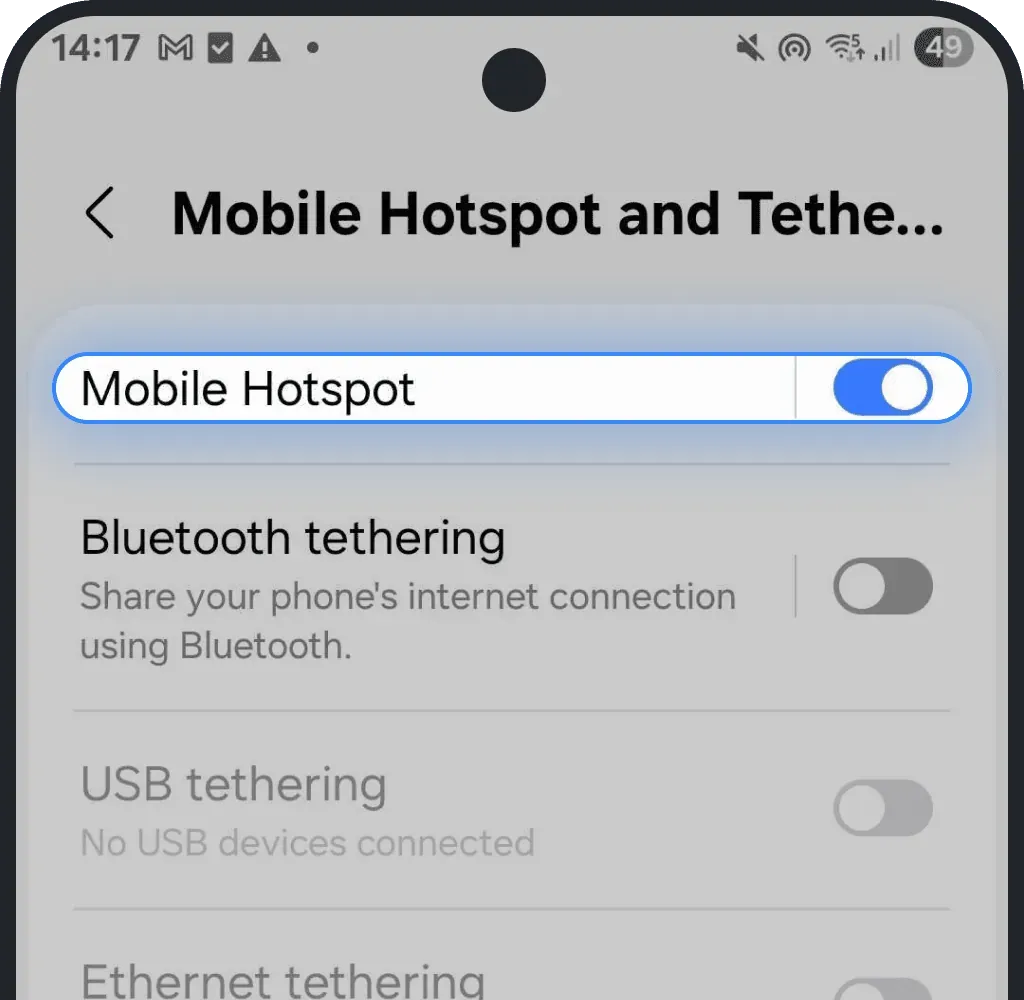
Tap on Mobile Hotspot and verify the hotspot password (typos are very common)
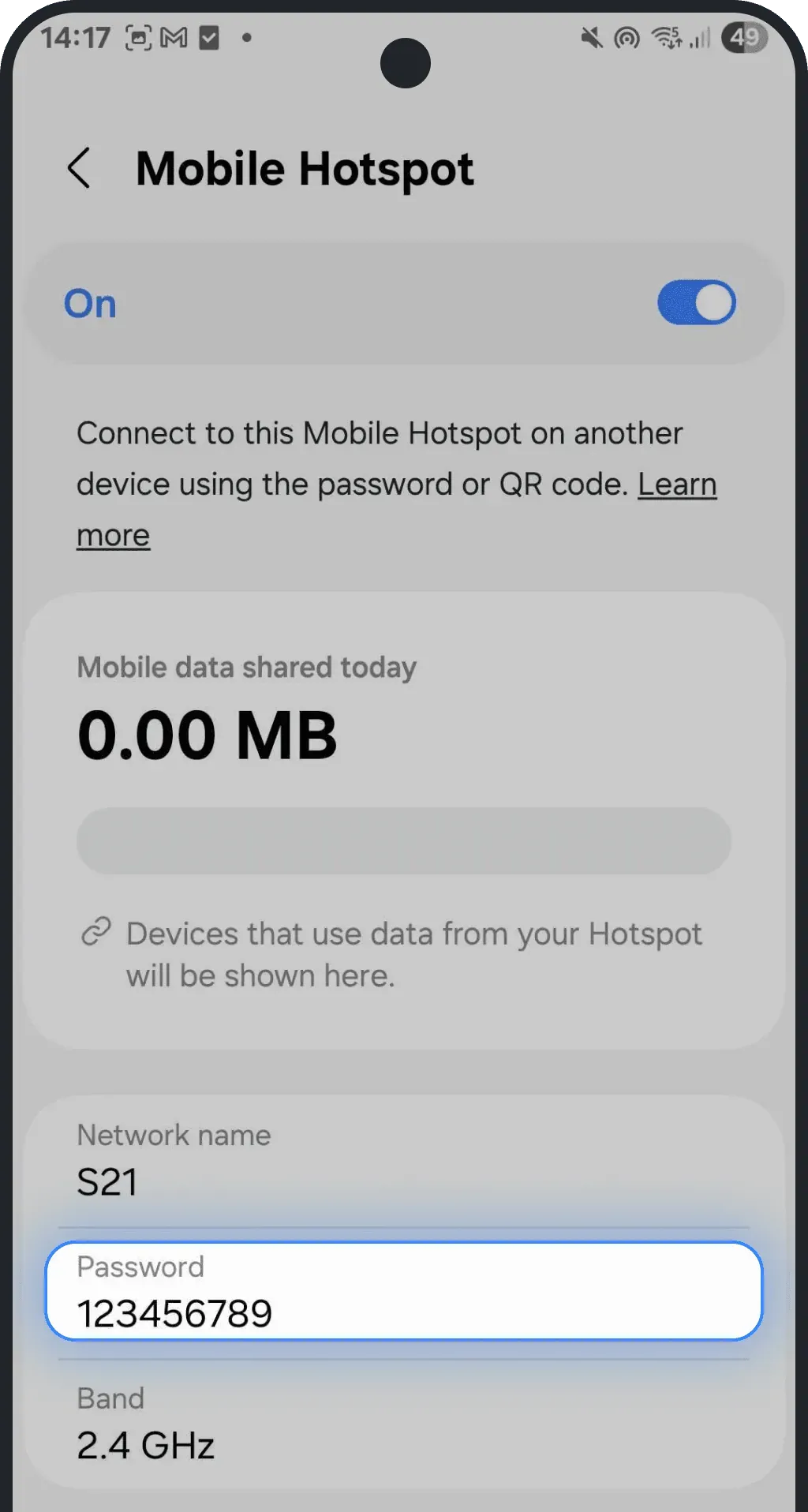
- Check the device limit — most phones allow 5–10 connections max
2. Incorrect APN settings
Hotspot won’t work unless the APN is correctly configured in all required fields. Your APN must match in these places: Cellular / Mobile Data APN, Personal Hotspot APN (iPhone), Tethering APN (Android, for some models). You can easily verify and update them by following the steps below.
Step 1: Check your APN in the Ohayu app
- Open the Ohayu app and go to the My eSIMs tab
Tap your eSIM to open its details
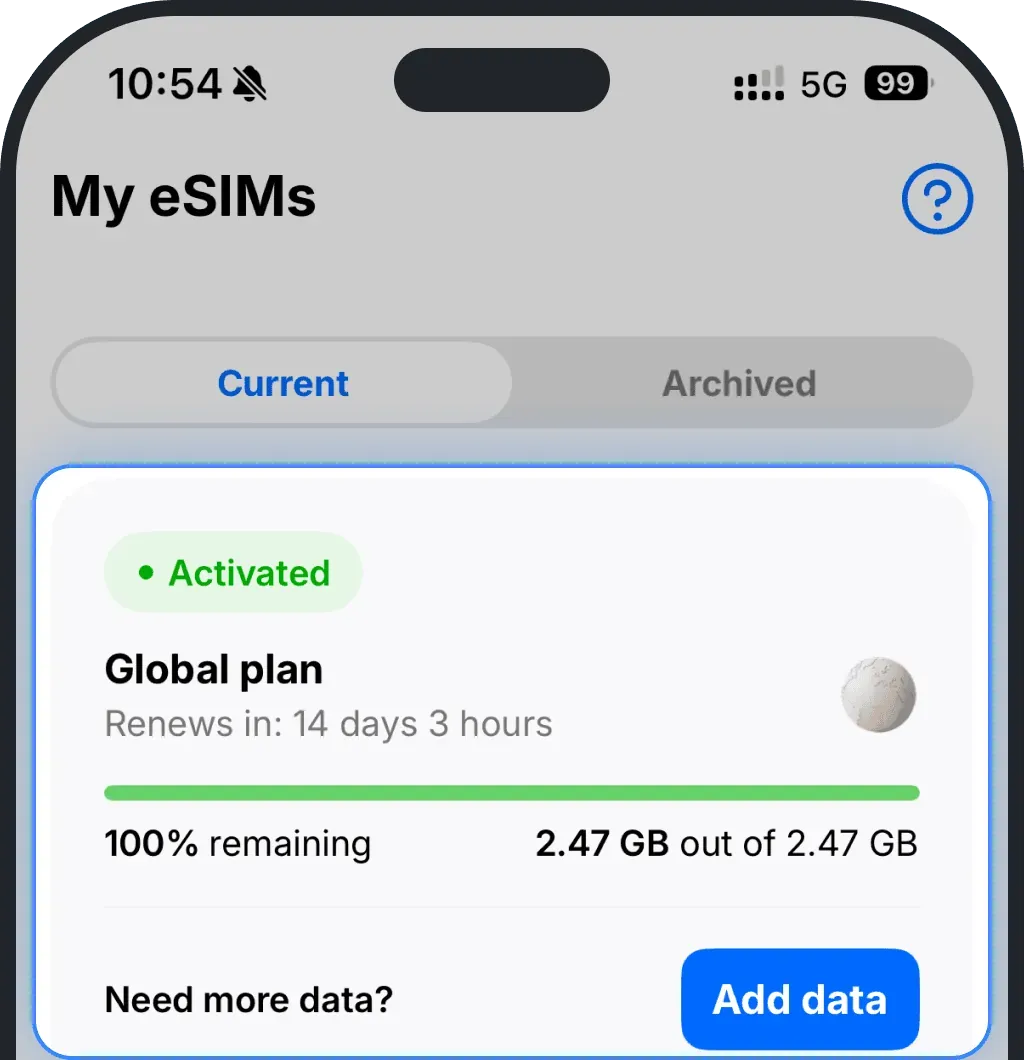
In the Plan details section, you’ll see your APN (Access Point Name) — copy it
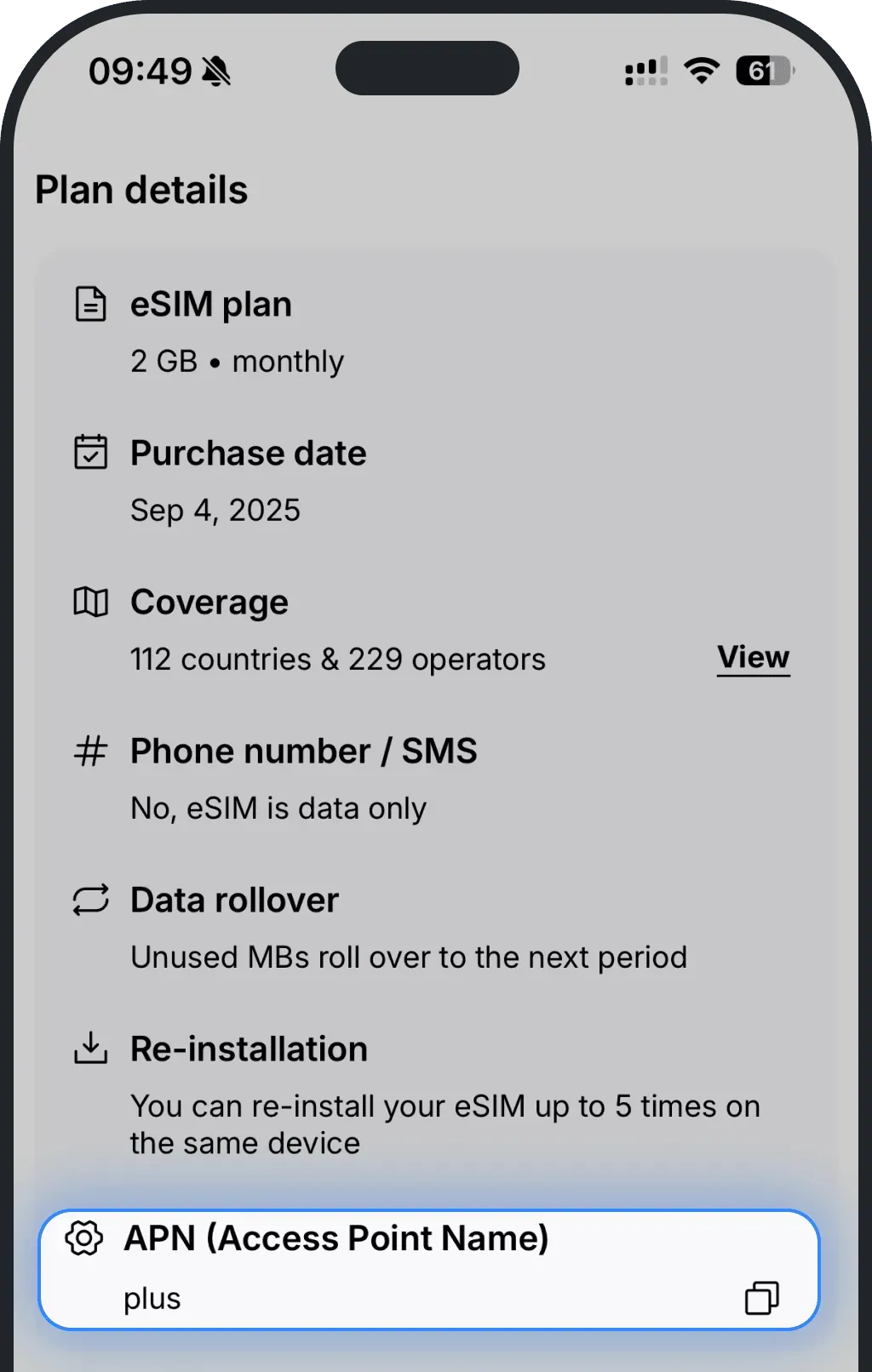
Step 2: Add or edit the APN on your device
Fix APN on iPhone
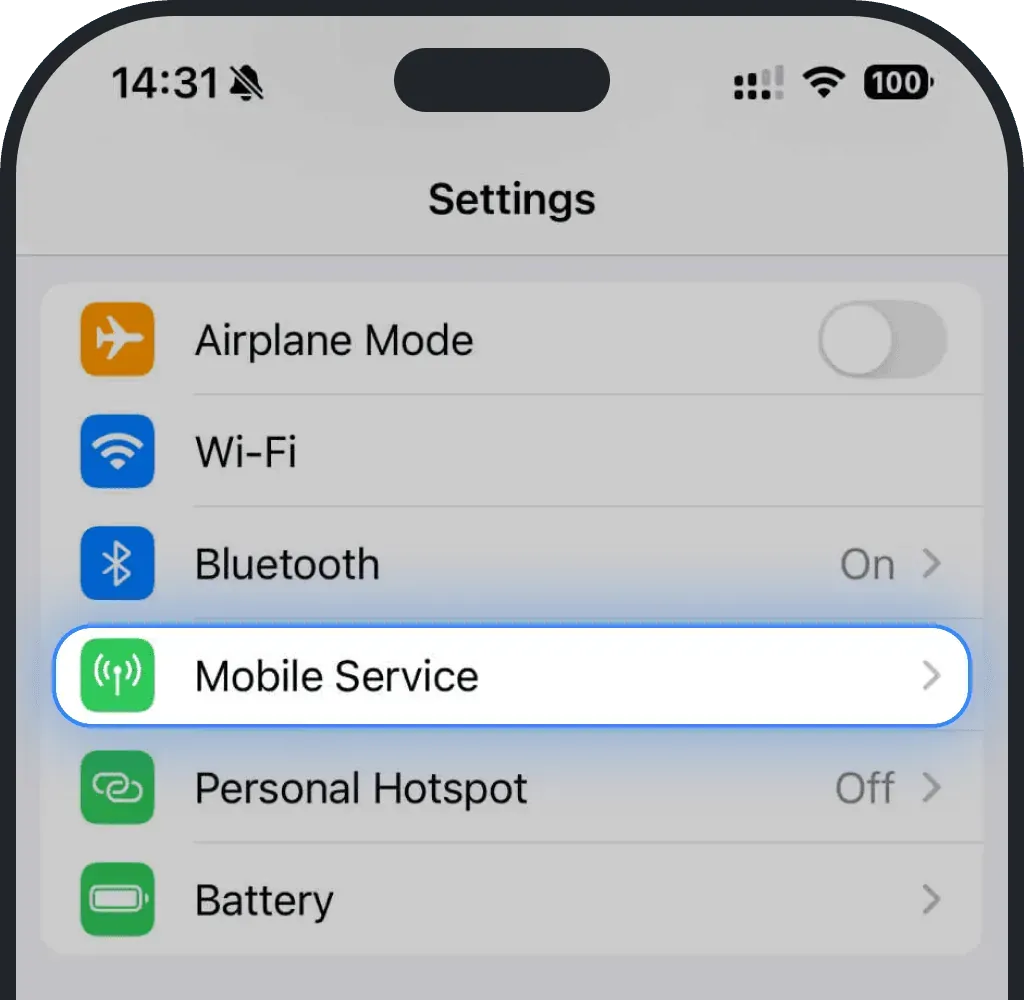
Go to Settings
Tap Mobile Service (or Cellular)
Select your Ohayu eSIM (shown as Ohayu, Secondary, or other)
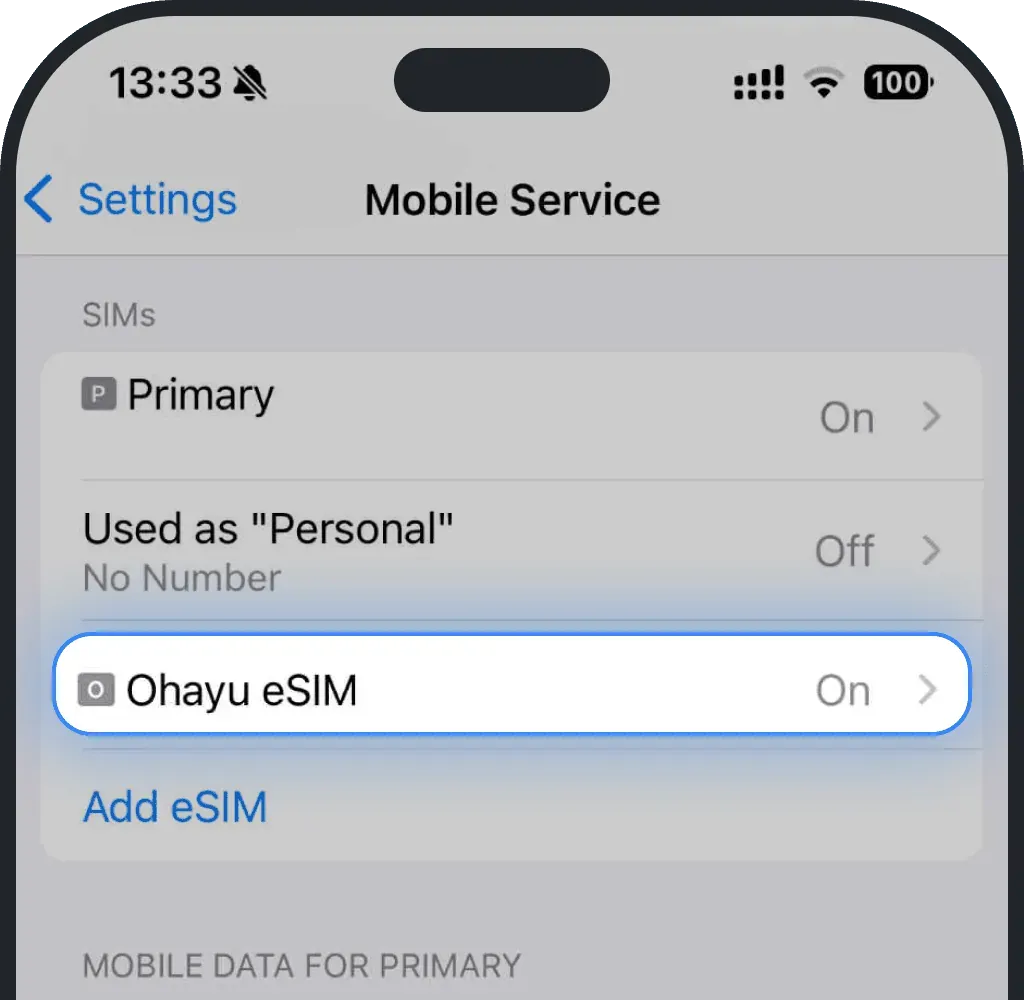
Tap Mobile Data Network
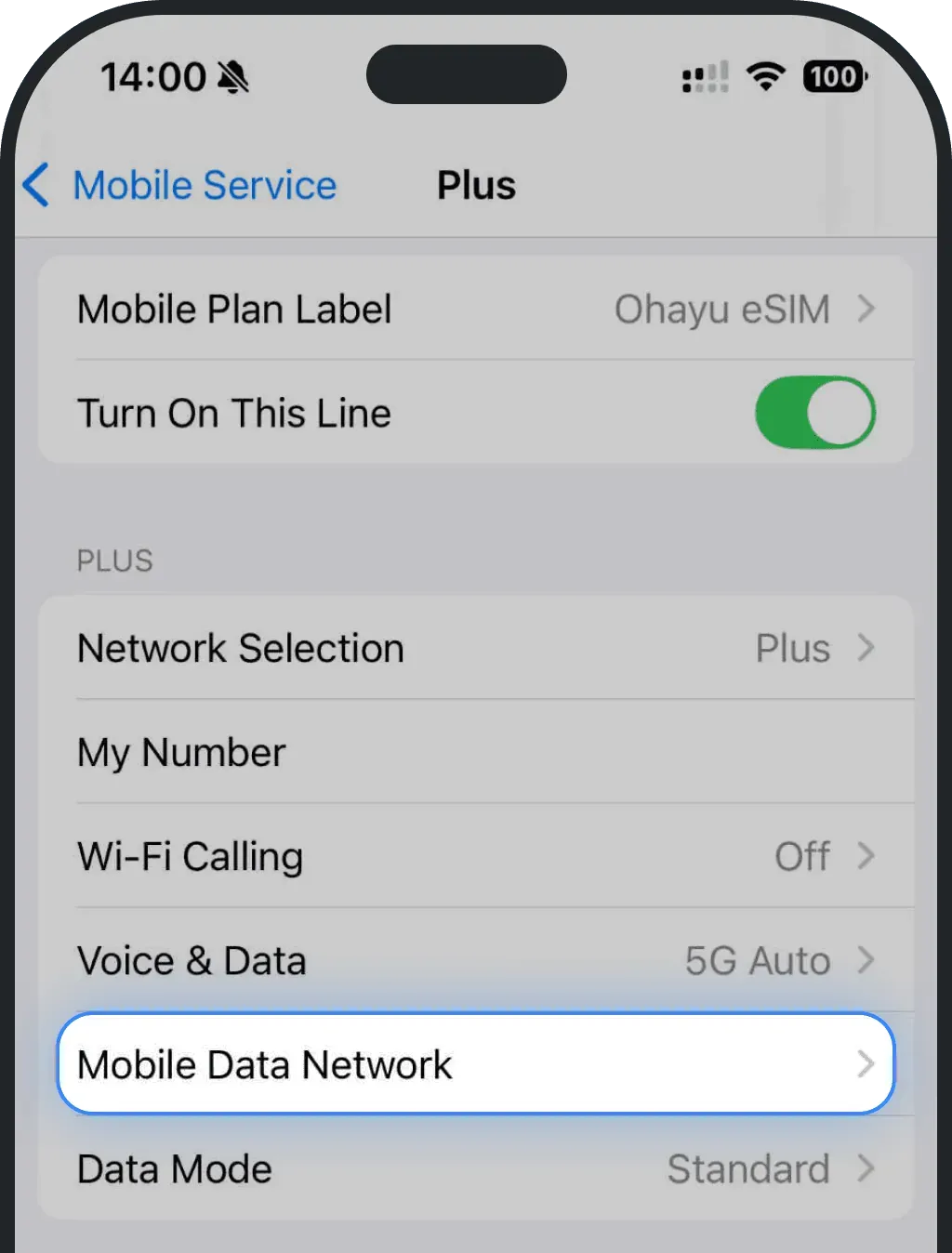
Paste the copied APN into all APN fields
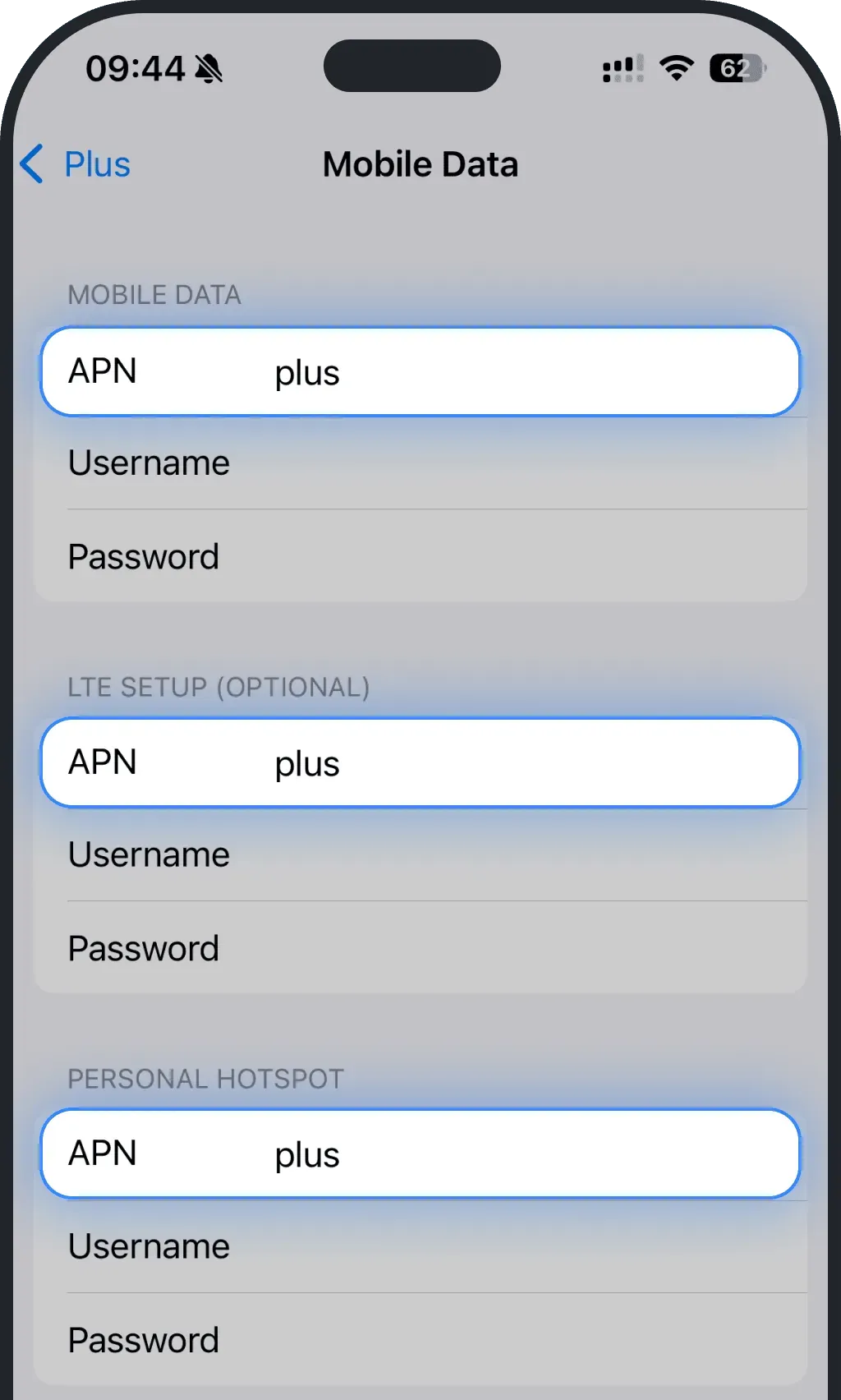
- Leave all other fields blank
Fix APN on Android
Go to Settings
Tap Connections
Choose Mobile networks
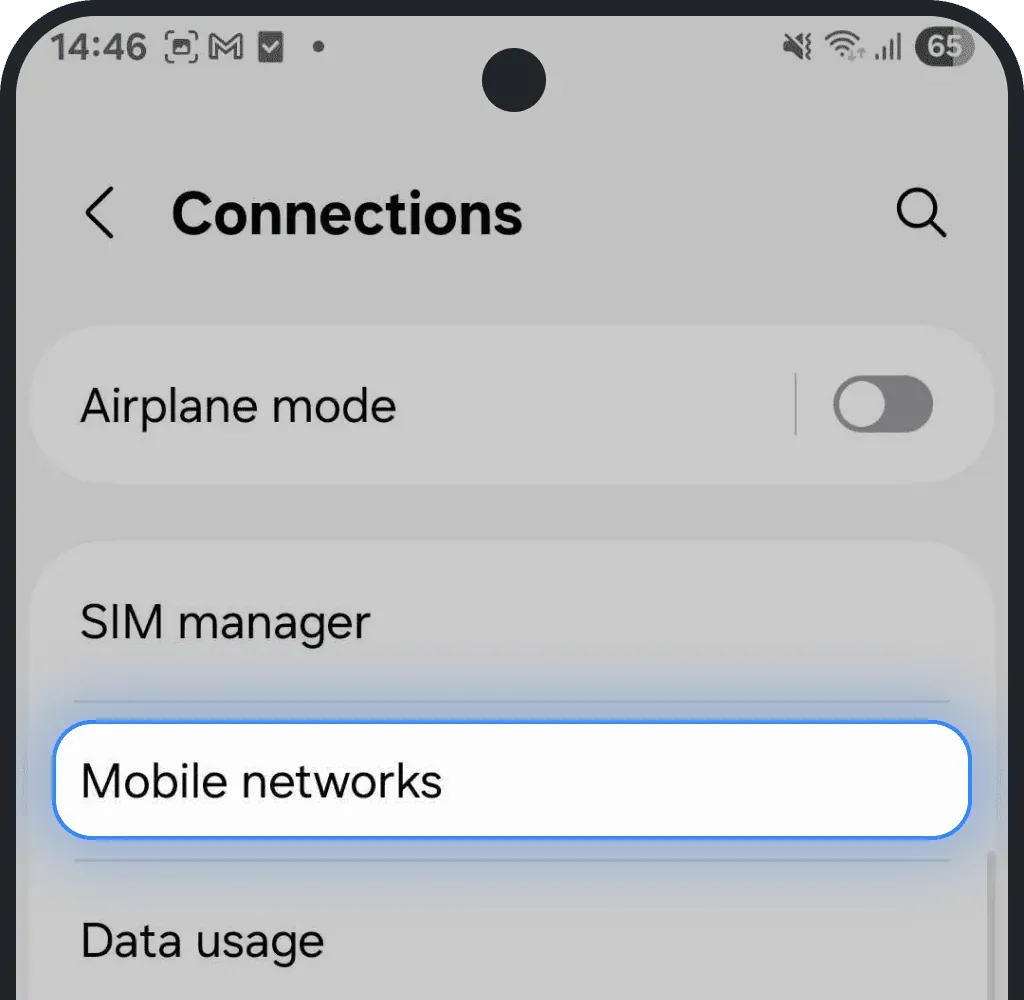
Tap Access Point Names
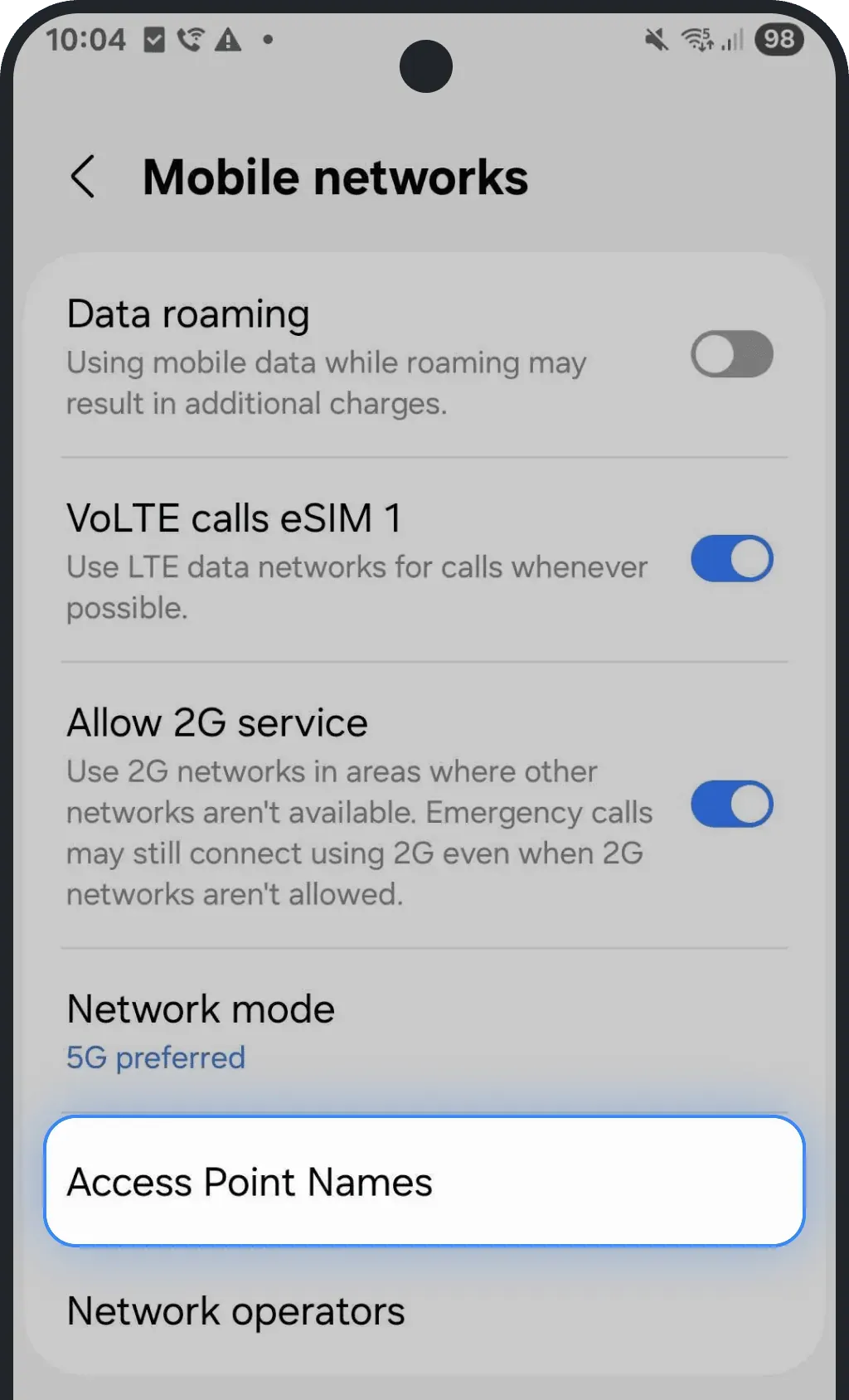
Tap Add (or the + icon)
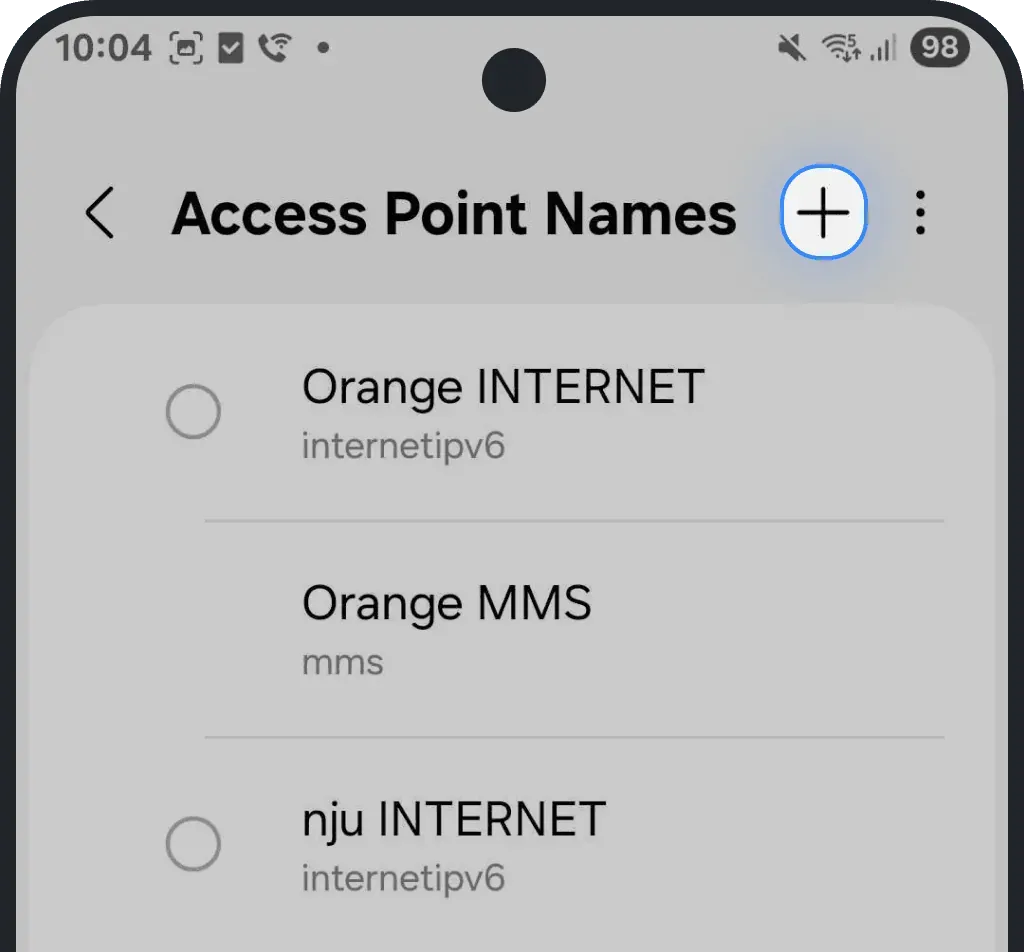
Enter the copied APN in both the Name and APN fields. If your device shows separate APN sections such as “Tethering” or “Hotspot”, make sure to paste the same APN there as well
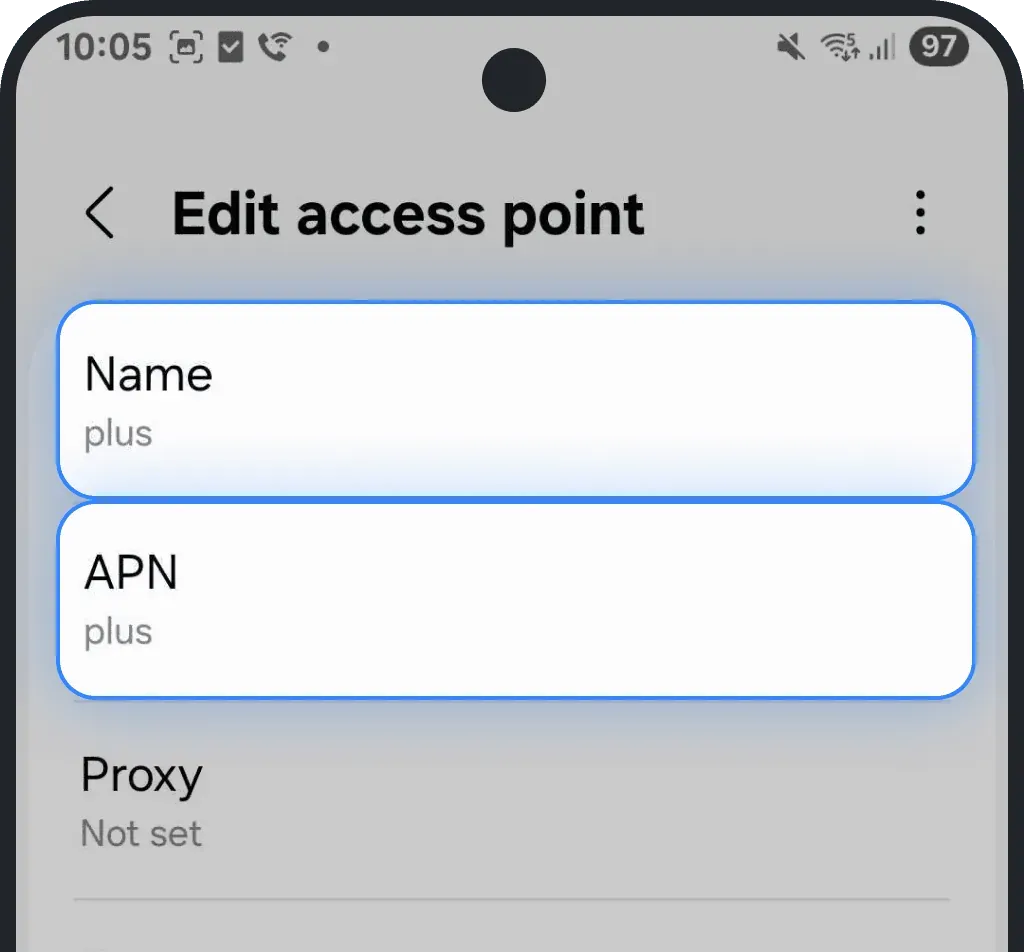
- Leave other fields blank
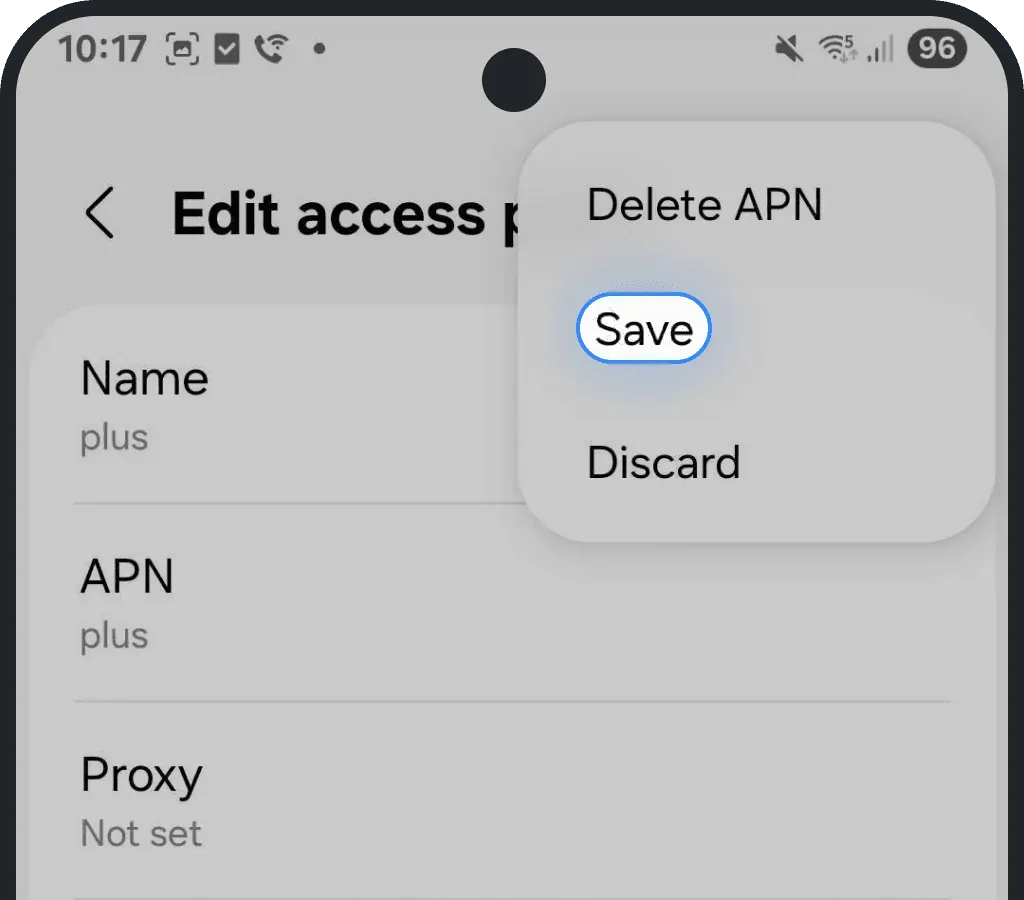
Tap the three dots in the top-right corner and press Save
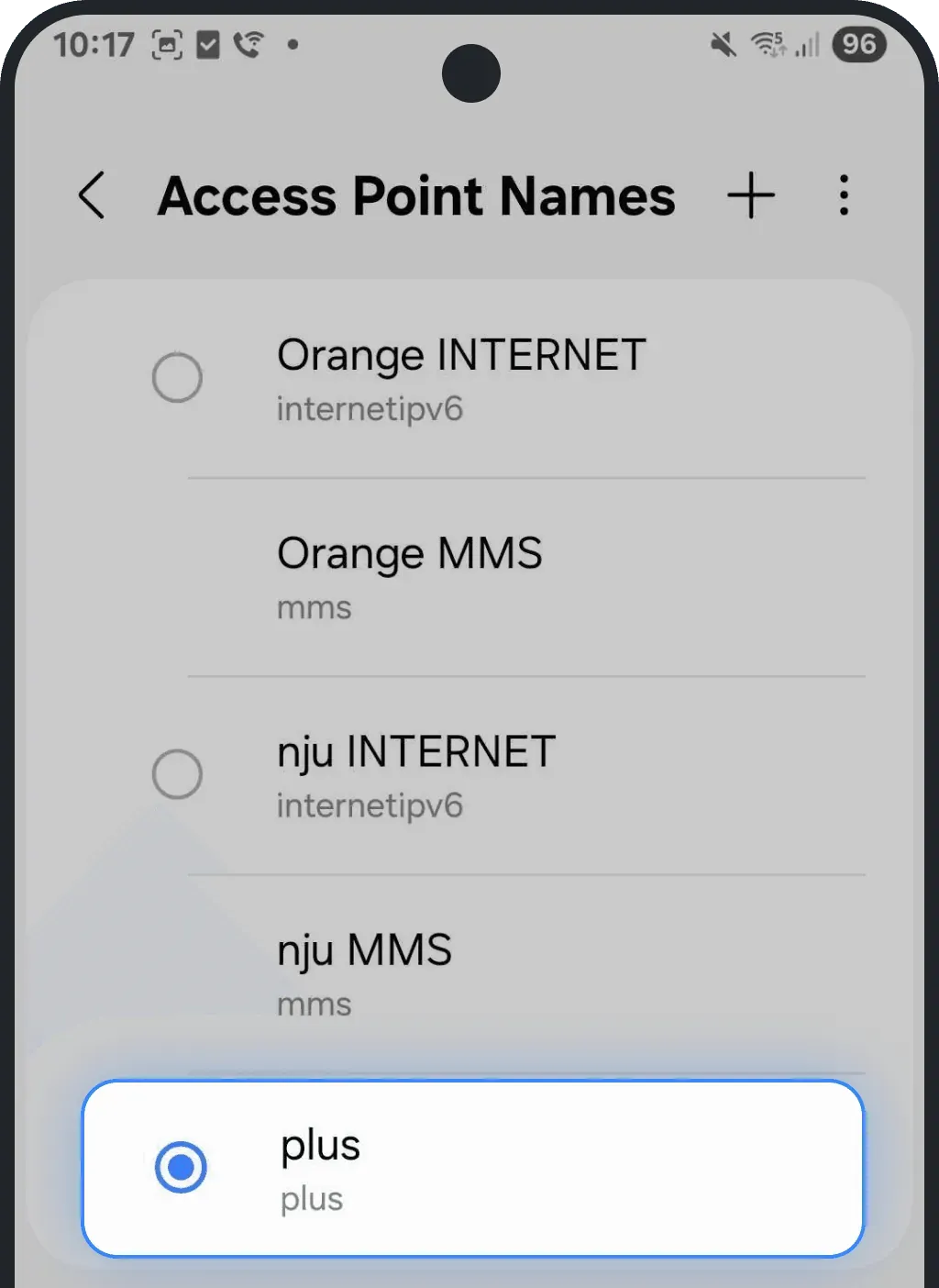
Select the new APN to enable it
3. Restart both devices (phone + device you want to connect)
A simple restart often fixes temporary issues with Personal Hotspot not working. Restarting both your phone and the device you're trying to connect and then try reconnecting the hotspot refreshes network services and usually restores hotspot functionality.
Try this first: Toggle Airplane Mode
iOS (iPhone)
Go to Settings.
Turn on Airplane Mode.
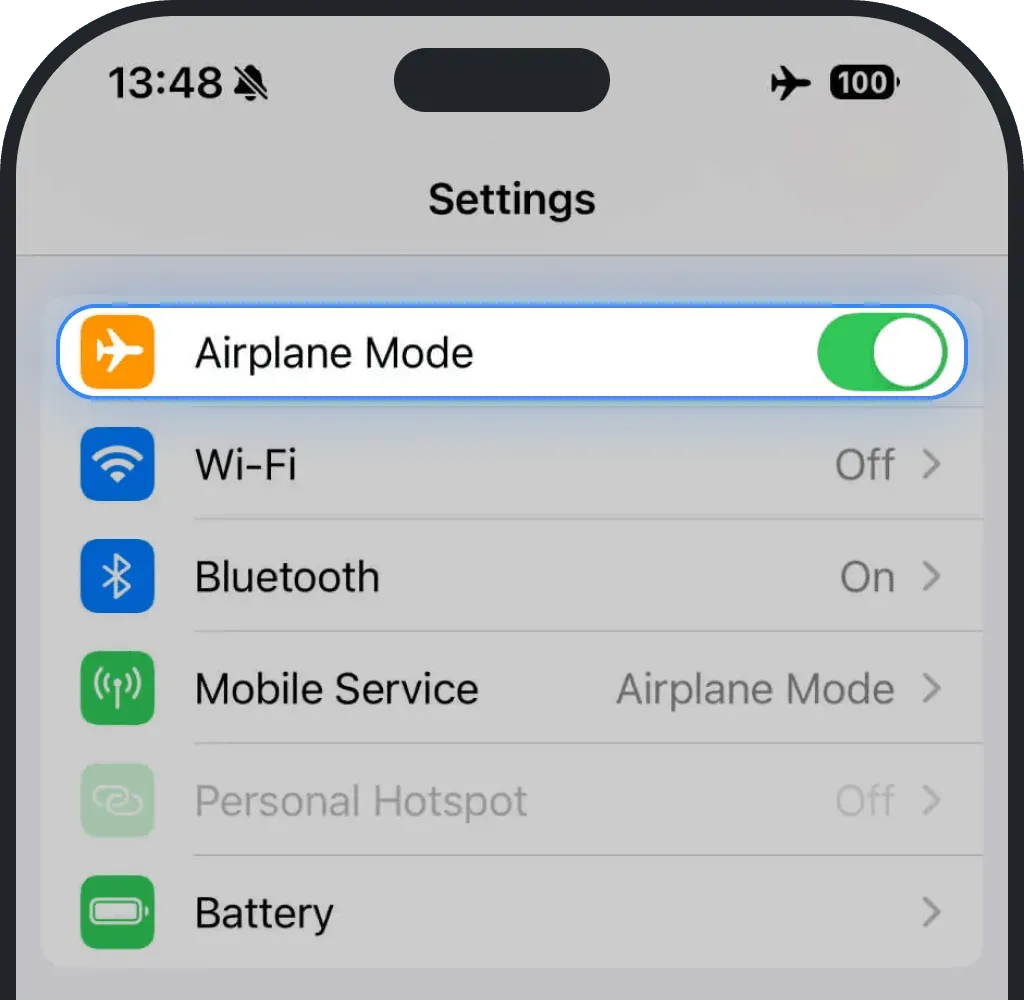
- Wait at least 10 seconds.
Turn off Airplane Mode.
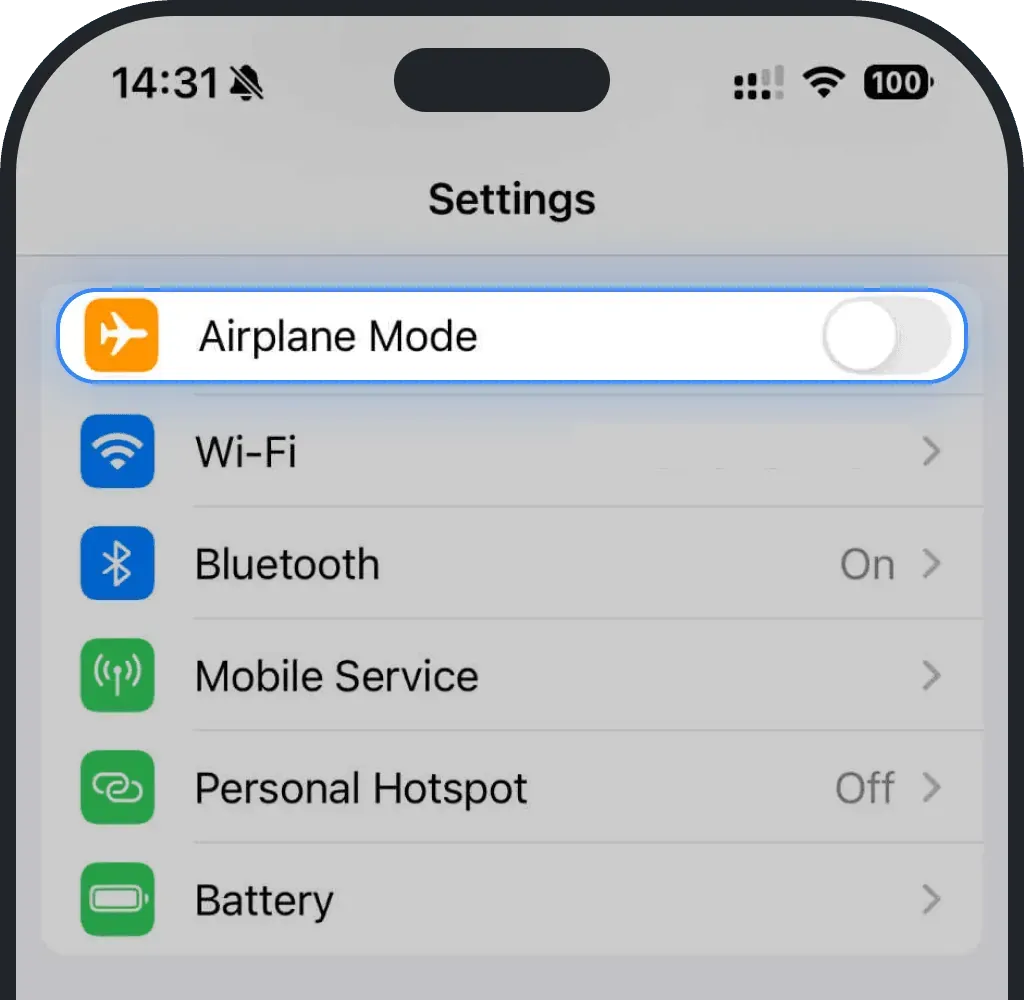
Android
Go to Settings.
Tap Connections.
Turn on Airplane Mode.
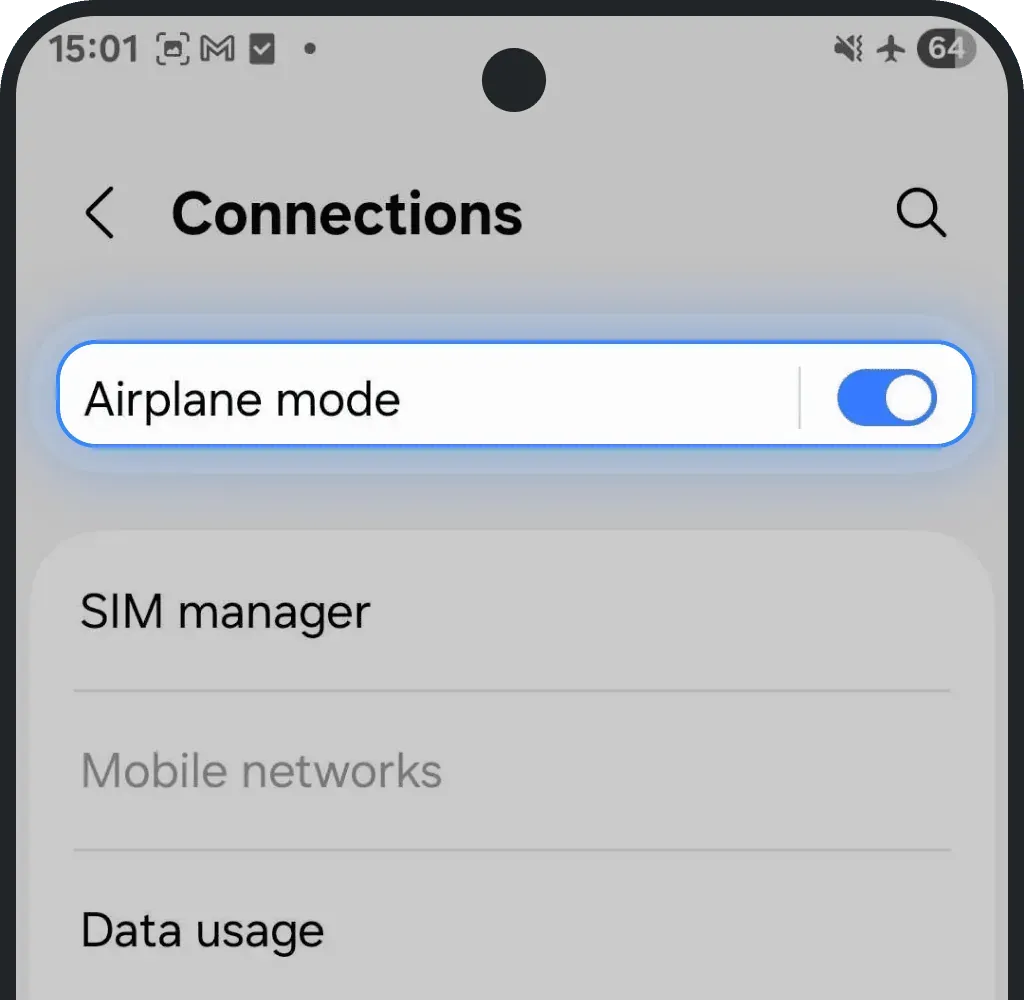
- Wait at least 10 seconds.
Turn off Airplane Mode.
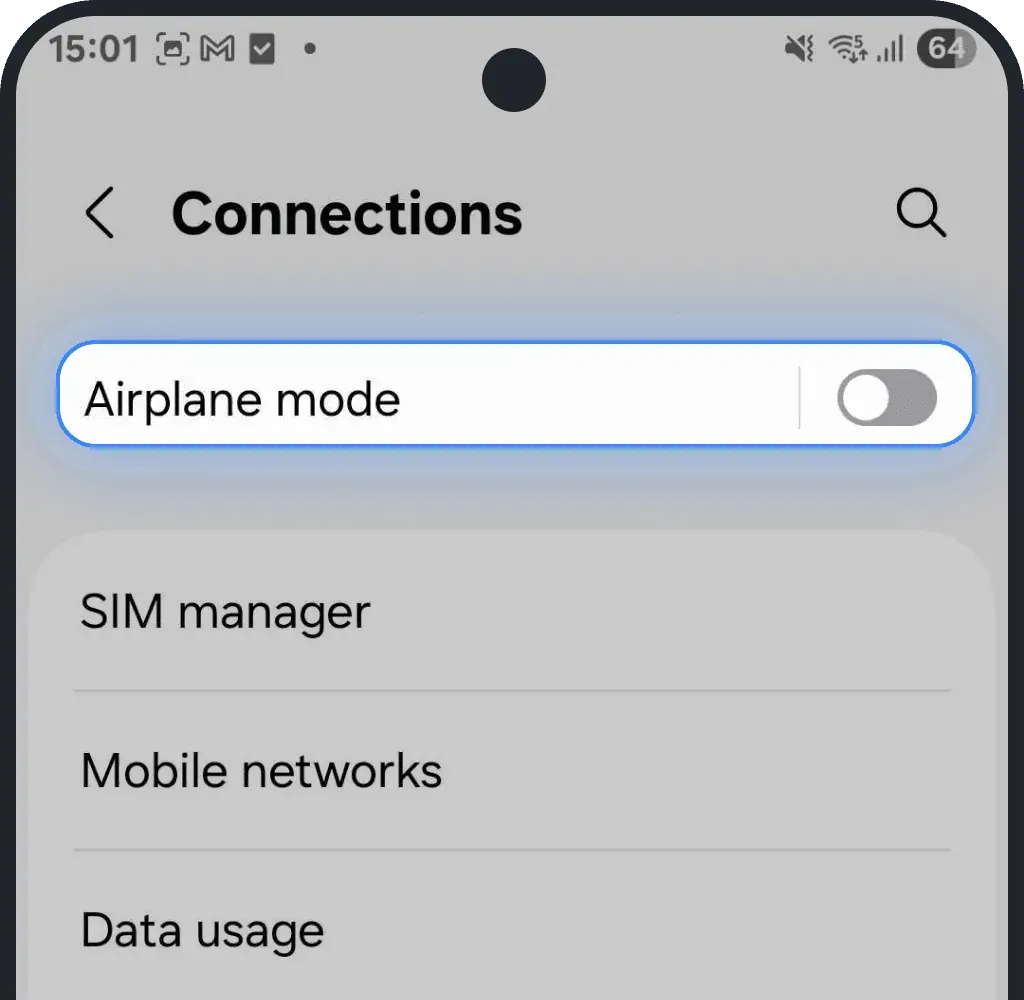
If hotspot still doesn’t work: Restart both devices
iOS (iPhone)
- Hold the side button and either volume button until the power slider appears.
- Drag the slider to turn the iPhone off.
- After the screen goes black, hold the side button again until the Apple logo shows.
Android
- Press and hold the power button, or power + volume down together until the power menu appears.
- Tap Restart or Power Off.
- Press and hold the power button until the device turns on.
4. You are in a weak or no-coverage area
If you’re in an area with a weak signal or no coverage, your eSIM won’t be able to connect. This often happens underground, inside large buildings, or in crowded places like concerts and stadiums where networks get overloaded.
If you suspect a coverage issue, check network availability on nperf.com/map or gsma.com/coverage. Select your destination country and local operator to see detailed coverage maps.
You can find the list of supported operators for your plan on the country page of our website or directly in your Ohayu profile. For example, if you’re using a United States plan, your eSIM connects through local partners such as AT&T, Verizon, or T-Mobile.
5. Your device software is outdated
If your phone runs an outdated version of iOS or Android, it can cause connection issues or prevent your hotspot from working correctly. Update your software to the latest version to ensure full and stable network performance.
Update software on iOS (iPhone)
Go to Settings.
Tap General.
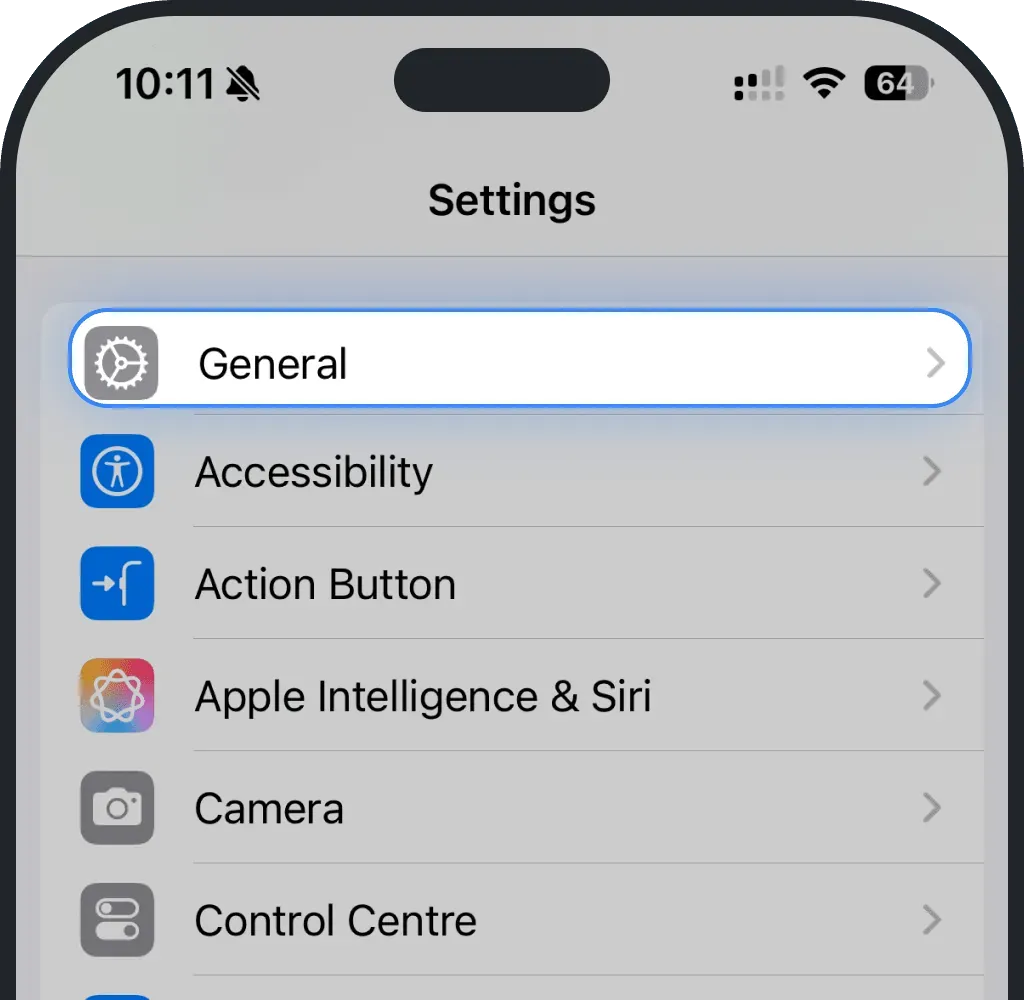
Tap Software Update.
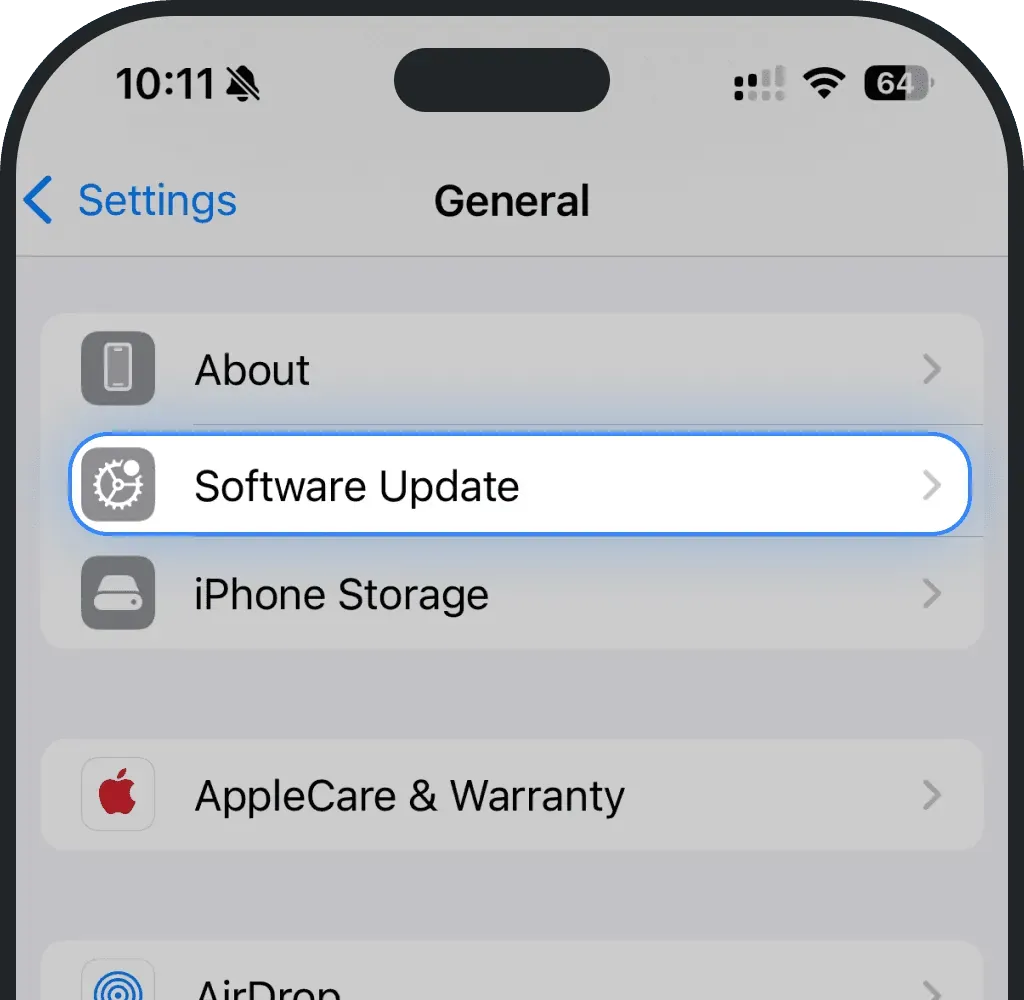
Choose Update Now.
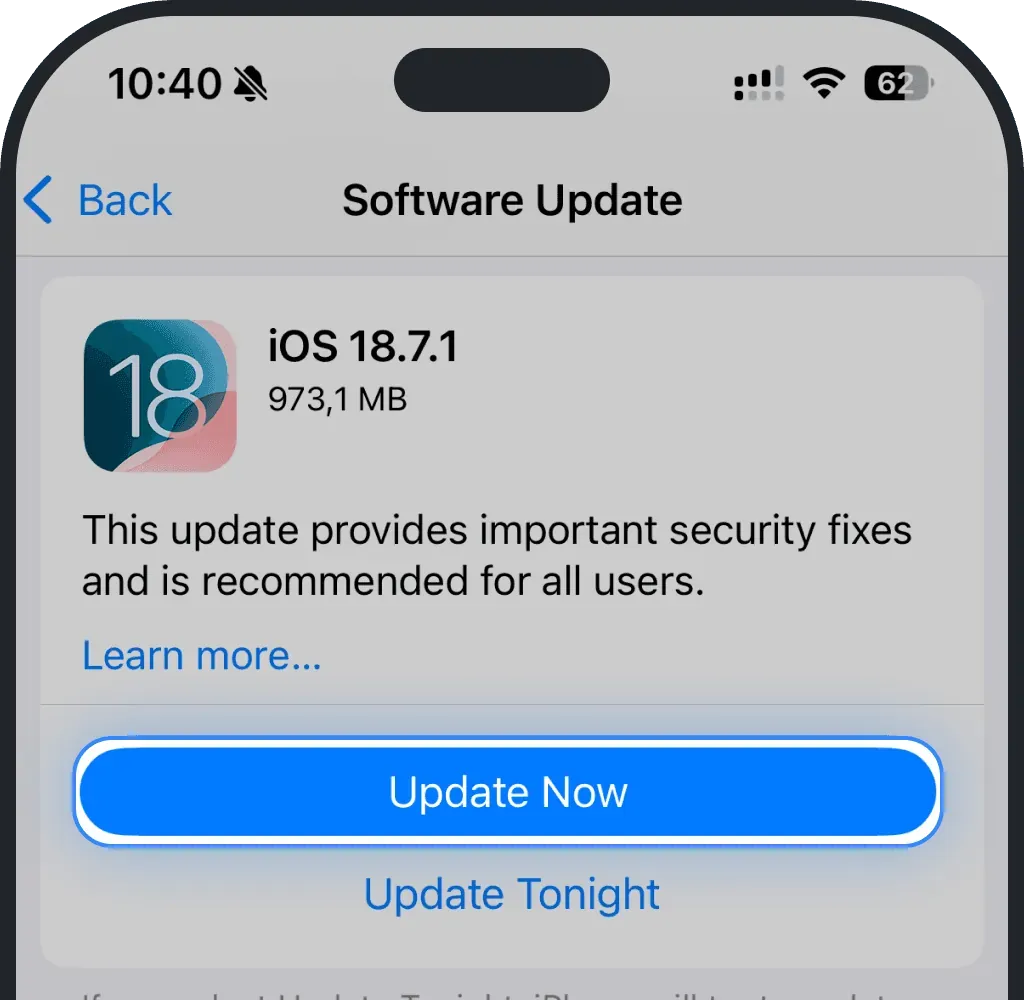
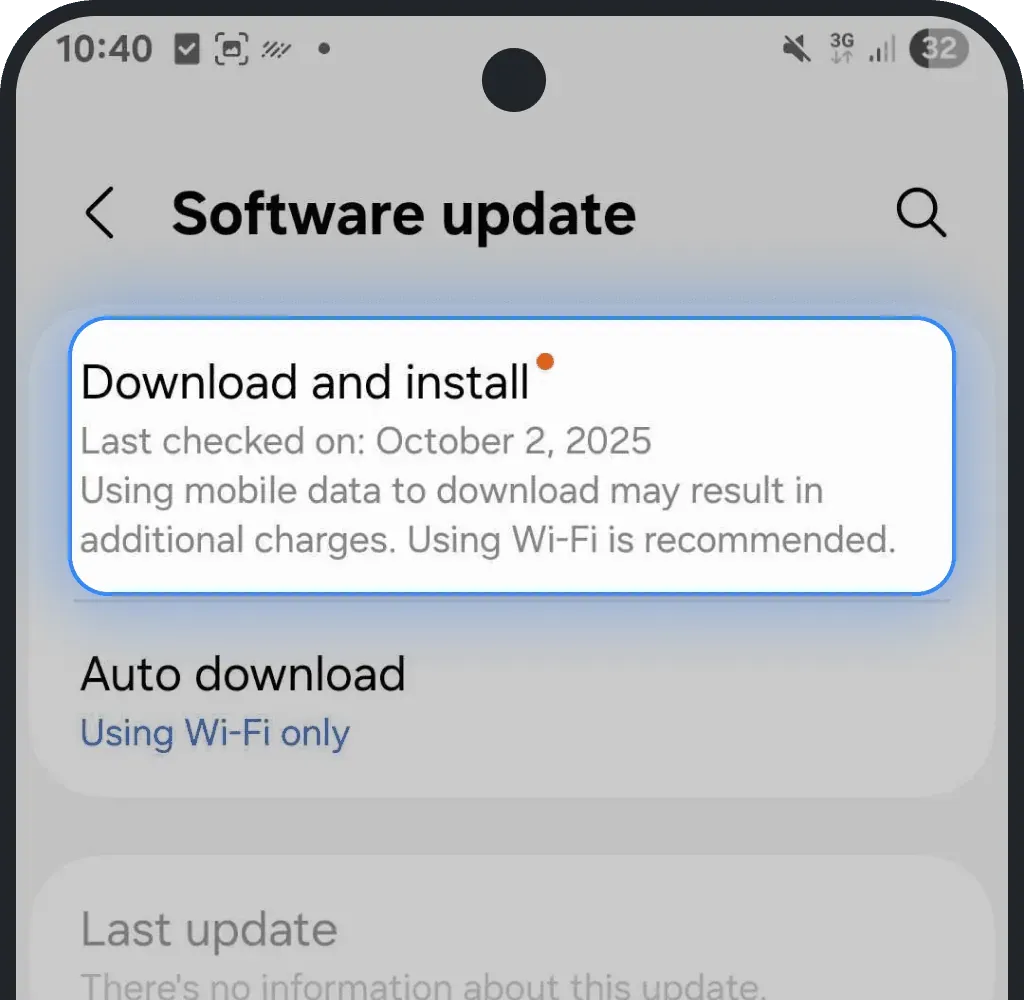
Update software on Android
Go to Settings.
Tap Software update.
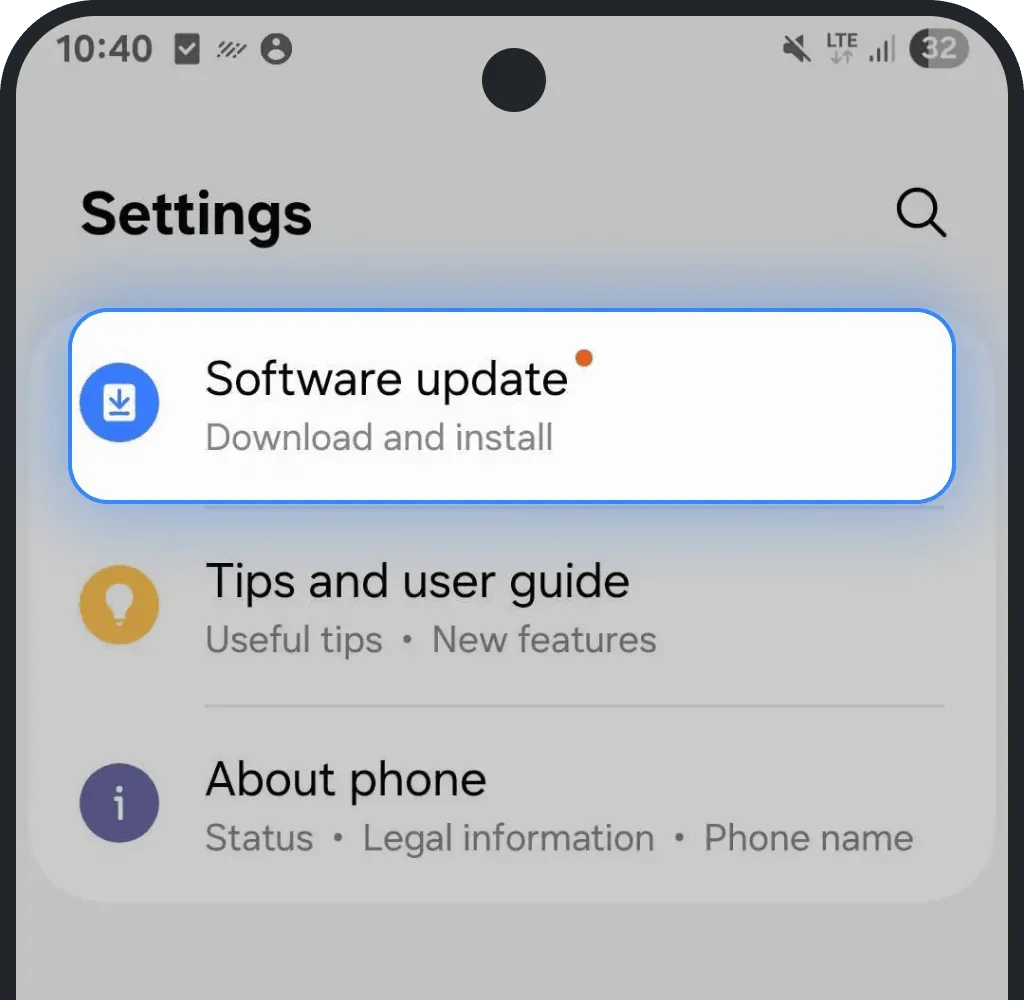
Tap Download and install, confirm.
6. You have enterprise or MDM restrictions
Some company-managed or school-managed phones block hotspot by policy. When an IT department controls the device, they can turn off data sharing, hide hotspot settings, or stop you from changing network settings needed for hotspot to work.
How to check:
iPhone
Settings > General > VPN & Device Management
Android
Settings > Security > Device admin apps or Work profile settings
If you see a work or organization profile, your hotspot may be restricted by that policy. Contact your IT administrator and ask them to allow hotspot or remove the restriction for a moment. Once the rule is lifted, hotspot works in the normal way.
7. Carrier hotspot restriction
Some eSIM providers place hotspot limits on their plans. They do this to reduce network load or to meet restrictions from certain operators. When that happens, mobile data on the phone works, but data sharing stops after a short time or after a small amount of traffic.
Ohayu does not apply hotspot limits or blocks. Ohayu plans are designed to allow full data sharing.
If you completed all steps above and hotspot still does not work, contact our 24/7 support. Our team will check the operator your eSIM is using and confirm if the issue comes from a carrier rule. If needed, we will suggest a workaround or arrange another eSIM.
Was this article helpful?
Your feedback helps us improve our FAQ