
I can not install my eSIM
- 1. Check your eSIM status in the Ohayu app
- 2. Follow the installation instructions
- 3. Your device is not eSIM-compatible
- 4. Your phone is carrier-locked (SIM-locked)
- 5. You don’t have a stable internet connection during installation
- 6. Check APN settings (Access Point Name)
- 7. Your device software is outdated
- 8. You have enterprise or MDM restrictions
- 9. Your device requires a simple restart
If you can’t install your eSIM, it usually means your device hasn’t added it yet, or something blocked the setup process. The most common reasons are an incompatible or locked phone, unstable internet during setup, outdated software, or APN configuration issues.
1. Check your eSIM status in the Ohayu app
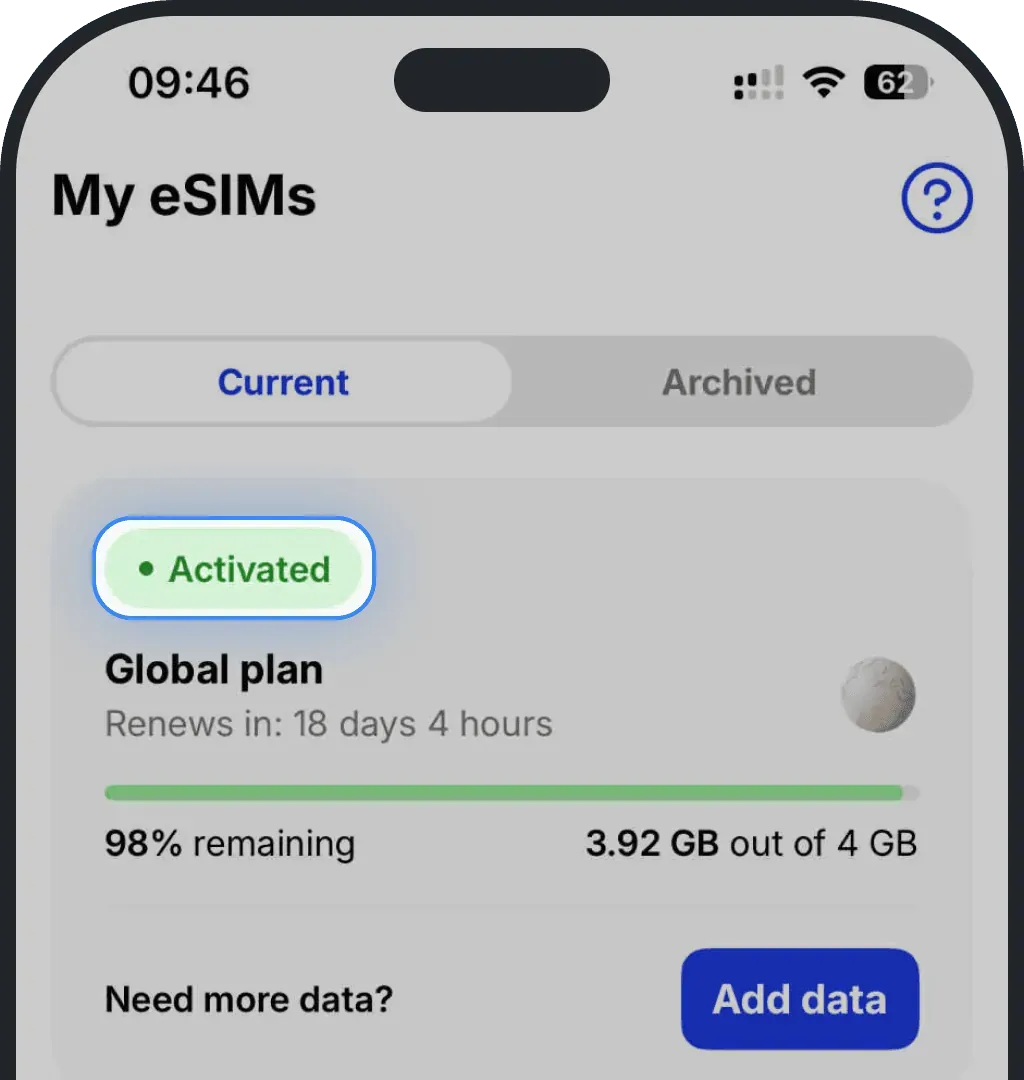
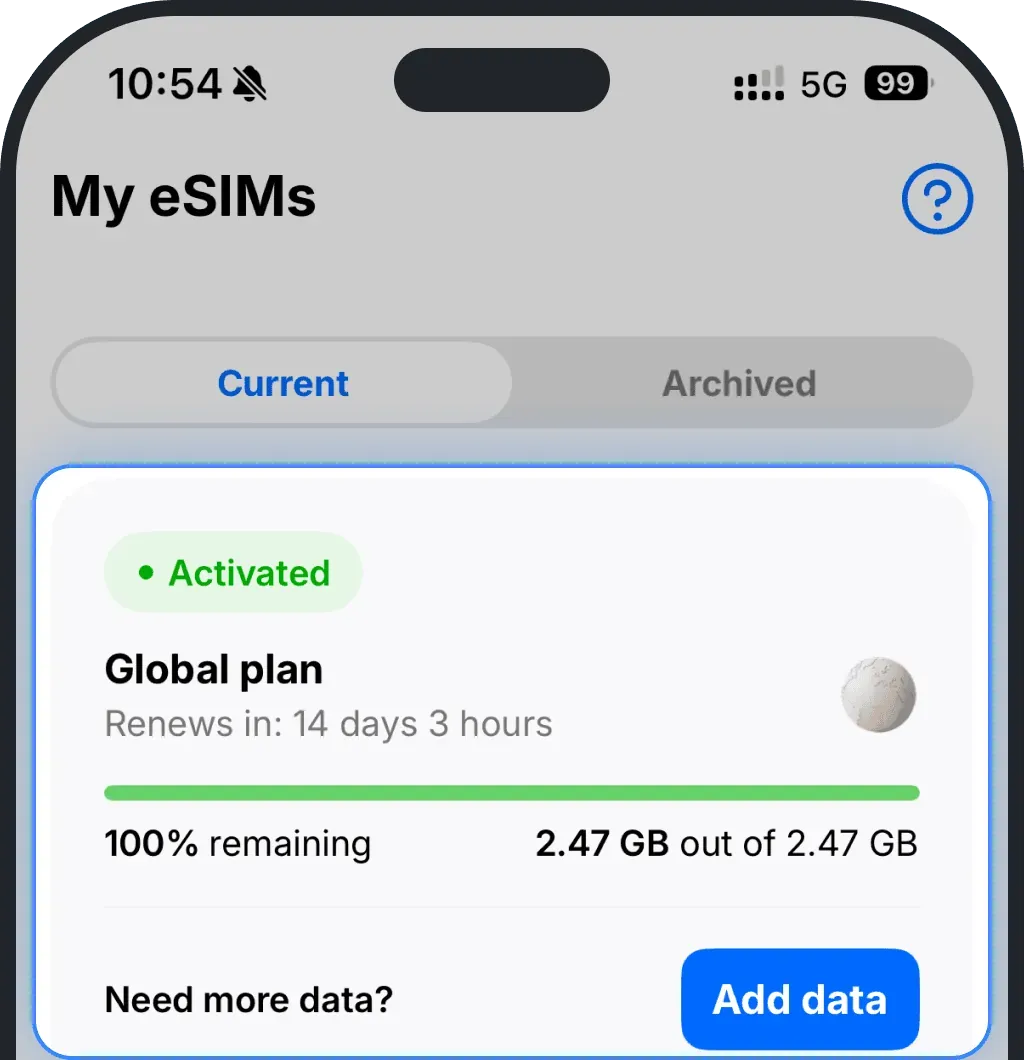
Open the Ohayu app and go to the My eSIMs tab.
- If the status shows “Activated”, your eSIM was successfully installed and activated.
- If the status shows “Installed”, your eSIM is already on your device but still needs activation.
If the status shows "Not installed", it means installation didn’t complete — please follow the steps in the next section.
2. Follow the installation instructions
If your eSIM status hasn't appeared as "Installed", please install it using one of the official guides:
- Install via QR code on iPhone
- Install manually on iPhone
- Install via QR code on Android
- Install manually on Android
3. Your device is not eSIM-compatible
If your phone doesn't support eSIM, it won't be able to download or use any digital SIM profile. This issue usually affects older phone models that were released before eSIM became standard or budget models. Check if your device is eSIM-compatible using one of the options below or see our Compatibility Guide for the full list.
Ohayu automatic device compatibility check
Install the Ohayu app on your iPhone or Android device. In the Ohayu app, open Settings (the gear icon, top right) and choose Device compatibility.
Dial *#06# to verify if eSIM works on your device
You can dial this code for free to check your device’s eSIM compatibility. This is a free request to the system (not a call). If an EID number appears on the screen, your phone supports eSIM.
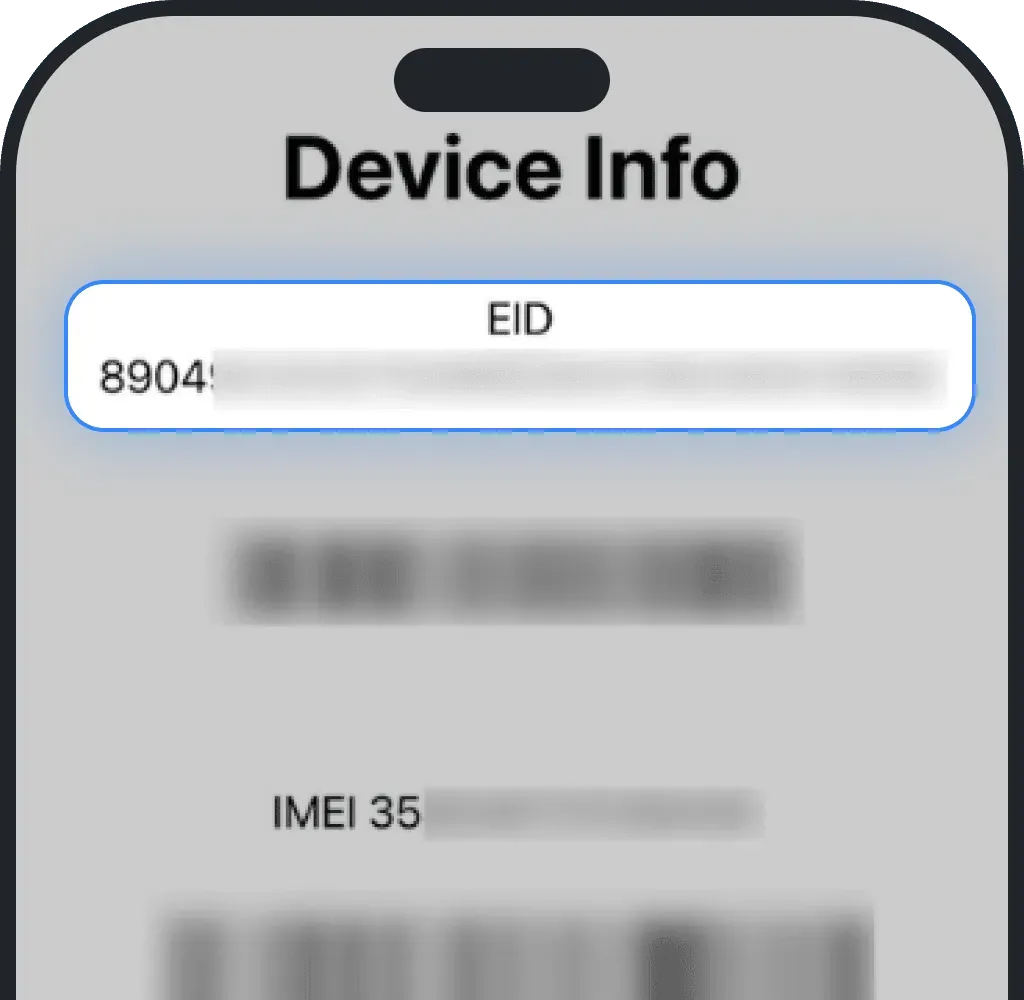
Check compatibility in settings
You can also verify eSIM support directly in your phone’s settings.
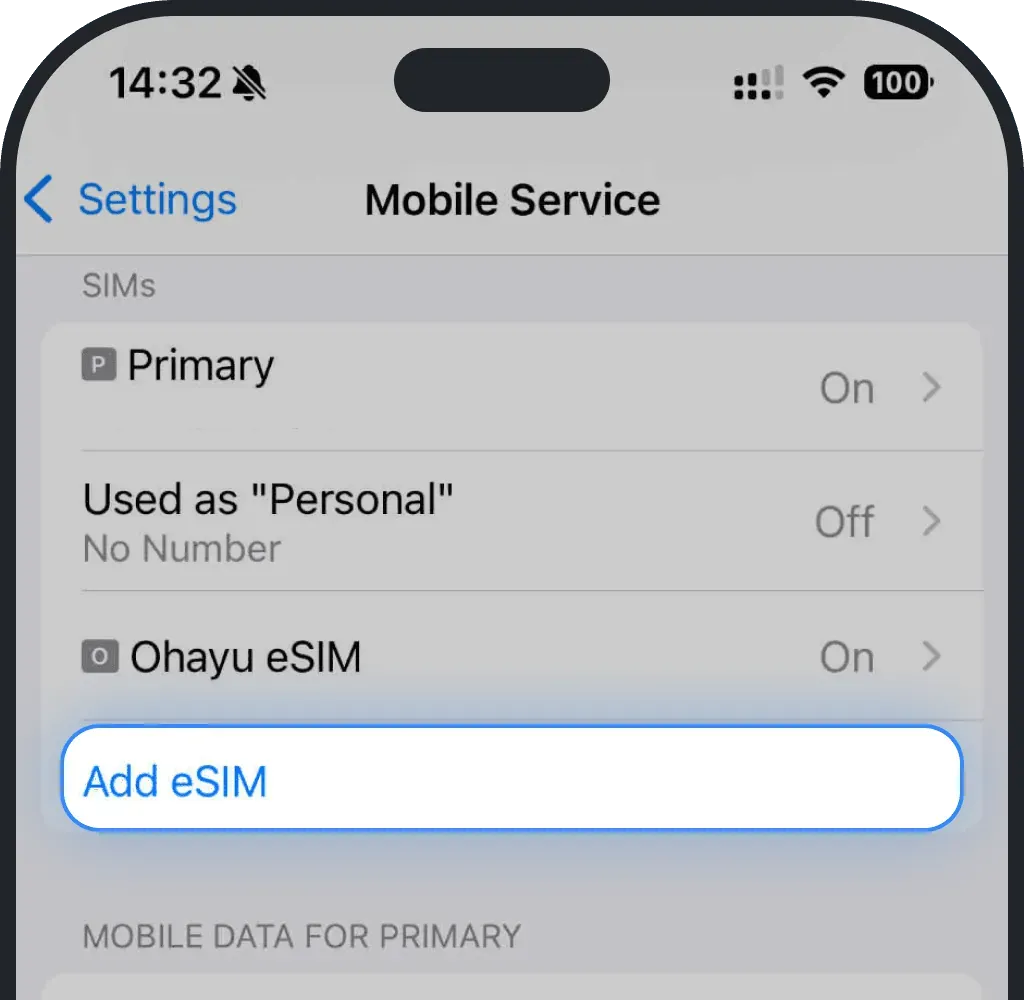
eSIM compatibility check on iOS (iPhone)
Go to Settings.
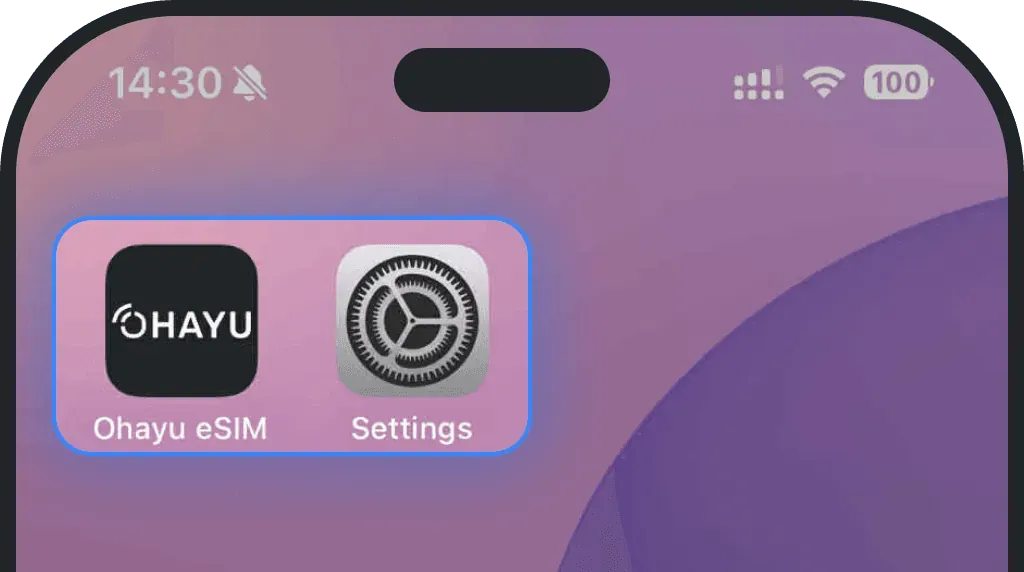
Tap Mobile Service or Cellular.
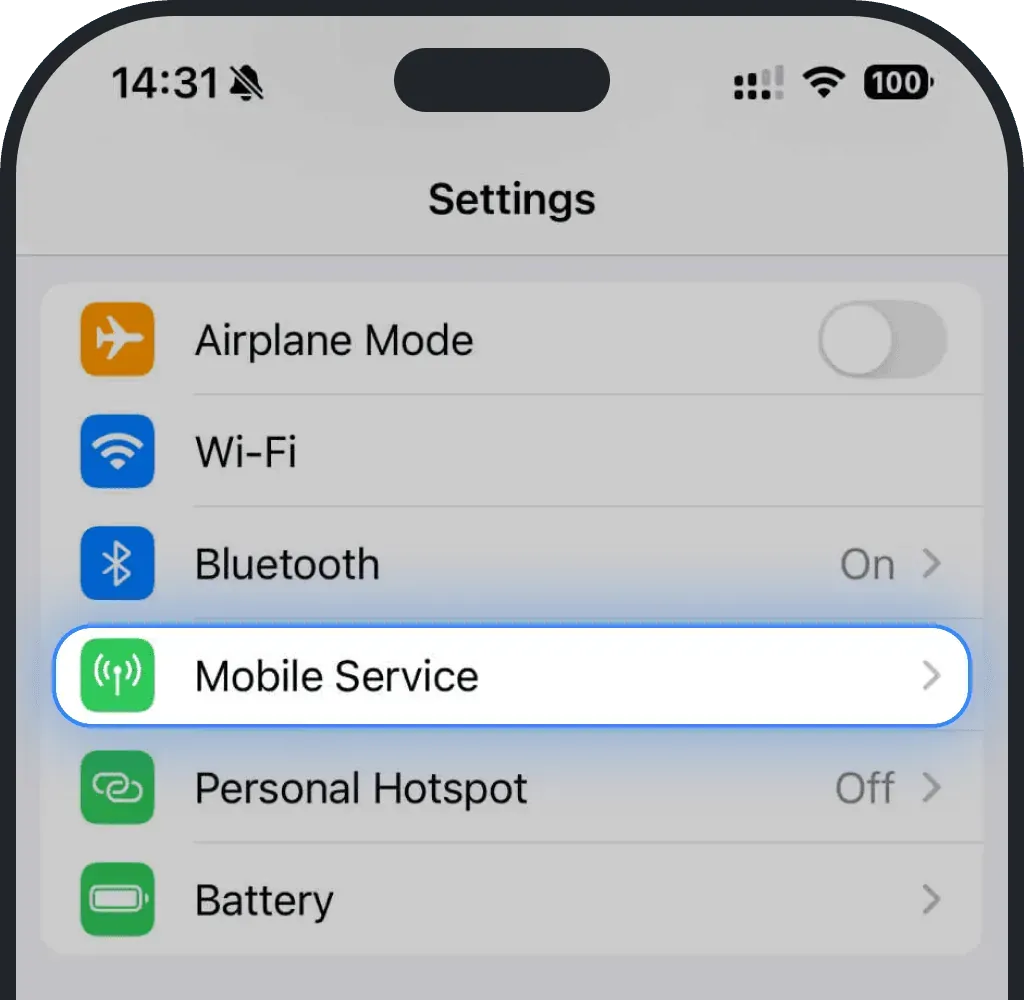
If you see "Add eSIM" button, your device is compatible.
eSIM compatibility check on Android
Go to Settings.
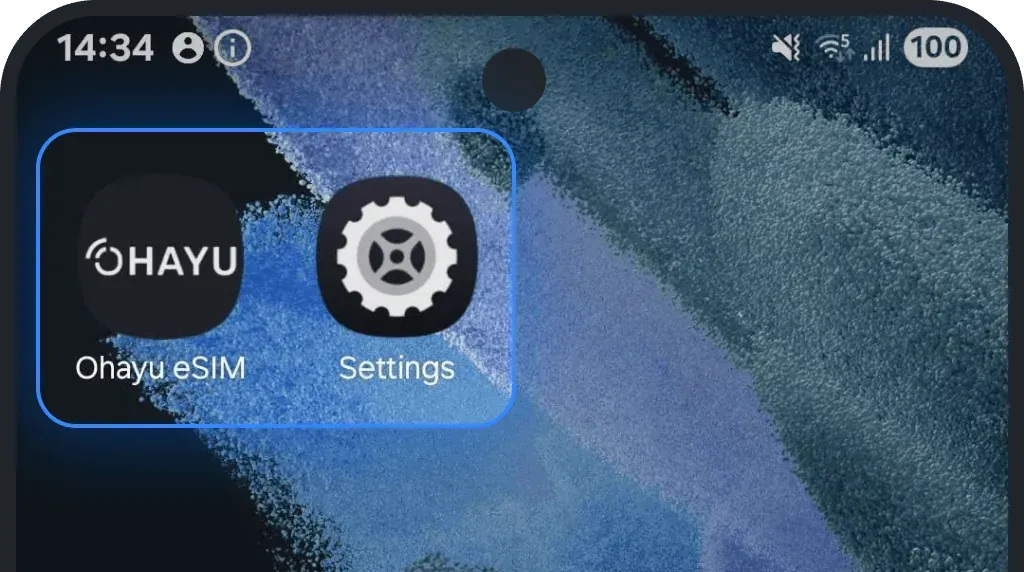
Tap Connections.
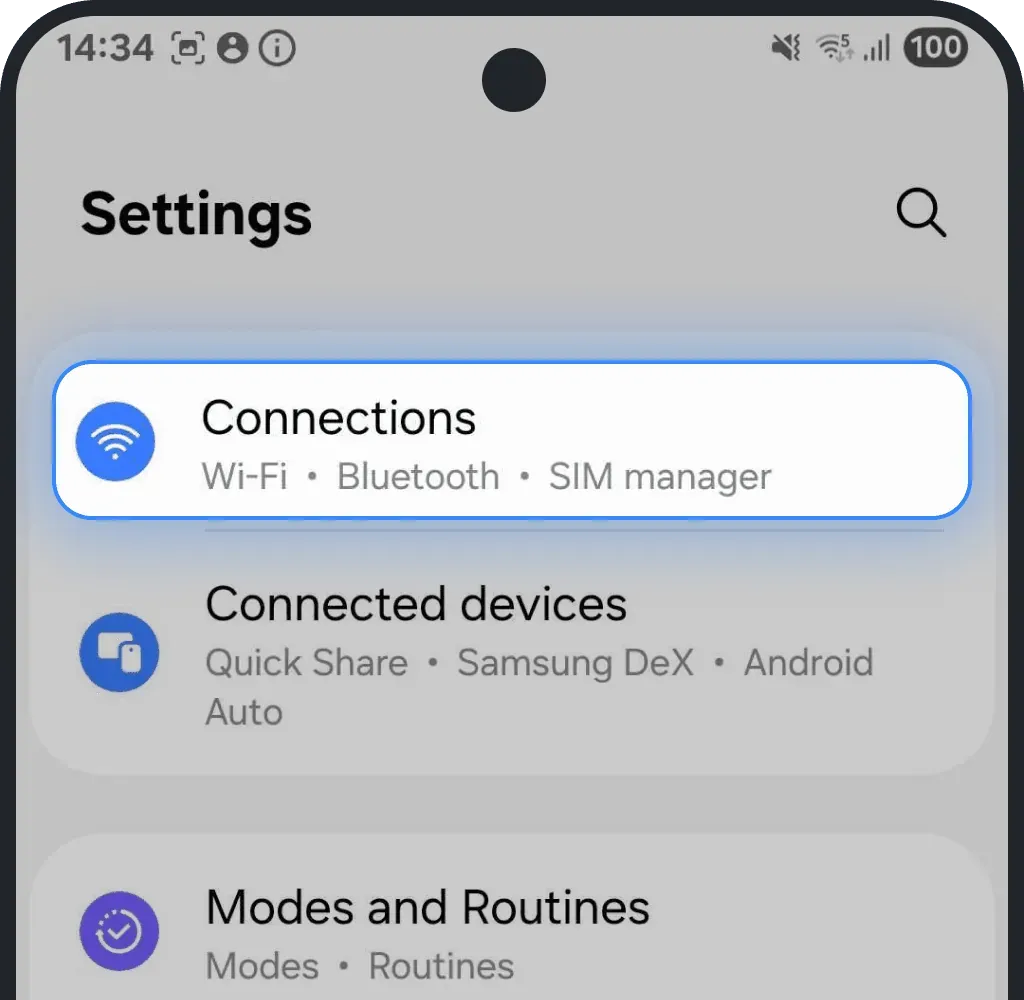
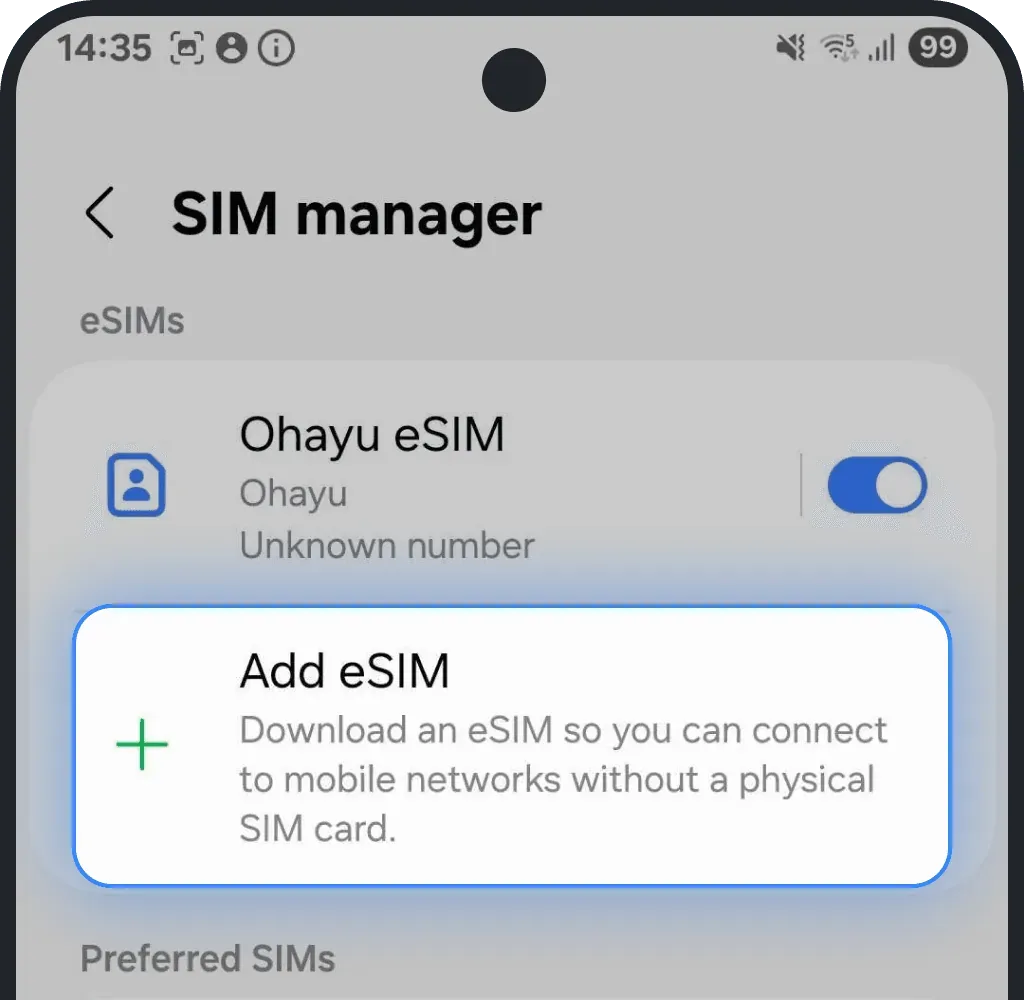
Tap SIM manager.
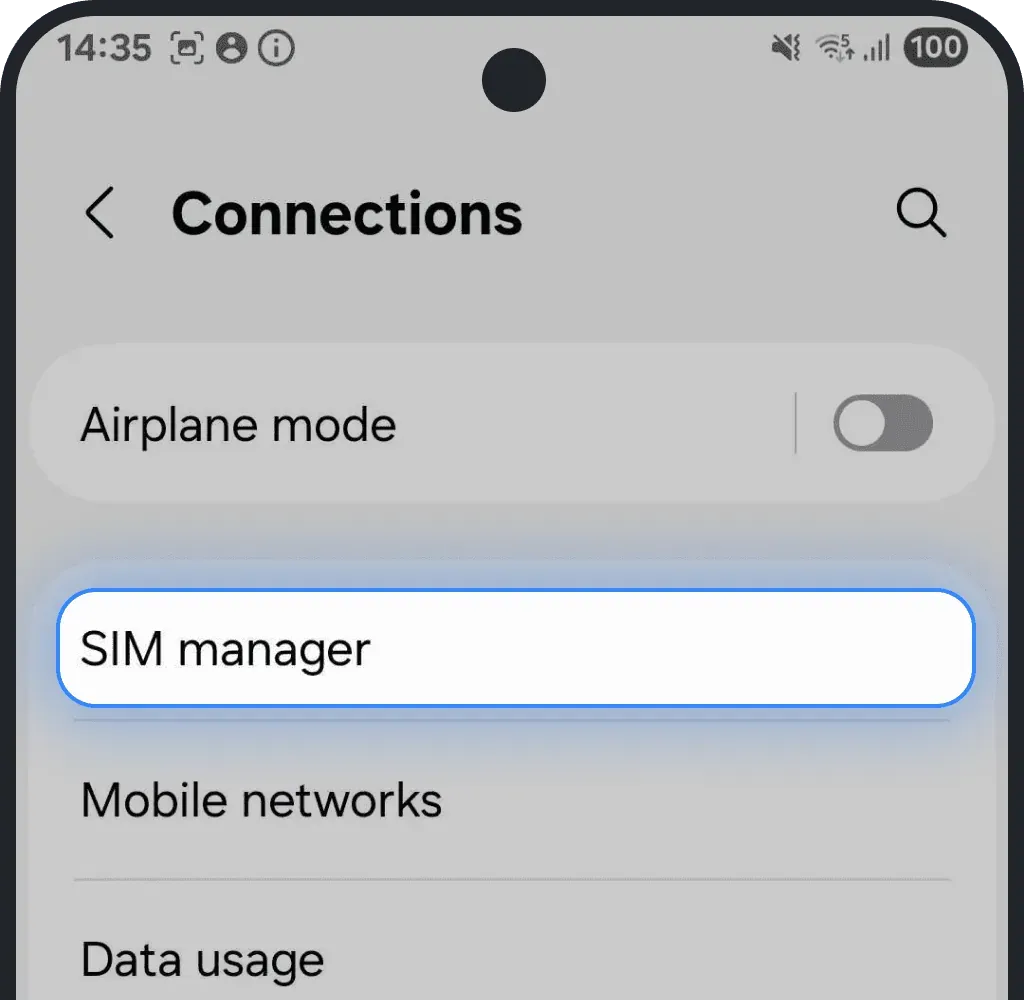
If you see "Add eSIM" option, your device is compatible.
4. Your phone is carrier-locked (SIM-locked)
If your phone is carrier-locked, it can only use SIMs from one specific mobile provider. This means it won’t accept or activate an Ohayu eSIM until it’s unlocked. You can check the lock status in your settings or by contacting your carrier directly.
Check carrier-lock in settings
Carrier-lock check on iOS (iPhone)
Go to Settings.
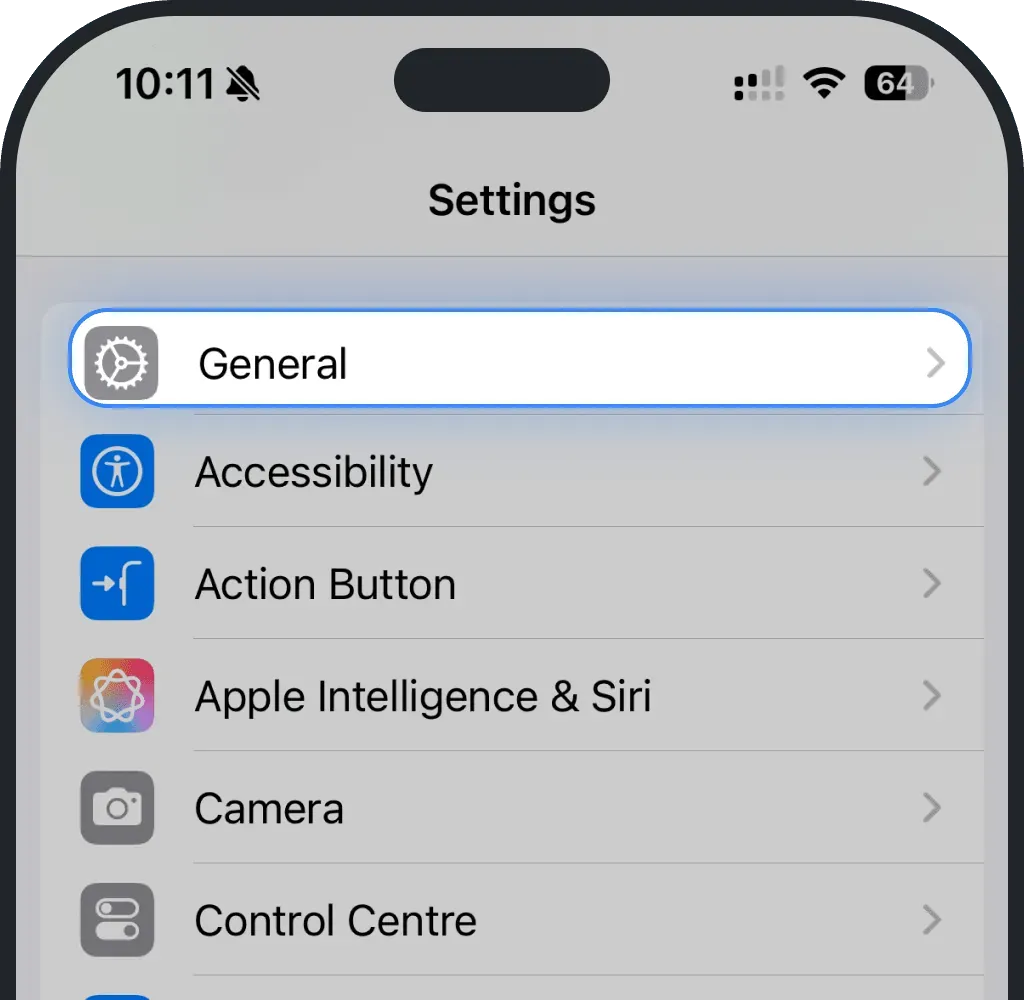
Tap General.
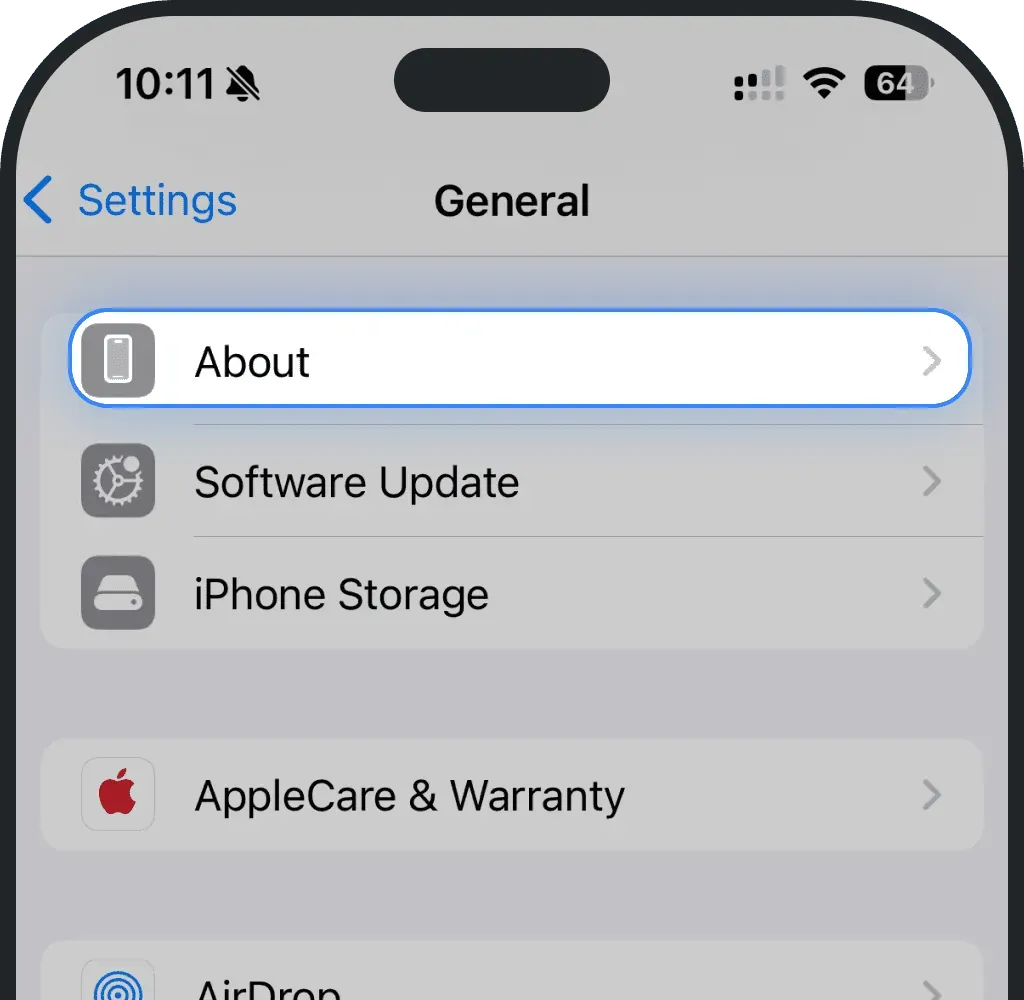
Tap About.
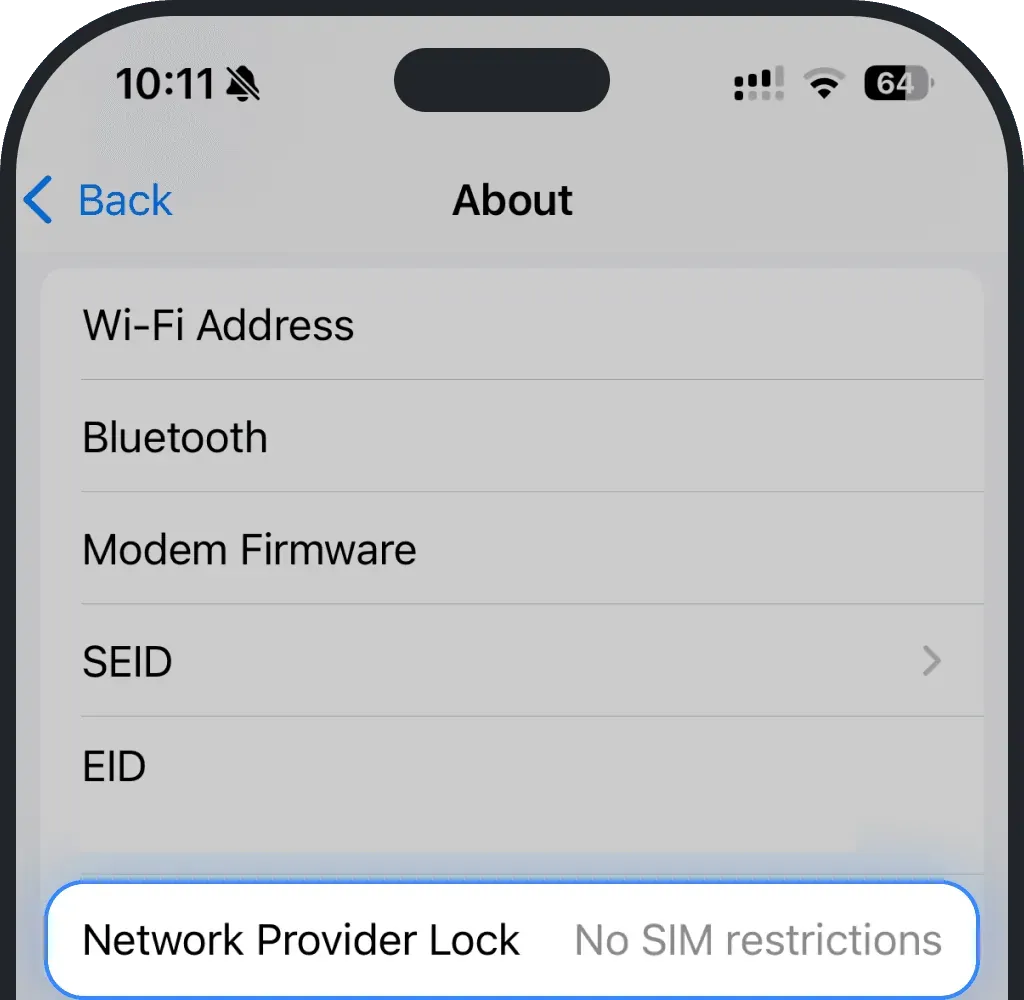
If Network Provider Lock says "No SIM restrictions", your phone is unlocked.
Carrier-lock check on Android
Go to Settings.
Tap Connections.
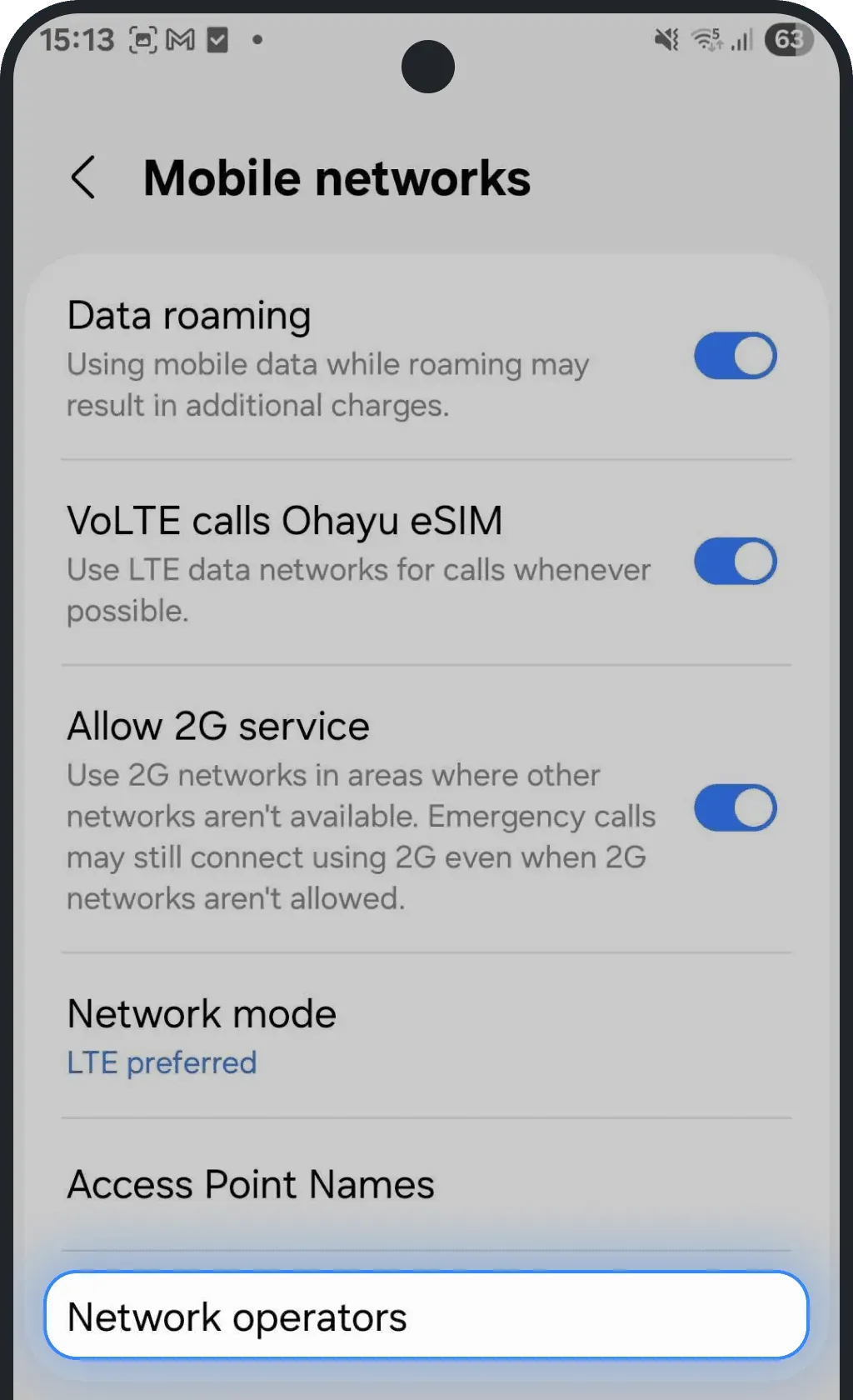
Tap Mobile networks.
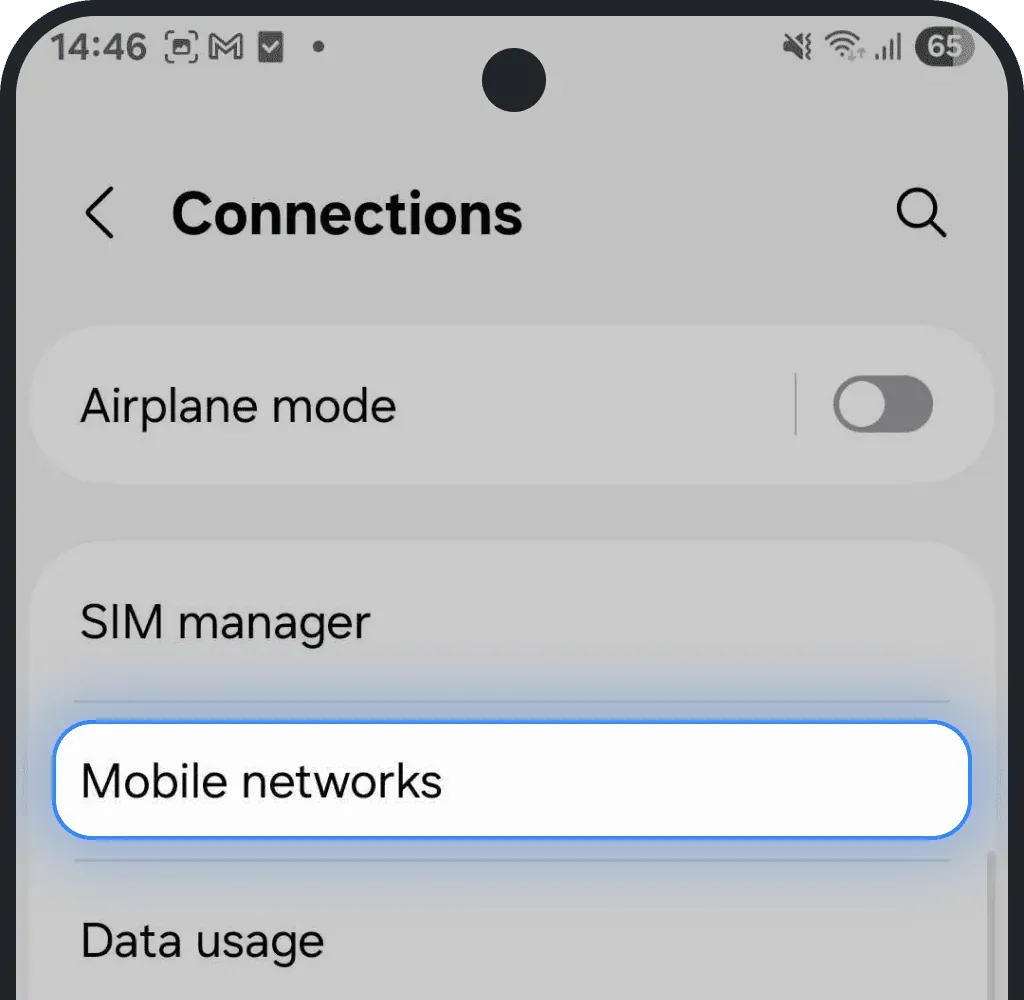
Select Network Operators.
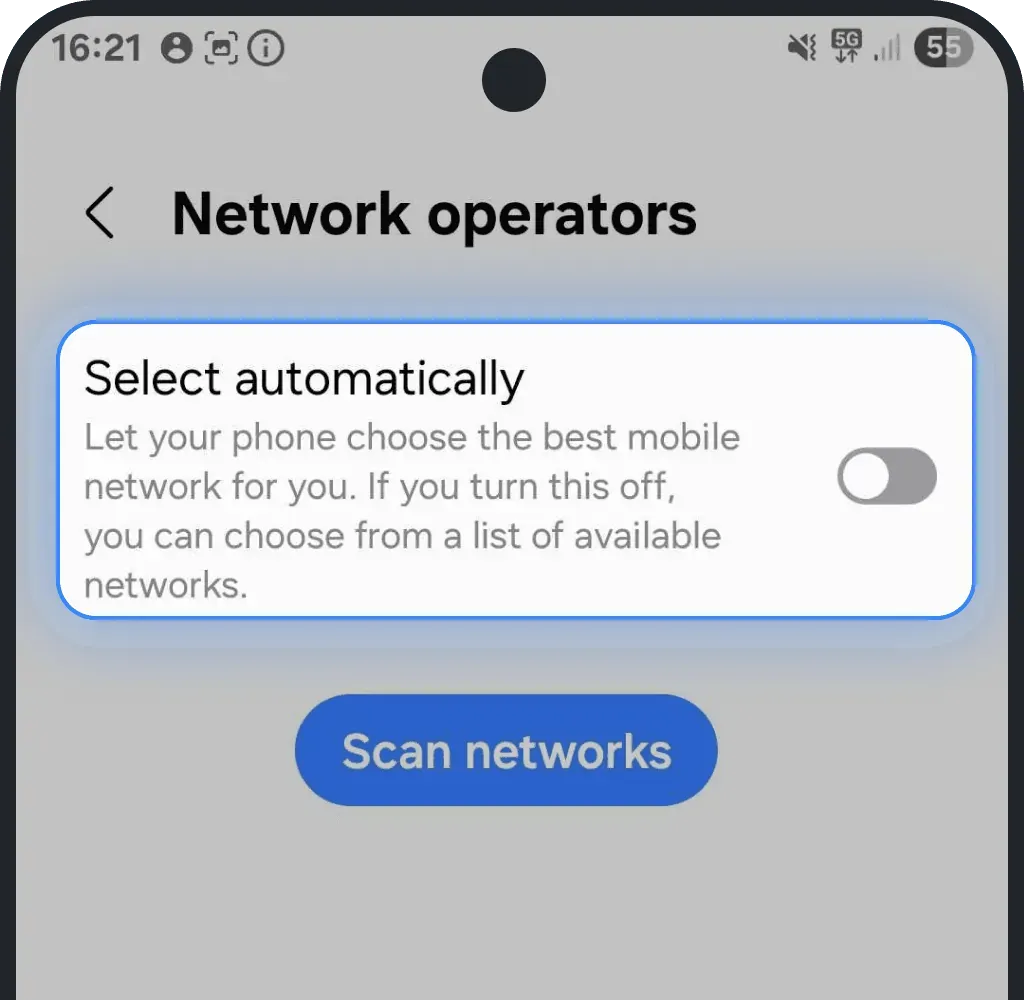
Turn off the automatic selection.
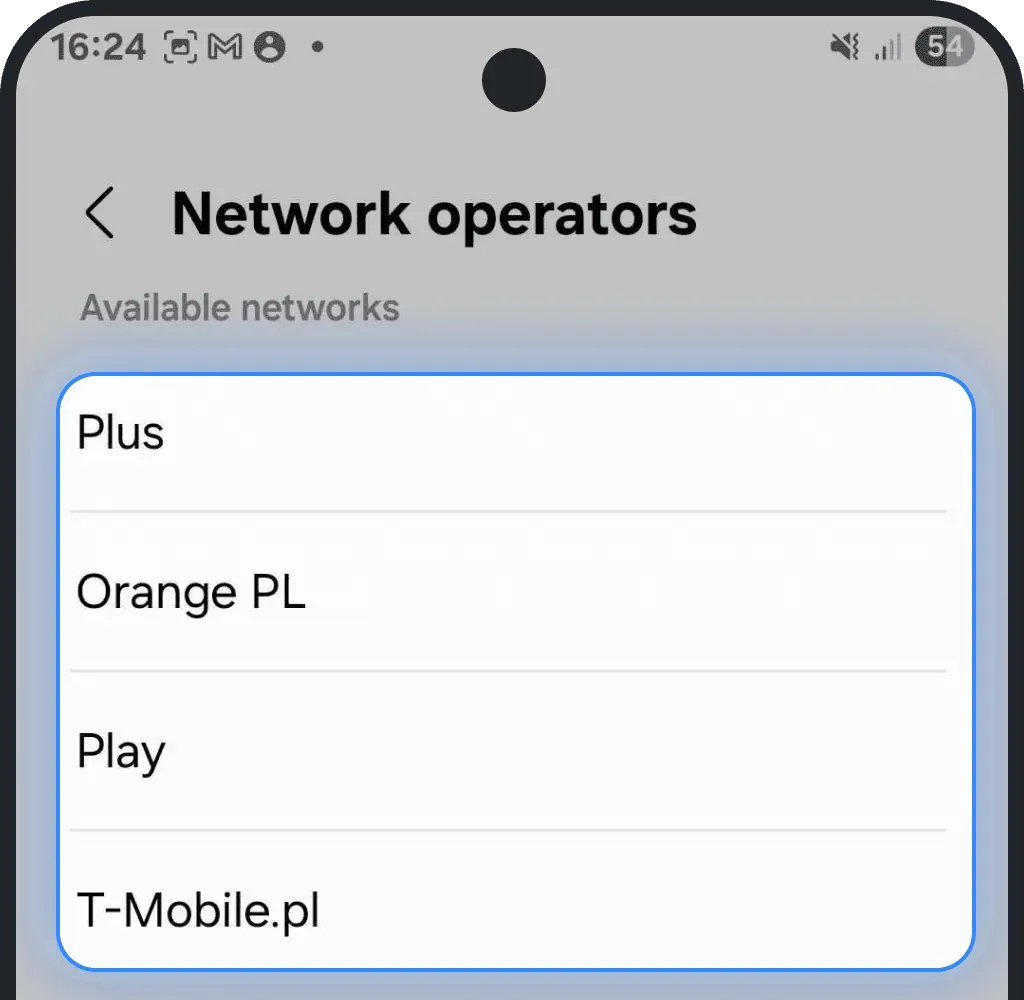
If several networks are shown, the phone is probably unlocked.
Check carrier-lock manually
Insert a SIM card from a different carrier. If it works, your phone does not have a carrier lock.
Contact your carrier
If you’re not sure whether your phone has a carrier lock, contact your mobile carrier. Ask them to check the lock status and unlock the device if needed. Most carriers can do it remotely in just a few minutes, as long as your contract or payments are up to date.
5. You don’t have a stable internet connection during installation
You need to have a reliable internet connection in order to install the eSIM. We recommend using a strong Wi-Fi connection during installation, as mobile data can drop or switch networks mid-process.
For the smoothest setup, it’s best to install your eSIM before you travel, while you still have access to a stable and secure network. Remember, that it only relates to the installation, you should activate eSIM only in your destination country.
6. Check APN settings (Access Point Name)
The issue might be related to your APN (Access Point Name) settings.
You can easily verify and update them by following the steps below.
Step 1: Check your APN in the Ohayu app
- Open the Ohayu app and go to the My eSIMs tab
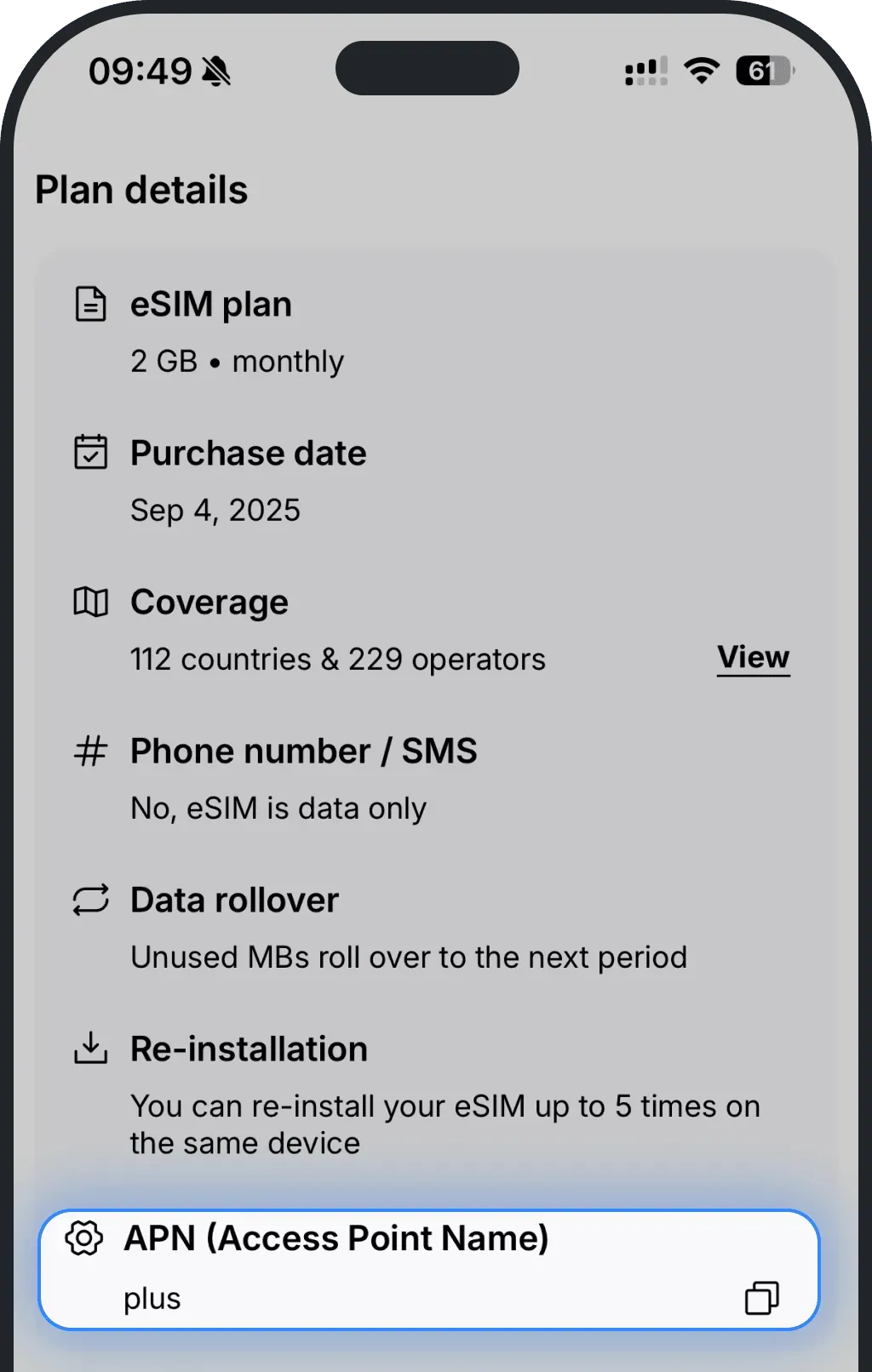
Tap your eSIM to open its details
In the Plan details section, you’ll see your APN (Access Point Name) — copy it
Step 2: Add or edit the APN on your device
iPhone
Go to Settings
Tap Mobile Service (or Cellular)
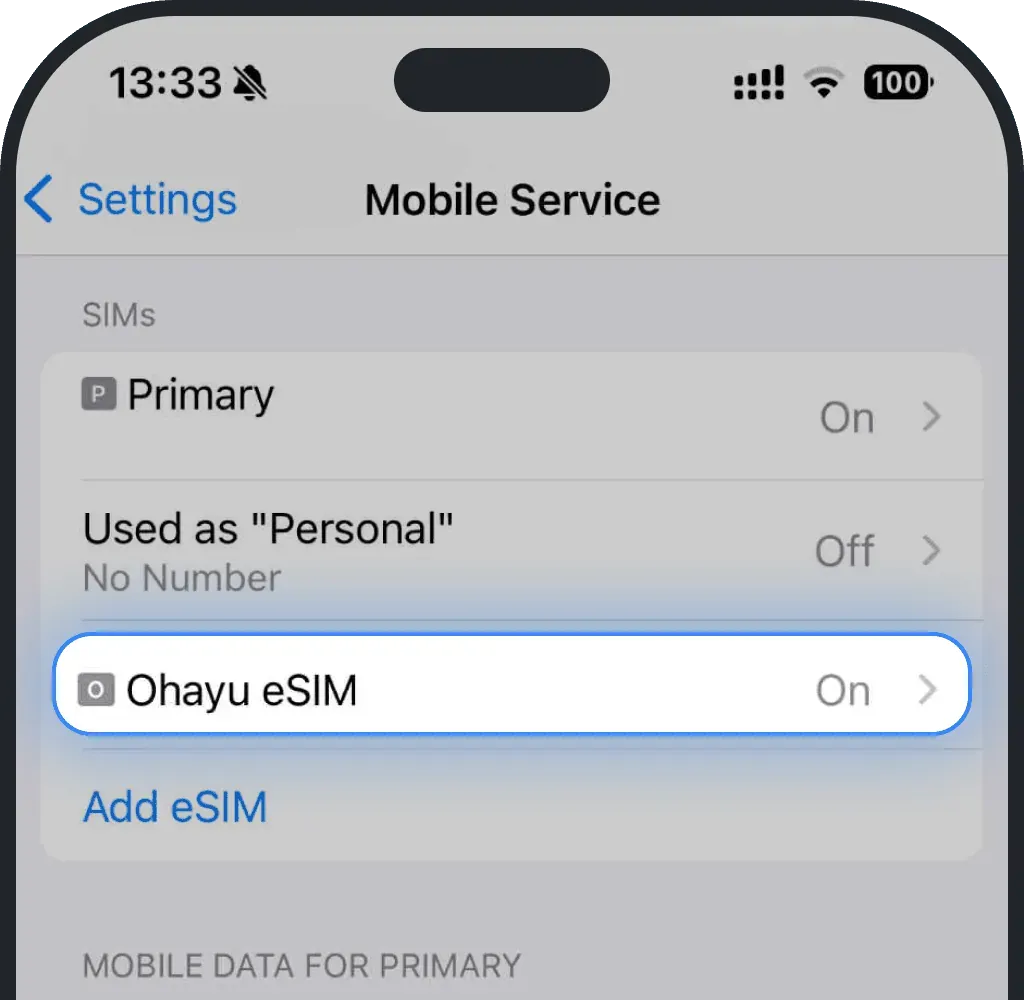
Select your Ohayu eSIM (shown as Ohayu, Secondary, or other)
Tap Mobile Data Network
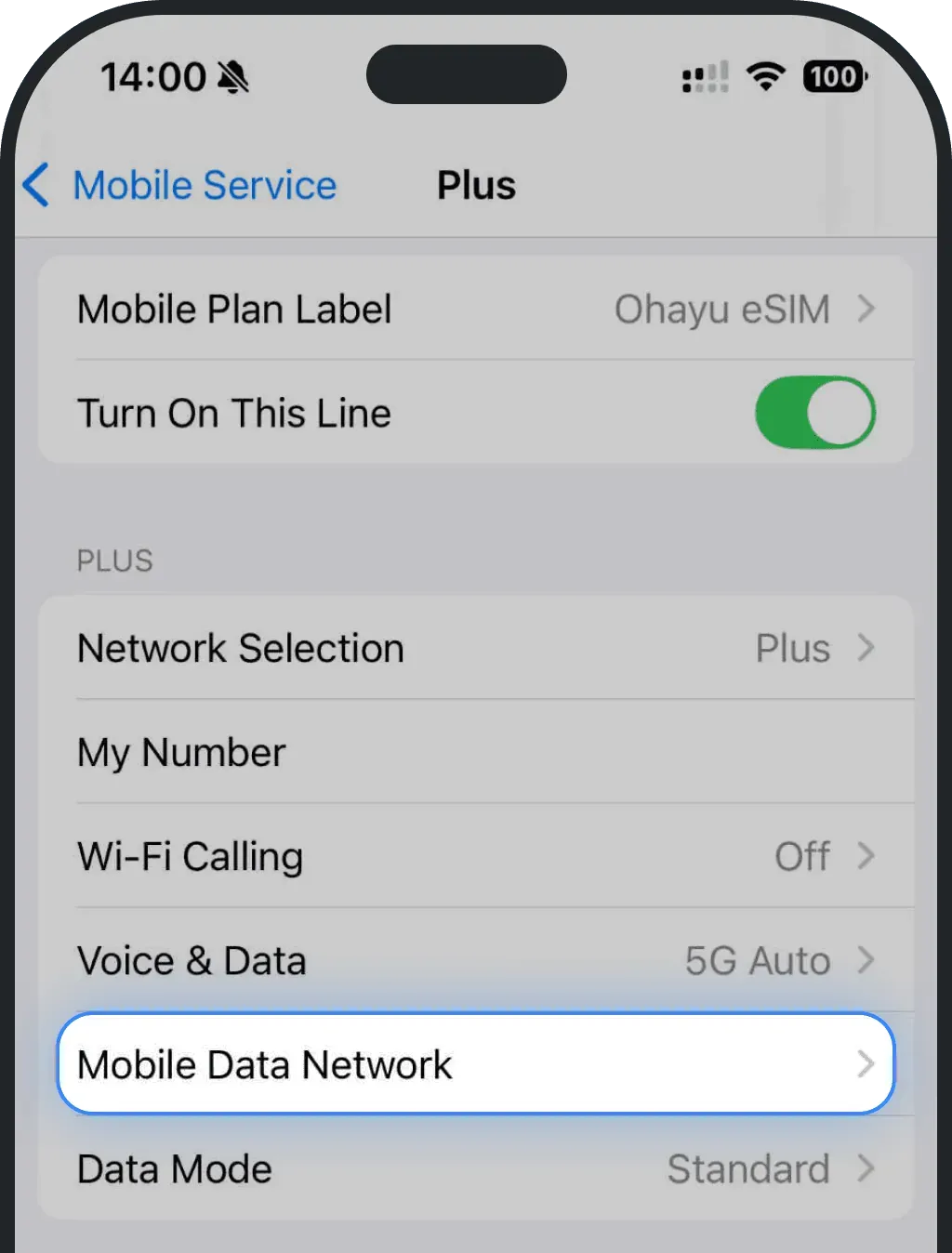
Paste the copied APN into all APN fields
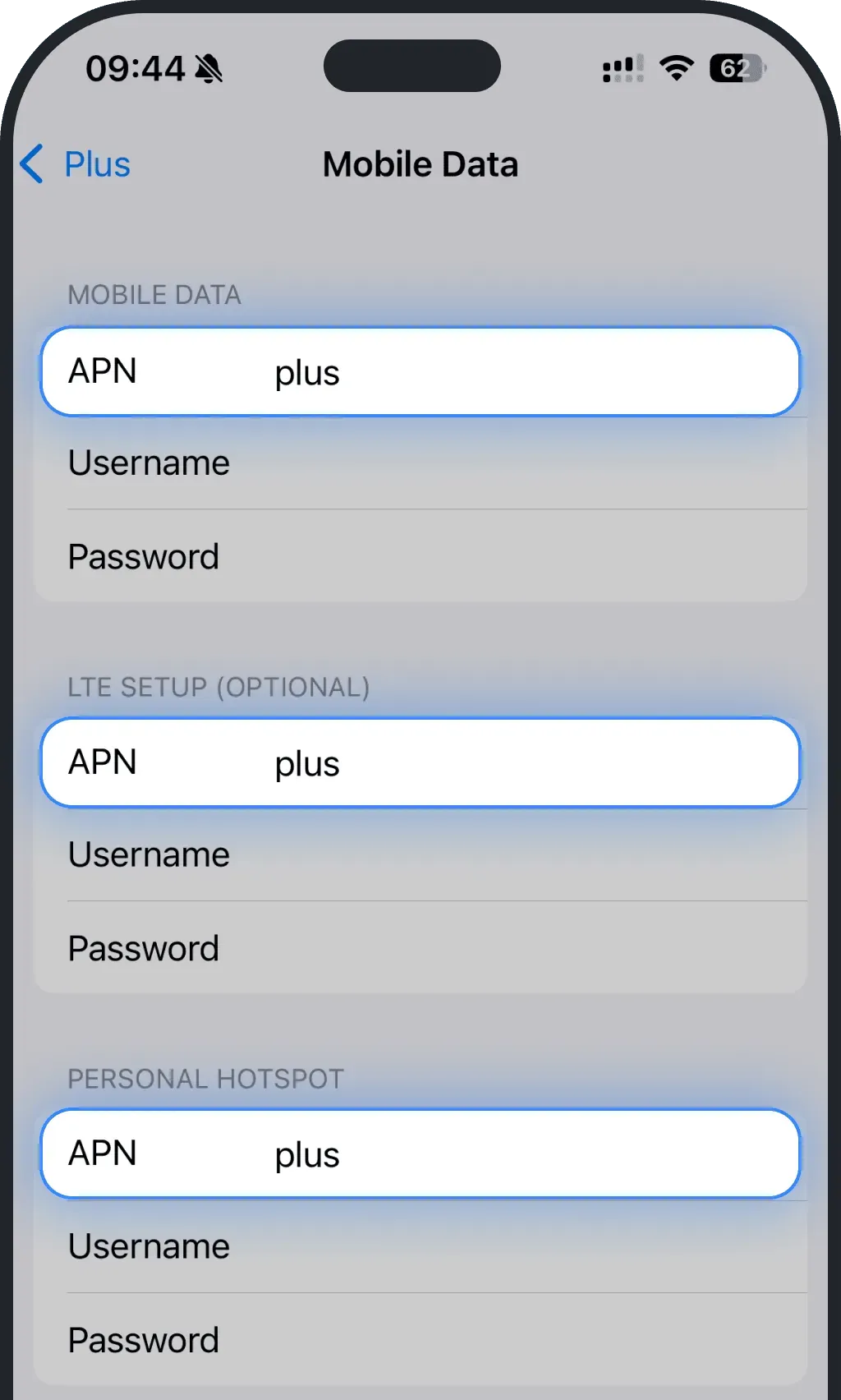
- Leave all other fields blank
Android
Go to Settings
Tap Connections
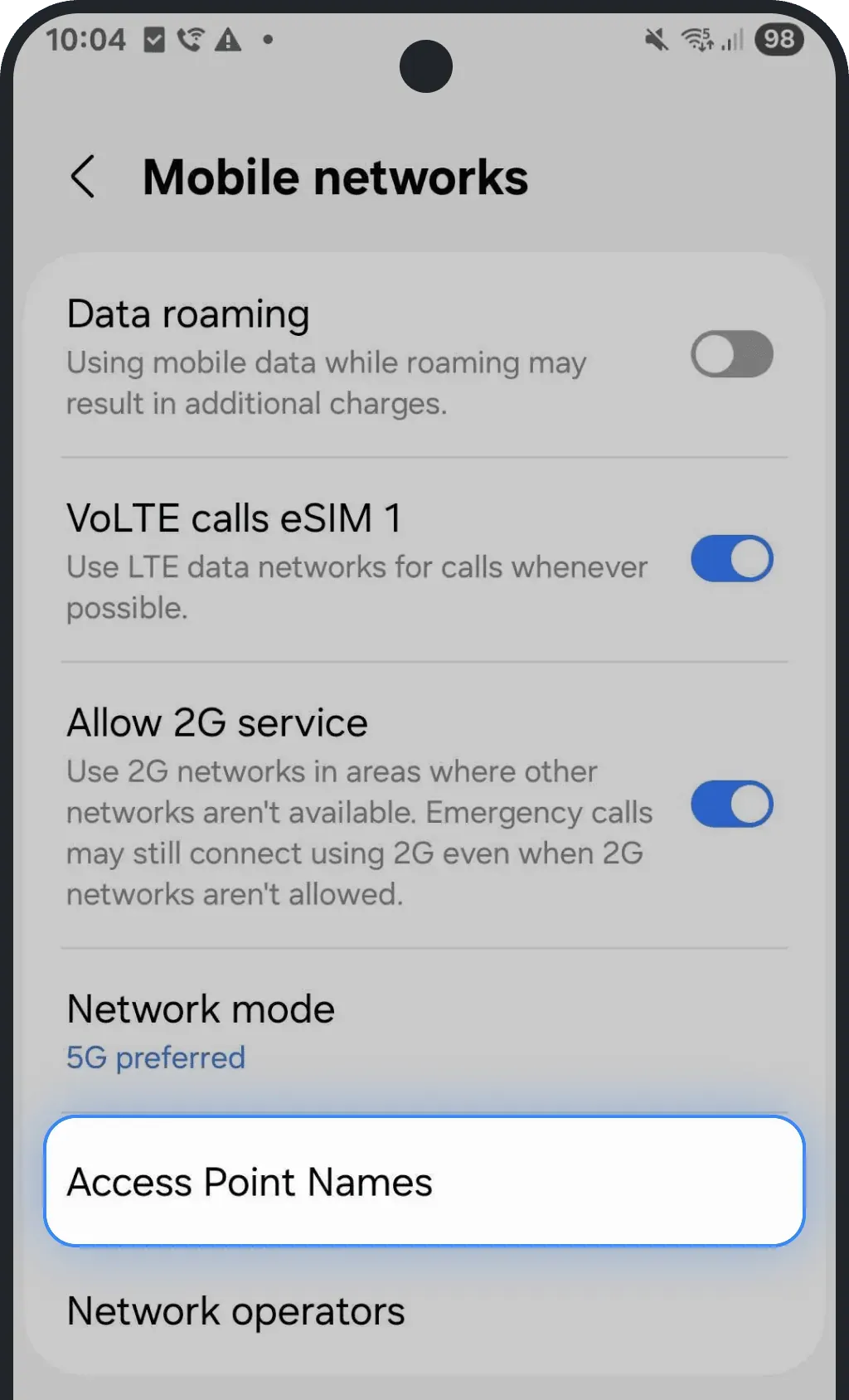
Choose Mobile networks
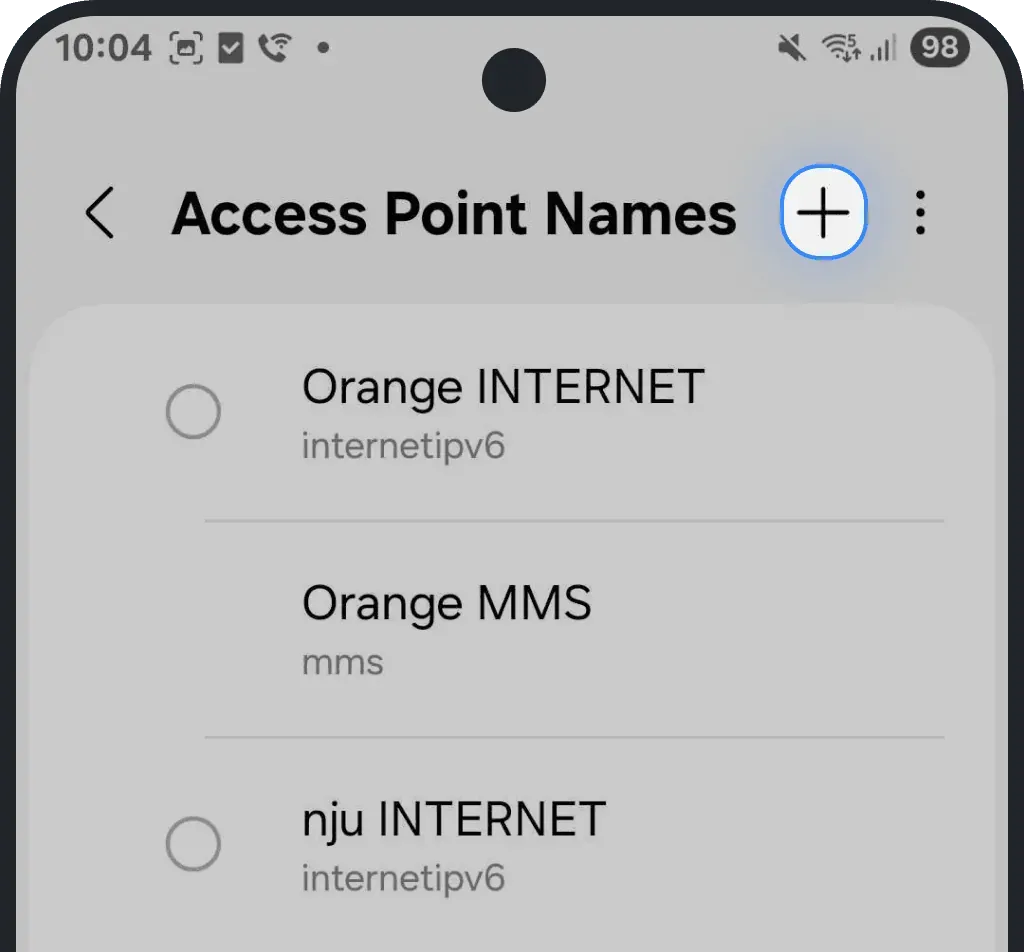
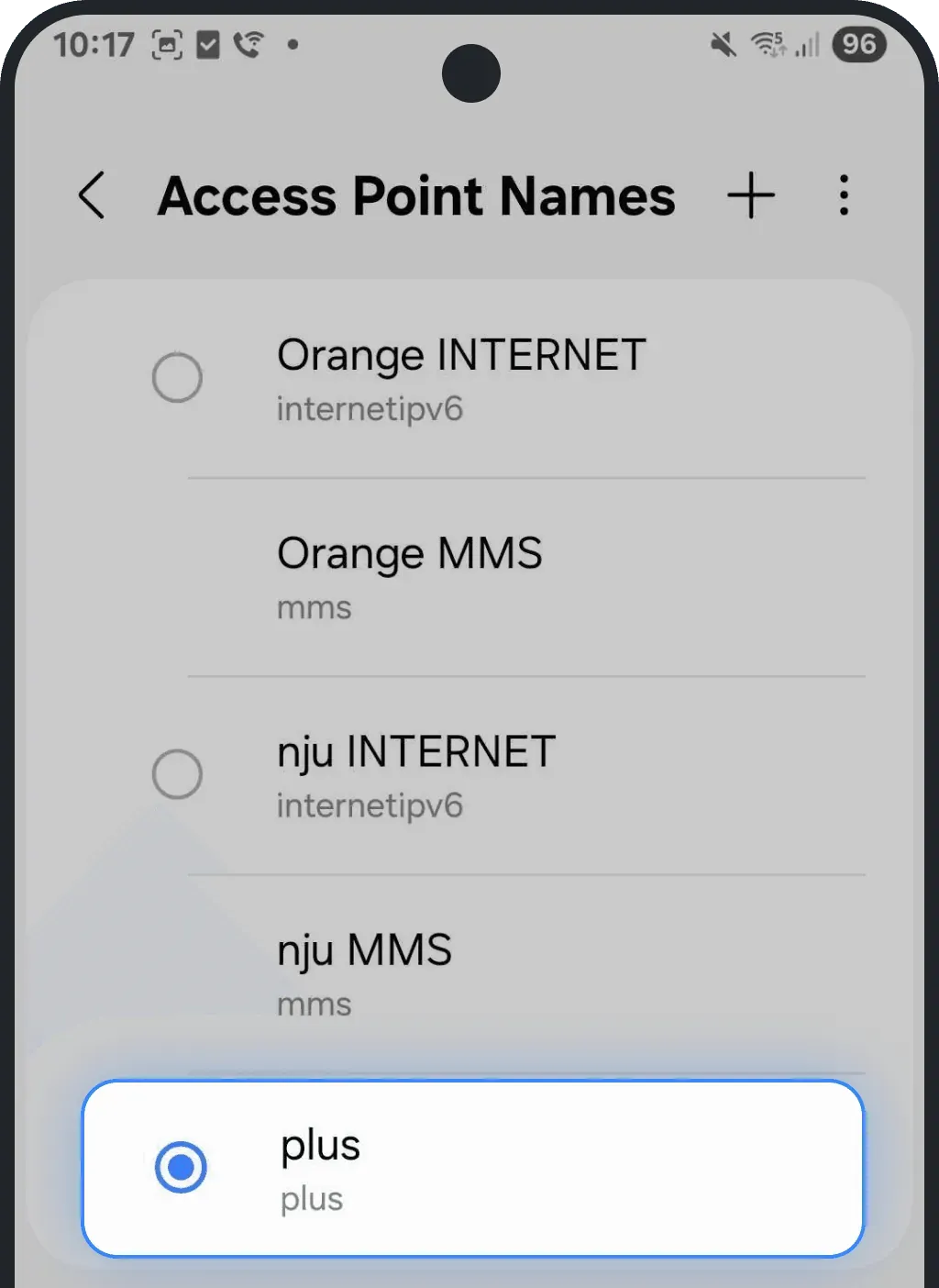
Tap Access Point Names
Tap Add (or the + icon)
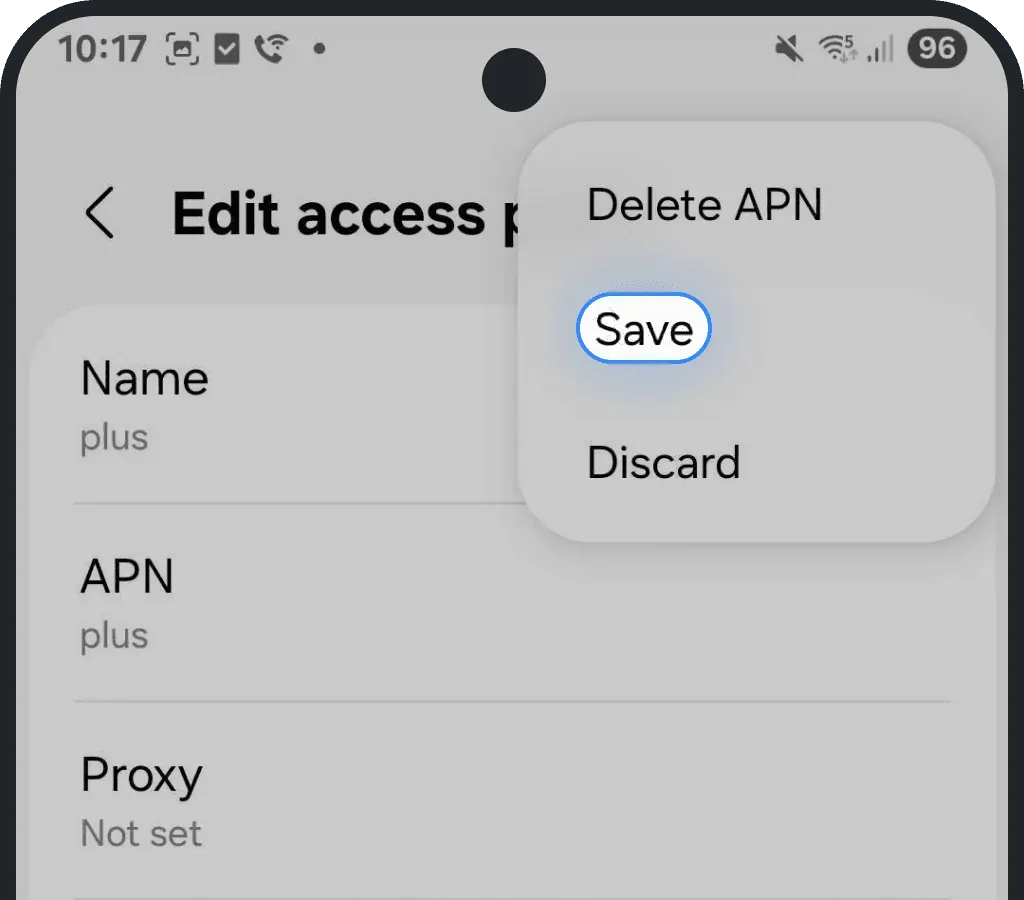
Enter the copied APN in both the Name and APN fields
- Leave other fields blank
Tap the three dots in the top-right corner and press Save
Select the new APN to enable it
7. Your device software is outdated
If your phone runs an outdated version of iOS or Android, it can cause connection issues or prevent your eSIM from working correctly. Update your software to the latest version to ensure full eSIM compatibility and stable network performance.
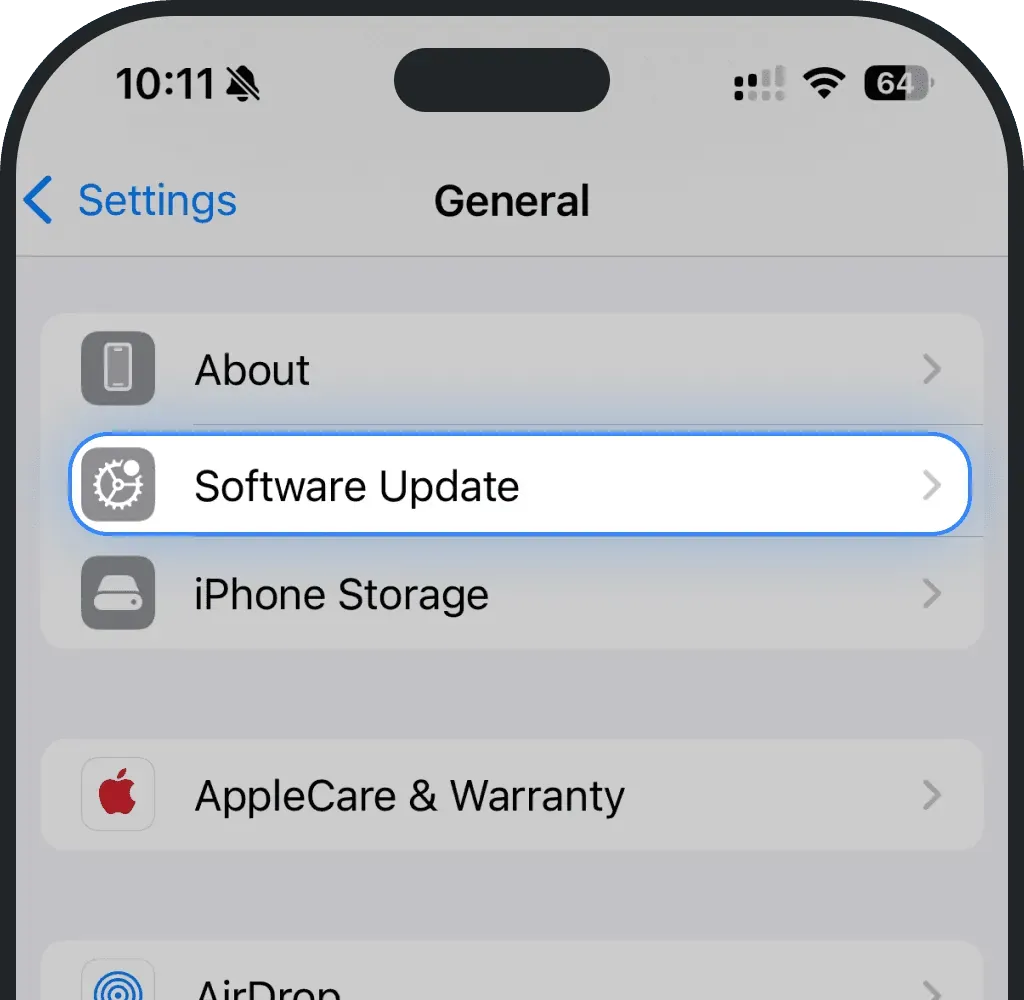
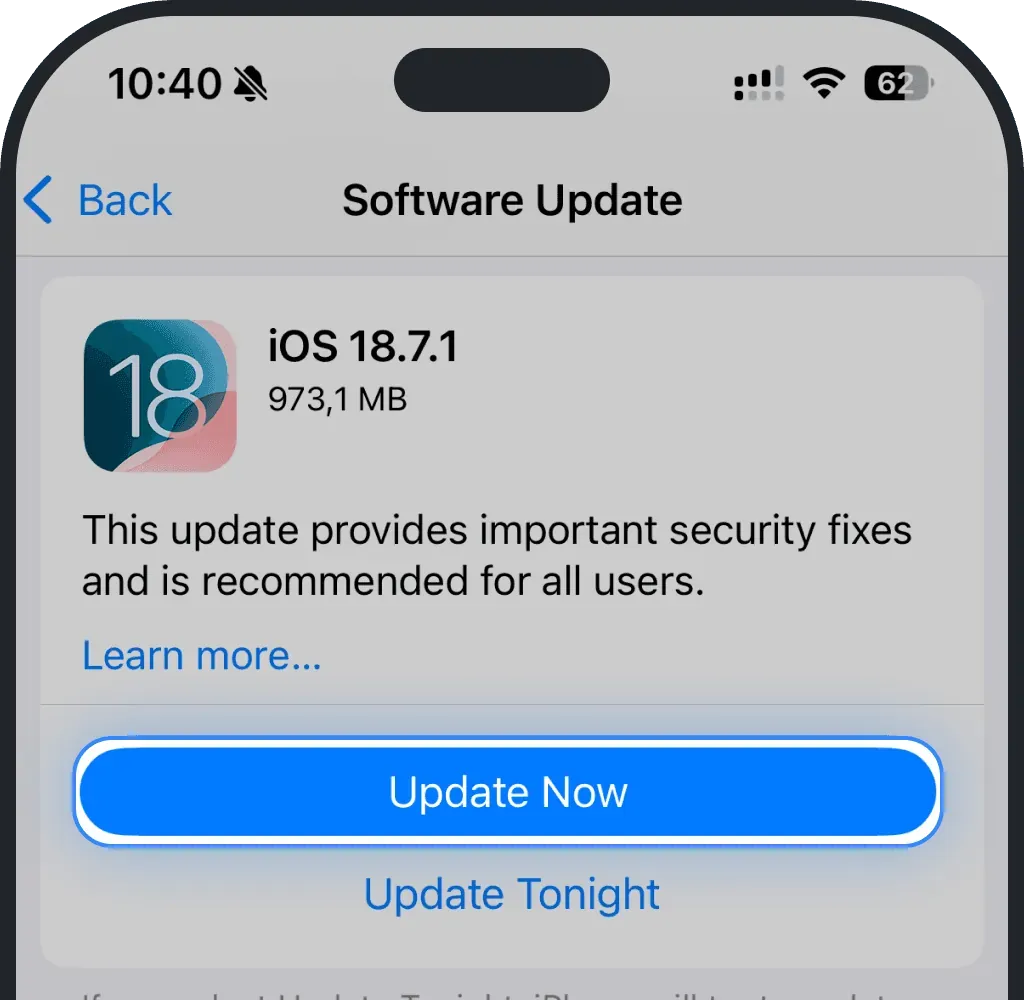
Update software on iOS (iPhone)
Go to Settings.
Tap General.
Tap Software Update.
Choose Update Now.
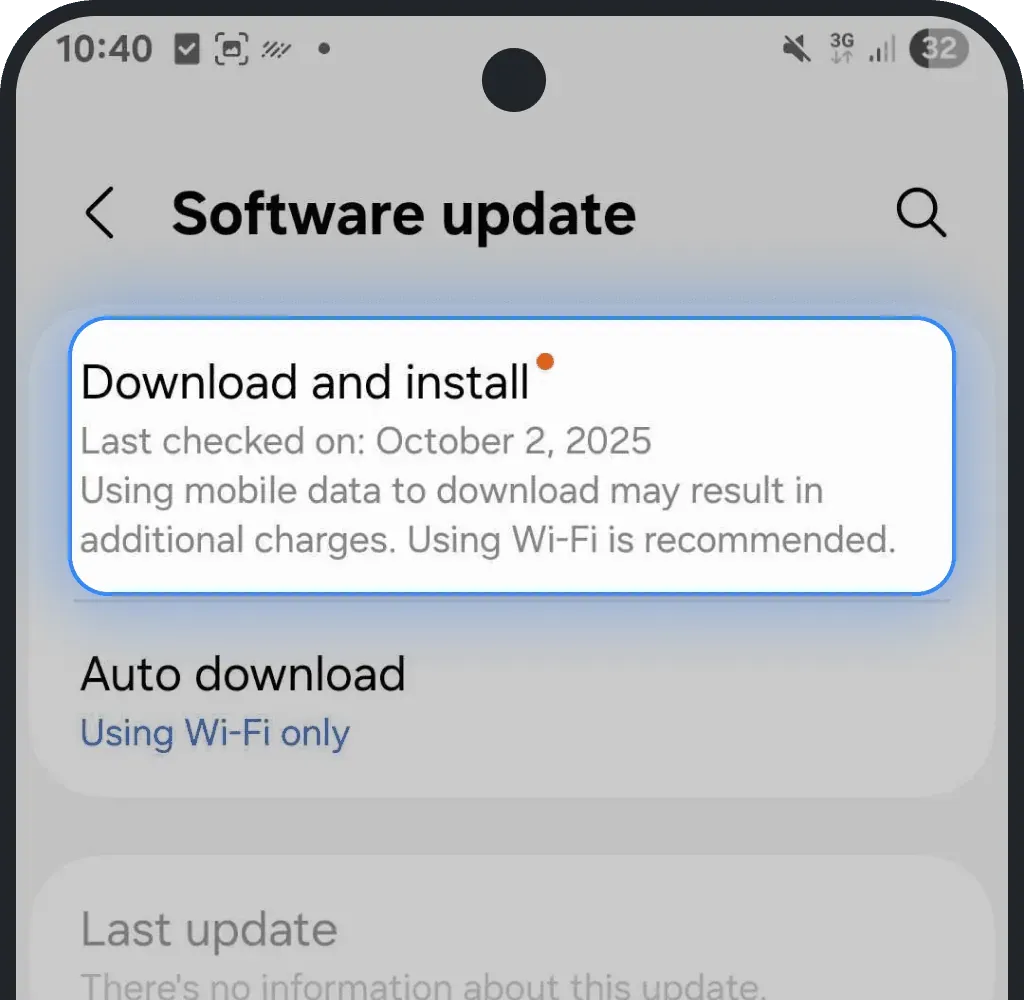
Update software on Android
Go to Settings.
Tap Software update.
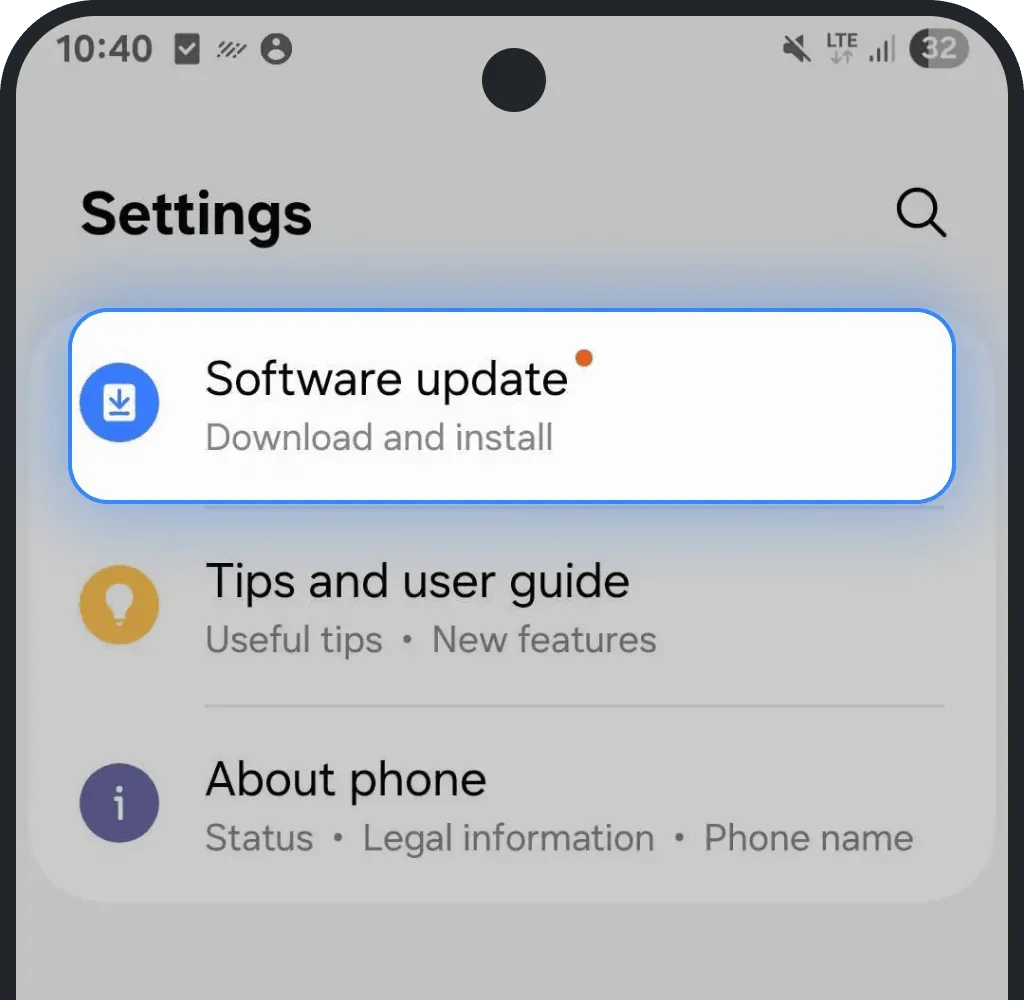
Tap Download and install, confirm.
8. You have enterprise or MDM restrictions
If your company, school, or organization manages your phone, the IT department might control which SIM profiles you can add or remove. Enterprise or MDM (mobile device management) policies often block eSIM installation, data plan changes, or even access to certain network settings. How to check:
- On iPhone: Settings > General > VPN & Device Management.
- On Android: Settings > Security > Device admin apps or Work profile settings.
If you see a work or organization profile, contact your IT administrator and ask them to temporarily allow eSIM setup. Once approved, you can install the eSIM normally.
9. Your device requires a simple restart
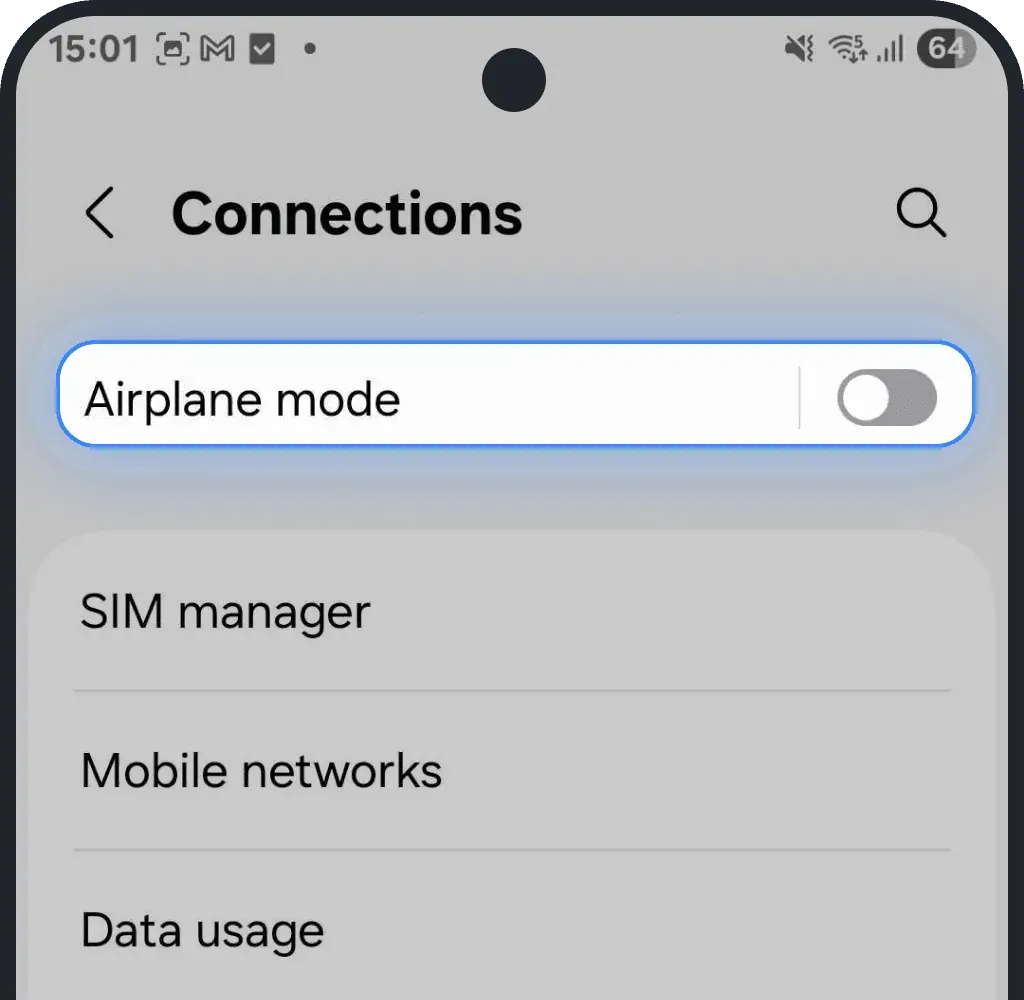
A simple restart often solves temporary problems with eSIM not working. Rebooting or toggling Airplane Mode refreshes the system and clears small network issues that might block your eSIM from connecting.
How to turn on Airplane Mode
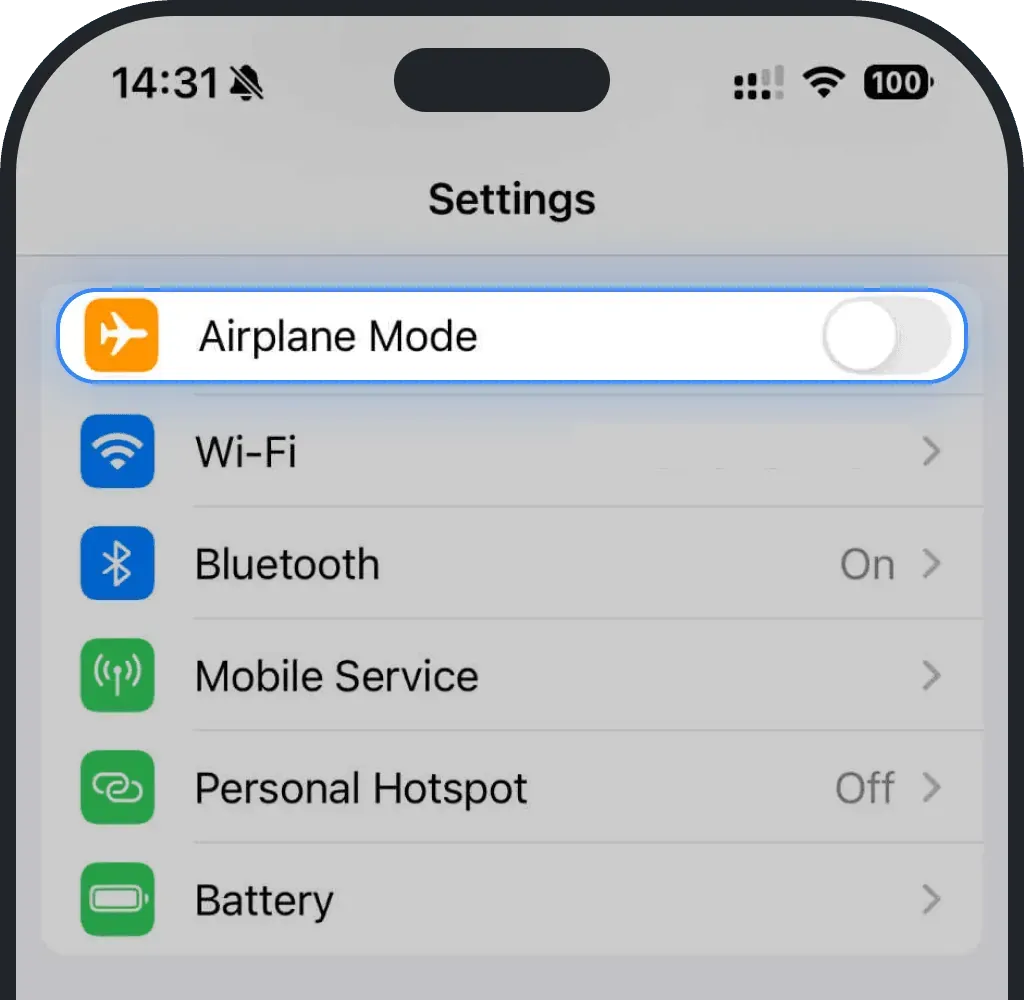
iOS (iPhone)
Go to Settings.
Turn on Airplane Mode.
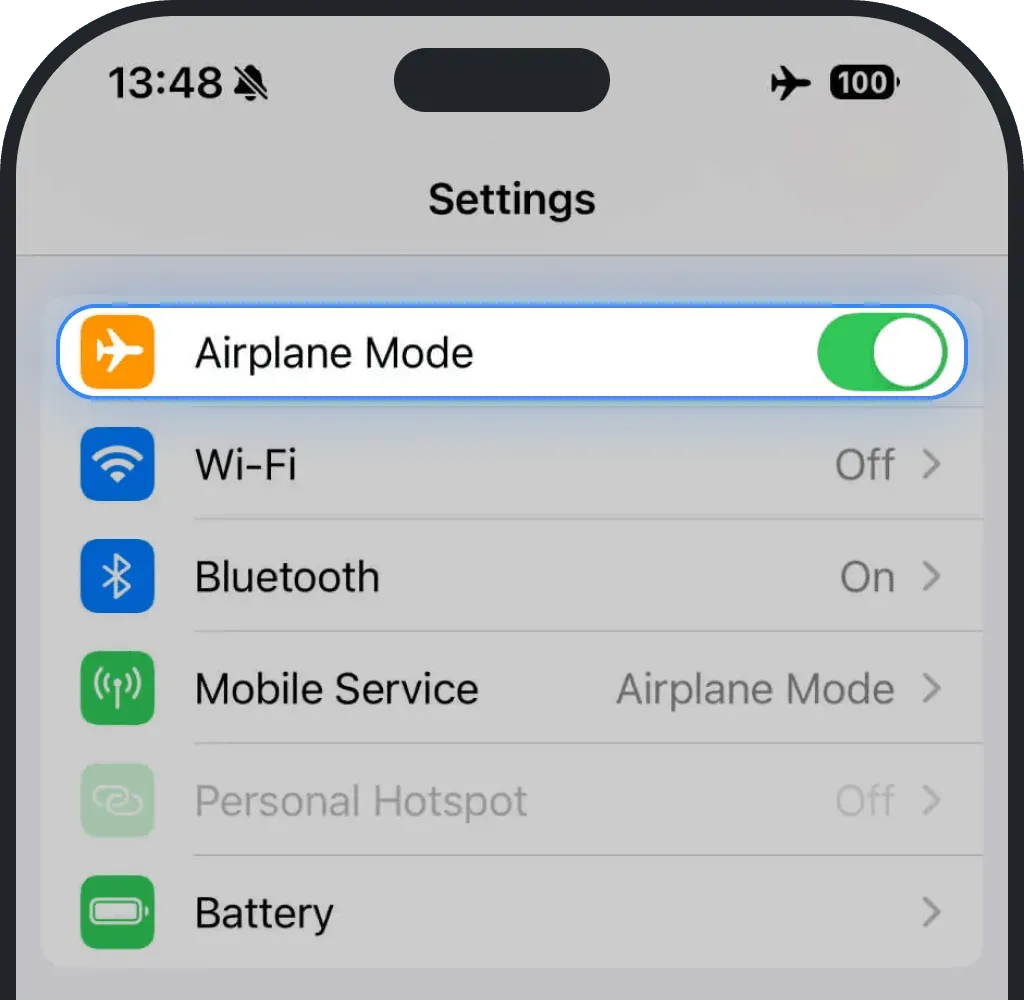
- Wait at least 10 seconds.
Turn off Airplane Mode.
Android
Go to Settings.
Tap Connections.
Turn on Airplane Mode.
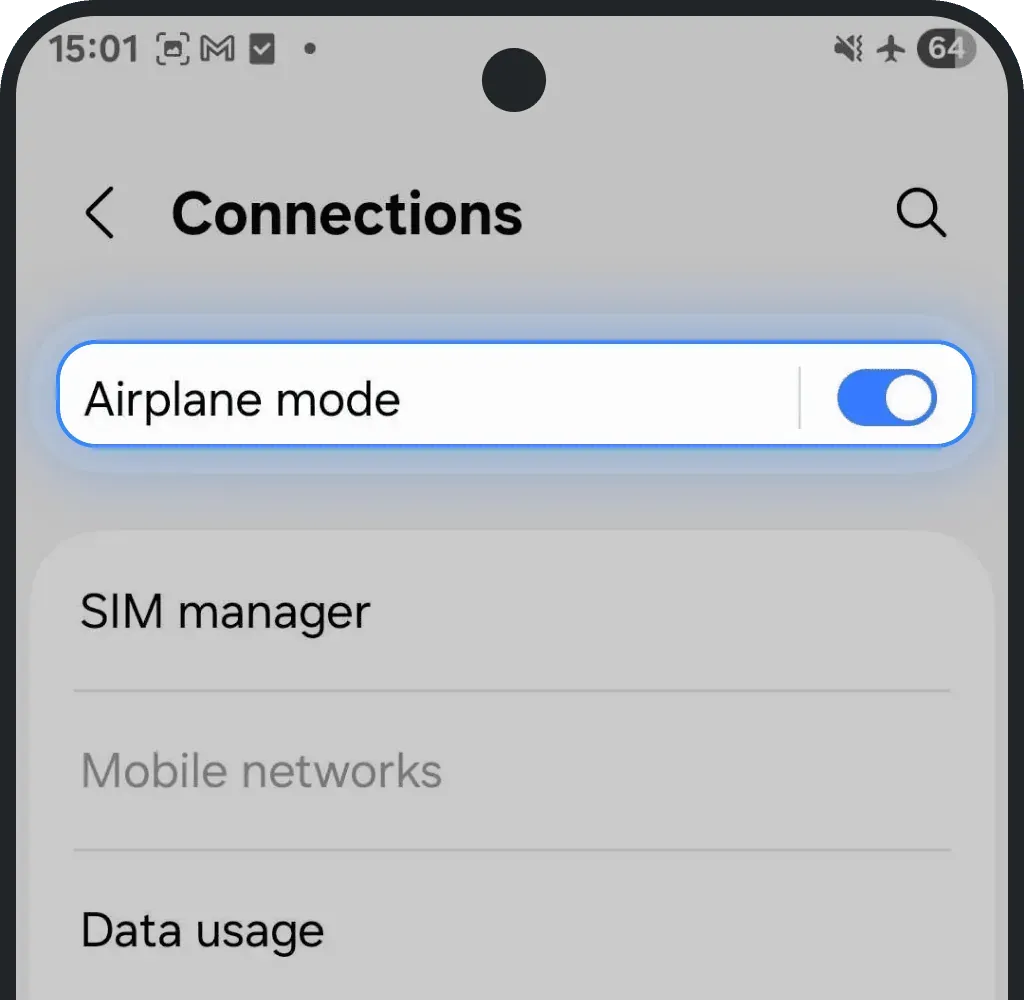
- Wait at least 10 seconds.
Turn off Airplane Mode.
How to reboot your phone
iOS (iPhone)
- Hold the side button and either volume button until the power slider appears.
- Drag the slider to turn the iPhone off.
- After the screen goes black, hold the side button again until the Apple logo shows.
Android
- Press and hold the power button, or power + volume down together until the power menu appears.
- Tap Restart or Power Off.
- Press and hold the power button until the device turns on.
Was this article helpful?
Your feedback helps us improve our FAQ