I don’t have another phone and cannot scan the QR code.
No worries — you have several easy ways to install your eSIM directly from your phone.
Option 1: Manual installation
You can install your eSIM manually by entering the activation details in your device’s eSIM settings — no QR code needed.
Option 2: Install directly from phone
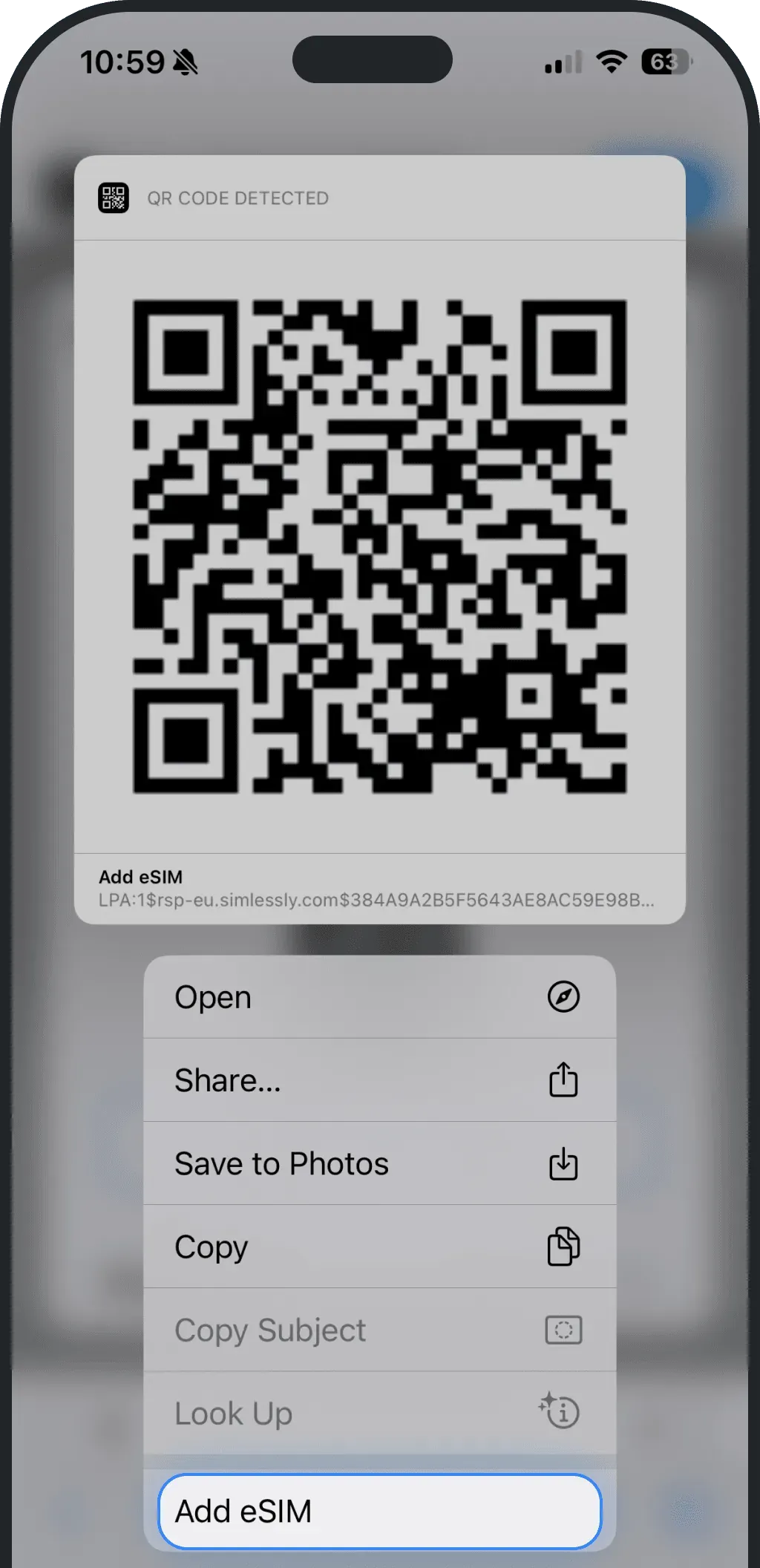
iPhone (iOS 17.4 or newer)
Just tap the QR code image — it will instantly show “Add eSIM”. This only works in Safari — not inside the Ohayu app or browsers like Chrome/Mozilla
Android
- Take a screenshot of your QR code by pressing the power button and volume down button simultaneously
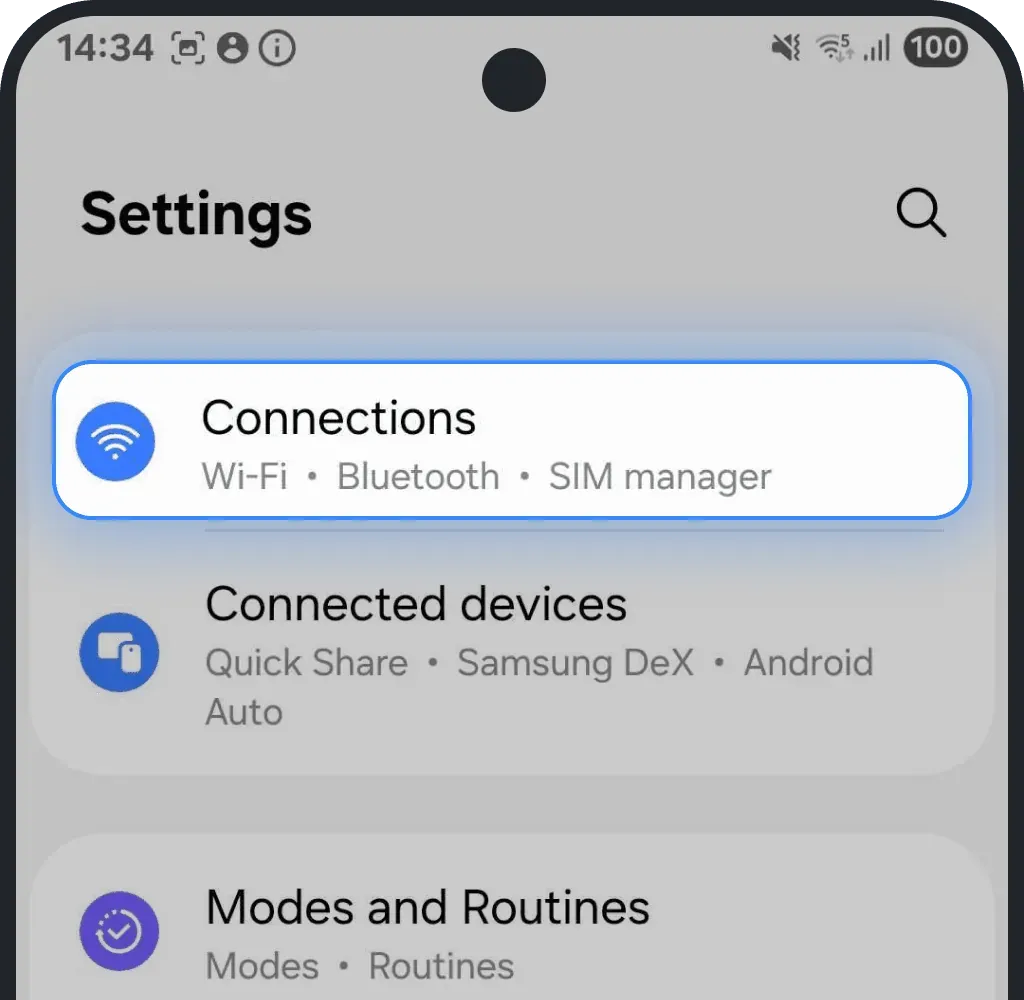
Go to the section for mobile network or SIM settings (This might be called "Network & Internet," "Connections," or similar)
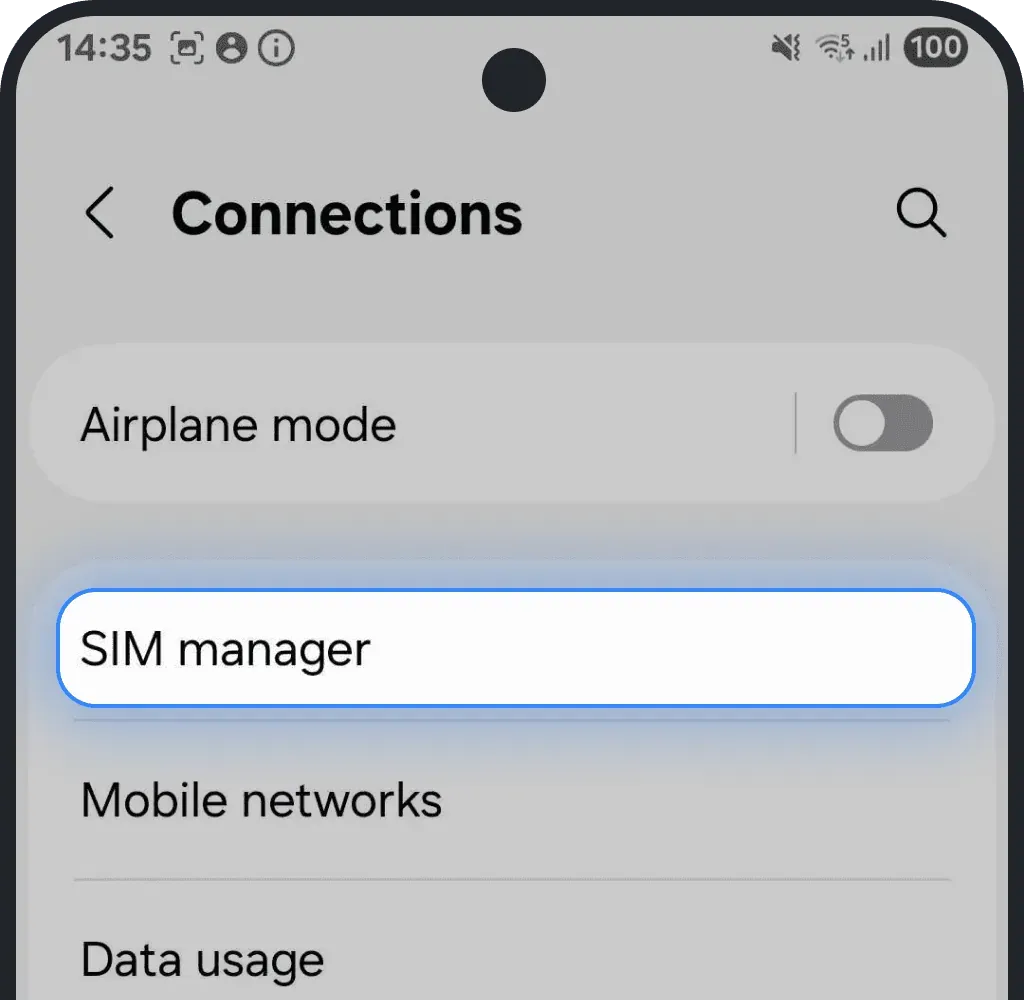
Tap SIM manager (or similar)
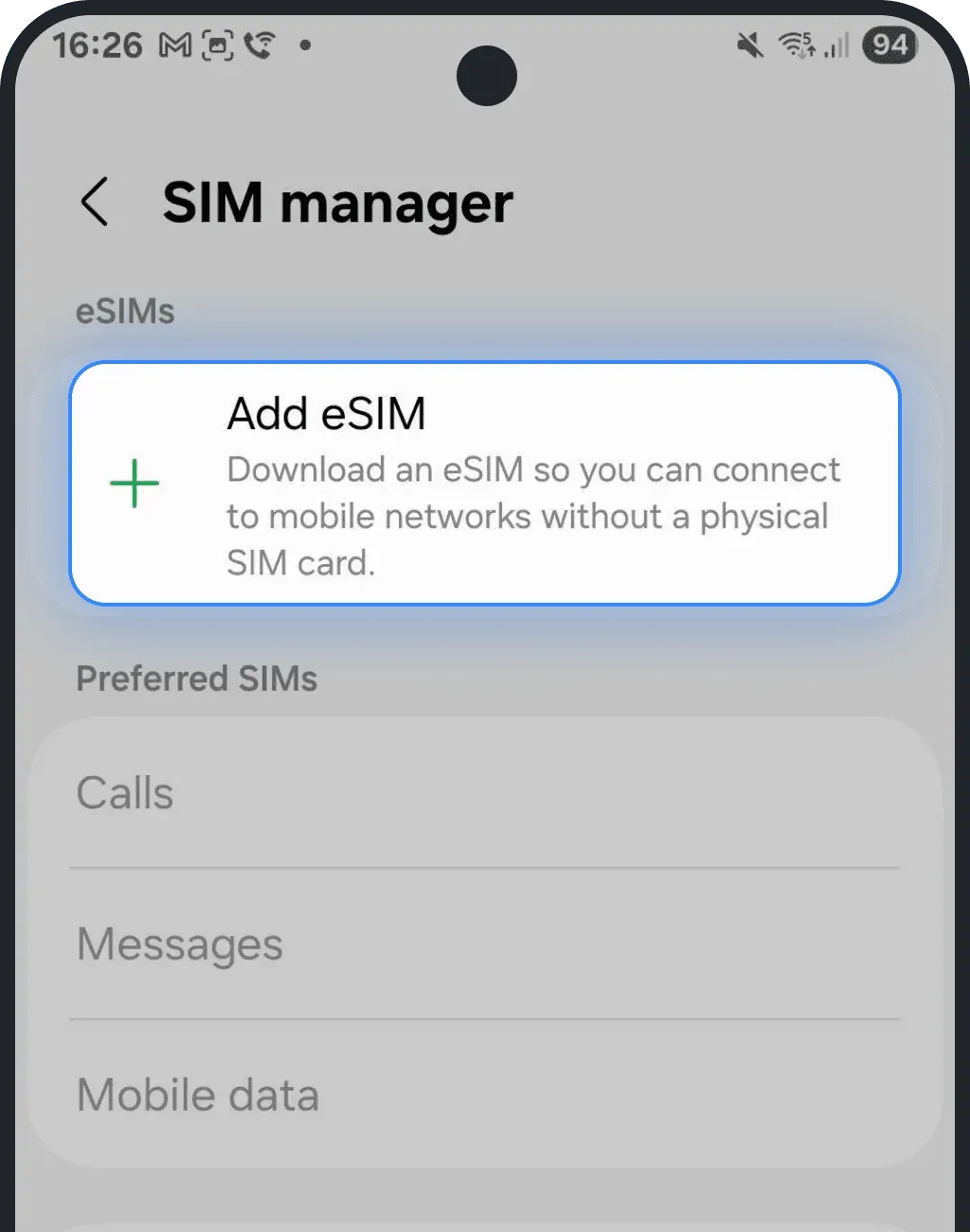
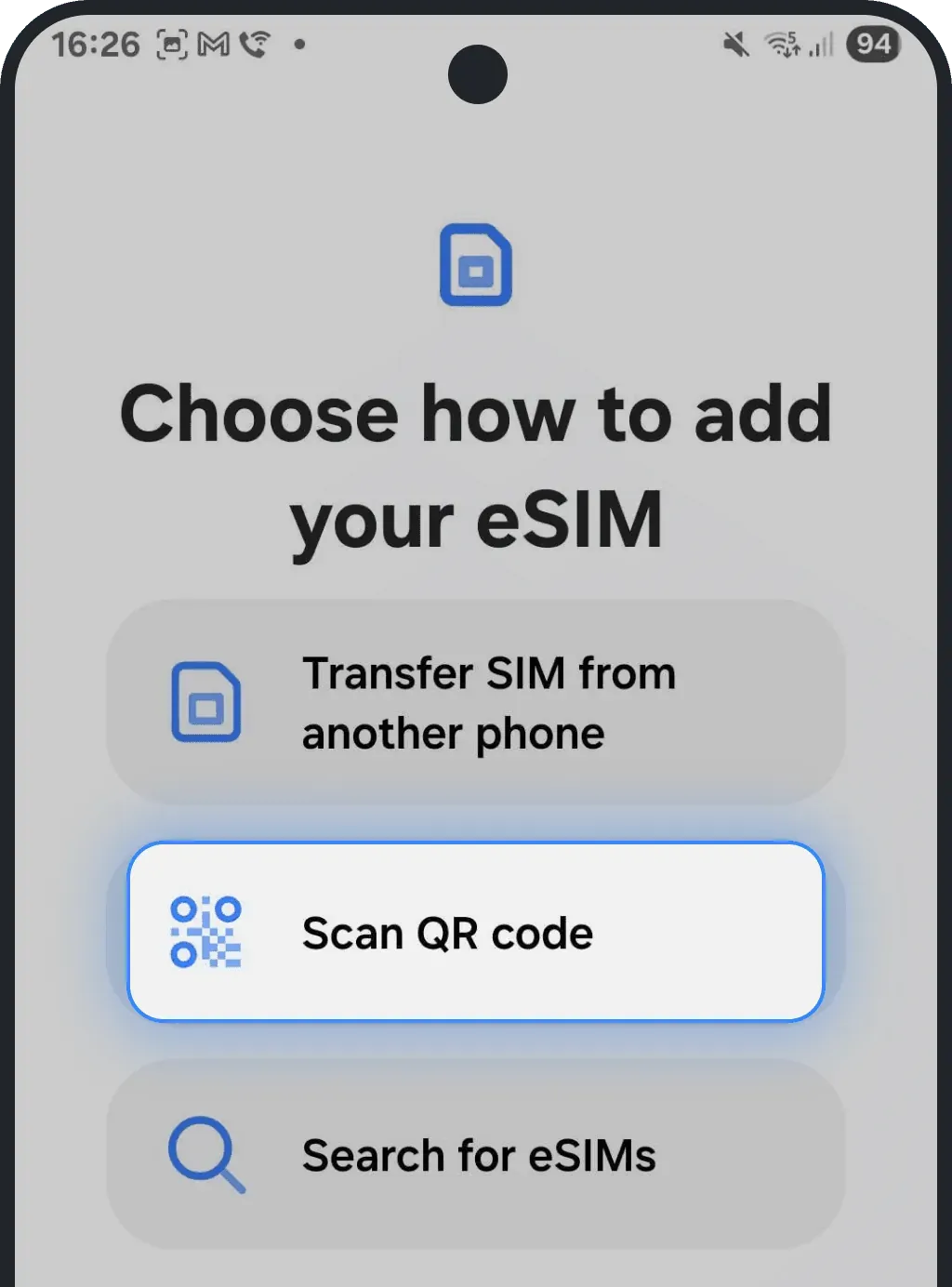
Look for an option like "Add eSIM" or "Add Mobile Plan" (wording may vary by device)
Select "Scan QR code"
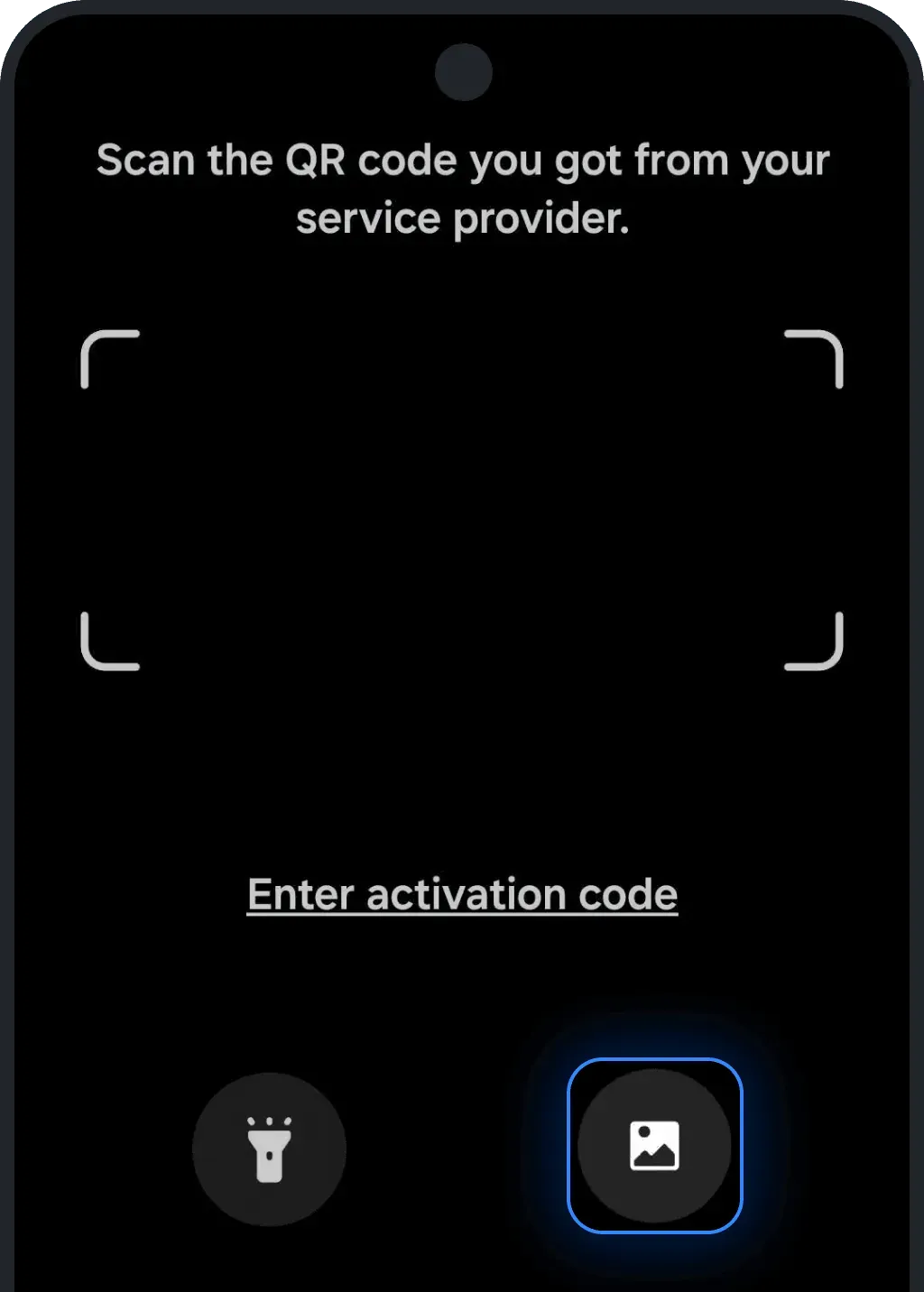
Tap Scan from photo or similar image icon
Select the screenshot with the QR code
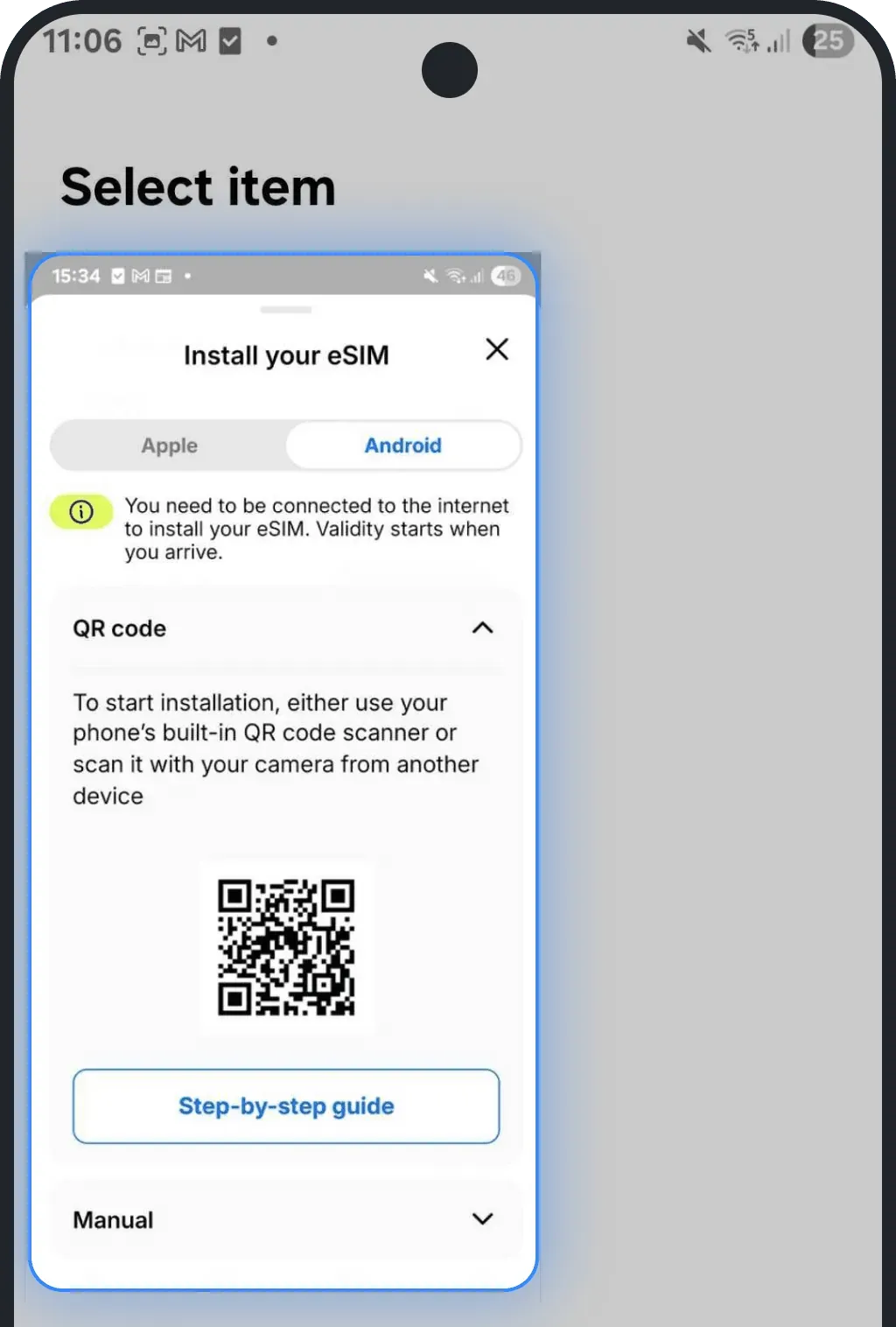
- Tap Set up and follow the instructions to download and install your eSIM
Other easy options
If the above methods don’t work, try one of these:
- Open the QR code on a computer or tablet screen and scan it from there
- Use a mirror to reflect the QR code back to your phone’s camera
- Print the QR code on paper and scan it physically
Was this article helpful?
Your feedback helps us improve our FAQ